
Introduction
This manual provides essential information for the proper use and maintenance of your kathluce Stylus Pen, Model 6WP-KC. Please read these instructions carefully to ensure optimal performance and longevity of your device. This stylus pen is designed to enhance your interaction with compatible iPad models, offering features such as fast charging, tilt sensitivity, and palm rejection.
Setup
1. Package Contents
- kathluce Stylus Pen (Model 6WP-KC)
- Replacement POM Tips (2 included)
- USB-C Charging Cable
- User Manual

Figure 1: Components of the kathluce Stylus Pen, including the main pen body and two replacement tips.
2. Initial Charging
Before first use, fully charge the stylus pen. Connect the provided USB-C charging cable to the pen's charging port and to a compatible USB power source. A full charge typically takes approximately 10 minutes, providing over 10 hours of continuous working time. A 5-minute charge can provide up to 5 hours of working time.

Figure 2: Diagram illustrating the fast charging capability of the stylus pen: 5 minutes of charging provides 4 hours of working time.
3. Pairing with iPad
The stylus pen connects via Bluetooth. To ensure proper functionality, especially palm rejection and tilt sensitivity, it is crucial to disable the 'Only Draw with Apple Pencil' setting on your iPad if it was previously paired with an Apple Pencil.
- Ensure your iPad's iOS system is updated to iOS 12.2 or above.
- Go to Settings on your iPad.
- Navigate to Apple Pencil and disable the option "Only Draw with Apple Pencil". If this option is not present, proceed to the next step.
- Alternatively, go to Notes and disable "Draw with Apple Pencil only".
- Turn on the kathluce Stylus Pen.
- On your iPad, go to Settings > Bluetooth and select the stylus pen from the list of available devices to pair.
Operating Instructions
1. Basic Usage
The stylus pen is designed for intuitive use. Simply turn it on and begin writing, drawing, or navigating on your compatible iPad screen. The 1.5mm POM tip ensures pixel-level accuracy and smooth interaction.

Figure 3: Detailed view of the stylus pen's internal Z1 chip, charcoal fiber shell, and 1.5mm POM tip, highlighting pixel-perfect precision and tilt sensitivity for various drawing styles.
2. Tilt Sensitivity
The stylus pen supports tilt sensitivity, allowing you to create lines of varying thickness and shading by simply changing the angle at which you hold the pen against the screen. This feature provides a more natural drawing and writing experience.
3. Palm Rejection
With advanced palm rejection technology, you can rest your hand comfortably on the iPad screen while using the stylus pen without creating unwanted marks or interference. This allows for a more natural and comfortable creative process.

Figure 4: A user drawing on an iPad with the stylus pen, showcasing high precision and palm rejection technology, allowing the hand to rest comfortably on the screen.
4. Bluetooth Functions and Power Display
Once paired via Bluetooth, the stylus pen offers additional functionalities:
- Single Click: Tap the top of the pen once to return to the iPad's home screen.
- Double Tap: Tap the top of the pen twice to activate the multitasking manager.
- Power Display: The pen's battery level can be viewed in real-time on your iPad's widget screen, providing clear indications of remaining charge.
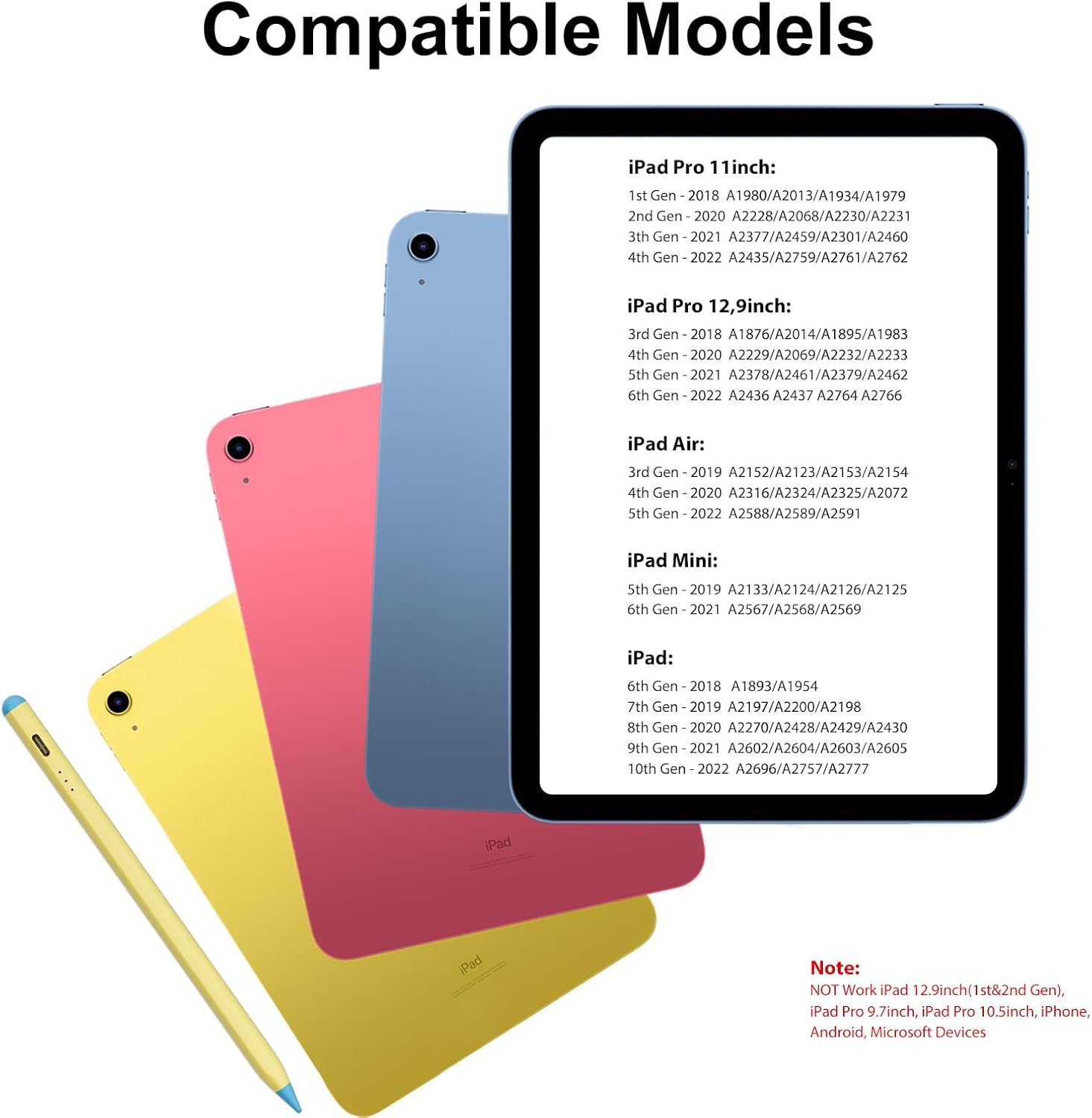
Figure 5: Illustrations of the stylus pen's Bluetooth functions: a single click returns to the home screen, and a double tap activates the multitasking manager.

Figure 6: The stylus pen magnetically attached to an iPad, demonstrating the power display feature showing battery levels (5-30%, 30-70%, 70-100%) and how to connect via Bluetooth.
Compatibility
The kathluce Stylus Pen is compatible with specific iPad models released between 2018 and 2023. Please verify your iPad model number to ensure compatibility.
Compatible iPad Models:
- iPad: 6th, 7th, 8th, 9th, 10th Generation
- iPad Air: 3rd, 4th, 5th Generation
- iPad Pro 11-inch: 1st, 2nd, 3rd, 4th Generation
- iPad Pro 12.9-inch: 3rd, 4th, 5th, 6th Generation
- iPad Mini: 5th, 6th Generation
Incompatible Devices:
- iPad Pro 12.9-inch (1st & 2nd Gen)
- iPad Pro 9.7-inch
- iPad Pro 10.5-inch
- iPhone, Android, Microsoft Devices

Figure 7: A visual guide listing compatible iPad Pro, iPad Air, iPad Mini, and standard iPad models and generations, along with their respective model numbers.
Maintenance
1. Cleaning
To clean the stylus pen, gently wipe the body with a soft, dry, lint-free cloth. Avoid using abrasive materials or harsh chemicals, as these can damage the pen's finish or internal components.
2. Tip Replacement
The stylus pen comes with two replacement POM tips. If the tip becomes worn or damaged, it can be easily replaced:
- Gently twist the old tip counter-clockwise to remove it.
- Align a new tip with the pen's end and twist it clockwise until it is securely fastened. Do not overtighten.
3. Storage
Store the stylus pen in a cool, dry place away from direct sunlight and extreme temperatures. The magnetic attraction feature allows it to securely attach to the side of compatible iPads, preventing loss and making it easily accessible.
Troubleshooting
| Issue | Possible Cause | Solution |
|---|---|---|
| Stylus not connecting or working | Low battery; Incorrect iPad settings; Bluetooth not enabled or paired. | Charge the stylus pen fully. Ensure iPad iOS is 12.2 or above. Disable "Only Draw with Apple Pencil" in iPad Settings > Apple Pencil or Notes. Enable Bluetooth on iPad and pair the stylus. |
| Inconsistent performance or lag | iPad software issue; Stylus tip worn; Interference. | Restart your iPad. Replace the stylus tip if it appears worn. Ensure no other Bluetooth devices are causing interference. |
| Palm rejection not working | "Only Draw with Apple Pencil" is enabled. | Refer to the "Pairing with iPad" section to disable the conflicting setting. |
| Stylus automatically shuts off | Power-saving feature. | The stylus pen is designed to automatically shut off after 5 minutes of inactivity to save power. This is normal operation. |
Specifications
- Model Number: 6WP-KC
- Product Dimensions: 6.4 x 0.35 x 0.35 inches
- Item Weight: 0.45 ounces
- Material: Aluminum
- Battery Type: 1 Lithium Polymer battery (included)
- Charging Time: Approximately 5-10 minutes for full charge
- Working Time: Over 10 hours after full charge; 5 hours after 5-minute charge
- Standby Time: Up to 365 days
- Automatic Shut-off: After 5 minutes of inactivity
- Tip Material: 1.5mm POM
- Features: Tilt Sensitivity, Palm Rejection, Magnetic Attachment, Bluetooth Functions, Power Display
Warranty and Support
kathluce offers a 12-month After-Sales Service and Free Lifetime Technical Support for the Stylus Pen, Model 6WP-KC. Our professional After-Sales Team is committed to providing a prompt response within 24 hours for any inquiries or issues you may encounter.
For technical assistance or warranty claims, please refer to the contact information provided with your product packaging or visit the official kathluce support website.