
1. Introduction
Thank you for choosing the UseeLink Zigbee Smart Power Strip. This manual provides essential information for the safe and efficient operation of your device. Please read it thoroughly before use and retain it for future reference.
This smart power strip features four individually controlled AC outlets, two USB-A ports, and one USB-C port, offering versatile power and charging solutions. It integrates with Zigbee 3.0 gateways for smart home control via popular platforms like Amazon Alexa and Google Assistant, enabling voice control, remote management, and scheduling.
2. Safety Information
- Indoor Use Only: This device is designed for indoor use in dry locations. Do not expose it to water, moisture, or high humidity.
- Electrical Rating: Do not exceed the maximum load of 3500W or 16A. Overloading can cause overheating and fire.
- Grounding: Ensure the power strip is plugged into a grounded outlet.
- Children Safety: Keep out of reach of children.
- Disassembly: Do not attempt to disassemble, repair, or modify the device. Contact qualified service personnel for assistance.
- Surge Protection: The power strip includes built-in surge protection. However, for critical electronics, additional protection may be advisable.
- Cleaning: Disconnect from power before cleaning. Use a dry, soft cloth. Do not use liquid cleaners.
3. Product Overview
The UseeLink Zigbee Smart Power Strip (Model SM-302E-PA20) is a versatile power solution for your smart home. It features four standard European (Schuko) outlets, two USB-A ports, and one USB-C port, all housed in a durable white casing.

Figure 3.1: Front view of the UseeLink Zigbee Smart Power Strip, illustrating its three European sockets and three USB ports (two USB-A, one USB-C) with a device connected for charging.
Key features include:
- 4 Individually Controlled AC Outlets: Each outlet can be controlled independently via the app or voice commands.
- 3 USB Charging Ports: Includes 1x Type-C (PD 20W) and 2x USB-A (3.5A total output) for fast charging of mobile devices.
- Zigbee 3.0 Protocol: Compatible with various Zigbee gateways (e.g., Tuya Hub, Philips Hue) for seamless smart home integration.
- Voice Control: Works with Amazon Alexa and Google Assistant for hands-free operation.
- Remote Control: Manage connected devices from anywhere using the Smart Life/Tuya app.
- Scheduling & Timers: Set custom schedules to automatically turn devices on/off, optimizing energy consumption.
- Overvoltage Protection: Integrated protection against power surges.
- Wall Mountable: Designed for convenient wall installation.

Figure 3.2: Dimensions and key physical features of the UseeLink Smart Power Strip.
Video 3.1: A Closer Look at the UseeLink Smart Power Strip. This video provides a detailed visual overview of the UseeLink Smart Power Strip, highlighting its design, ports, and physical features.
4. Specifications
| Feature | Specification |
|---|---|
| Model Number | SM-302E-PA20 |
| Input Voltage | 110-240 V ~ 50 Hz |
| Rated Current | 16 A |
| Maximum Power | 3500 W |
| USB-C Output | PD 20W |
| USB-A Output | 3.5 A (total for 2 ports) |
| Wireless Protocol | Zigbee 3.0 |
| App Compatibility | iOS/Android (Smart Life/Tuya) |
| Voice Control | Alexa, Google Assistant |
| Product Dimensions | 200 x 100 x 29 mm |
| Material | Acrylonitrile Butadiene Styrene (ABS) |
| Certifications | CE, REACH, RoHS |
| Cable Length | 1.5 meters |
5. Setup
5.1 Physical Installation
- Placement: Choose a suitable indoor location away from moisture and direct heat.
- Wall Mounting (Optional): The power strip is designed with keyhole slots on the back for wall mounting. Use appropriate screws (not included) to secure it to a wall or surface.
- Connect to Power: Plug the power strip's main plug into a grounded electrical outlet. The master power indicator will light up.
5.2 App Installation and Device Pairing
- Download App: Download the 'Smart Life' or 'Tuya Smart' app from the App Store (iOS) or Google Play Store (Android).
- Register/Login: Open the app and register for a new account or log in with an existing one.
- Add Device: Ensure your Zigbee 3.0 gateway (e.g., Tuya Hub, Philips Hue) is already set up and connected to the app. In the app, tap '+' to add a new device. Select 'Power Strip (Zigbee)' or similar.
- Pairing Mode: Press and hold the master power button on the power strip for approximately 5-10 seconds until the indicator light starts blinking rapidly. This indicates it's in pairing mode.
- Complete Pairing: Follow the on-screen instructions in the app to complete the pairing process. Once connected, you can rename the power strip and its individual outlets/USB ports.
6. Operating Instructions
6.1 Manual Control
Press the master power button on the power strip to turn all connected AC outlets and USB ports on or off simultaneously.
6.2 App Control
Once paired with the Smart Life/Tuya app, you can control the power strip from your smartphone or tablet:
- Individual Outlet Control: Tap on the power strip in the app. You will see separate controls for each AC outlet and the combined USB ports. Tap to toggle them on/off.
- Remote Control: Control your devices from anywhere with an internet connection.

Figure 6.1: Remote control of the power strip via the Smart Life/Tuya app.
6.3 Voice Control
Integrate the Smart Life/Tuya app with Amazon Alexa or Google Assistant for voice control:
- Link Accounts: In your Alexa or Google Home app, enable the 'Smart Life' or 'Tuya Smart' skill/service and link your accounts.
- Discover Devices: Ask Alexa or Google Assistant to discover new devices.
- Voice Commands: Use commands like:
- "Alexa, turn on [Outlet Name]"
- "Hey Google, turn off [Power Strip Name]"

Figure 6.2: Voice control functionality with a smart speaker.
6.4 Scheduling and Timers
Set schedules and timers to automate your devices and save energy:
- Create Schedule: In the Smart Life/Tuya app, select the power strip or an individual outlet. Go to the 'Schedule' or 'Timer' section.
- Set Time: Configure specific times for devices to turn on or off. You can set daily, weekly, or custom schedules.
- Countdown Timer: Use the countdown timer for temporary control, e.g., turn off a device after 30 minutes.
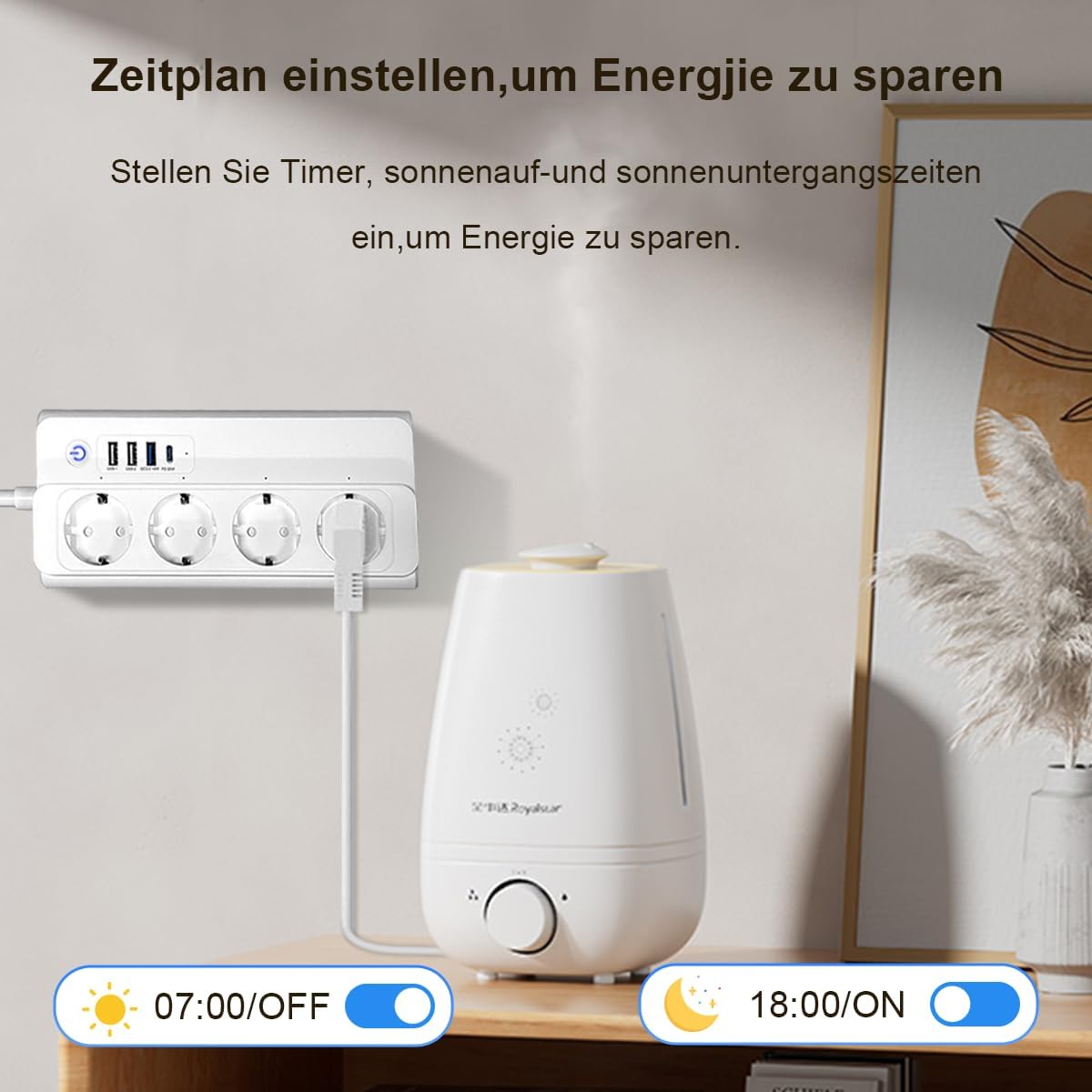
Figure 6.3: Setting schedules to save energy.
6.5 USB Charging
The power strip provides two USB-A ports and one USB-C port for charging mobile devices. The USB-C port supports Power Delivery (PD) 20W for fast charging compatible devices.
6.6 Family Sharing
You can share control of the UseeLink Smart Power Strip with family members through the Smart Life/Tuya app. This allows multiple users to manage the connected devices.
Video 6.1: Product Summary Video. This video summarizes the key functionalities and benefits of the UseeLink Smart Power Strip, including smart control and energy-saving features.
7. Maintenance
- Cleaning: Always unplug the power strip before cleaning. Use a soft, dry cloth to wipe the surface. Do not use abrasive cleaners, solvents, or immerse in water.
- Storage: When not in use for extended periods, store the power strip in a cool, dry place away from direct sunlight and extreme temperatures.
- Inspection: Periodically inspect the power cord and the power strip for any signs of damage. If damaged, discontinue use and contact customer support.
8. Troubleshooting
If you encounter issues with your UseeLink Zigbee Smart Power Strip, refer to the following common solutions:
- Device Not Connecting to App:
- Ensure your Zigbee gateway is powered on and connected to the internet.
- Verify the power strip is in pairing mode (indicator light blinking rapidly).
- Move the power strip closer to the Zigbee gateway during pairing.
- Check your Wi-Fi network (if the gateway uses Wi-Fi) for stability.
- Voice Control Not Working:
- Confirm that the Smart Life/Tuya skill/service is enabled and linked in your Alexa/Google Home app.
- Ensure the device names in the Smart Life/Tuya app are recognized by your voice assistant. Try simple names.
- Check your internet connection.
- Outlets/USB Ports Not Powering On:
- Check if the power strip is properly plugged into a live outlet.
- Verify the master power button is on.
- Check the app to ensure the individual outlet/USB control is toggled on.
- Ensure the connected device is working correctly.
- If an overload occurred, the surge protection might have tripped. Unplug devices, wait a few minutes, and try again.
- Slow Charging via USB:
- Ensure your device supports fast charging (PD for USB-C) to utilize the full charging speed.
- Use high-quality charging cables.
If these steps do not resolve the issue, please contact UseeLink customer support.
9. Warranty and Support
The UseeLink Zigbee Smart Power Strip is certified by CE, REACH, and RoHS, ensuring compliance with safety and environmental standards. UseeLink is committed to providing high-quality products and customer satisfaction.
For any product-related inquiries, technical support, or warranty claims, please contact UseeLink customer service. We offer 7x24 hour customer service and technical support to assist you.
Please refer to your purchase documentation for specific warranty terms and conditions.