
1. Introduction
This manual provides comprehensive instructions for the ShuoLe U25T-P 2.5 Inch SATA External Hard Drive Enclosure. It covers installation, operation, maintenance, and troubleshooting to ensure proper use and longevity of your device. Please read this manual carefully before using the product.
Package Contents
- 2.5 Inch Hard Drive Enclosure x1
- USB-A to USB-C Cable x1
- User Manual x1
Note: A 2.5-inch HDD/SSD is not included in the package.
2. Product Features
- HD LCD Display: Monitors hard drive usage in real-time, displaying disk capacity, run time, power-on count, disk health, operating temperature, and USB voltage. This allows for direct monitoring of hard disk status.
- High-Speed Data Transfer: Supports data transfer speeds up to 5 Gbps (USB 3.2 Gen 1) and is backward compatible with USB 3.0/2.0/1.1. Features UASP technology for enhanced read and write performance when connected to a UASP-compatible host.
- Wide Compatibility: Compatible with 2.5-inch SATA III / II / I HDD & SSD (7mm/9.5mm thickness) up to 8TB. Works with Windows 11/10/8/7/Vista/XP, Mac OS 9/10/11+, and Linux/Chrome OS. Connects to USB-A equipped devices such as laptops, desktops, and tablets. OTG function support for smartphones requires a separate converter.
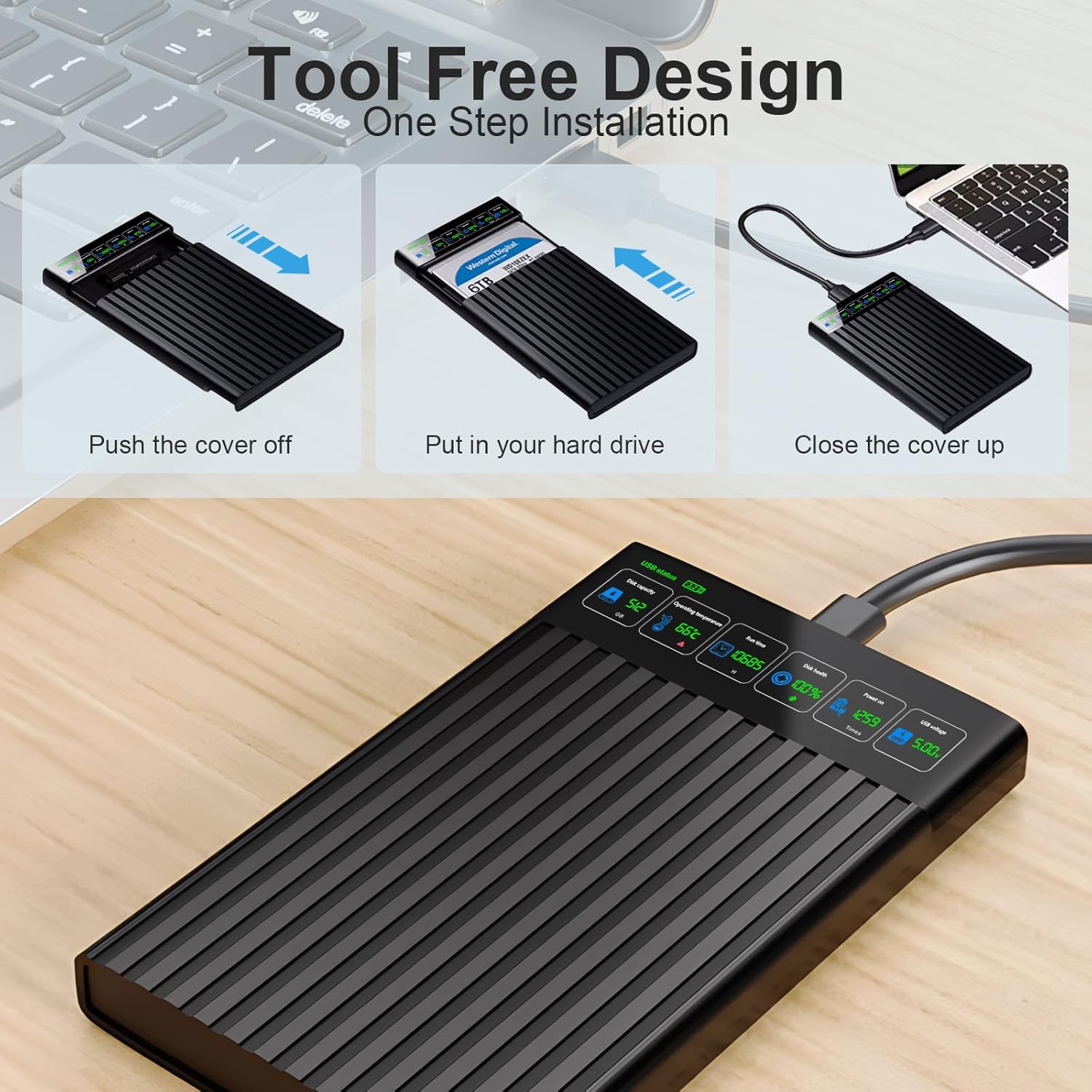
- Tool-Free Design: Allows for quick and easy installation or removal of 2.5-inch SATA drives without tools.
- Integrated Safety Features: Includes over-voltage, over-current, and over-heating protection to safeguard your hard drive and data.
3. Setup Guide
Follow these steps to install a 2.5-inch SATA HDD or SSD into the enclosure.
- Open the Enclosure: Gently push the cover off the enclosure. The tool-free design allows for easy access.
- Install the Hard Drive: Carefully insert your 2.5-inch SATA HDD or SSD into the enclosure, ensuring the SATA connector aligns correctly. The enclosure supports 7mm and 9.5mm drive thicknesses.
- Close the Enclosure: Slide the cover back onto the enclosure until it clicks securely into place.

4. Operating Instructions
4.1 Connecting to a Device
Connect the enclosure to your computer or compatible device using the provided USB-A to USB-C cable. Ensure the connection is secure. The enclosure is plug-and-play, requiring no additional drivers for most operating systems.

4.2 Understanding the LCD Display
The integrated HD LCD display provides real-time information about your installed hard drive. The display content includes:
- Disk Capacity: Shows the total storage capacity of the drive.
- Run Time: Indicates the total operational time of the drive.
- Power On: Displays the number of times the drive has been powered on.
- Disk Health: Provides an assessment of the drive's overall health. If this value drops below 100%, consider backing up your data.
- Operating Temperature: Shows the current temperature of the hard drive.
- USB Voltage: Displays the voltage supplied via the USB connection.

4.3 Data Transfer
Once connected, your operating system should recognize the hard drive as an external storage device. You can then drag and drop files, perform backups, or use it for system upgrades. The USB 3.2 Gen 1 interface supports speeds up to 5Gbps for efficient data transfer.

5. Maintenance
To ensure the longevity and optimal performance of your ShuoLe U25T-P enclosure, follow these maintenance guidelines:
- Cleaning: Use a soft, dry cloth to wipe the exterior of the enclosure. Avoid using liquid cleaners or solvents, as they may damage the device.
- Storage: Store the enclosure in a cool, dry place away from direct sunlight, extreme temperatures, and high humidity.
- Handling: Handle the enclosure with care to prevent drops or impacts, which could damage the internal hard drive or the enclosure itself.
- Ventilation: Ensure the enclosure is placed in an area with adequate airflow to prevent overheating, especially during prolonged use.
6. Troubleshooting
If you encounter issues with your ShuoLe U25T-P enclosure, refer to the following common problems and solutions:
- Problem: The LCD display is not showing information or is blank.
Solution: Try unplugging the USB cable from the host device and then re-plugging it firmly. Ensure the hard drive is correctly seated within the enclosure. - Problem: The hard drive is not detected by the computer.
Solution:- Verify that the hard drive is securely installed inside the enclosure.
- Ensure the USB cable is properly connected to both the enclosure and the computer.
- Try connecting the enclosure to a different USB port on your computer.
- Test with a different USB cable if available.
- Check Disk Management (Windows) or Disk Utility (Mac) to see if the drive is recognized but uninitialized or unformatted.
- Problem: Data transfer speeds are slower than expected.
Solution:- Ensure you are connected to a USB 3.0/3.1/3.2 port on your computer.
- Verify that your computer's USB controller supports UASP for optimal performance.
- The actual speed depends on the hard drive's performance and the host device's capabilities.
- Avoid connecting through unpowered USB hubs.
- Problem: The enclosure feels warm during operation.
Solution: It is normal for the enclosure to generate some heat during operation, especially during intensive data transfers. The enclosure includes over-heating protection. Ensure adequate ventilation around the device. If it becomes excessively hot, disconnect it and allow it to cool down.
7. Specifications
| Model | U25T-P |
| Data Transfer Rate | Up to 5 Gbps (USB 3.2 Gen 1) |
| Compatible Drive Type | 2.5 Inch SATA I/II/III HDD/SSD (7mm/9.5mm) |
| Max Capacity Supported | Up to 8TB |
| Interface | USB-C (Host connection: USB-A) |
| Material | Acrylonitrile Butadiene Styrene (ABS) |
| Compatible OS | Windows, Mac OS, Linux, Chrome OS |
| Dimensions | Approximately 15.49 x 10.11 x 3.71 cm |
| Weight | Approximately 0.12 kg |
8. Safety Information
The ShuoLe U25T-P enclosure is designed with multiple safety features to protect your data and the device:
- Over-Voltage Protection: Prevents damage from excessive voltage input.
- Over-Current Protection: Safeguards against harmful current fluctuations.
- Over-Heating Protection: Monitors and regulates the device's temperature to prevent damage from overheating.
Always use the product in a well-ventilated area and avoid exposing it to liquids or extreme temperatures.

9. Warranty and Support
This ShuoLe product comes with a standard manufacturer's warranty. For specific warranty terms and conditions, please refer to the documentation included with your purchase or contact the retailer.
For technical support, troubleshooting assistance, or warranty claims, please contact ShuoLe customer service through your purchase platform or refer to the contact information provided with your product packaging.

