
Ohradio [5G WiFi 4+64G]
Hikity Android 15 Car Stereo User Manual
Model: [5G WiFi 4+64G]
1. Product Overview
The Hikity Android 15 Car Stereo is an advanced double DIN radio featuring a 9-inch IPS touchscreen. It is equipped with an 8-core processor and 4GB RAM + 64GB ROM, providing a smooth and responsive user experience. This unit supports a wide range of connectivity options and features designed to enhance your in-car entertainment and navigation.

Image: The Hikity Android 15 Car Stereo unit, featuring a 9-inch display, along with a backup camera, external microphone, and icons representing wireless CarPlay and Android Auto connectivity.
Key Features:
- Operating System: Android 15 with an 8-core processor and 64GB internal storage.
- Display: 9-inch HD IPS touchscreen with 1280 x 720 resolution.
- Connectivity: Wireless and Wired Apple CarPlay, Android Auto, Mirror Link (via Bluetooth or USB), Bluetooth 5.0, 5G WiFi.
- Audio: Built-in DSP (Digital Sound Processor) with 32-band EQ for precise audio adjustment.
- Navigation: Integrated GPS module supporting both online and offline maps.
- User Interface: Customizable with 59 UI themes and home page app arrangements.
- Convenience: Split-screen mode, Rear Camera Input (AHD backup camera included), Steering Wheel Control (SWC) support, External Microphone.
2. Setup and Installation
2.1 Package Contents
Before beginning installation, verify that all components are present in the package:
- Android 15 Car Radio Unit
- AHD Backup Camera
- External Microphone
- Power Cable
- GPS Antenna
- Rear Camera Input Cable
- RCA Cable
- USB Cable
- Mounting Bracket
- Screws
- Instruction Manual

Image: A visual representation of all items included in the product package, showing the main unit dimensions and all accessories.
2.2 Installation Guidelines
This unit is designed for dashboard mount installation in vehicles with a standard double DIN slot. Professional installation is recommended. Ensure the vehicle's power is disconnected before beginning installation.

Image: A comparison showing a car's dashboard before and after the installation of the Hikity Android 15 Car Stereo, highlighting the integrated appearance.
2.3 Wiring Diagram
Refer to the following diagram for proper connection of all cables. Incorrect wiring can damage the unit or vehicle's electrical system.

Image: Detailed diagram illustrating the various ports on the back of the car stereo unit and the corresponding wiring harness connections, including power, speakers, and auxiliary inputs/outputs.
Backup Camera Connection:
The included AHD backup camera provides a 170-degree ultra-wide viewing angle. Connect the camera to the dedicated 'Rear Camera Input' on the main unit. Ensure the camera's power is connected to the vehicle's reverse light circuit for automatic activation when shifting into reverse.

Image: A diagram showing the wiring connections for the AHD backup camera, including video signal and power connections to the car stereo and vehicle's electrical system.
3. Operating Instructions
3.1 Basic Operation
The unit is primarily controlled via its 9-inch touchscreen. Physical buttons on the side provide quick access to essential functions like volume, home, and back.
3.2 Wireless CarPlay & Android Auto
Connect your smartphone wirelessly or via USB to access Apple CarPlay or Android Auto. This allows you to use your phone's navigation, music, and communication apps directly on the car stereo's display.
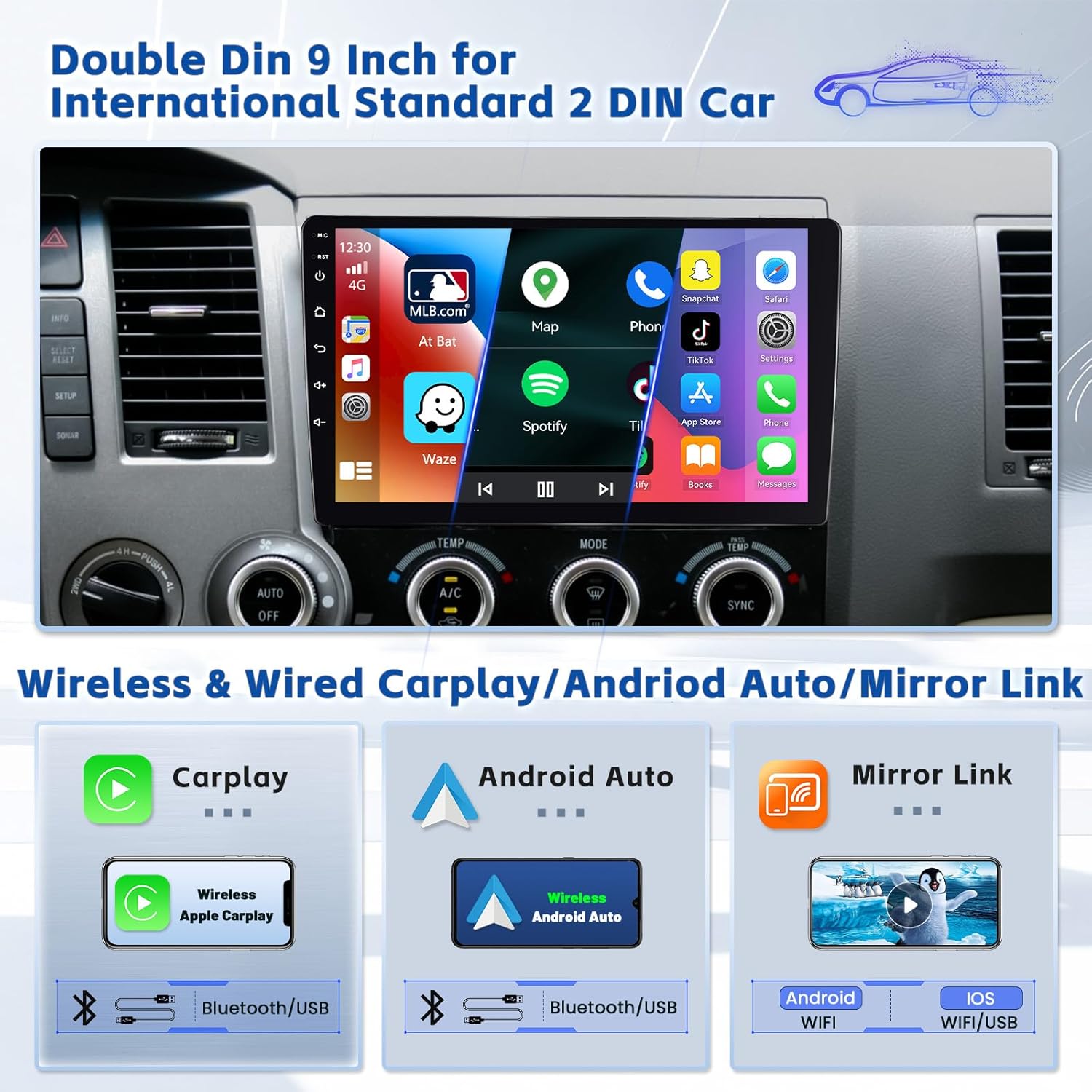
Image: Visual representation of wireless and wired connectivity options for Apple CarPlay, Android Auto, and Mirror Link, showing Bluetooth and USB connections.

Image: Screenshots demonstrating the interface of Wireless CarPlay and Android Auto on the car stereo, highlighting GPS navigation, hands-free calling, and online music playback.
3.3 Mirror Link
The Mirror Link function allows you to cast your smartphone's screen directly onto the car stereo display via WiFi or USB, enabling access to various apps.

Image: A visual representation of the Mirror Link feature, showing a smartphone screen being mirrored onto the car stereo display.
3.4 Bluetooth 5.0
Pair your phone via Bluetooth for hands-free calling and audio streaming. The unit supports automatic loading of your phone book.
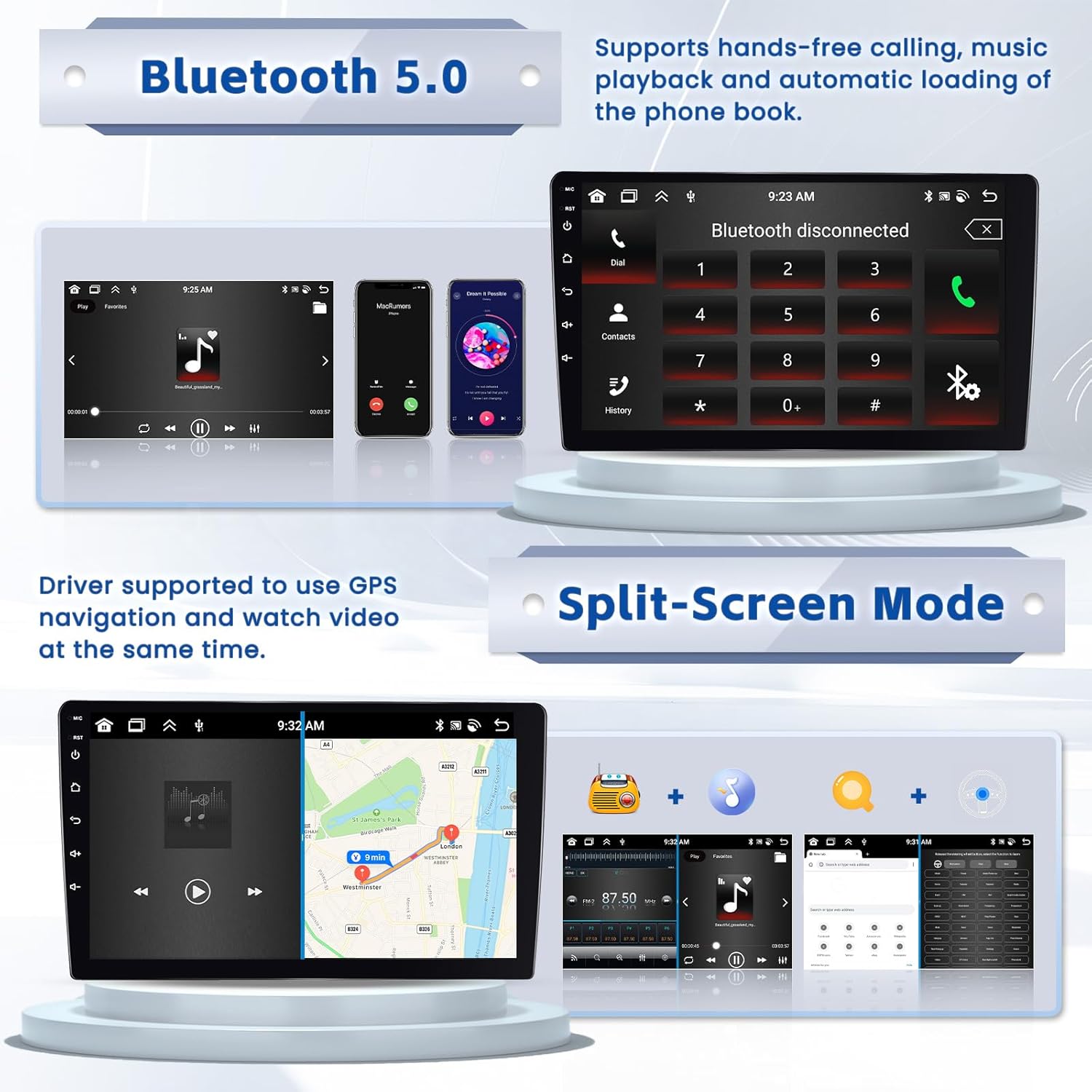
Image: Screenshots illustrating Bluetooth 5.0 connectivity for calls and music, alongside the split-screen mode displaying navigation and music simultaneously.

Image: The user interface for Bluetooth 5.0, showing options for hands-free calls, music playback, and phone book access.
3.5 GPS Navigation & WiFi
Utilize the built-in GPS module for navigation. The unit supports both pre-loaded offline maps and online navigation via WiFi or hotspot connection. Connect to WiFi to download apps from the Play Store and access online content.

Image: A visual demonstrating the online and offline map capabilities of the car stereo, showing a navigation route on the display.

Image: Illustrates the WiFi connectivity feature, allowing users to browse online, download apps, and use online navigation, with icons for popular social media and streaming platforms.
3.6 Audio Settings (DSP & EQ)
The integrated DSP allows for precise audio customization. Access the 32-band EQ to fine-tune sound frequencies for various music styles and personal preferences.
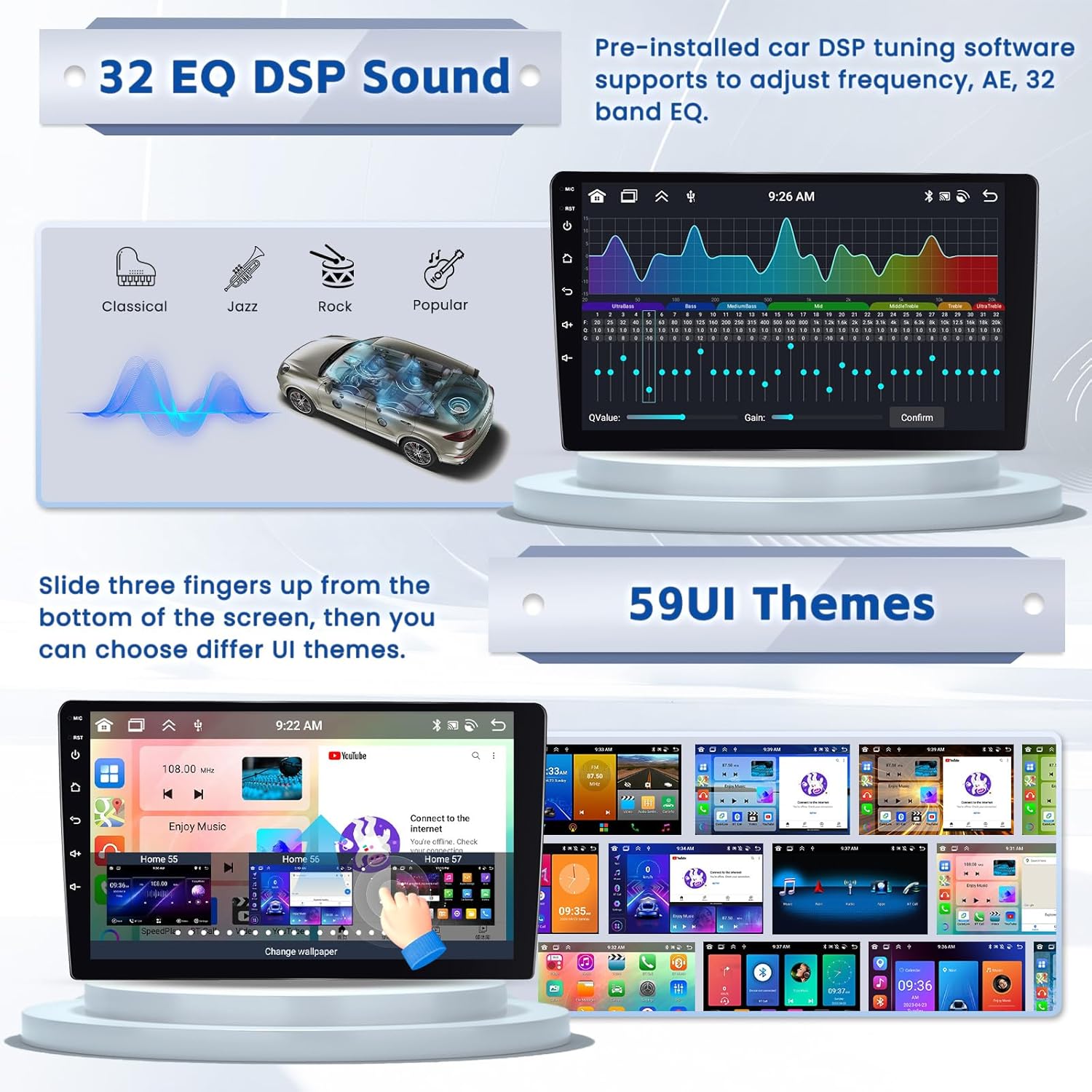
Image: Screenshots showing the 32-band EQ interface for sound adjustment and a selection of the 59 available user interface themes.

Image: Detailed view of the 32-band EQ and DSP settings interface, allowing users to adjust sound balance, fade, and specific frequency bands.
3.7 Steering Wheel Control (SWC)
After proper wiring and learning, the unit can be controlled using your vehicle's existing steering wheel buttons, providing convenient access to functions like volume, track skipping, and call management.
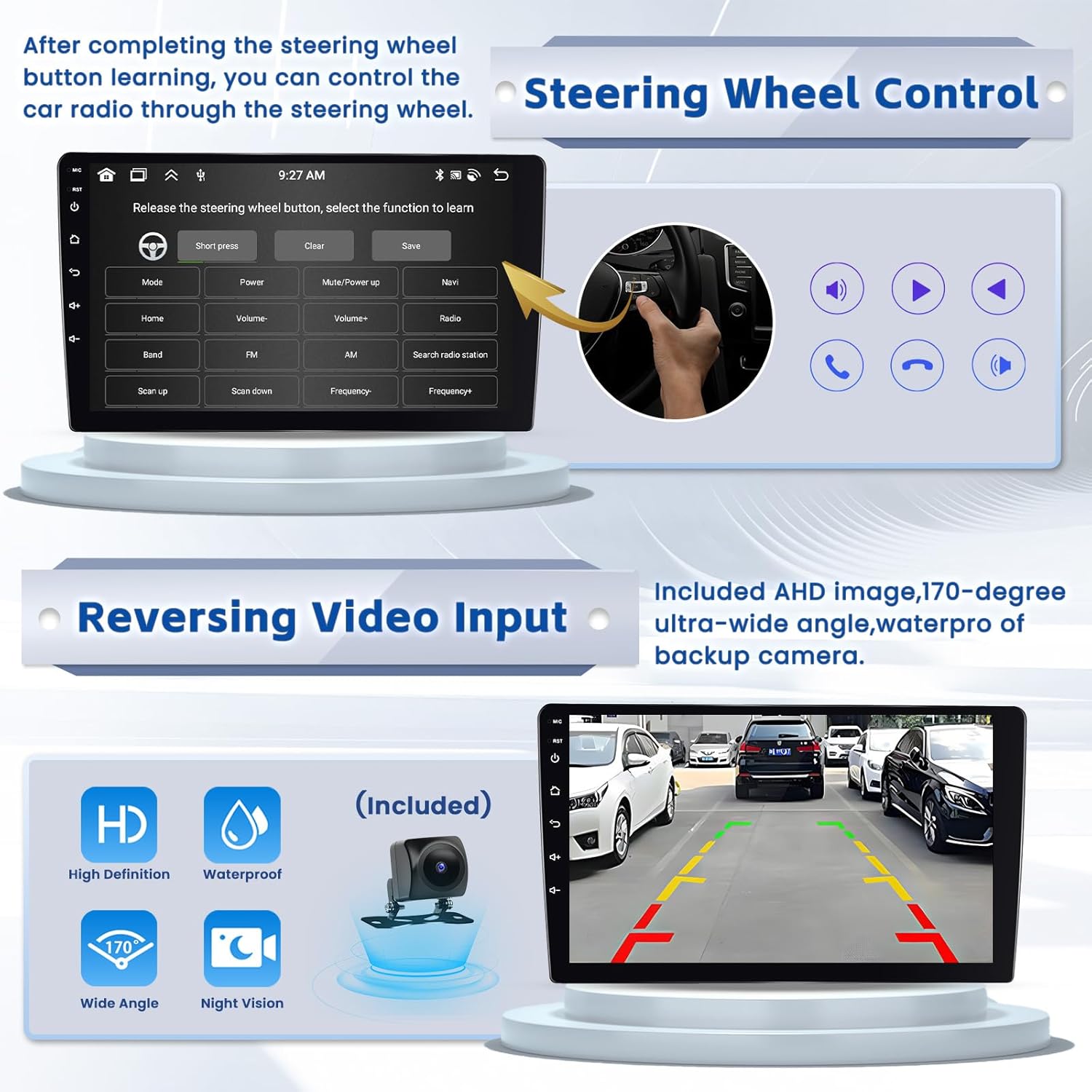
Image: A screenshot of the steering wheel control learning interface, alongside a visual of the reversing video input displaying a backup camera view.

Image: A driver's hands on a steering wheel, with icons representing various functions that can be controlled via steering wheel buttons, such as volume, track, and call answer/hang up.
3.8 Split Screen Mode
The split-screen feature allows you to run two applications simultaneously, such as navigation and music playback, or three app pages on one screen.

Image: A visual demonstrating the three-way split screen feature, showing a map, music player, and another app simultaneously on the display.
3.9 Voice Control
Utilize voice commands for various functions, including playing music, opening FM radio, making calls, and navigating. This feature enhances safety by minimizing manual interaction while driving.

Image: A driver interacting with the car stereo using voice commands, with icons illustrating supported commands such as playing music, opening radio, making calls, and navigation.
4. Maintenance
To ensure the longevity and optimal performance of your car stereo, follow these maintenance guidelines:
- Cleaning the Screen: Use a soft, lint-free cloth to gently wipe the touchscreen. For stubborn smudges, slightly dampen the cloth with water or a screen-safe cleaner. Avoid abrasive materials or harsh chemicals.
- General Cleaning: Keep the unit and surrounding area free of dust and debris. Use a soft brush or compressed air to clean vents and crevices.
- Cable Connections: Periodically check all cable connections to ensure they are secure and free from corrosion. Loose connections can lead to intermittent issues.
- Software Updates: Check the manufacturer's website or the unit's settings for available software updates. Keeping the firmware updated can improve performance and add new features.
- Temperature Control: Avoid exposing the unit to extreme temperatures for prolonged periods. While designed for automotive use, excessive heat or cold can affect electronic components.
5. Troubleshooting
If you encounter issues with your Hikity Android 15 Car Stereo, refer to the following common problems and solutions:
| Problem | Possible Cause / Solution |
|---|---|
| Unit does not power on. | Check power cable connections. Ensure the vehicle's ignition is on if wired to accessory power. Check vehicle's fuse box. |
| No sound or distorted audio. | Verify speaker wire connections. Check volume levels and DSP/EQ settings. Ensure audio source is selected correctly. |
| Bluetooth connection issues. | Ensure Bluetooth is enabled on both the stereo and your phone. Delete previous pairings and re-pair. Move phone closer to the unit. |
| CarPlay/Android Auto not connecting. | For wired connection, try a different USB cable. For wireless, ensure WiFi and Bluetooth are enabled on your phone. Restart both phone and stereo. |
| Backup camera not displaying. | Check camera power and video signal connections. Ensure the vehicle is in reverse. |
| Battery drain when vehicle is off. | This can occur if the unit is set to a prolonged standby mode. Ensure the unit is wired correctly to the vehicle's ignition (ACC) and constant power (B+). Consult a professional installer to verify wiring and standby settings. |
| Touchscreen unresponsive or slow. | Restart the unit. Ensure the screen is clean and free of debris. If persistent, a factory reset may be necessary (note: this will erase all user data). |
If the problem persists after attempting these solutions, please contact customer support for further assistance.
6. Specifications
| Feature | Detail |
|---|---|
| Model | [5G WiFi 4+64G] |
| Operating System | Android 15 |
| Processor | 8-Core |
| RAM | 4GB |
| ROM | 64GB |
| Display Size | 9 Inches |
| Resolution | 1280 x 720 |
| Connectivity | Bluetooth 5.0, Wi-Fi (5G), USB |
| Audio Output Mode | APE/FLAC/WAV/MP3/WMA etc. |
| Mounting Type | Dashboard Mount (Double Din) |
| Product Dimensions | 5.1 x 1.8 x 9 inches |
| Item Weight | 2.65 pounds |
7. Warranty and Support
Ohradio (Hikity) provides comprehensive support for your product:
- Money-Back Guarantee: 30-Days Money-Back policy.
- Replacement Warranty: 2-Years Replacement warranty.
- Technical Support: Life-Time Technical Support is available.
For installation or usage issues, please contact the Hikity Flagship Store. Inquiries are typically replied to within 24 hours.

Image: Information regarding 24-hour customer support, including contact email: hikityoffice@163.com.
Contact Email: hikityoffice@163.com
Related Documents - [5G WiFi 4+64G]
 |
Hikity 1GB+32GB Android Car Stereo User Manual: Operating Instructions Comprehensive operating instructions for the Hikity 1GB+32GB Android Double Din Car Stereo, covering main interface, radio, music, video, Bluetooth, navigation, and car settings. |
 |
Single Din Android 13 Car Stereo 9.5" Touchscreen Receiver - User Manual Comprehensive user manual for the Single Din Android 13 car stereo receiver (Model 9510A) featuring a 9.5" touchscreen, wireless CarPlay, Android Auto, GPS navigation, Bluetooth, WiFi, and mirror link functionality. Includes installation, operation, and troubleshooting guides. |
 |
Hikity 10-Inch Android Car Stereo with GPS, Bluetooth, and Mirror Link - User Manual Comprehensive user manual for the Hikity 10-inch Android car stereo. Learn about installation, features like Bluetooth, GPS navigation, Mirror Link, audio settings, troubleshooting, and technical specifications. |
 |
CAMECHO Android Car Stereo User Manual and Installation Guide Comprehensive user manual and installation guide for the CAMECHO Android Car Stereo Double Din, covering setup, features like GPS, Bluetooth, backup camera, and troubleshooting. |
 |
Hikity Android Car Stereo with Retractable Screen - User Manual Comprehensive user manual for the Hikity Android car stereo featuring a retractable screen. Includes installation guides, safety instructions, troubleshooting tips, and technical specifications for car audio systems. |
 |
CAMECHO Universal Double Din Android Car Stereo User Manual & Installation Guide This user manual provides comprehensive instructions for installing and operating the CAMECHO Universal Double Din Android Car Stereo. It covers safety guidelines, wiring diagrams, connectivity features like Carplay and Android Auto, basic functions, and troubleshooting tips. |
Ask a question about this manual
Ask about setup, troubleshooting, compatibility, parts, safety, or missing instructions. Manuals+ will review the question and use this page’s manual context to help answer it.