
1. Introduction
This user manual provides detailed instructions for the installation, operation, and maintenance of your MACHINIST X99 Dual CPU Motherboard. Designed for high-performance computing, this E-ATX server motherboard features dual LGA 2011-V3 CPU sockets, DDR4 quad-channel memory support, and multiple PCIe 3.0 slots, making it suitable for demanding server and workstation applications. Please read this manual thoroughly before proceeding with installation to ensure proper setup and optimal system stability.

Figure 1: The MACHINIST X99 Dual CPU Motherboard alongside its product packaging.
2. Setup and Installation
2.1 CPU Installation
The motherboard is equipped with dual LGA 2011-3 CPU sockets, supporting Intel Core i7 5th/6th generation processors and Xeon E5 V3/V4 series processors. For optimal performance, it is recommended to install two compatible CPUs. If only one CPU is installed, it must be placed in the rightmost CPU socket (CPU1) to ensure proper system boot and functionality.

Figure 2: Illustration of the dual LGA 2011-3 CPU sockets, highlighting their positions.
2.2 Memory Installation
The motherboard features 8 DDR4 4-channel memory slots, supporting a maximum capacity of 256GB with effective frequencies of 2133/2400/2666MHz (overclockable). Follow the guidelines below for proper memory population:
- If installing less than 8 memory modules, prioritize filling slots away from the CPU side first. Specifically, use slots 4 and 8 (counting from left to right) initially.
- For a four-module configuration, use slots 1, 4, 5, and 8 (counting from left to right).
- Important Note: This D8 motherboard with red memory sockets offers enhanced memory performance compared to the black socket version, but with reduced compatibility. If using a Xeon E5 V4 CPU, it requires ECC memory and is not compatible with standard desktop memory. Ensure you use compatible memory modules to avoid system instability.

Figure 3: The DDR4 quad-channel memory slots on the motherboard.
2.3 PCIe Device Installation
The motherboard is equipped with 4 PCIe 3.0 X16 graphics card slots, featuring steel cases for enhanced durability. These slots support a transfer rate of up to 15.754 GB/s per graphics card. Performance can be significantly improved by utilizing two graphics cards in a multi-GPU configuration. If only one CPU is installed, graphics cards should be installed in the bottom two PCIe slots for proper operation.

Figure 4: The PCIe 3.0 X16 slots, designed for high-performance graphics cards.
2.4 Storage Device Installation
The motherboard includes dual M.2 hard disk slots for high-speed NVMe SSDs, allowing for fast data reading even with multiple programs running. Additionally, there are 10 SATA 3.0 ports for connecting traditional hard drives and SSDs.

Figure 5: The dual M.2 slots for NVMe storage.
2.5 Power Supply Connection
Connect a 24+8+8pin standard power supply to the motherboard. A dedicated power supply designed for dual server motherboards is recommended to ensure stable power delivery to both CPUs and other components.
2.6 Front Panel and Fan Connections
Connect your case's front panel headers (power button, reset button, USB ports, audio jacks) to the corresponding pins on the motherboard. The motherboard provides 4 x 3-pin system fan headers and 2 x 4-pin CPU fan headers for effective cooling management.

Figure 6: A detailed overview of the motherboard's various interfaces, including USB, Ethernet, audio, and fan headers.
2.7 CR2032 Battery
Please note that the CR2032 battery for the motherboard's CMOS has been removed for shipping purposes and is not included in the package. You will need to purchase and install this battery separately before initial use.
3. Operating Instructions
3.1 BIOS Access
To enter the BIOS setup utility, continuously press the "Del" key immediately after pressing the power button to start your system. Do not wait for the startup logo screen to appear, as it may be too late to access the BIOS at that point.
3.2 Driver Installation
After installing your operating system, it is essential to install the necessary drivers for the motherboard components. If you are unsure where to download the drivers, it is recommended to use a Windows 10 operating system, which often provides better automatic driver detection and installation for this hardware.
3.3 Network Connectivity
The motherboard features dual Gigabit Ethernet ports, allowing for versatile network configurations and increased bandwidth for server applications or complex network setups.
4. Maintenance
To ensure the longevity and stable operation of your motherboard, regular maintenance is recommended:
- Dust Removal: Periodically clean dust from the motherboard and cooling components (CPU coolers, case fans) using compressed air. Ensure the system is powered off and unplugged before cleaning.
- Thermal Management: Verify that all fans are functioning correctly and that CPU coolers are securely mounted to maintain optimal operating temperatures. The motherboard's precise modular power supply design and large chip heatsinks contribute to good heat dissipation.
- Cable Management: Ensure internal cables are neatly routed to prevent obstruction of airflow and accidental disconnections.
5. Troubleshooting
If you encounter issues with your motherboard, consider the following troubleshooting steps:
- No POST (Power-On Self-Test):
- Check all power connections, including the 24-pin ATX, 8-pin CPU, and any additional 8-pin CPU power connectors.
- Verify that CPUs are correctly seated in their sockets, especially if only one CPU is installed (ensure it's in the rightmost slot).
- Ensure memory modules are properly seated in the correct slots as per Section 2.2.
- Confirm that the graphics card is correctly installed in a PCIe slot, particularly in the bottom two slots if using a single CPU.
- Observe the diagnostic card (LED display) on the motherboard for error codes, which can indicate the source of the problem.
- Memory Compatibility Issues: If using a Xeon E5 V4 CPU, ensure you are using ECC memory, as standard desktop memory is not compatible with this configuration on the D8 motherboard with red sockets.
- Operating System or Driver Issues: If experiencing instability or missing device functionality, ensure all necessary drivers are installed. Reinstalling the operating system (e.g., Windows 10) may resolve complex driver conflicts.
- BIOS Access: If unable to enter BIOS, ensure you are pressing the "Del" key repeatedly immediately after powering on the system.

Figure 7: The diagnostic card and onboard control buttons for troubleshooting and convenience.
6. Specifications
Below are the key specifications for the MACHINIST X99 Dual CPU Motherboard (Model: X99 D8-Red):
| Feature | Specification |
|---|---|
| Model Name | X99 D8-Red |
| CPU Socket | LGA 2011-3 (Dual Sockets) |
| Compatible Processors | Intel Core i7 (5th/6th Gen), Intel Xeon E5 V3/V4 Series |
| Chipset Type | Intel C612 |
| RAM Memory Technology | DDR4 (Quad Channel) |
| Memory Slots | 8 DIMMs |
| Max Memory Capacity | 256GB |
| Memory Clock Speed | 2133/2400/2666MHz (Overclockable) |
| PCIe Slots | 4 x PCIe 3.0 X16 (with steel case) |
| M.2 Slots | 2 x NVMe M.2 |
| SATA Ports | 10 x SATA 3.0 |
| USB Ports | 4 x USB 3.0, 4 x USB 2.0 |
| LAN | Dual Gigabit Ethernet |
| Fan Headers | 4 x 3-pin SYS Fan, 2 x 4-pin CPU Fan |
| Power Interface | 24+8+8pin Standard |
| Product Dimensions | 12.99 x 12.01 x 1.5 inches (330mm x 305mm x 38mm) |
| Item Weight | 4.44 pounds |
| Manufacturer | MACHINIST |
| Country of Origin | China |
| Platform | Windows |
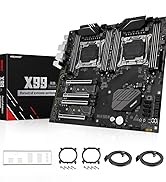
Figure 8: Motherboard dimensions (330mm x 305mm).
7. Warranty and Support
The physical user manual is not included in the product package. A digital version of the user manual can be downloaded from the product details page on the retailer's website. For further support or warranty inquiries, please contact MACHINIST customer service or refer to the official MACHINIST brand store.

Figure 9: What's included in the box: motherboard, CPU fan brackets, SATA cables, and I/O baffle. Note: CR2032 battery and user manual are not included.