
UGREEN 35762
UGREEN Stylus Pen User Manual
Model: 35762
Introduction
Thank you for choosing the UGREEN Stylus Pen. This manual provides detailed instructions on how to set up, operate, and maintain your stylus pen to ensure optimal performance. Designed for precision and comfort, this stylus enhances your interaction with compatible iPad devices for drawing, note-taking, and general navigation.
Package Contents

This image displays the complete package contents: the UGREEN Stylus Pen, a USB-C charging cable, and three spare replacement nibs, alongside the product packaging.
- 1 x UGREEN Stylus Pen
- 1 x USB-C Charging Cable
- 3 x Replacement Nibs
- 1 x User Manual
Compatibility
The UGREEN Stylus Pen is compatible with iPad models released in 2018 and later. Please refer to the list below to confirm your device's compatibility.

This image illustrates the compatibility of the stylus pen with different iPad models, including iPad, iPad Pro 11-inch, iPad Pro 12.9-inch, iPad Air, and iPad Mini, along with their respective generations.
| Device Type | Compatible Models |
|---|---|
| iPad | iPad 6 (2018), iPad 7 (2019), iPad 8 (2020), iPad 9 (2021), iPad 10 (2022) |
| iPad Pro 11-inch | iPad Pro (2018), iPad Pro 2 (2020), iPad Pro 3 (2021), iPad Pro 4 (2022) |
| iPad Pro 12.9-inch | iPad Pro 3 (2018), iPad Pro 4 (2020), iPad Pro 5 (2021), iPad Pro 6 (2022) |
| iPad Air | iPad Air 3, iPad Air 4, iPad Air 5 |
| iPad Mini | iPad Mini 5, iPad Mini 6 |
Note: This stylus pen does not support wireless charging or pressure sensitivity.
Setup
1. Initial Charging
Before first use, fully charge your UGREEN Stylus Pen. A full charge takes approximately 30 minutes and provides up to 12 hours of working time.

This image shows the UGREEN Stylus Pen connected to a USB-C charging cable, illustrating the fast charging capability and the indicator lights that show battery status.
- Connect the provided USB-C charging cable to the charging port on the stylus pen.
- Connect the other end of the cable to a USB power adapter (not included) or a computer's USB port.
- The indicator lights on the stylus will show the charging status. Once fully charged, the lights will indicate full battery.
2. Powering On/Off
The stylus pen features a simple touch switch for power control.
- To power on: Gently press the cap button on the end of the stylus. The indicator lights will illuminate.
- To power off: Press the cap button again. The indicator lights will turn off.
Note: No Bluetooth pairing is required. The stylus connects automatically to compatible iPads when powered on.
Operating Instructions
Using the Stylus
The UGREEN Stylus Pen offers a natural and responsive writing and drawing experience.
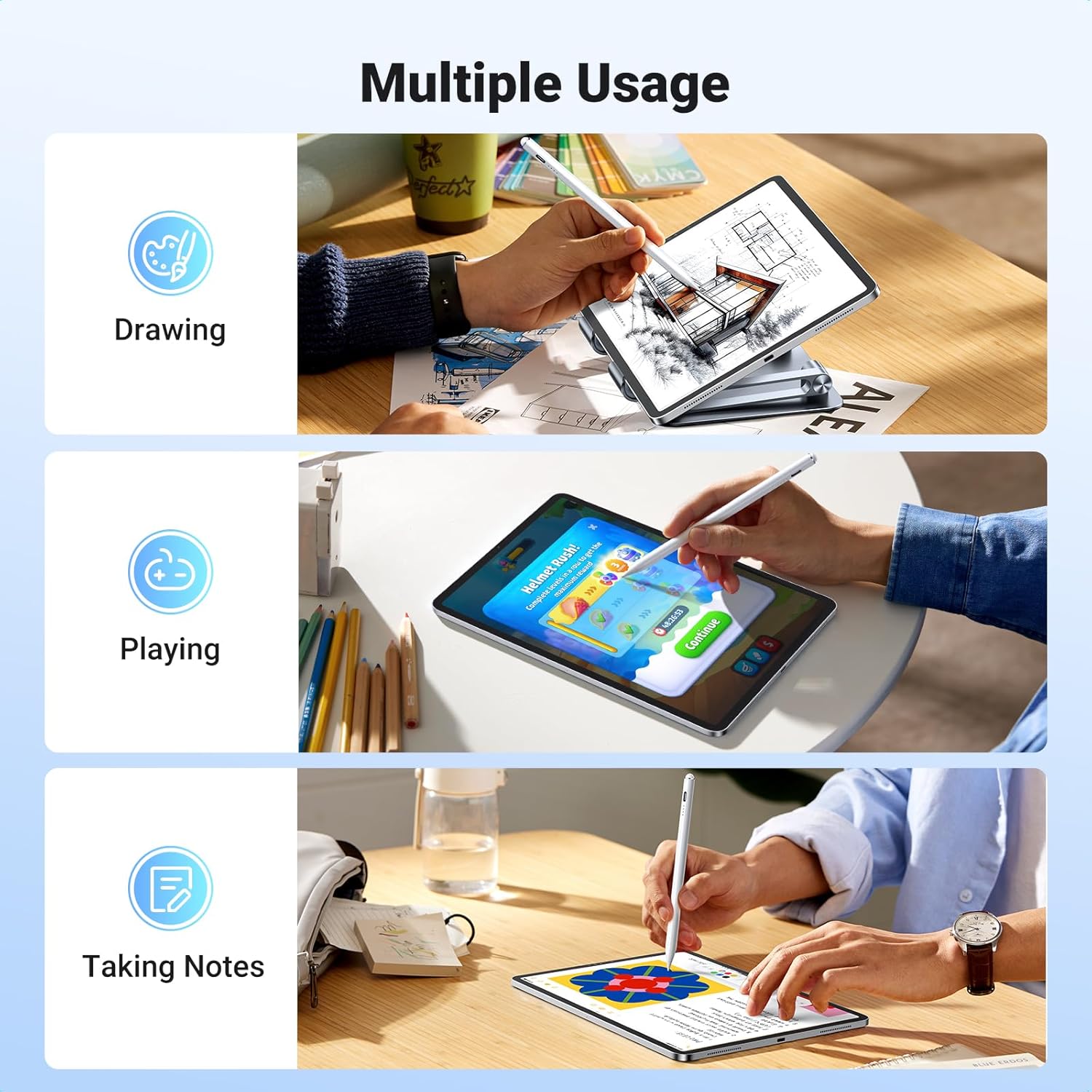
This image collage demonstrates the versatility of the stylus, showing it in use for artistic drawing, interactive gaming, and efficient note-taking on an iPad.
- Precision and Smoothness: The 1.5mm tip provides high accuracy for detailed work without lag, skips, or interruptions.
- Tilt Sensitivity: The stylus supports tilt sensitivity, allowing you to create lines of varying thickness by changing the angle at which you hold the pen. This feature is ideal for sketching and shading.
- Palm Rejection: Rest your hand comfortably on the iPad screen while using the stylus. The palm rejection technology ensures that only the stylus input is registered, preventing accidental marks from your palm.
- Magnetic Adsorption: The stylus can magnetically attach to the side of compatible iPad models for convenient storage. Note that this feature does not provide wireless charging.

Tilt Sensitivity: Adjust line thickness by changing the pen angle.

Palm Rejection: Rest your hand naturally on the screen.
Maintenance
Replacing Nibs
The UGREEN Stylus Pen comes with three replacement nibs to ensure a longer lifespan and consistent performance. Replace the nib when it shows signs of wear or reduced responsiveness.

This image highlights the three included replacement nibs, emphasizing their role in extending the stylus pen's durability and service life.
- Gently twist the old nib counter-clockwise to remove it from the stylus.
- Align a new nib with the stylus tip and gently twist it clockwise until it is securely in place. Do not overtighten.
Cleaning
To maintain the stylus's performance and appearance:
- Wipe the stylus body with a soft, dry, lint-free cloth.
- Avoid using abrasive cleaners, solvents, or aerosol sprays.
- Do not expose the stylus to excessive moisture.
Troubleshooting
| Problem | Possible Cause | Solution |
|---|---|---|
| Stylus not responding | Low battery; Stylus is off; Incompatible iPad model; iPad settings interfering. | Charge the stylus; Press the cap button to turn it on; Verify iPad model compatibility; Go to iPad Settings > Apple Pencil and turn off "Only Draw with Apple Pencil" (if applicable). |
| Inaccurate or skipping lines | Worn-out nib; Screen protector interference; Dirty screen. | Replace the nib; Ensure screen protector is properly installed and clean; Clean the iPad screen. |
| Palm rejection not working | Software issue; Specific app not supporting palm rejection. | Restart your iPad; Check if the app you are using supports palm rejection with third-party styluses. |
| Stylus not charging | Faulty cable or adapter; Charging port obstruction. | Try a different USB-C cable and power adapter; Check the charging port for debris and clean carefully if necessary. |
Specifications
- Model: 35762
- Dimensions: 6.5 x 0.35 x 0.35 inches (16.5 x 0.89 x 0.89 cm)
- Weight: 3.17 ounces (90 grams)
- Material: Aluminum
- Battery Type: Lithium Metal (included)
- Charging Time: Approximately 30 minutes
- Working Time: Up to 12 hours
- Charging Port: USB-C
- Features: Tilt Sensitivity, Palm Rejection, Magnetic Adsorption (no wireless charging)
- Compatibility: iPad models 2018 and later (refer to Compatibility section for full list)
Warranty and Support
UGREEN products are designed to meet high quality standards. For warranty information, technical support, or customer service inquiries, please visit the official UGREEN website or contact their customer support team directly.
UGREEN Official Website: www.ugreen.com
Please retain your proof of purchase for warranty claims.
Related Documents - 35762
 |
Active Stylus Pen with Palm Rejection - User Manual & Specifications Comprehensive user manual for the Active Stylus Pen with palm rejection. Includes features, specifications, charging instructions, compatibility list for iPads and other devices, and troubleshooting tips. Model BC23-016c. |
 |
Vention Bluetooth Stylus Pen VWS-J07: User Manual, Features, and Instructions Comprehensive user manual for the Vention Bluetooth Stylus Pen (Model VWS-J07/KON). Discover its features like palm rejection and tilt sensitivity, follow usage instructions, and review FCC and safety information for your iPad. |
 |
Stylus Pen C37-R User Manual and Compatibility Guide Comprehensive guide for the Stylus Pen C37-R, detailing compatibility with various iPad models, features like tilt sensitivity and palm rejection, charging instructions, and troubleshooting tips. Includes FCC compliance information. |
 |
Penoval AX Ultra Stylus Pen User Manual and Guide Comprehensive guide for the Penoval AX Ultra stylus pen, including quick start, features, compatible devices, packaging, and FCC compliance information. |
 |
KINGONE iPad Pencil User Manual: Features, Usage, and Precautions Comprehensive user manual for the KINGONE iPad Pencil, detailing its features like Drive Mode, Bluetooth connectivity, charging, indicator display, and precautions for optimal use with compatible iPads. |
 |
GOOJODOQ GD13 Pencil User Manual and Instructions A comprehensive guide to the GOOJODOQ GD13 Pencil, covering product details, usage instructions, charging methods, and compatibility with various iPad models. Learn how to pair, use features like palm rejection and tilt sensitivity, and manage battery life. |
Ask a question about this manual
Ask about setup, troubleshooting, compatibility, parts, safety, or missing instructions. Manuals+ will review the question and use this page’s manual context to help answer it.