
Hikity Android+2 USB
Hikity 6.9 Inch Single Din Car Stereo User Manual
Model: Android+2 USB
1. Introduction
This manual provides comprehensive instructions for the installation, operation, and maintenance of your Hikity 6.9 Inch Single Din Car Stereo. This device is equipped with a 4-Core CPU, 2GB RAM, and 64GB ROM, offering a smooth user experience with its 6.9-inch IPS display and 2.5D touchscreen. It supports wireless CarPlay and Android Auto, GPS navigation, Bluetooth, Mirror Link, and Steering Wheel Control functions.

Figure 1.1: Hikity 6.9 Inch Single Din Car Stereo and its accessories, including a backup camera, remote, and microphone.
2. What's in the Box
Please verify that all items listed below are included in your package:
- Single Din Carplay Car Stereo
- Backup Camera
- Remote Control
- Microphone
- Power Cable
- RCA Cable
- GPS Antenna
- USB Cable
- Camera Input Cable

Figure 2.1: Visual representation of the included components and the main unit's dimensions.
3. Product Overview
The Hikity 6.9 Inch Single Din Car Stereo is designed to enhance your in-car entertainment and navigation experience. Key features include:
- High-Performance System: Equipped with a 4-Core CPU, 2GB RAM, and 64GB ROM for smooth operation.
- IPS Touch Screen: A 6.9-inch IPS display with 2.5D touchscreen for brighter visuals and responsive interaction.
- Customizable UI: Offers 53 different UI themes for personalization.
- Connectivity: Supports Bluetooth, Wi-Fi, USB, Wireless Apple CarPlay, and Wireless Android Auto.
- Navigation: Built-in GPS with support for online and offline maps (pre-installed "HereWego" app).
- Multimedia: Supports U disk and Type-C input for various playback methods.
- Safety Features: Includes a waterproof rear view camera and supports steering wheel control (SWC).

Figure 3.1: Front view of the car stereo, emphasizing its Android operating system and memory specifications.

Figure 3.2: The 2.5D screen offers a clear and vibrant display without obstructing the view.
4. Setup
4.1 Installation Overview
The Hikity Single Din Car Stereo is designed for standard single DIN slots. Professional installation is recommended. Ensure the vehicle's power is disconnected before beginning installation.
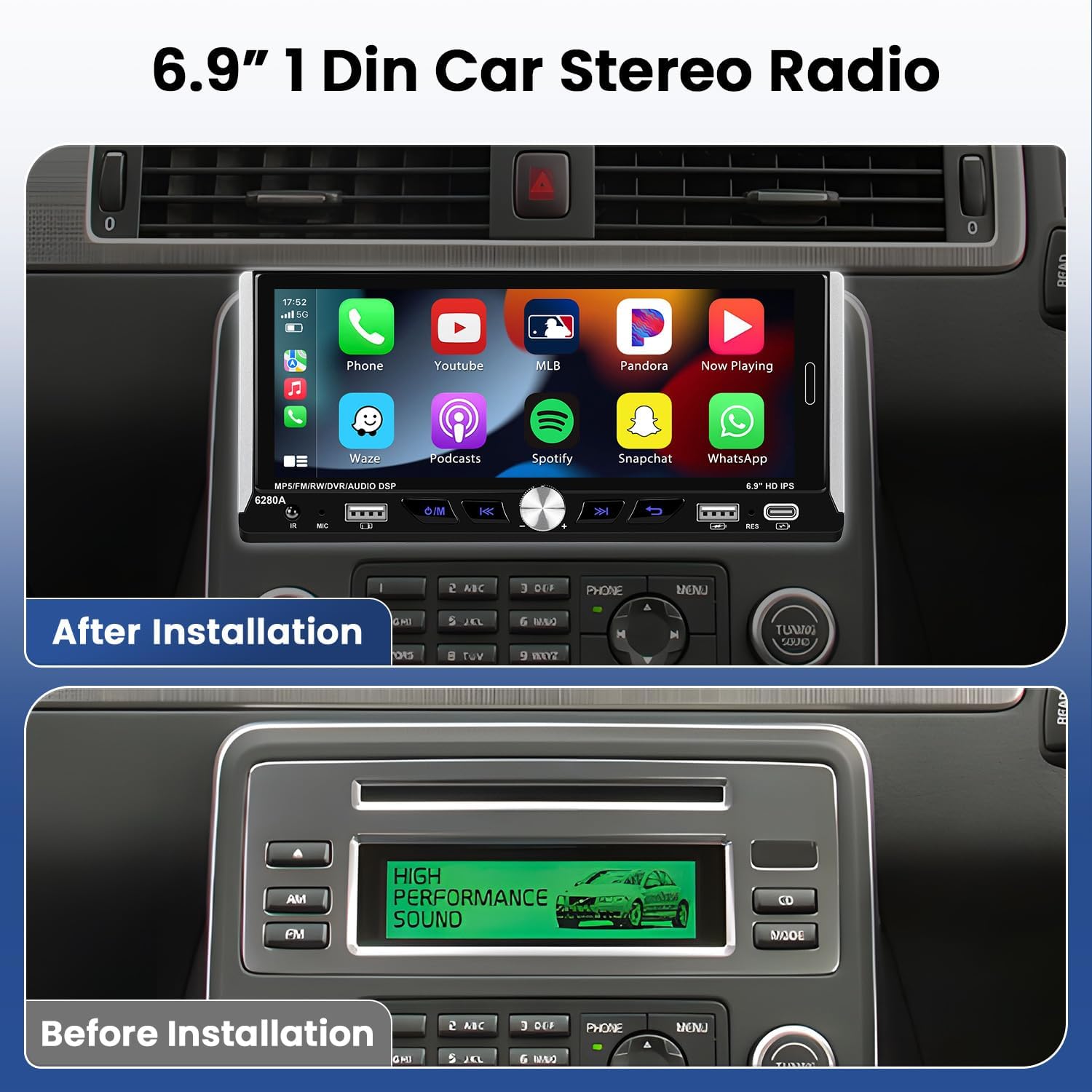
Figure 4.1: Comparison showing the vehicle dashboard before and after the car stereo installation.
4.2 Wiring Diagram
Refer to the following diagram for proper wiring connections. Ensure all connections are secure to prevent malfunctions.
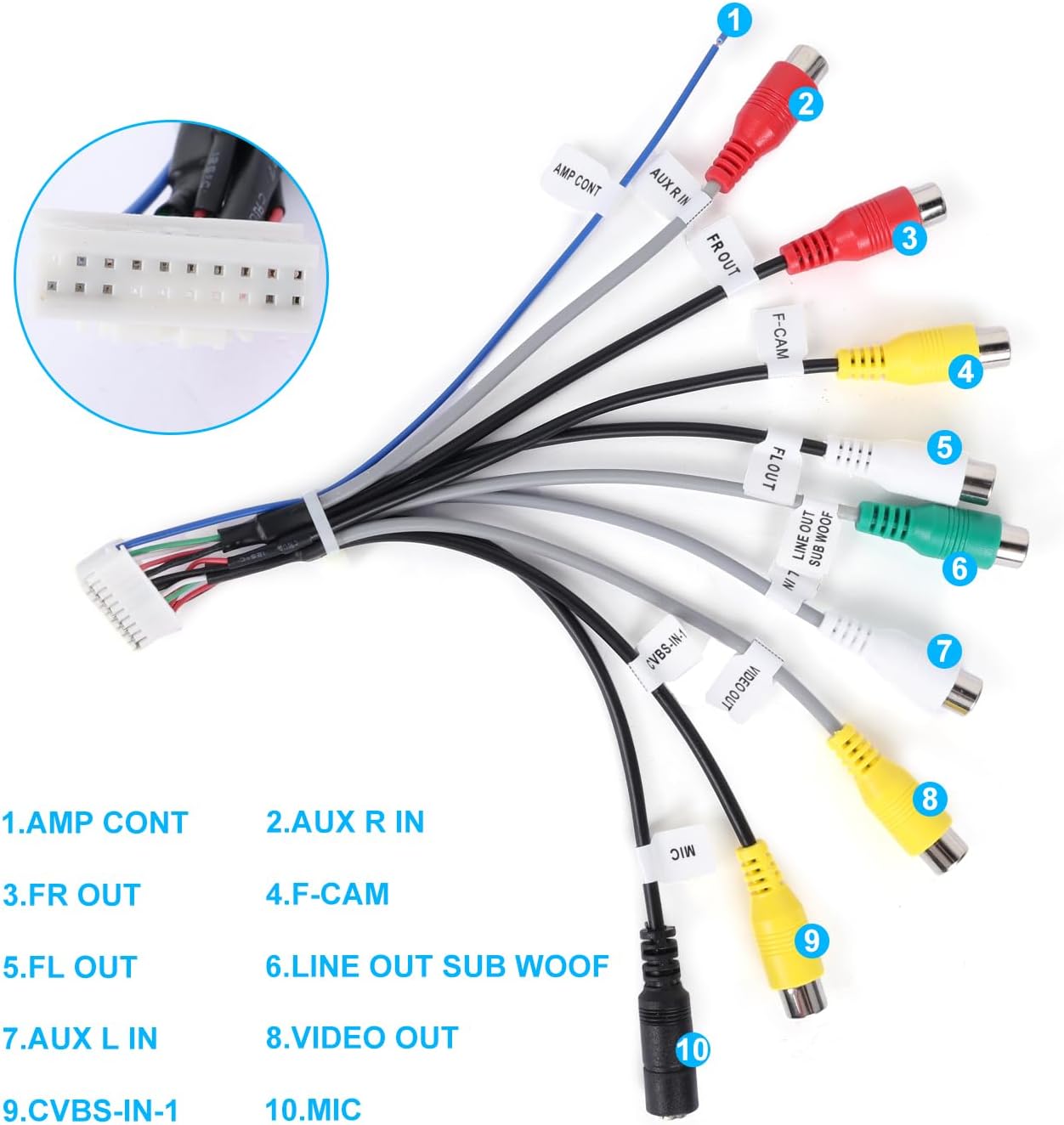
Figure 4.2: Comprehensive wiring diagram illustrating all necessary connections for the car stereo system.
4.3 Component Dimensions
Before installation, confirm the dimensions of the head unit and your vehicle's dashboard opening.

Figure 4.3: Detailed dimensions of the main unit and its rear connections for installation planning.
5. Operating Instructions
5.1 Wireless CarPlay & Android Auto
Seamlessly integrate your smartphone with the car stereo for safer driving. Both wireless and wired connections are supported.
- Apple CarPlay: Connects wirelessly via Bluetooth and Wi-Fi. Compatible with iOS 10.1 and above. Allows access to maps, music, calls, and Siri voice control.
- Android Auto: Extends Android features to the car screen wirelessly via Bluetooth and Wi-Fi. Compatible with Android 7.0 and above. Facilitates hands-free calls and map usage.

Figure 5.1: Display of Apple CarPlay and Android Auto interfaces on the car stereo.

Figure 5.2: Further details on Apple CarPlay and Android Auto functionality and phone compatibility.
5.2 GPS Navigation & WiFi Connectivity
The unit supports both online and offline navigation. The "HereWego" app is pre-installed for offline maps. Connect to Wi-Fi or a mobile hotspot to access online navigation and other internet features.

Figure 5.3: GPS navigation interface and Wi-Fi connectivity options.
5.3 Bluetooth Functions
The car stereo features Bluetooth 5.0 for stable connections.
- Hands-Free Calls: Make and receive calls directly from the unit. Supports automatic phone book synchronization.
- Bluetooth Music: Stream audio from your connected device.

Figure 5.4: Bluetooth Call Interface.

Figure 5.5: Bluetooth Music Interface.
5.4 Mirror Link
Mirror Link allows you to cast your iOS or Android phone screen to the car stereo display, enabling access to maps, videos, and apps directly on the larger screen.
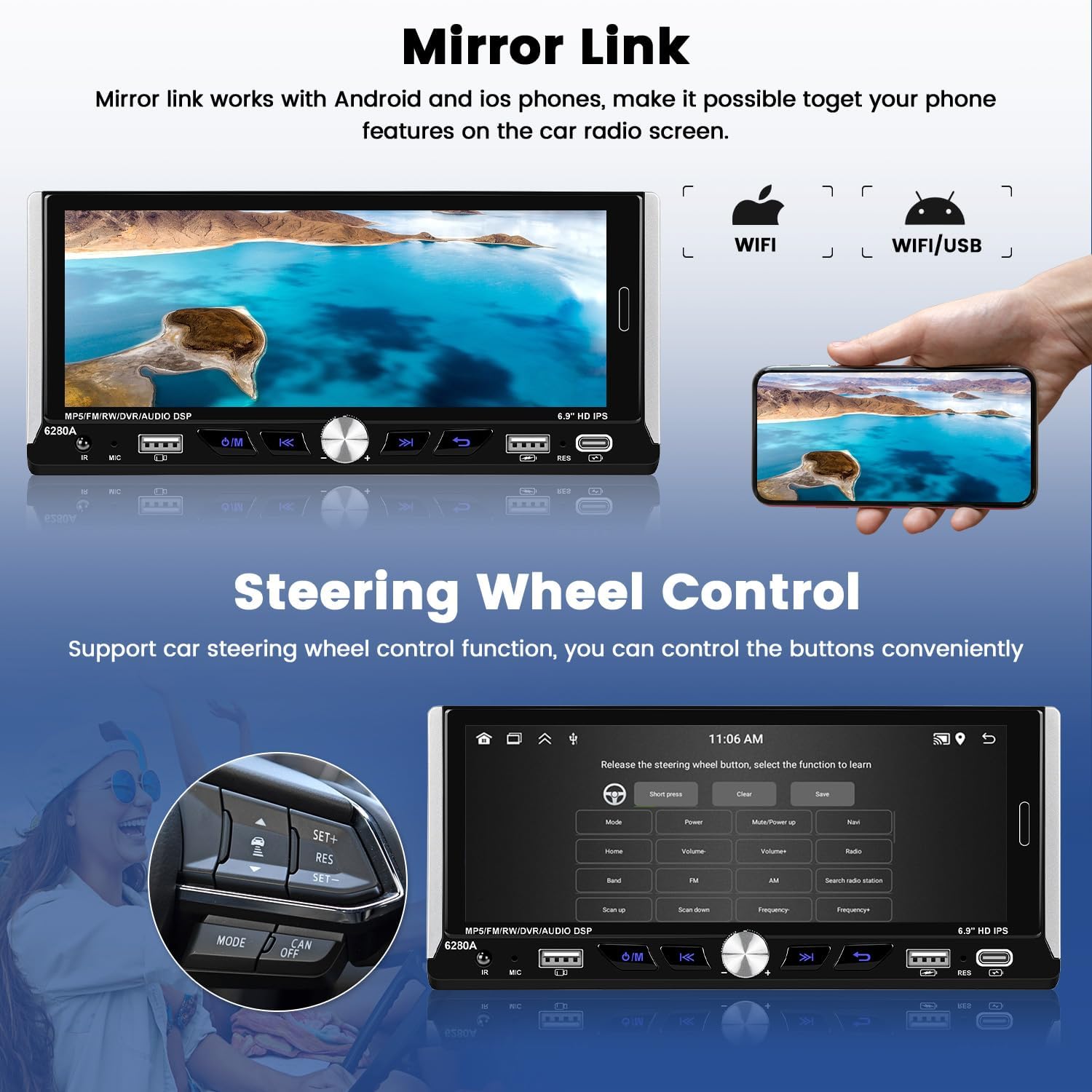
Figure 5.6: Mirror Link in action, displaying a phone screen on the car stereo.
5.5 Steering Wheel Control (SWC)
Connect your vehicle's steering wheel controls to the unit for quick and safe access to functions like volume adjustment and track changes, improving driving safety.

Figure 5.7: Steering Wheel Control setup interface and common control icons.
5.6 Multimedia Player
The unit supports various multimedia playback methods, including U disk and Type-C input, allowing you to enjoy your favorite audio and video content.

Figure 5.8: Multimedia playback from USB and Type-C devices.
5.7 FM RDS Radio
Tune into your favorite FM radio stations with RDS (Radio Data System) support for enhanced information display.

Figure 5.9: FM RDS Radio Interface.
5.8 Backup Camera
The included waterproof rear view camera automatically displays the image on the car touch screen when the vehicle is in reverse, assisting with parking and maneuvering.

Figure 5.10: Backup camera view with parking assistance lines.
6. Maintenance
To ensure the longevity and optimal performance of your Hikity Car Stereo, follow these maintenance guidelines:
- Cleaning: Use a soft, dry cloth to clean the screen and exterior. Avoid abrasive cleaners or solvents that may damage the surface.
- Temperature: Avoid exposing the unit to extreme temperatures, both hot and cold, as this can affect electronic components.
- Moisture: Keep the unit dry. Do not expose it to water or excessive humidity.
- Software Updates: Periodically check for software updates from Hikity to ensure the system runs efficiently and has the latest features.
7. Troubleshooting
If you encounter issues with your car stereo, please refer to the following common problems and solutions:
| Problem | Possible Cause | Solution |
|---|---|---|
| Unit does not turn on | Incorrect wiring; Blown fuse; Insufficient power supply. | Check power connections (red and yellow wires); Inspect vehicle's fuse box; Ensure stable 12V power. |
| No sound output | Speaker wires incorrectly connected; Volume too low; Mute function active. | Verify speaker wiring; Increase volume; Deactivate mute. |
| CarPlay/Android Auto not connecting | Bluetooth/Wi-Fi off; Phone compatibility issue; Incorrect connection steps. | Ensure Bluetooth/Wi-Fi is enabled on both devices; Check phone's OS version; Follow pairing instructions carefully. |
| GPS signal weak or lost | GPS antenna obstructed or improperly installed. | Ensure GPS antenna has a clear view of the sky and is securely connected. |
| Backup camera not displaying | Camera wiring issue; Reverse trigger wire not connected. | Check camera power and video input connections; Ensure reverse trigger wire is correctly connected to the vehicle's reverse light circuit. |
For further assistance, please contact Hikity customer support.
8. Specifications
| Feature | Specification |
|---|---|
| Brand | Hikity |
| Model | Android+2 USB (B0CT3BL8LJ) |
| Display Size | 6.9 inches (18 cm visible screen diagonal) |
| Screen Type | IPS Touch Screen (2.5D) |
| Processor | 4-Core CPU |
| RAM | 2GB |
| ROM | 64GB |
| Connectivity | Bluetooth 5.0, Wi-Fi, USB, Wireless Apple CarPlay, Wireless Android Auto |
| Navigation | GPS (Online/Offline maps, HereWego pre-installed) |
| Audio Output Mode | Stereo |
| Surround Sound Channels | 4 |
| Video Encoding Support | RM/RMVB/AVI/MP4/MKV/3GP |
| Package Dimensions | 10.51 x 7.32 x 4.76 inches |
| Item Weight | 1.54 pounds (700 Grams) |
9. Warranty and Support
Hikity provides customer support for its products. If you have any questions or concerns regarding installation, usage, or technical issues, please follow these steps:
- Click on "Hikity Tech" (the seller's name on the product page).
- Click "Ask question".
- Provide pictures or videos detailing your technical or installation questions.
You can expect a reply within 24 hours. For general inquiries, please refer to the contact information below.

Figure 9.1: Hikity Customer Support contact information.
Ask a question about this manual
Ask about setup, troubleshooting, compatibility, parts, safety, or missing instructions. Manuals+ will review the question and use this page’s manual context to help answer it.