
1. Introduction
Thank you for purchasing the Geyes Mini Finger Mouse. This portable wireless mouse offers versatile connectivity and usage modes, designed for convenience whether worn on your finger or used on a desktop. This manual provides detailed instructions for setup, operation, maintenance, and troubleshooting to ensure optimal performance of your device.

Image: The Geyes Mini Finger Mouse, showcasing its compact design and black finish.
2. Key Features
- Dual Connectivity: Supports both Bluetooth and 2.4G wireless connections for broad compatibility.
- Two Usage Modes: Can be worn on a finger for portable use or placed on a flat surface for traditional desktop operation.
- Integrated Laser Pointer: Features a built-in laser pointer, ideal for presentations.
- Plug and Play: Easy installation with no software required for 2.4G connection.
- Ergonomic Design: Ultra-thin and lightweight, designed to minimize wrist and muscle strain.
- Multi-System Compatibility: Works with various operating systems including Mac, iOS, Windows, Android, and Linux.
- Long-lasting Battery Life: Equipped with a rechargeable Lithium Ion battery and intelligent sleep mode for extended use.
- Metal Rollers: Features precise and durable metal scroll rollers.

Image: Close-up view of the Geyes Mini Finger Mouse highlighting its metal scroll rollers, long battery life, and how it can be worn on a finger.
3. Package Contents
Upon opening the package, please verify that all the following items are included:
- 1 x Geyes Mini Finger Mouse (Wireless Finger Handheld USB Trackball Mouse with Laser Pointer)
- 1 x USB Receiver (for 2.4G wireless connection)
- 1 x Storage Bag
4. Setup and Connection
The Geyes Mini Finger Mouse offers two primary connection methods: Bluetooth and 2.4G wireless.
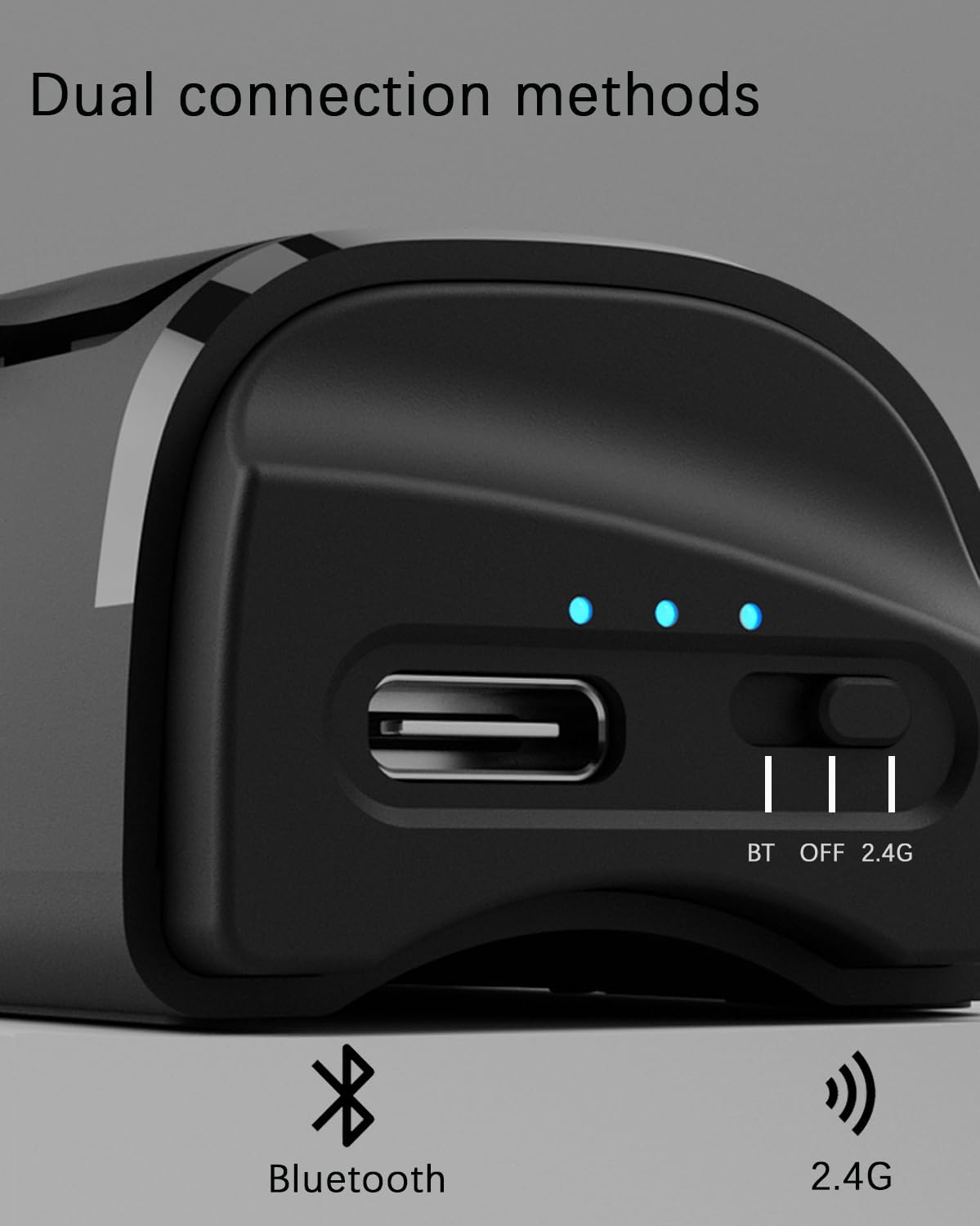
Image: A close-up of the Geyes Mini Finger Mouse's side, showing the switch to select between Bluetooth (BT), Off, and 2.4G connection modes.
4.1. 2.4G Wireless Connection
- Locate the USB receiver included in the package.
- Plug the USB receiver into an available USB port on your computer or device.
- On the Geyes Mini Finger Mouse, slide the power switch to the "2.4G" position.
- The mouse should automatically connect to your device. No additional drivers or software are typically required.
4.2. Bluetooth Connection
- On the Geyes Mini Finger Mouse, slide the power switch to the "BT" (Bluetooth) position.
- On your computer or device, navigate to the Bluetooth settings.
- Ensure Bluetooth is enabled on your device.
- Search for new Bluetooth devices. The mouse should appear as "Geyes Mini Finger Mouse" or similar.
- Select the mouse from the list to pair. Follow any on-screen prompts if a pairing code is requested (usually 0000 or 1234, though often not needed).
- Once paired, the mouse is ready for use.
5. Operating Instructions
The Geyes Mini Finger Mouse is designed for flexible use, adapting to your needs.

Image: The top image shows the mouse worn on a finger for "Finger use", while the bottom image shows it placed on a desk for "Desktop use".
5.1. Finger Use Mode
To use the mouse on your finger:
- Rotate the sensing zone (the part with the red light) 90 degrees so it faces downwards when the mouse is worn vertically.
- Insert your index finger into the ring on the mouse.
- Use your thumb to control the scroll wheel and click the left/right buttons.
- Movement of your hand will control the cursor on the screen.

Image: A diagram illustrating the 90-degree rotatable sensing zone, enabling the mouse to be used in both horizontal (desktop) and vertical (finger) orientations.
5.2. Desktop Use Mode
To use the mouse on a flat surface:
- Ensure the sensing zone is oriented horizontally, similar to a traditional mouse. The red light should be facing downwards towards the surface.
- Place the mouse on a flat, smooth surface.
- Use your fingers to click the left/right buttons and the scroll wheel as you would with a standard mouse.
5.3. Laser Pointer Function
The Geyes Mini Finger Mouse includes a laser pointer for presentations:
- To activate the laser pointer, press the designated button (refer to the product diagram for exact location, typically on the side or top).
- The laser will project from the front of the mouse.
- Release the button to turn off the laser.

Image: A person using the Geyes Mini Finger Mouse during a presentation, demonstrating its ease of use for navigating slides and utilizing the laser pointer.
6. Compatibility
The Geyes Mini Finger Mouse is designed for broad compatibility with various devices and operating systems, ensuring a stable and continuous connection.
- Operating Systems: Fully compatible with Mac, iOS, Windows, Android, and Linux.
- Devices: Perfect for both desktops and laptops. It supports older computers with only USB ports (via 2.4G receiver) and newer laptops equipped with only Type-C ports (requires a Type-C to USB adapter, not included).

Image: The Geyes Mini Finger Mouse displayed alongside logos for various operating systems, including Mac, iOS, Windows, Android, and Linux, emphasizing its multi-system compatibility.
7. Maintenance and Charging
7.1. Charging the Mouse
The Geyes Mini Finger Mouse is equipped with a rechargeable Lithium Ion battery.
- When the battery is low, the indicator light on the mouse may flash or change color.
- Connect the mouse to a power source using a compatible USB charging cable (typically USB-C, as shown in product images).
- The indicator lights will show charging status. Once fully charged, the lights will typically turn solid or turn off.

Image: The Geyes Mini Finger Mouse being charged via a USB cable, with its battery indicator lights illuminated, signifying the charging process.
7.2. General Care
- Keep the mouse clean by wiping it with a soft, dry cloth. Avoid using harsh chemicals or abrasive materials.
- Do not expose the mouse to extreme temperatures, humidity, or direct sunlight.
- Avoid dropping the mouse or subjecting it to strong impacts.
- Store the mouse in its provided bag when not in use to protect it from dust and scratches.
8. Troubleshooting
If you encounter issues with your Geyes Mini Finger Mouse, please refer to the following common solutions:
| Problem | Possible Solution |
|---|---|
| Mouse not responding |
|
| Cursor movement is erratic or jumpy |
|
| Laser pointer not working |
|
| Difficulty pairing Bluetooth |
|
9. Specifications
Detailed technical specifications for the Geyes Mini Finger Mouse:
| Feature | Detail |
|---|---|
| Model Number | Mini Finger Mouse |
| Brand | Geyes |
| Connectivity Technology | Bluetooth, 2.4G Wireless |
| Movement Detection Technology | Optical |
| Special Feature | Soundless clicks, Laser Pointer |
| Color | Black |
| Item Weight | 1.02 ounces (approx. 29 grams) |
| Package Dimensions | 5.04 x 4.53 x 1.73 inches |
| Batteries | 1 Lithium Ion battery (included) |
| First Available Date | January 23, 2024 |
10. Warranty and Support
Your Geyes Mini Finger Mouse is covered by a return policy that allows for refund or replacement within 30 days of purchase. For specific warranty details, technical support, or further assistance, please refer to the seller's information or contact Geyes customer service through their official channels. Keep your proof of purchase for any warranty claims.