
1. Introduction
This user manual provides comprehensive instructions for the setup, operation, and maintenance of your Octagon Spirit PRO 4K UHD Android TV Box. This powerful media streaming device is designed to transform your television into a smart entertainment hub, offering access to 4K Ultra HD content, a wide range of applications, and advanced connectivity features.
Please read this manual carefully before using the device to ensure proper functionality and to maximize your viewing experience.
2. Safety Information
To prevent fire, electric shock, or product damage, please observe the following safety precautions:
- Do not expose the device to rain, moisture, or extreme temperatures.
- Ensure proper ventilation around the device. Do not block ventilation openings.
- Use only the provided power adapter.
- Do not attempt to open or repair the device yourself. Refer all servicing to qualified personnel.
- Keep the device away from direct sunlight, heat sources, and strong magnetic fields.
- Avoid placing heavy objects on top of the device.
- Disconnect the power adapter during lightning storms or when unused for long periods.
3. Package Contents
Verify that all items are present in the package:
- Octagon Spirit PRO 4K UHD Android TV Box (Black)
- Bluetooth Remote Control
- EasyMouse HDMI Cable
- User Manual (German and English)
- 12V Power Adapter
- 2 x AAA Batteries (for remote control)
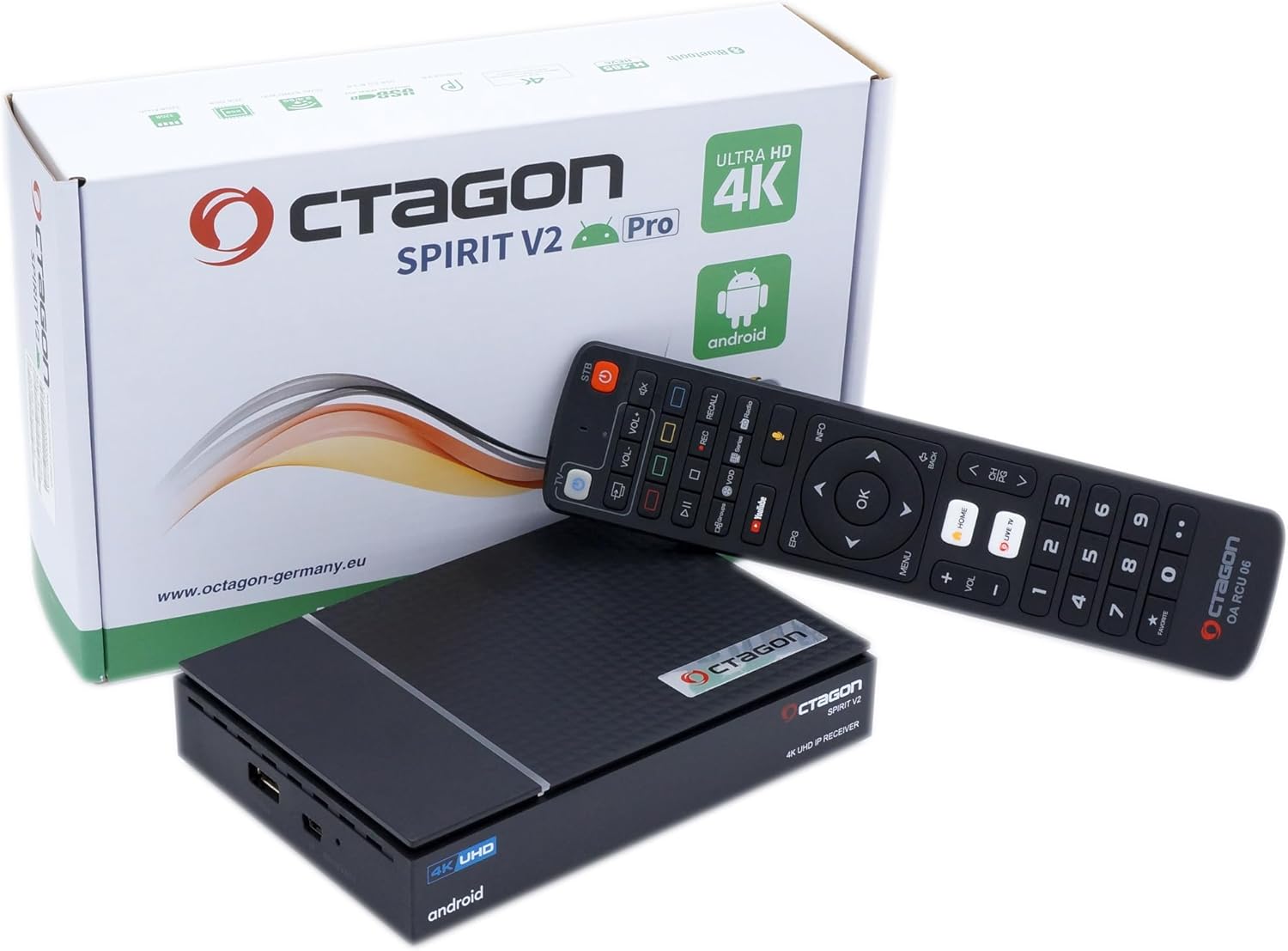
Image: Contents of the Octagon Spirit PRO package, including the TV box, remote, cables, and power adapter.
4. Product Overview
4.1. Octagon Spirit PRO Device
The Octagon Spirit PRO is a compact and powerful media box. Its front panel features a digital display and status indicators, while the rear and side panels provide various connectivity options.

Image: Front view of the Octagon Spirit PRO, showing the "boot" display and the Octagon logo.
4.2. Rear Panel Connections
The rear panel provides essential ports for connecting the device to your TV and network.
- USB 3.0 Port: For connecting external storage devices.
- S/PDIF (Optical) Port: For digital audio output to sound systems.
- AV Jack / RCA Connector: For analog audio/video output (if needed).
- HDMI 2.1 Port: For connecting to your TV or display.
- LAN (Ethernet) Port: For wired network connection.
- DC 12V Power Input: For connecting the power adapter.

Image: Rear panel of the Octagon Spirit PRO, detailing the various input and output ports.
4.3. Side Panel Connections
The side panel offers additional USB connectivity.
- USB 2.0 Port: For connecting external storage or peripherals.
- MicroSD Card Slot: For expanding storage.

Image: Side panel of the Octagon Spirit PRO, showing the USB 2.0 port and MicroSD card slot.
4.4. Bluetooth Remote Control
The included Bluetooth remote control allows for easy navigation and voice control of your Octagon Spirit PRO.

Image: The Bluetooth remote control for the Octagon Spirit PRO, featuring dedicated buttons for streaming services and voice control.
5. Setup
5.1. Connecting the Device
- Connect one end of the provided HDMI cable to the HDMI port on the Octagon Spirit PRO and the other end to an available HDMI input on your television.
- For a wired internet connection, connect an Ethernet cable from your router to the LAN port on the Octagon Spirit PRO. Alternatively, you can use Wi-Fi during the initial setup.
- Insert the two AAA batteries into the Bluetooth remote control, observing the correct polarity.
- Connect the 12V power adapter to the DC 12V input on the Octagon Spirit PRO, then plug the adapter into a power outlet.
- Turn on your television and select the correct HDMI input source.
5.2. Initial Setup Wizard
Upon first power-on, the device will guide you through an initial setup wizard:
- Language Selection: Choose your preferred language.
- Network Connection: Select your Wi-Fi network and enter the password, or confirm your wired connection.
- Google Account Sign-in: Sign in with your Google account to access Google Play Store and other Google services. If you don't have one, you can create one.
- Terms of Service: Read and accept the terms of service.
- Device Name: Give your device a name (e.g., "Living Room TV").
- Install Apps: The wizard may suggest installing essential apps.
- Once the setup is complete, you will be directed to the Android TV home screen.
6. Operating the Device
6.1. Navigating Android TV
The Android TV interface is designed for easy navigation using the remote control:
- Use the directional pad (D-pad) and OK button on the remote to move through menus and select items.
- The Home button returns you to the main Android TV home screen.
- The Back button returns to the previous screen.
- The Menu button (if present) may open context-sensitive options.
6.2. Installing Applications
Access thousands of applications through the Google Play Store:
- From the Android TV home screen, navigate to the Apps section or find the Google Play Store icon.
- Browse categories, search for specific apps (e.g., Netflix, Prime Video, Disney+, DAZN, YouTube, ARD, ZDF, ProSieben), or explore recommendations.
- Select an app and choose Install. The app will download and install automatically.
- Once installed, the app icon will appear on your home screen or in the Apps section.
6.3. Using Voice Control
The Bluetooth remote control features a built-in microphone for voice commands:
- Press the Voice Assistant button (usually a microphone icon) on your remote.
- Speak clearly into the microphone. You can ask to open apps, search for content, get weather updates, or control smart home devices.
- For example, say "Open Netflix" or "Search for action movies."
6.4. Bluetooth Connectivity
Connect external Bluetooth devices such as soundbars, speakers, headphones, or game controllers:
- Go to Settings on the Android TV home screen.
- Select Remotes & Accessories or Bluetooth.
- Put your Bluetooth device into pairing mode.
- Select your device from the list of available devices on the TV screen to pair.
6.5. PVR Function (Recording)
The Octagon Spirit PRO supports Personal Video Recorder (PVR) functionality, allowing you to record live TV content via the MeTV Player to an external USB hard drive or USB stick.
- Connect a compatible external USB storage device (hard drive or USB stick) to one of the USB ports on the Octagon Spirit PRO.
- Ensure the storage device is formatted correctly (e.g., FAT32 or NTFS).
- Open the MeTV Player application.
- Follow the on-screen instructions within the MeTV Player to initiate recordings, schedule future recordings, or manage recorded content. Refer to the MeTV Player's in-app guide for detailed recording options.
7. Maintenance
To ensure the longevity and optimal performance of your Octagon Spirit PRO:
- Cleaning: Use a soft, dry cloth to clean the device. Do not use liquid cleaners or aerosols.
- Ventilation: Ensure that the ventilation holes are not blocked to prevent overheating.
- Software Updates: Periodically check for system software updates through the Android TV settings to ensure you have the latest features and security patches.
- Storage Management: Regularly clear cache and uninstall unused applications to free up internal storage.
8. Troubleshooting
If you encounter issues with your Octagon Spirit PRO, refer to the following common problems and solutions:
| Problem | Possible Cause / Solution |
|---|---|
| No Power |
|
| No Picture / No Signal |
|
| Remote Control Not Responding |
|
| Wi-Fi Connection Issues |
|
| Apps Crashing or Freezing |
|
9. Specifications
Detailed technical specifications for the Octagon Spirit PRO 4K UHD Android TV Box:
| Feature | Detail |
|---|---|
| Model Name | SPIRIT PRO |
| Operating System | Android TV 9.0 |
| Processor | Amlogic S905X3 (ARM Cortex A55 Quad-Core CPU 64-bit, 4 x 1.9 GHz) |
| GPU | ARM Mali 450 |
| RAM | 2 GB DDR3 |
| Internal Storage | 16 GB Flash |
| Video Resolution | 4K Ultra HD (3840 x 2160p) at 60 fps |
| HDR Support | HDR10, HDR10+, HLG |
| DRM Support | Widevine Level L1, HDCP 2.2 |
| Wi-Fi | Dual-band 2.4/5G (up to 1200 Mbps) |
| Bluetooth | Bluetooth 5.1 |
| Connectivity | HDMI 2.1, USB 2.0, USB 3.0, S/PDIF, LAN 10/100 Mbits, AV Jack |
| Power Input | DC 12V-1A |
| Dimensions | 14L x 9W x 2H centimeters |
| Supported Internet Services | Android TV, Google Playstore |
| Special Features | USB Recording (DVR), Browser, MeTV Player |
10. Warranty and Support
For warranty information, please refer to the specific terms and conditions provided at the time of purchase or contact your retailer. Octagon provides technical support for its products.
If you require further assistance or encounter issues not covered in this manual, please visit the official Octagon website or contact their customer support. Keep your purchase receipt as proof of purchase for warranty claims.
Official Octagon Website: www.octagon-germany.eu