
1. Introduction
Thank you for purchasing the Te-Rich ZH019 Digital Alarm Clock. This versatile device combines a digital alarm clock with a large LED display, FM radio, Bluetooth 5.0 speaker, and a fast wireless charging station. It also features a dimmable display, multiple natural sounds, and a 7-color mood light to enhance your bedside experience. This manual will guide you through the setup, operation, and maintenance of your new device.

This image illustrates the multi-functional design of the Te-Rich ZH019, combining an FM radio, Bluetooth speaker, wireless charger, and alarm clock into one compact unit, shown on a bedside table with a phone charging.
2. Safety Information
- Read all instructions carefully before use.
- Keep the device away from water, moisture, and high temperatures.
- Do not disassemble or attempt to repair the unit yourself. Refer all servicing to qualified personnel.
- Use only the provided power adapter or a compatible one with the correct voltage and current.
- Ensure proper ventilation around the device, especially during wireless charging.
- Avoid placing metal objects or cards with magnetic strips on the wireless charging pad, as this may cause damage or interfere with charging.
3. Package Contents
- Te-Rich ZH019 Digital Alarm Clock
- Power Adapter
- User Manual
- FM Antenna (integrated or external wire)
4. Product Layout and Controls
Familiarize yourself with the buttons and ports on your Te-Rich ZH019 alarm clock.
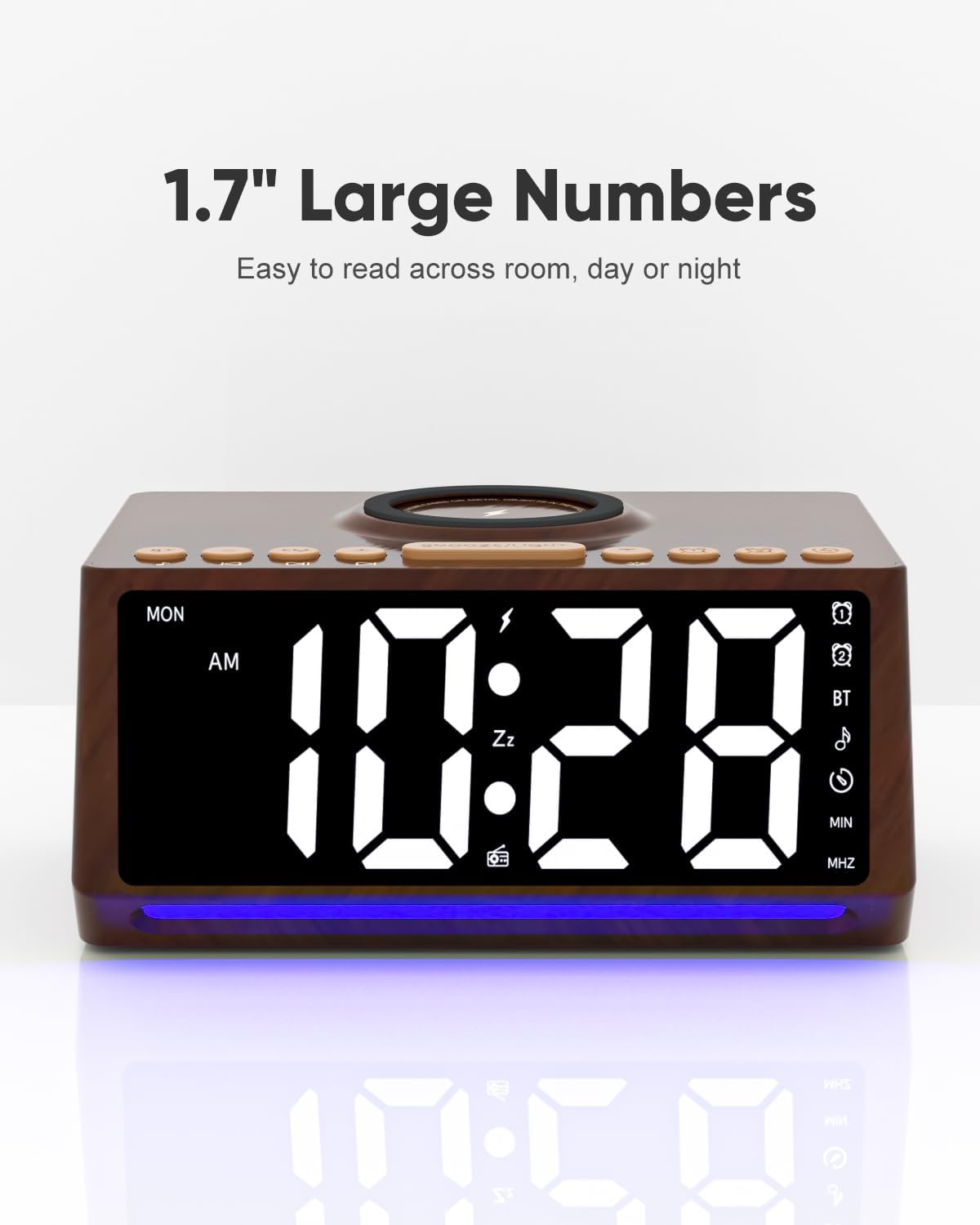
Front view of the Te-Rich ZH019 Digital Alarm Clock, showcasing its large 1.7-inch LED display and the array of control buttons on the top panel.
Control Buttons (Top Panel - typical layout):
- Time Set Button: To set the current time.
- Alarm 1/2 Set Buttons: To set and activate alarms.
- Snooze/Dimmer Button: To snooze an alarm or adjust display brightness.
- Volume Up/Down Buttons: To adjust audio volume.
- FM/Bluetooth Mode Button: To switch between FM radio and Bluetooth modes.
- Play/Pause/Preset Button: For media control or saving FM presets.
- Tune Up/Down Buttons: To change FM radio frequency or skip tracks in Bluetooth mode.
- Mood Light Button: To cycle through mood light colors or turn off.
- Sleep Sound Button: To activate sleep mode and select natural sounds.
Rear Panel:
- DC Power Input: For connecting the power adapter.
- USB Charging Port (if available): For wired charging of other devices.
- FM Antenna Jack (if external): For connecting the FM antenna.
5. Setup
5.1 Power Connection
- Connect the power adapter to the DC power input port on the back of the alarm clock.
- Plug the power adapter into a standard wall outlet. The display will light up, and the clock will be ready for initial setup.
- If your unit has an external FM antenna, connect it to the designated jack for optimal radio reception.
5.2 Setting the Time
- Press and hold the Time Set button. The hour digits will begin to flash.
- Use the Tune Up/Down buttons to adjust the hour. Press the Time Set button again to confirm the hour.
- The minute digits will flash. Use the Tune Up/Down buttons to adjust the minutes. Press the Time Set button again to confirm.
- You may be prompted to select 12-hour or 24-hour format. Use the Tune Up/Down buttons to select and press Time Set to confirm.
6. Operating Instructions
6.1 Setting Alarms
The device supports two independent alarms (Alarm 1 and Alarm 2).
- Press and hold the Alarm 1 Set (or Alarm 2 Set) button. The alarm hour digits will flash.
- Use the Tune Up/Down buttons to adjust the alarm hour. Press the Alarm Set button to confirm.
- The alarm minute digits will flash. Use the Tune Up/Down buttons to adjust the alarm minutes. Press the Alarm Set button to confirm.
- Select the alarm sound source (FM radio or natural sound). Use the Tune Up/Down buttons to cycle through options and press Alarm Set to confirm.
- Adjust the alarm volume using the Volume Up/Down buttons. Press Alarm Set to confirm and activate the alarm.
To turn off a sounding alarm, press any button except Snooze. To activate snooze, press the Snooze/Dimmer button. The alarm will sound again after a set interval (typically 9 minutes).
6.2 FM Radio Operation

The Te-Rich ZH019 features an integrated FM radio with a frequency range of 76-108 MHz. It supports automatic and manual station search, adjustable volume, and a programmable sleep timer from 15 to 90 minutes. An enhanced antenna is included for better reception.
- Press the FM/Bluetooth Mode button repeatedly until 'FM' appears on the display.
- Auto Scan: Press and hold the Play/Pause/Preset button to automatically scan and save available FM stations. The device can store up to 20 stations.
- Manual Tuning: Briefly press the Tune Up/Down buttons to fine-tune the frequency. Press and hold to quickly scan for the next available station.
- Select Presets: Briefly press the Play/Pause/Preset button to cycle through saved stations.
- Sleep Timer: While in FM mode, press the Sleep Sound button repeatedly to set a sleep timer (15-90 minutes). The radio will automatically turn off after the selected duration.
6.3 Bluetooth Speaker Operation

Equipped with Bluetooth 5.0, the Te-Rich ZH019 allows for wireless streaming of high-quality audio from your smartphone or tablet. The image depicts the device playing music, enhancing your home audio experience.
- Press the FM/Bluetooth Mode button repeatedly until 'BT' appears on the display and a pairing tone is heard. The device is now in Bluetooth pairing mode.
- On your smartphone or tablet, enable Bluetooth and search for 'ZH019' (or similar device name).
- Select 'ZH019' to pair. Once connected, a confirmation tone will sound.
- You can now play audio from your device through the alarm clock's speaker. Use the Volume Up/Down buttons on the alarm clock or your connected device to adjust volume.
- Use the Tune Up/Down buttons to skip tracks and the Play/Pause/Preset button to play or pause audio.
6.4 Wireless Charging Function

The Te-Rich ZH019 offers fast wireless charging (5W, 7.5W, 10W) for all Qi-enabled smartphones. The image shows a phone charging on the device, emphasizing compatibility with phone cases up to 5mm thick.
- Ensure the alarm clock is powered on.
- Place your Qi-enabled smartphone directly onto the wireless charging pad located on the top surface of the alarm clock.
- Ensure the phone is centered on the charging pad for optimal contact. A charging indicator (e.g., a lightning bolt icon on the display or a specific LED) will illuminate to confirm charging has begun.
- The charger supports 5W, 7.5W, and 10W fast wireless charging.
- For best results, remove phone cases thicker than 5mm or cases containing metal/magnetic elements.
6.5 Display Brightness and Mood Light

The large 1.7-inch LED display of the Te-Rich ZH019 features a 0-100% dimmable function with four adjustable levels. This allows users to set the display brightness to their preference, ensuring it is neither too bright for sleep nor too dim to read.
- Display Dimmer: Briefly press the Snooze/Dimmer button to cycle through the 4 brightness levels (0%, 20%, 60%, 100%) of the main time display.
- Mood Light: Press the Mood Light button to turn on the ambient light. Repeatedly press the button to cycle through the 7 available colors. Press and hold to turn off the mood light.
6.6 Sleep Mode and Natural Sounds

The Te-Rich ZH019 includes a 'Fall-asleep Mode' designed to promote relaxation. It offers 10 natural sounds, 7 color mood lights, and Bluetooth audio playback, all with an adjustable timer to gently guide you to sleep.
- Press the Sleep Sound button to activate the sleep mode. The default natural sound will begin to play.
- Repeatedly press the Sleep Sound button to cycle through the 10 available natural sounds.
- While a sleep sound is playing, you can also activate the mood light by pressing the Mood Light button.
- To set a timer for the sleep sound, press and hold the Sleep Sound button, then use the Tune Up/Down buttons to select the desired duration (e.g., 15, 30, 60 minutes). The sound will gradually fade out and turn off after the set time.
7. Maintenance
- Clean the device with a soft, dry cloth. Do not use abrasive cleaners or solvents.
- Keep the device free from dust and debris, especially around the charging pad and speaker grilles.
- Store the device in a cool, dry place when not in use for extended periods.
8. Troubleshooting
- No Power/Display Off: Ensure the power adapter is securely connected to both the device and a working power outlet.
- Wireless Charging Not Working:
- Ensure your phone is Qi-enabled and correctly centered on the charging pad.
- Remove any thick phone cases (>5mm) or cases with metal/magnetic components.
- Check if any foreign objects are on the charging pad.
- FM Radio Static/Poor Reception:
- Extend and adjust the position of the FM antenna.
- Try moving the alarm clock to a different location, away from other electronic devices that may cause interference.
- Bluetooth Not Connecting:
- Ensure the alarm clock is in Bluetooth pairing mode ('BT' flashing).
- Make sure Bluetooth is enabled on your smartphone/tablet.
- Forget the device from your phone's Bluetooth list and try pairing again.
- Ensure the alarm clock is within the Bluetooth range (approx. 10 meters).
- Alarm Not Sounding:
- Verify that the alarm is set and activated (alarm icon visible on display).
- Check the alarm volume setting.
9. Specifications
| Brand | Te-Rich |
| Model Number | ZH019 |
| Color | Brown |
| Product Dimensions (L x W x H) | 15.01 x 3.81 x 7.29 cm (5.91 x 1.5 x 2.87 inches) |
| Item Weight | 581 grams (1.28 lbs) |
| Special Features | Loud Alarm, Large Screen, Mood Light, FM Radio, Wireless Charging Station |
| Display Type | Digital LED (1.7-inch numbers) |
| Style | Wooden |
| Power Source | Corded Electric |
| FM Frequency Range | 76 - 108 MHz |
| Bluetooth Version | 5.0 |
| Wireless Charging Output | 5W, 7.5W, 10W (Qi-compatible) |
| Mood Light Colors | 7 Colors |
| Natural Sounds | 10 Sounds |
10. Warranty and Support
Specific warranty information for the Te-Rich ZH019 Digital Alarm Clock is not available in this manual. Please refer to the product packaging or the retailer's website for details regarding warranty coverage and customer support.
For technical assistance or further inquiries, please contact Te-Rich customer support through the contact information provided with your purchase or on the official Te-Rich website.
