
1. Introduction
This manual provides detailed instructions for the setup, operation, and maintenance of your WeHere W100 Wi-Fi Bridge and Door Sensor. This system enables remote control and real-time monitoring of your smart lockboxes and doors, enhancing security and convenience. Please read this manual thoroughly before use to ensure proper functionality and safety.
2. Product Components
The WeHere W100 system includes the following main components:
- WeHere W100 Wi-Fi Bridge (Gateway)
- WeHere Door Sensor
- Power Cable for Gateway
The W100 Wi-Fi Bridge acts as a central hub, connecting various WeHere smart devices such as key boxes, smart mailboxes, and smart door locks to your home network, allowing for remote management via the WeHere app.

Image: The WeHere W100 Wi-Fi Bridge serves as a central gateway for multiple smart devices, including key boxes, smart mailboxes, and smart door locks, enabling unified control.
3. Setup and Installation
3.1. Connecting the Gateway to Power
- Connect the power cable to the WeHere W100 Gateway.
- Plug the power cable into a standard electrical outlet.
- Ensure the white indicator light on the gateway is flashing. If it is not flashing, please check the power connection.
3.2. Network Settings
The WeHere W100 Gateway supports 2.4GHz Wi-Fi networks only. 5GHz networks are not supported.
- On your mobile phone, turn on Bluetooth and Wi-Fi.
- Ensure your phone is connected to your home's 2.4GHz Wi-Fi router.
3.3. Adding the Gateway to the App
- Open the WeHere app on your mobile phone.
- Navigate to the "My Devices" page.
- Tap the "+" button located in the upper right corner of the screen.
- Scan the QR code found on the W100 device to bind it to your account.
- Enter your Wi-Fi password and select "Confirm" to connect the device to your network.

Image: The WeHere W100 Wi-Fi Bridge facilitates remote unlocking of smart lockboxes via the WeHere app, requiring a 2.4G Wi-Fi signal.
3.4. Linking the Gateway to a Lock
- Go to the W100 management page (Wi-Fi Manage) within the app.
- Click on "SubDevice Mng" (Sub-Device Management).
- On this page, you can select the specific lock you wish to link with the gateway.
3.5. Door Sensor Installation
If you intend to use the door sensor function, ensure the straight-line distance between the gateway and the router is less than 5 meters. Install the gateway and door sensor horizontally on the door and door frame, respectively, using the self-adhesive backing.

Image: The WeHere Gateway and Door Sensor Kit installed on a door, providing real-time notifications when the door is opened or closed.
4. Operating Instructions
4.1. Remote Unlock
The WeHere W100 Bridge allows you to remotely unlock associated smart locks from anywhere, eliminating Bluetooth distance limitations. Simply use the WeHere app to send an unlock command.

Image: The WeHere system enables remote door unlocking for guests, allowing access from miles away via the app.
4.2. Remotely Set Time Period Passwords
You can set, modify, or delete temporary or time-limited passwords for your smart locks remotely through the WeHere app. This feature is useful for granting access to guests or service providers for specific durations.

Image: The WeHere app provides full control over smart locks, allowing users to unlock doors, manage members, and set passwords remotely.
4.3. Real-time Notifications and Auto-Lock
Receive real-time notifications on your WeHere app whenever a door or window equipped with the door sensor is opened or closed. The system can also be configured for auto-lock functionality, enhancing security.
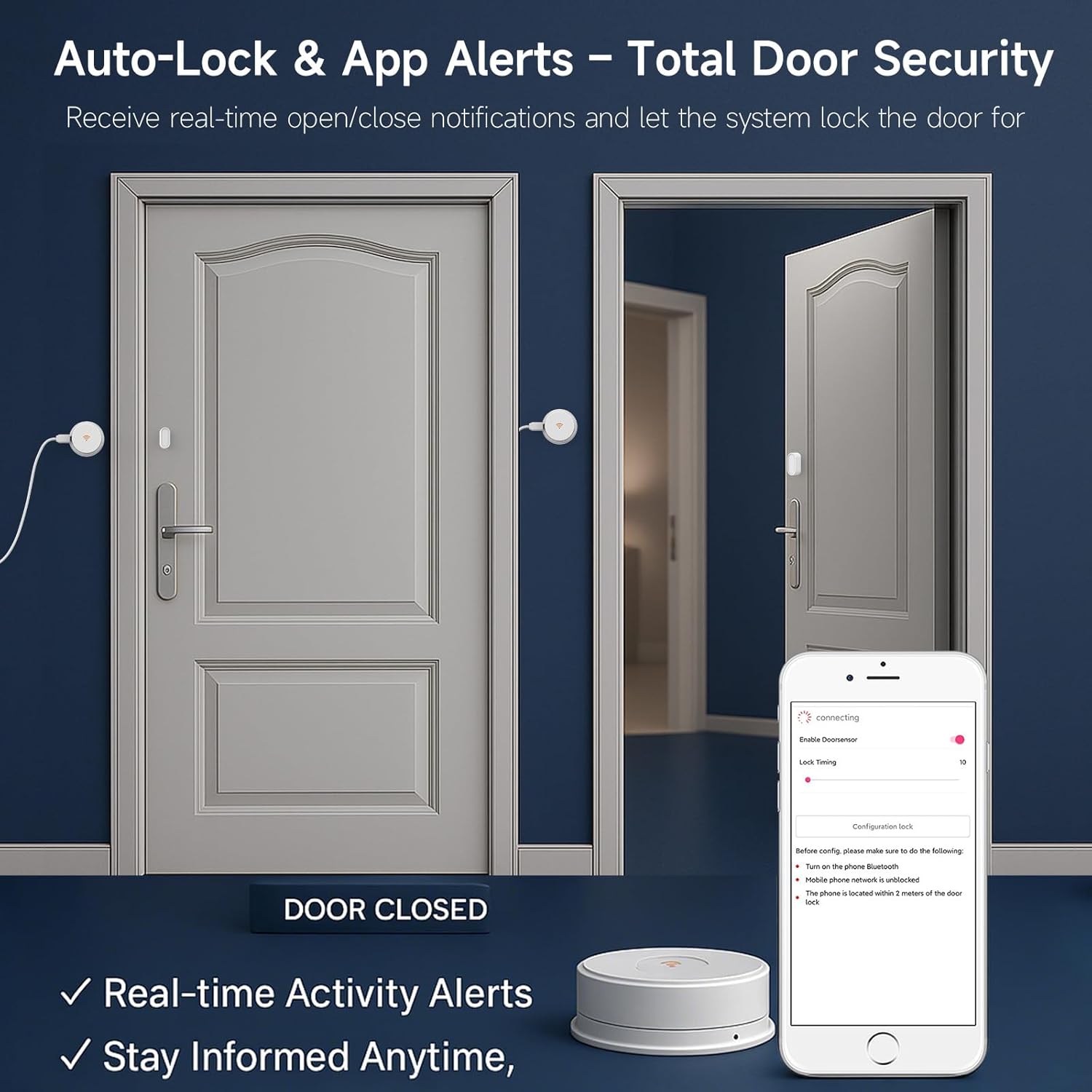
Image: The WeHere system provides auto-lock and app alerts, ensuring total door security with real-time activity notifications.
5. W100 Gateway Indicator Lights
Understanding the indicator lights on your W100 Gateway is crucial for monitoring its status:
- White light flashing: The gateway is connecting to Wi-Fi.
- White light on, yellow light flashing: The gateway is connected to Wi-Fi and attempting to connect to the server.
- Both white and yellow lights on: The gateway is successfully connected to both Wi-Fi and the server.
- Both white and yellow lights flashing: The gateway failed to connect to Wi-Fi and the server. Please check if the network is 2.4GHz and if the gateway is within 5 meters of the router.
6. Troubleshooting
- Gateway not connecting to Wi-Fi: Ensure your router broadcasts a 2.4GHz signal. Verify the Wi-Fi password entered in the app is correct.
- Gateway not connecting to server: Check your internet connection. Ensure the gateway is within 5 meters of your Wi-Fi router for optimal signal strength.
- Remote unlock not working: Confirm the gateway is successfully connected (both white and yellow lights on). Ensure the smart lock is properly linked to the gateway in the app.
- Door sensor not providing notifications: Verify the door sensor is correctly installed horizontally on the door and frame. Check the gateway's connection status.
- Gateway requires separate power supply: The bridge does not use batteries and must be continuously powered.
7. Specifications
| Feature | Detail |
|---|---|
| Brand | WeHere |
| Model Number | W100 |
| Color | White |
| Power Source | Separate Power Supply (Bridge does not use batteries) |
| Compatible Devices | Smartphone |
| Item Dimensions (L x W x H) | 3 x 3 x 1 inches |
| Connectivity Technology | Wireless (2.4G WiFi Only) |
| Alert Type | Motion (Door Open/Close) |
| Control Method | App |
| Maximum Range (Gateway to Lock) | 16 feet (approx. 5 meters) |
| Sensor Technology | Wireless |
| Smart Home Compatibility | Smart Home Compatible |
| Item Weight | 6.4 ounces |
| Installation Method | Self-Adhesive |
8. Maintenance
To ensure optimal performance and longevity of your WeHere W100 Wi-Fi Bridge and Door Sensor:
- Keep the devices clean and free from dust. Use a soft, dry cloth for cleaning.
- Avoid exposing the devices to extreme temperatures or humidity.
- Regularly check the power connection for the gateway.
- Ensure your Wi-Fi network is stable and the router is within the recommended range of the gateway.
- Keep the WeHere app updated to the latest version for new features and security enhancements.
9. Official Product Videos
How to work with gateways and connect to the Internet
Video: This video demonstrates the process of setting up the WeHere gateway and connecting it to your home internet network, including important considerations for device placement and network settings.
WeHere WiFi gateway and door sensor
Video: An overview of the WeHere WiFi gateway and door sensor, showcasing their features and how they work together to provide smart security for your home or office.
10. Warranty and Support
For warranty information and technical support, please refer to the official WeHere website or contact customer service directly. Keep your purchase receipt for warranty claims.