
1. Overview
This manual provides detailed instructions for the installation, operation, and maintenance of your EagleNav Android 13 Car Stereo Radio, model X3. This unit is designed to enhance your driving experience with advanced features such as wireless CarPlay, Android Auto, GPS navigation, Bluetooth connectivity, and FM/AM radio. Please read this manual thoroughly before installation and use to ensure proper functionality and safety.
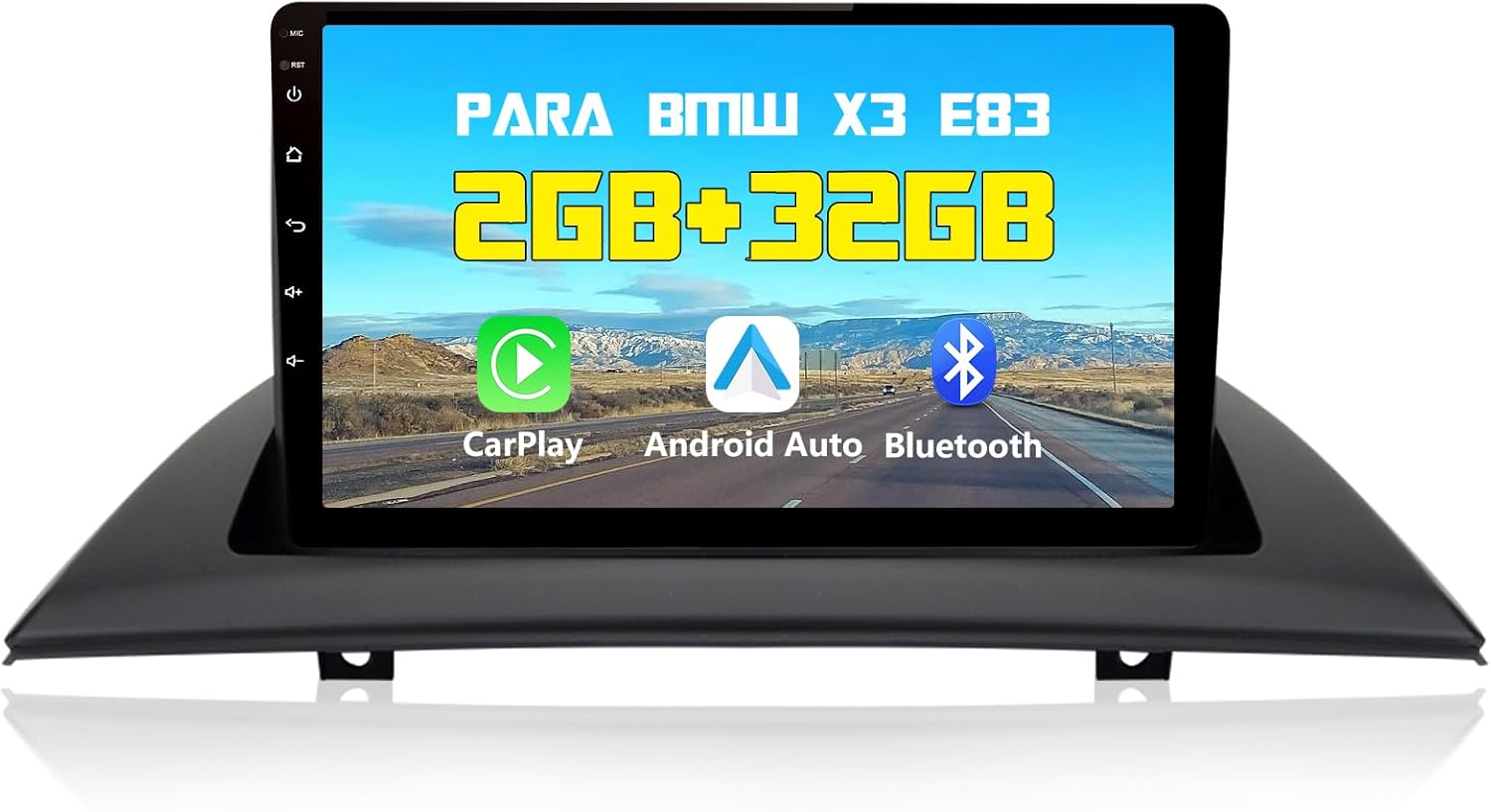
Image 1.1: EagleNav Android 13 Car Stereo Radio main unit with display showing CarPlay, Android Auto, and Bluetooth icons.
2. Compatibility
This EagleNav Car Stereo Radio is specifically designed for the following vehicle models:
- BMW X3 E83: 2004, 2005, 2006, 2007, 2008, 2009, 2010, 2011, 2012
Ensure your vehicle falls within these specifications for proper fitment and functionality.
3. Package Contents
Upon opening the package, verify that all the following components are included:
- Main Head Unit (Android 13 Car Stereo)
- Mounting Frame
- Power Cable Harness
- RCA Cable Set
- GPS Module/Antenna
- USB Cable
- Video Input Cable
- Instruction Manual (this document)

Image 3.1: Visual representation of the included components: Main unit, frame, power cable, RCA cables, GPS module, USB cable, video input cable, and instruction manual.
4. Installation
Installation of the EagleNav Car Stereo Radio requires technical knowledge and experience with automotive electronics. Professional installation is highly recommended to prevent damage to the unit or your vehicle.
4.1 Pre-Installation Check
- Disconnect the vehicle's battery to prevent electrical shorts.
- Carefully remove the existing factory radio unit and trim.
- Compare the dimensions of the new unit with the existing opening to ensure a proper fit.
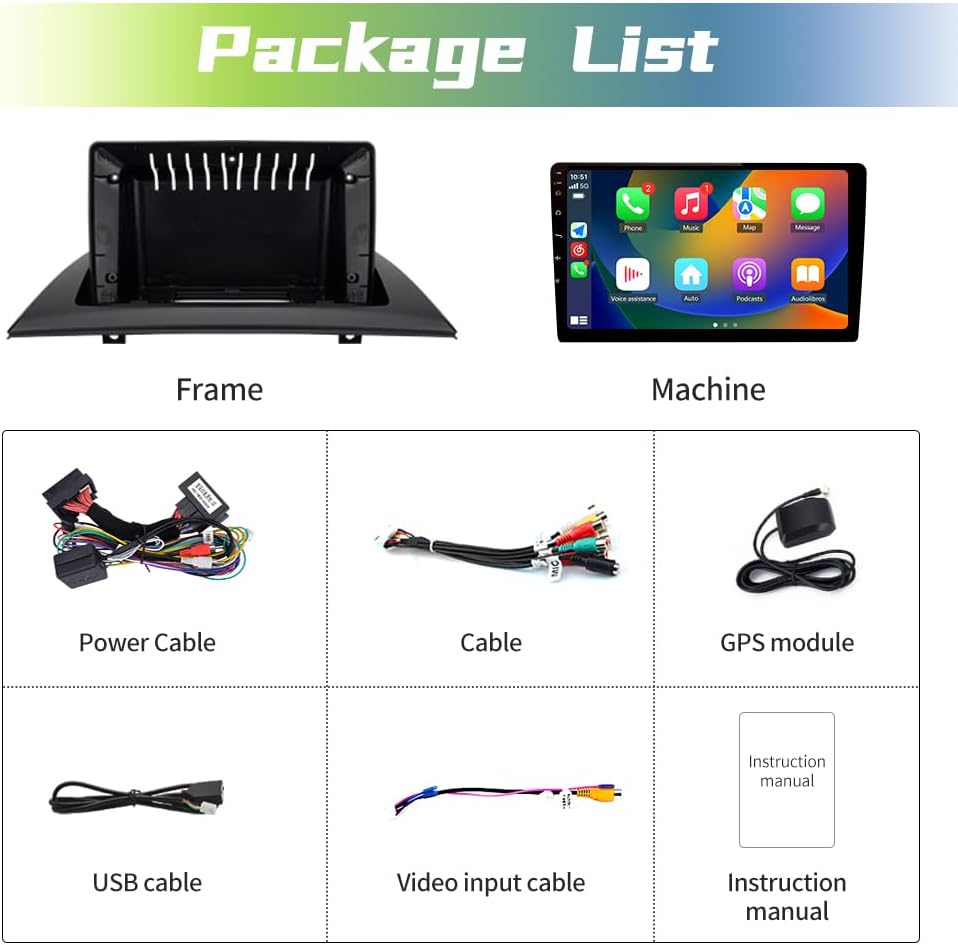
Image 4.1: Diagram showing the dimensions of the main unit and the mounting frame for fitment verification.
4.2 Wiring Diagram
Refer to the following diagram for correct wiring connections. Ensure all connections are secure before powering on the unit.

Image 4.2: Detailed wiring diagram illustrating connections for power, speakers, GPS antenna, USB, and optional camera inputs.
4.3 Post-Installation
After installation, reconnect the vehicle's battery and perform initial power-on tests. Verify all functions, including audio, display, and connectivity, are working correctly.

Image 4.3: Comparison showing the vehicle's dashboard before and after the installation of the EagleNav Car Stereo.
5. Setup
Upon first power-on, the system will guide you through initial setup steps:
- Language Selection: Choose your preferred system language.
- Time and Date: Set the correct time zone, date, and time.
- Network Connection: Connect to a Wi-Fi network to enable online features and app downloads.
- GPS Calibration: Ensure the GPS antenna is properly positioned for optimal signal reception.
6. Operating Instructions
This section details the primary functions and how to operate your EagleNav Car Stereo.
6.1 Wireless CarPlay and Android Auto
The unit supports wireless CarPlay and Android Auto for seamless smartphone integration. Connect your phone via Bluetooth to project its content onto the stereo's display. This allows access to navigation, music, calls, and other applications safely through the stereo's interface or voice commands (Siri/Google Assistant).

Image 6.1: Display showing the CarPlay interface with various app icons like Phone, Music, Map, and Messages.
6.2 Bluetooth Hands-Free Calling
Pair your Android or iOS phone via Bluetooth for hands-free calling. This feature allows you to make and receive calls directly from the stereo, enhancing driving safety. An external microphone can be connected for improved voice clarity if needed.
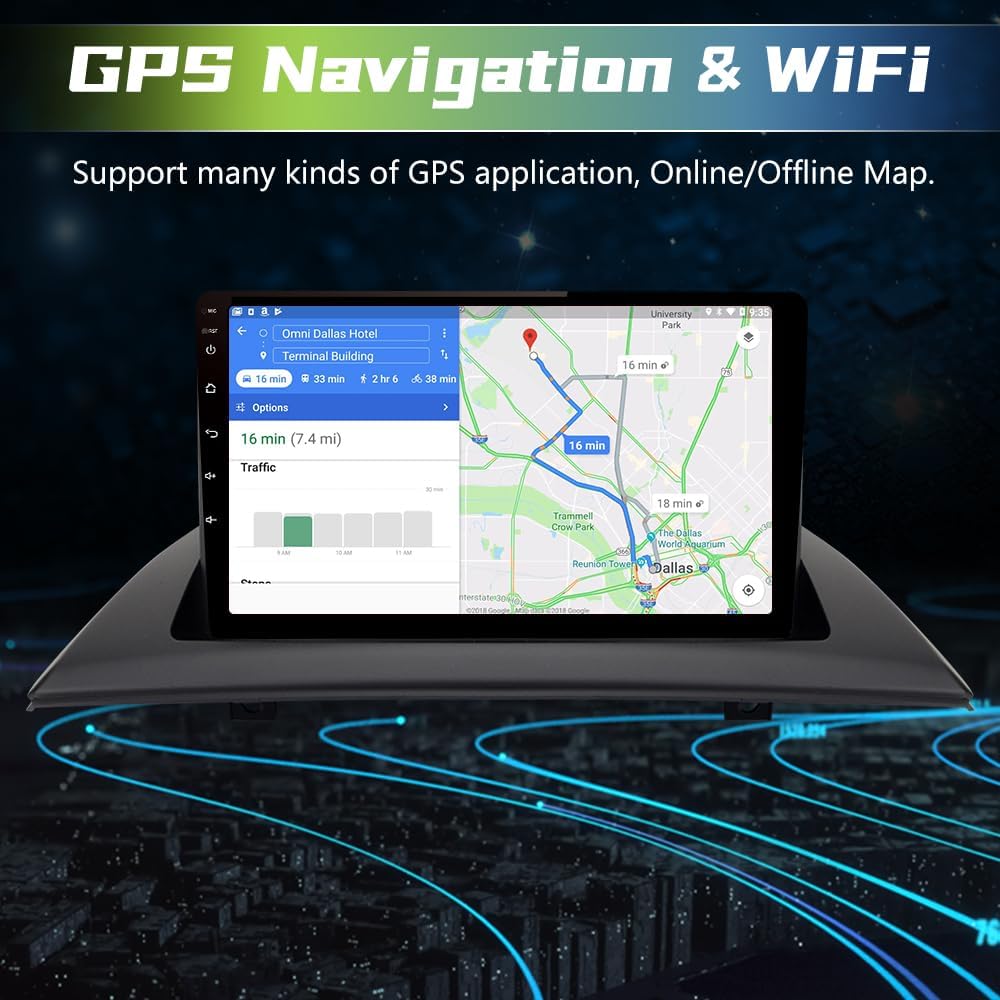
Image 6.2: Screen displaying a phone dial pad for making calls via Bluetooth.
6.3 GPS Navigation
Utilize the integrated GPS module for navigation. You can plan routes using coordinates, postal codes, addresses, or Points of Interest (POI). Online map applications can be downloaded from the app store to access real-time traffic information.

Image 6.3: GPS map showing a route with traffic information and estimated travel time.
6.4 Steering Wheel Control
The unit supports existing steering wheel controls, allowing you to safely manage calls, adjust volume, and change tracks without taking your hands off the wheel. This feature requires proper wiring during installation.

Image 6.4: Screen showing customizable steering wheel control buttons for various functions like power, home, volume, and media playback.
6.5 FM/AM Radio
The high-quality digital stereo FM/AM tuner with RDS allows for automatic and semi-automatic station searching. You can save your favorite stations for quick access.

Image 6.5: FM radio interface displaying frequency, RDS information, and preset station buttons.
6.6 Multimedia Playback
The unit supports various multimedia playback methods, including local files and online streaming via Wi-Fi. It features a built-in microphone and stereo equalizer with preset modes (Jazz, Rock, Pop, Classical) for customized audio output. You can also control the volume of individual speakers.
6.7 Reversing Camera Support
Connect an optional rear-view camera (not included) to the unit for parking assistance. The display will automatically switch to the camera feed when the vehicle is in reverse, providing a clear view of the area behind your car.

Image 6.6: Screen showing a simulated reversing camera view with parking guidelines.
6.8 Mirror Link
The Mirror Link function allows you to mirror the screen of your Android or iOS mobile phone onto the car stereo display. This enables sharing of videos and high-definition images.
6.9 Wi-Fi/WLAN Connectivity
Connect the unit to a Wi-Fi network to access online content, download applications like YouTube and Gmail, and browse the internet directly from the stereo.
7. Maintenance
To ensure the longevity and optimal performance of your EagleNav Car Stereo, follow these maintenance guidelines:
- Cleaning: Use a soft, dry cloth to clean the screen and exterior. Avoid abrasive cleaners or solvents.
- Software Updates: Periodically check for and install available software updates to ensure the system runs efficiently and securely.
- Environmental Conditions: Avoid exposing the unit to extreme temperatures, direct sunlight for prolonged periods, or excessive moisture.
8. Troubleshooting
This section addresses common issues you might encounter with your car stereo.
8.1 Display Issues
- Screen is black or difficult to see with polarized sunglasses: The display technology may interact with polarized lenses, causing reduced visibility. This is a characteristic of some LCD screens and not a defect.
- Screen freezes occasionally: If the screen freezes for a few seconds upon startup, this is typically a minor software delay. If freezing persists or occurs frequently during operation, try restarting the unit. If the issue continues, contact customer support.
8.2 Functionality Problems
- Backup camera activates randomly: This could indicate a wiring issue with the reverse trigger signal or a software malfunction. Verify the camera wiring connections. If the issue persists, a software reset or professional inspection may be required.
- Cannot connect Bluetooth device or locked in CarPlay mode: This suggests a potential software or wiring problem. Try restarting the unit. If the problem continues, check Bluetooth settings and ensure no other devices are interfering. A factory reset might resolve software glitches, but note that this will erase all user data.
For persistent issues not covered here, please refer to the Warranty and Support section.
9. Specifications
| Feature | Specification |
|---|---|
| Brand | EagleNav |
| Model Name | EagleNav Car Stereo Radio |
| Model Number | X3 |
| Operating System | Android 13 |
| Memory Storage Capacity | 2 GB RAM |
| Internal Storage | 32 GB |
| Display Size | 9 Inches |
| Display Type | LCD |
| Compatible Devices | Smartphone |
| Special Features | Android Auto, Apple CarPlay, Bluetooth, Wi-Fi Integrated |
| Connectivity Technology | Bluetooth, Wi-Fi |
| Audio Output Mode | Stereo |
| Mounting Type | Dash Mount |
| Package Dimensions | 39.6 x 27.79 x 19.71 cm |
| Item Weight | 2.21 kg |
10. Warranty and Support
This EagleNav product comes with a one-year warranty from the date of purchase. If you encounter any quality issues with the product or have questions regarding its operation or installation, please contact our customer support team.
Our dedicated support team is available to provide assistance. For inquiries, please reach out via email:
Email: EagleNav-us@outlook.com
We are committed to providing excellent after-sales service to ensure your satisfaction.