
1. Introduction
The ICUIXIAN HDMI Matrix Switch 8x8 is a high-definition digital signal switching device designed to manage and distribute HDMI signals. This matrix allows you to connect up to eight HDMI source devices to eight HDMI display devices. It can transmit signals so that all output ports display the same content synchronously, or it can independently distribute different input signals to each display. This manual provides detailed instructions for the installation, operation, and maintenance of your HDMI matrix switch.
2. Key Features
- 8-Input, 8-Output HDMI Matrix: Connects up to eight HDMI source devices to eight HDMI display devices.
- High-Resolution Support: Compatible with HDMI 1.4a standard, supporting 1080P and 1080P3D resolutions at 60Hz.
- Multiple Control Methods: Features WEB GUI control (via LAN port), RS-232 serial control, IR remote control, and front panel button control.
- EDID Management: Includes built-in pre-plan management for up to 32 scenes, allowing for one-key calling and switching. Supports real-time equipment information display and quick signal switching.
- Advanced Video Support: All inputs support HDCP decoding, Blu-ray, and 3D content.
- Reliability Features: Incorporates electrostatic protection and power-off memory to retain settings.
- Rack Mount Design: Designed for easy integration into standard equipment racks.
3. Product Overview
Familiarize yourself with the components and interfaces of your ICUIXIAN HDMI Matrix Switch.
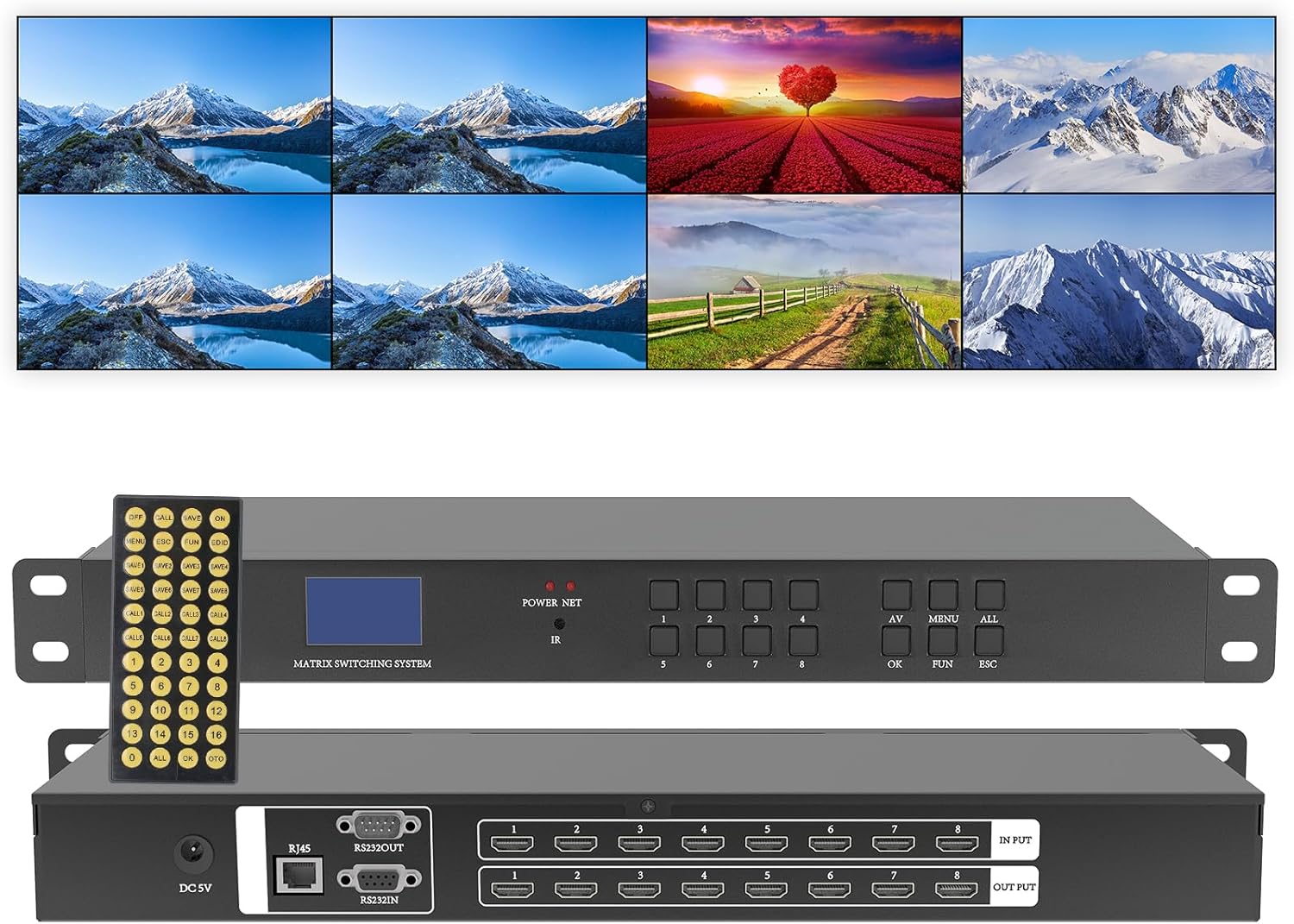
Figure 3.1: ICUIXIAN HDMI Matrix Switch 8x8, showing the device's front and rear panels along with its remote control and a visual representation of its multi-display output capabilities.
3.1 Front Panel
- LCD Display: Shows current input/output status and system information.
- POWER/SET Button: Power control and menu access.
- IR Receiver: For infrared remote control signals.
- Input/Output Selection Buttons (1-8): Used to select specific input or output channels.
- OK Button: Confirms selections.
- FUN Button: Function button for advanced settings.
- ESC Button: Exits current menu or cancels operation.
3.2 Rear Panel

Figure 3.2: Rear panel connections of the HDMI Matrix Switch, detailing the input and output ports.
- DC 5V: Power input port.
- RJ45 (LAN): Ethernet port for WEB GUI control.
- RS232 OUT/IN: Serial communication ports for external control systems.
- HDMI INPUT (1-8): Connect your HDMI source devices (e.g., Blu-ray players, computers).
- HDMI OUTPUT (1-8): Connect your HDMI display devices (e.g., TVs, projectors).
4. Setup and Connection
Follow these steps to set up your HDMI Matrix Switch:

Figure 4.1: Typical connection diagram for the HDMI Matrix Switch, illustrating how to connect source devices, display devices, and control interfaces.
- Power Off Devices: Ensure all HDMI source devices, display devices, and the HDMI Matrix Switch are powered off before making any connections.
- Connect HDMI Sources: Connect your HDMI source devices (e.g., PC, Blu-ray player, game console) to the HDMI INPUT ports (1-8) on the rear panel of the matrix switch using high-quality HDMI cables.
- Connect HDMI Displays: Connect your HDMI display devices (e.g., TV, projector) to the HDMI OUTPUT ports (1-8) on the rear panel of the matrix switch using high-quality HDMI cables.
- Connect Control Cables (Optional):
- LAN Port: For WEB GUI control, connect an Ethernet cable from the RJ45 port on the matrix switch to your network router or switch.
- RS-232: For serial control, connect an RS-232 cable from your control system to the RS232 IN port on the matrix switch.
- Connect Power: Connect the provided 5V DC power adapter to the DC 5V port on the matrix switch, then plug the adapter into a power outlet.
- Power On: Power on the HDMI Matrix Switch, followed by your display devices, and then your source devices.
5. Operation
The HDMI Matrix Switch offers various methods for controlling input and output routing.
5.1 Switching Modes
The matrix switch supports different display configurations:

Figure 5.1: Visual representation of the different screen switching modes available.
- Matrix Mode: Each output display can independently select any of the eight input sources.
- Matrix & Splitter Mode: A combination where some output displays share a common input source, while others select independent sources.
- Splitter Mode: All eight output displays show the same single input source.
5.2 Control Methods
You can control the matrix switch using the following methods:

Figure 5.2: Overview of the available control methods for the HDMI Matrix Switch.
- Front Panel Buttons: Use the Input/Output selection buttons, OK, FUN, and ESC buttons on the front panel to directly control routing.
- IR Remote Control: Point the included IR remote control towards the IR receiver on the front panel to switch inputs and outputs.
- RS-232 Serial Control: Connect to a PC or control system via the RS-232 port for command-line or software-based control. Refer to the RS-232 command protocol for details.
- WEB GUI Control: Access the matrix switch's web interface via a browser on a computer, mobile phone, or tablet connected to the same network as the switch's LAN port. This allows for cross-platform control without installing additional software.
5.3 EDID Management and Scene Presets
The matrix switch supports EDID management and scene saving for convenient configuration:
- EDID Settings: The device supports EDID decoding to ensure compatibility between source and display devices. Specific EDID settings can be configured via the WEB GUI or RS-232 control.
- Scene Management: You can save up to 32 different input/output routing configurations as scenes. These scenes can be recalled with a single command or button press, simplifying complex setups.
- Real-time Information: The system provides real-time display of equipment information, facilitating quick adjustments and monitoring.
5.4 Video Demonstration: Common Switching Modes
Video 5.1: A demonstration of common switching modes for the ICUIXIAN HDMI Matrix Switch/Splitter, illustrating how different input sources can be routed to various displays.
6. Typical Applications
The ICUIXIAN HDMI Matrix Switch is suitable for a wide range of professional and home environments requiring flexible video distribution:
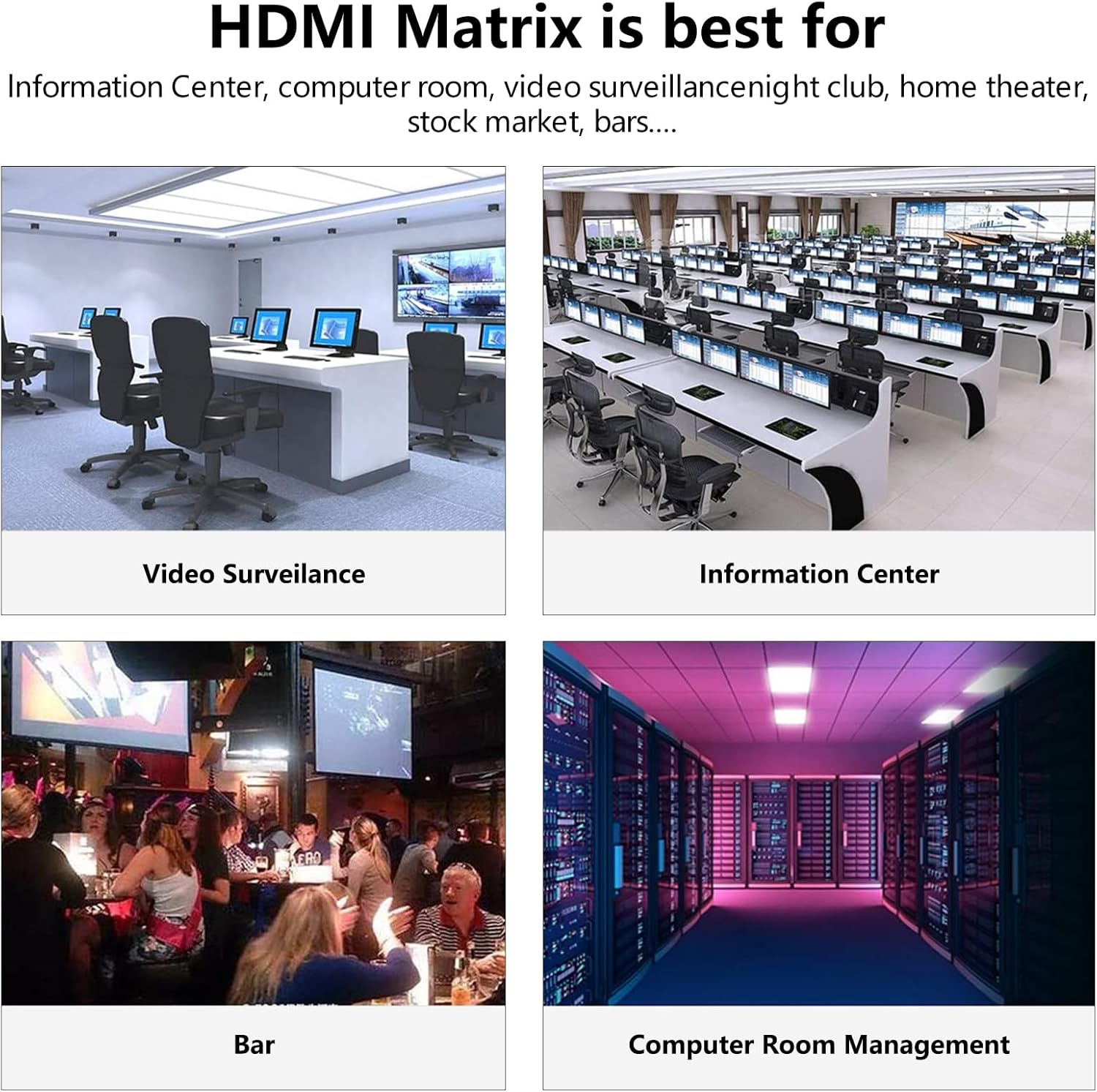
Figure 6.1: Examples of environments where the HDMI Matrix Switch can be effectively utilized.
- Broadcast TV Projects
- Nightclubs and Bars
- Sports and Gymnastics Clubs
- Multimedia Conference Halls
- Large-screen Display Projects
- TV Education Facilities
- Command and Control Centers
- Restaurants and Casinos
- Hotels and Home Theaters
7. Troubleshooting
If you encounter issues with your HDMI Matrix Switch, please refer to the following common problems and solutions:
| Problem | Possible Cause | Solution |
|---|---|---|
| No video output on display. | Loose cable connections, incorrect input/output selection, incompatible resolution, HDCP issues. | Check all HDMI cable connections. Ensure the correct input source is selected for the desired output. Verify that the display supports the output resolution of the source. Power cycle all devices. |
| Intermittent video or audio. | Poor quality HDMI cables, cable length too long, signal interference. | Use certified high-quality HDMI cables. Ensure cable lengths are within recommended limits. Try shorter cables if possible. Check for nearby sources of electromagnetic interference. |
| Remote control not working. | Dead batteries, IR receiver blocked, remote out of range. | Replace remote control batteries. Ensure no obstructions are blocking the IR receiver on the front panel. Operate the remote within its effective range. |
| WEB GUI inaccessible. | Network connection issue, incorrect IP address, firewall blocking. | Verify the Ethernet cable is securely connected. Check network settings and ensure the matrix switch has a valid IP address on your network. Temporarily disable firewalls for testing. |
8. Specifications
| Feature | Detail |
|---|---|
| Model Number | DC-16x16 |
| Product Dimensions | 9 x 28 x 4 inches |
| Item Weight | 9 pounds |
| Brand | ICUIXIAN |
| Connector Type | HDMI |
| Compatible Devices | Projector, Television, Computer |
| Cable Type | HDMI |
| Color | Black gray |
| Manufacturer | XINTEAN |
| Date First Available | January 20, 2024 |
9. Warranty and Support
ICUIXIAN products are designed for reliability and performance. For specific warranty information, please refer to the documentation included with your purchase or contact ICUIXIAN customer support. If you require technical assistance or have questions regarding your HDMI Matrix Switch, please reach out to our support team through the official ICUIXIAN website or your retailer.