
Meentek TVIP 605 SE
Meentek TVIP 605 SE 4K Ultra HD Dual System TV Box User Manual
Model: TVIP 605 SE
Introduction
This manual provides comprehensive instructions for setting up, operating, and maintaining your Meentek TVIP 605 SE 4K Ultra HD Dual System TV Box. This device offers a versatile entertainment experience with both Linux and Android operating systems, supporting 4K Ultra HD resolution and dual-band Wi-Fi.
Key features include:
- Amlogic S905X2 quad core 1.8 GHz processor
- Video resolution: 3840×2160 (HDR)
- WiFi 802.11 (b/g/n/ac) 2,4/5 GHz
- Memory RAM: 1 Gb, Flash 8 Gb
- Interfaces: HDMI, AV, Ethernet, 2xUSB, MicroSD Card
- USB Recording (DVR) capability
What's in the Box
Please check the package contents to ensure all items are present:
- TVIP 605 SE Set-top box
- IR Remote Control
- Power Adapter
- 2 AAA batteries
Product Overview

Figure 1: TVIP 605 SE Set-top box and included remote control.
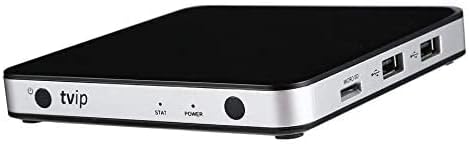
Figure 2: Angled view of the TVIP 605 SE, highlighting the front panel with power and status indicators, and the side panel with USB and MicroSD ports.

Figure 3: Close-up view of the side ports, including MicroSD card slot and two USB ports.
Front Panel
- Power Button: Turns the device on/off or puts it into standby.
- STAT Indicator: Indicates system status.
- POWER Indicator: Indicates power status.
Side Panel
- MicroSD Card Slot: For expanding storage or loading media.
- USB Ports (x2): For connecting external storage, keyboards, mice, or other USB devices.
Rear Panel (Standard Connections)
- HDMI Port: Connects to your TV or display for video and audio output.
- AV Port: For older TVs using composite video and stereo audio.
- Ethernet Port: For wired network connection.
- DC IN: Power input from the adapter.
Setup
1. Connecting to Your TV
- Connect one end of an HDMI cable (not included) to the HDMI port on the TVIP 605 SE.
- Connect the other end of the HDMI cable to an available HDMI input on your television. Note the HDMI input number (e.g., HDMI 1, HDMI 2).
- (Optional for older TVs) If using the AV port, connect an AV cable (not included) from the TVIP 605 SE to the corresponding AV inputs on your TV.
2. Power Connection
- Insert the small end of the power adapter into the DC IN port on the TVIP 605 SE.
- Plug the power adapter into a wall outlet.
3. Network Connection
You have two options for connecting to the internet:
Wired Connection (Ethernet)
- Connect an Ethernet cable (not included) from your router or modem to the Ethernet port on the TVIP 605 SE.
- The device will typically obtain an IP address automatically.
Wireless Connection (Wi-Fi)
- Ensure your Wi-Fi router is on and broadcasting.
- After powering on the device, navigate to the network settings menu.
- Select "Wi-Fi" and choose your network from the list of available networks.
- Enter your Wi-Fi password if prompted.
4. Initial Power On
- Turn on your TV and select the correct HDMI input.
- Press the Power button on the TVIP 605 SE remote control or the device itself.
- The device will boot up, and you will see the initial setup screen. Follow the on-screen prompts to configure language, time zone, and other basic settings.
Operating Your Device
Remote Control Functions
Familiarize yourself with the remote control for easy navigation:
- Power Button: On/Off/Standby.
- Navigation Pad (Arrows & OK): Move through menus and confirm selections.
- Back/Return: Go back to the previous screen.
- Home/Menu: Return to the main menu or access system settings.
- Volume +/-: Adjust audio volume.
- Channel +/-: Navigate through channels (if applicable to your service).
- Numeric Keypad: For direct input of numbers or channels.
- Media Playback Controls: Play, Pause, Stop, Fast Forward, Rewind.
- Colored Buttons: Functionality varies by application.
Dual Operating Systems (Linux + Android)
The TVIP 605 SE supports both Linux and Android operating systems. The default boot system can usually be configured in the device settings. You can switch between environments or access specific applications depending on the OS you are currently using.
Using Applications and Middleware
The device supports various middleware platforms such as TVIP TMS, Open JSON API, Hibox Aura, Stalker, and HTML5/JS portals. Android applications can be installed and run from the Android environment. Refer to your service provider's instructions for specific middleware configuration.
USB Recording (DVR)
To utilize the USB Recording (DVR) feature, connect a compatible USB storage device (e.g., USB flash drive or external hard drive) to one of the USB ports. Access the DVR function through the device's interface to schedule or initiate recordings of supported content.
Maintenance
Cleaning
Wipe the device with a soft, dry cloth. Do not use liquid cleaners or abrasive materials, as they may damage the surface or internal components.
Software Updates
Periodically check for software updates through the device's settings menu. Keeping your firmware updated ensures optimal performance, security, and access to new features. Follow on-screen instructions carefully during updates and do not power off the device.
Storage Management
The device has 8 GB of internal flash storage. If you use the USB Recording feature or install many applications, you may need to manage storage. You can use a MicroSD card or external USB storage to expand available space.
Troubleshooting
| Problem | Possible Cause | Solution |
|---|---|---|
| No Power | Power adapter not connected; outlet not working. | Ensure power adapter is securely connected to the device and a working power outlet. |
| No Signal on TV | Incorrect HDMI/AV input selected on TV; loose cable connection. | Verify your TV is set to the correct HDMI/AV input. Check all cable connections. |
| No Internet Connection | Wi-Fi password incorrect; Ethernet cable loose; router issue. | For Wi-Fi, re-enter password. For Ethernet, check cable. Reboot your router and the TVIP box. |
| Remote Control Not Working | Dead batteries; obstructed IR sensor. | Replace AAA batteries. Ensure no obstructions between remote and device. |
If you encounter issues not listed here, try restarting the device by unplugging it from power for 30 seconds and then plugging it back in. If problems persist, contact customer support.
Specifications
| Feature | Detail |
|---|---|
| Brand | Meentek |
| Model Name | TVIP 605 SE |
| Operating System | Android + Linux |
| Processor | Amlogic S905X2 quad core 1.8 GHz |
| Video Resolution | 3840×2160 (HDR) |
| Wi-Fi | 802.11 (b/g/n/ac) 2.4/5 GHz Dual-Band |
| RAM | 1 GB |
| Flash Storage | 8 GB |
| Interfaces | HDMI, AV, Ethernet, 2xUSB, MicroSD Card |
| Special Features | USB Recording (DVR) |
| Dimensions | 4 x 4 x 1 inches |
| Item Weight | 1 pound |
Warranty and Support
For warranty information and technical support, please refer to the documentation provided with your purchase or visit the official Meentek website. Keep your proof of purchase for warranty claims.
For further assistance, you may also contact the seller directly through the platform where you purchased the product.