
Rohent R8
Rohent Wireless Backup Camera System User Manual
Model: HD 1080P 2 Wireless Backup Camera with 7 Inch Touch Key DVR Monitor
Introduction
This manual provides comprehensive instructions for the installation, operation, and maintenance of your Rohent Wireless Backup Camera System. Designed for versatility and reliability, this system enhances safety and visibility for RVs, trucks, and other large vehicles. Featuring HD 1080P cameras and a 7-inch touch key DVR monitor, it offers stable digital signals and multiple viewing options for a seamless driving experience.
Package Contents

Image: All components of the Rohent Wireless Backup Camera System, including the 7-inch monitor, two cameras, and various cables.
- 7-inch Monitor
- Backup Camera (Quantity: 2)
- Cigarette Lighter Adapter
- Power Cord
- Video Cable
Installation Guide
The Rohent Wireless Backup Camera System is designed for straightforward installation without complex wiring. Follow these steps for optimal setup.
1. Monitor Installation
Mount the 7-inch monitor on your dashboard or another suitable location within your vehicle using the provided mounting bracket. Ensure the monitor is positioned for clear visibility without obstructing your view of the road. Connect the monitor to power using the cigarette lighter adapter or the included power cord for a more permanent connection to your vehicle's electrical system.
2. Camera Installation

Image: Diagram showing the wireless backup camera system installed on an RV and a truck, illustrating signal range and camera placement for rear view and monitoring.
Install the backup cameras at the rear of your vehicle (e.g., RV, trailer, truck) for optimal rear view or side monitoring. The cameras are wireless, simplifying the installation process. Connect the camera's power cable to a suitable power source, such as your vehicle's reverse lights (for automatic activation when reversing) or running lights (for continuous monitoring). Ensure the camera is securely mounted and has a clear line of sight.

Image: Illustration demonstrating the compatibility of the Rohent wireless backup camera kit with a wide range of large vehicles, including trucks, vans, box trucks, RVs, tractors, semi-trailers, and motorhomes.
The system features a stable digital signal transmission, offering a range of up to 984ft in open areas and 320ft within vehicles. This ensures reliable video feed even over long distances.
Operating Instructions
1. Powering On/Off
Once connected to power, the monitor will automatically power on when the vehicle's ignition is turned on (if wired to an ignition-switched power source). To manually power on or off, use the power button on the monitor's front panel.
2. Monitor Controls
The 7-inch monitor features capacitive touch buttons for easy navigation. The main controls include:
- Power Button: Turns the monitor on or off.
- +/- Buttons: Adjust brightness, contrast, or navigate menu options.
- CH Button: Switches between camera channels (CAM1/CAM2/CAM3/CAM4).
- MENU Button: Accesses the system settings menu.
- OK Button: Confirms selections within the menu.
- V Button: Toggles video input or view modes.
3. Multi-View Options

Image: The 7-inch monitor showcasing its multi-view capabilities, including full screen, split screen (two cameras), and quad screen (four cameras) display options.
The monitor supports 4-way video inputs (CAM1/CAM2/CAM3/CAM4) and offers flexible display modes:
- Single Screen: Displays one camera feed at a time.
- Split Screen: Displays two camera feeds simultaneously.
- Quad Screen: Displays up to four camera feeds simultaneously, providing comprehensive coverage.
Use the 'V' button or menu options to cycle through these viewing modes.
4. Image Settings
Within the menu, you can adjust various image settings:
- Mirror View / Front View: Flip the image horizontally to suit your preference (e.g., for rear view or front view camera use).
- Backup Lines: Enable or disable adjustable parking guidelines for precise maneuvering.
- Brightness/Contrast/Color: Fine-tune the display for optimal clarity.
5. DVR Functionality

Image: The monitor screen showing a recorded incident, highlighting the DVR capability to record events like rear-end collisions for evidence or review.
The monitor includes DVR capabilities, allowing you to record video footage from the cameras. This feature can be useful for documenting incidents or for continuous monitoring. Refer to the on-screen menu for recording settings, playback options, and storage management (e.g., SD card slot, if applicable).
Care and Maintenance
Proper care ensures the longevity and optimal performance of your Rohent Wireless Backup Camera System.
- Cleaning: Use a soft, damp cloth to clean the monitor screen and camera lenses. Avoid abrasive cleaners or solvents that could damage surfaces.
- Environmental Conditions: The cameras are highly waterproof with an IP69 rating and designed to withstand extreme temperatures from -22°F (-30°C) to 176°F (80°C). This ensures reliable performance in various weather conditions and prevents issues like lens water or fog.
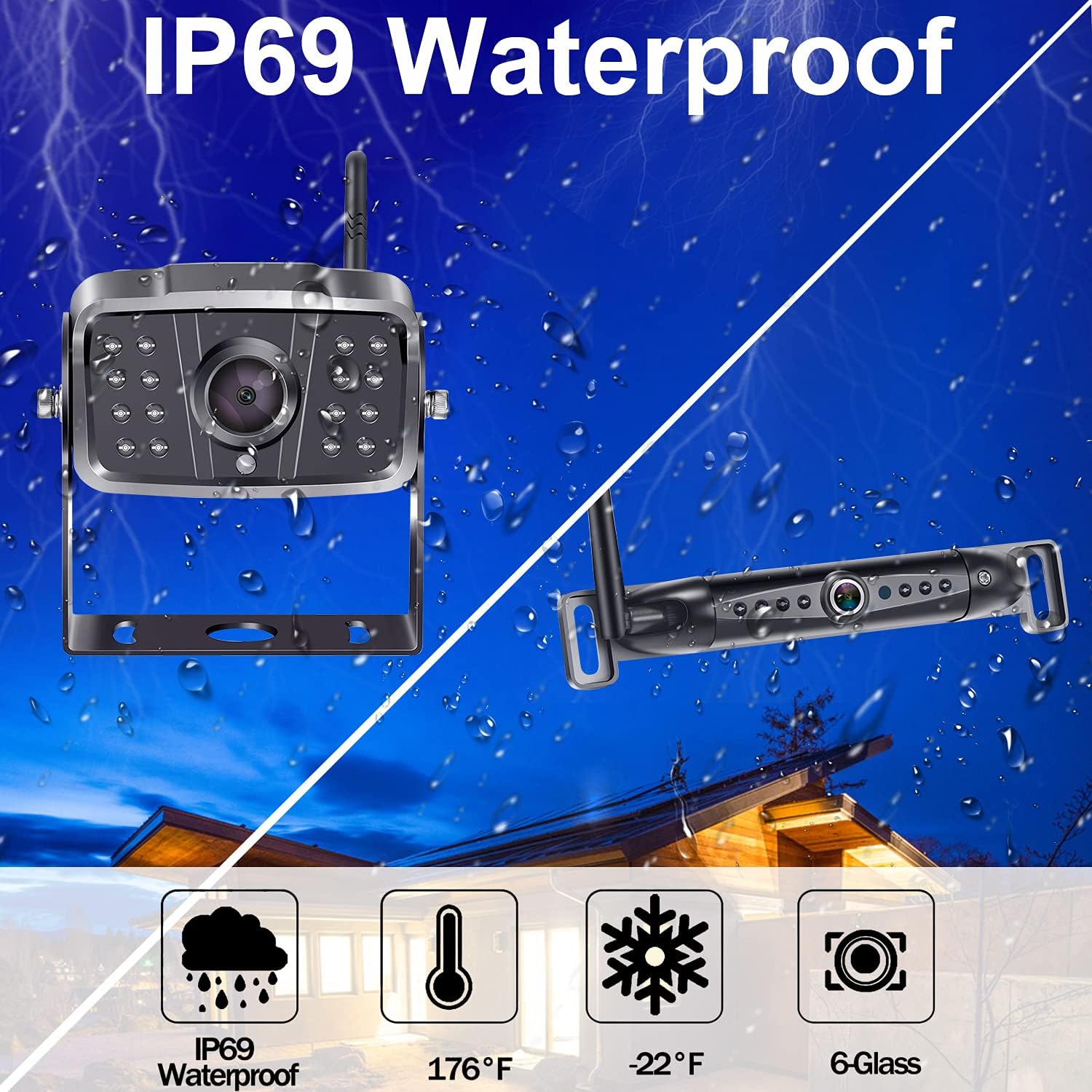
Image: Visual representation of the IP69 waterproof rating and temperature resistance (-22°F to 176°F) of the Rohent cameras, indicating durability in harsh environments.
Regularly check all cable connections to ensure they are secure and free from corrosion.
Troubleshooting
If you encounter issues with your system, refer to the table below for common problems and their solutions.
| Problem | Possible Cause | Solution |
|---|---|---|
| No image on monitor / "No Signal" message |
|
|
| Image is blurry or unclear |
|
|
| Monitor not turning on |
|
|
| Buttons unresponsive |
|
|
Technical Specifications

Image: Overview of the Rohent system's key features, such as strong signal, quad screen capability, wireless connectivity, assist lines, HD 1080P resolution, and IP69 waterproof rating.
| Feature | Detail |
|---|---|
| Product Dimensions | 11.6 x 9.8 x 3.46 inches (Monitor) |
| Item Weight | 0.004 ounces |
| Screen Size | 7 Inches |
| Display Technology | LCD |
| Video Capture Resolution | 1080p |
| Voltage | 12 Volts |
| Optical Sensor Technology | CMOS |
| Lens Type | Wide Angle |
| Waterproof Rating | IP69 |
| Operating Temperature | -22°F (-30°C) to 176°F (80°C) |
| Wireless Signal Range | Up to 984ft (open areas), 320ft (within vehicles) |
Warranty and Support
Rohent provides a 3-year technical support and quality warranty for this product. If you encounter any issues or require assistance, please contact Rohent customer support.
For further information and support, you may visit the official Rohent Store: Rohent Store on Amazon.