
1. Introduction
This manual provides detailed instructions for the installation, operation, and maintenance of your CableMod Vertical PCI-e Bracket PCI-e 4.0 Edition. This product allows you to vertically mount your graphics card within compatible PC cases, enhancing aesthetics and potentially improving thermal performance. Please read this manual thoroughly before proceeding with installation.
2. Package Contents
Verify that all components listed below are present in your package:
- 1 x Vertical PCI-e Bracket
- 1 x PCI-e 4.0 Riser Cable
- Mounting Screws (various types for bracket and graphics card)
- 1 x DisplayPort Cable
- 1 x HDMI Adapter

Image 2.1: All components included in the CableMod Vertical PCI-e Bracket package.
3. Safety Information
Please observe the following safety guidelines during installation and use:
- Always disconnect your computer from the power outlet before installing or removing any hardware.
- Ground yourself by touching a metal object (e.g., your PC case) before handling components to prevent electrostatic discharge (ESD).
- Handle components carefully to avoid damage.
- Ensure all screws are tightened securely but do not overtighten.
- Keep small parts away from children.
4. Setup and Installation
Follow these steps to install the CableMod Vertical PCI-e Bracket and your graphics card.
4.1. Prepare Your System
- Power off your computer and unplug the power cable from the wall outlet.
- Open your PC case and remove any existing graphics card.
- Remove the necessary PCI-e slot covers from your case to accommodate the vertical bracket. This bracket is designed for cases that do not require modification.
4.2. Install the Vertical Bracket
- Position the vertical PCI-e bracket inside your case, aligning its mounting holes with the available screw holes in your case's PCI-e area.
- Secure the bracket using the provided mounting screws. Ensure it is firmly attached and stable.
4.3. Install the Graphics Card
- Carefully insert your graphics card into the vertical bracket's PCI-e slot. Ensure it is fully seated.
- Secure the graphics card to the bracket using the appropriate screws.
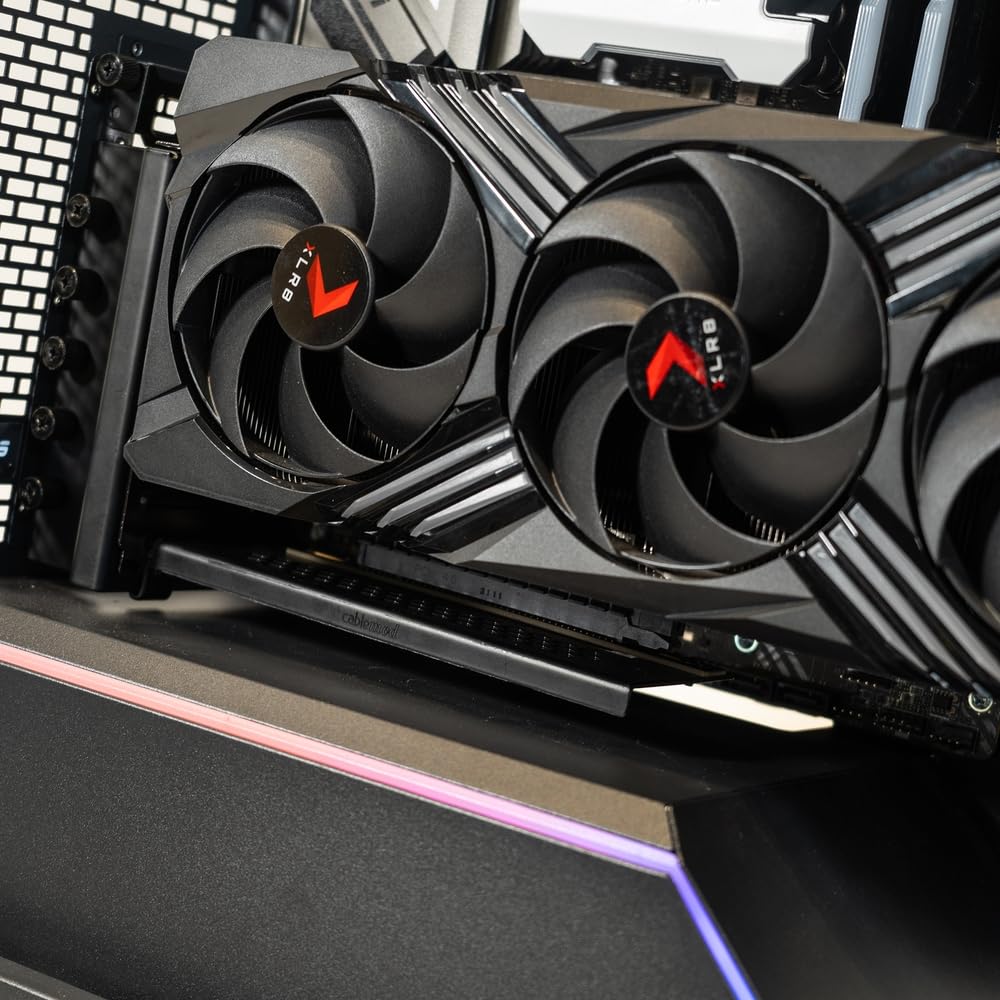
Image 4.1: Example of a graphics card vertically mounted with the bracket.
4.4. Connect the Riser Cable
- Connect one end of the PCI-e 4.0 riser cable to the PCI-e slot on your motherboard. Ensure it is fully seated and the retention clip is engaged.
- Connect the other end of the riser cable to the PCI-e slot on the vertical bracket where your graphics card is installed.

Image 4.2: Detail of the PCI-e 4.0 riser cable connector.

Image 4.3: The PCI-e 4.0 riser cable connecting the motherboard to the vertical bracket.
4.5. Connect Display Cables
- Connect your monitor's display cable (DisplayPort or HDMI) directly to the graphics card's output ports. Use the included DisplayPort cable or HDMI adapter as needed.
- Ensure all power cables are connected to your graphics card.
5. Operation
After successful installation, close your PC case, reconnect the power cable, and power on your computer. Your operating system should detect the graphics card as usual. Verify that your display is functioning correctly and that the graphics card drivers are up to date.
6. Maintenance
The CableMod Vertical PCI-e Bracket requires minimal maintenance. Periodically:
- Inspect the bracket and riser cable for any signs of wear or damage.
- Ensure all connections remain secure.
- Gently clean any dust accumulation from the bracket and surrounding components using compressed air or a soft brush.
7. Troubleshooting
If you encounter issues after installation, consider the following:
- No Display Output: Ensure the riser cable is fully seated at both the motherboard and the vertical bracket. Verify that your monitor cable is connected directly to the graphics card, not the motherboard's integrated graphics ports.
- Graphics Card Not Detected: Check all power connections to the graphics card. Ensure the riser cable is securely connected. Try reseating the graphics card in the vertical bracket.
- Performance Issues: Confirm that your motherboard's BIOS/UEFI settings are configured for PCI-e 4.0 if applicable, or set to 'Auto'. Ensure graphics drivers are updated.
- Physical Interference: If the bracket or graphics card interferes with other components, double-check your case's compatibility and the bracket's positioning.
8. Specifications
| Product Name | CableMod Vertical PCI-e Bracket PCI-e 4.0 Edition |
| Model Number | CM-VPB-2D4K2-R |
| PCI-e Standard | PCI-e 4.0 |
| Compatible Devices | Desktop PCs with compatible cases |
| Color | Black |
| Product Dimensions | 9.84 x 3.35 x 6.97 inches (24.99 x 8.51 x 17.70 cm) |
| Item Weight | 1.68 Pounds (0.76 kg) |
9. Warranty and Support
CableMod products are designed for reliability and performance. For specific warranty information, please refer to the warranty card included with your product or visit the official CableMod website. For technical support, product inquiries, or assistance with installation, please contact CableMod customer service through their official support channels.
Website: cablemod.com/support