
Product Overview
The Wisuwore Keyless Entry Smart Lock offers advanced security and convenience for your home. This WiFi-enabled smart lock integrates seamlessly with the Tuya Smart App, providing multiple unlocking methods including fingerprint, passcode, IC fob, and mechanical key. Designed for easy installation, it features automatic locking and anti-peeping password protection.
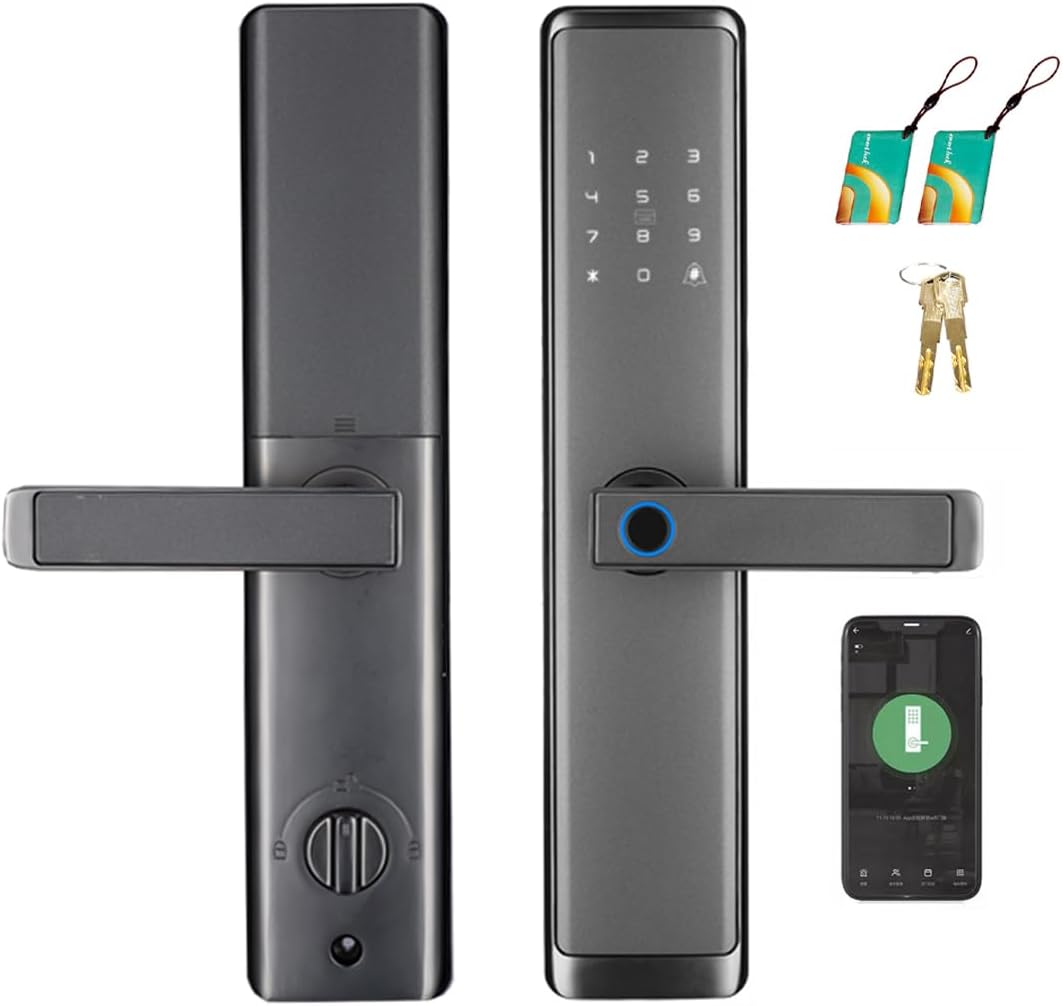
Image: Front and back view of the Wisuwore Smart Lock, showcasing the keypad, fingerprint sensor, handle, and included mechanical keys and IC fobs.
Key Features
- WiFi Connectivity: Control your smart lock remotely from anywhere using the Tuya Smart App. No separate gateway is required. Manage access, generate dynamic passwords, and view door logs.
- 5-in-1 Keyless Entry: Unlock your door using fingerprints, the Free App, passcodes, IC fobs, or traditional mechanical keys. Supports up to 300 sets of fingerprints, passwords, and swipe cards.
- Automatic Locking: The lock recognizes your fingerprint and unlocks in under 0.3 seconds. It can be set to automatically lock after 3-900 seconds, ensuring security as you leave. Features intelligent voice prompts.
- Easy Installation: Designed for straightforward installation with a Phillips screwdriver. No extra drilling or locksmith services are typically required. Compatible with both left and right-handed doors.
- Enhanced Security: Features anti-peeping password protection, allowing you to enter random digits before or after your actual code to prevent others from guessing your entry.

Image: Illustration of the various keyless entry methods: fingerprint unlock, passcode entry, key fob usage, and app control via a smartphone.
Package Contents
Please verify that all components are present in the package before beginning installation.
- • Front Panel Assembly (with keypad and fingerprint sensor)
- • Rear Panel Assembly (with battery compartment and indoor knob)
- • Mortise Lock Body
- • Strike Plate and Strike Box
- • Mechanical Keys (2)
- • IC Fobs (2)
- • Installation Template
- • User Manual
- • Mounting Hardware (screws, spindles, etc.)
Video: An unboxing video demonstrating the contents of the Wisuwore Smart Lock package, including the main lock components, accessories, and documentation.
Installation Guide
The Wisuwore Smart Lock is designed for easy installation. Please follow the steps carefully using the provided installation template and hardware.
Door Compatibility
- • Suitable for door thickness between 1.57" and 4.72" (40mm - 120mm).
- • Compatible with both left and right door opening directions.

Image: A diagram illustrating the compatible door thickness range (1.57" to 4.72" or 40mm to 120mm) for the smart lock installation.

Image: The smart lock shown installed on both left-opening and right-opening doors, demonstrating its versatility.
Key Components Overview

Image: A detailed diagram labeling the key components of the smart lock, including the battery compartment, password input screen, magnetic card sensing area, semiconductor fingerprint head, indoor anti-lock knob, Type-C emergency charging port, and emergency keyhole.
For detailed step-by-step installation instructions, please refer to the included "Installation Template" and the "Smart Lock User Manual".
Initial Setup and Configuration
After physical installation, configure your smart lock for optimal use.
1. App Control (Tuya Smart App)
Download the Tuya Smart App from your device's app store. Follow the in-app instructions to add your Wisuwore Smart Lock. The built-in Wi-Fi allows direct connection without an additional bridge.

Image: A smartphone screen showing the Tuya Smart App interface, indicating remote control capabilities for the smart lock.

Image: Visual representation of the app control feature, highlighting remote access and management.
2. Fingerprint Registration
Register your fingerprints through the Tuya Smart App or directly on the lock's semiconductor fingerprint head. The lock can store up to 300 fingerprints for quick and secure access.

Image: A hand demonstrating the fingerprint unlock feature, emphasizing the fast and accurate recognition by the FPC Semiconductor Module.
3. Passcode Management
Set and manage passcodes for family members, guests, or temporary access. Utilize the anti-peeping password feature by entering random digits before or after your actual code to enhance security.

Image: A hand interacting with the keypad for passcode entry, illustrating the passcode unlock feature.

Image: A visual explanation of the virtual password setting, showing how random digits can be added to mask the actual password from prying eyes.
4. IC Fob Configuration
Register the provided IC fobs with your lock for convenient tap-to-unlock functionality. Multiple fobs can be configured.

Image: A hand using a key fob to unlock the smart lock, demonstrating the key fob unlock feature.
Operating Instructions
Unlocking the Door
- Fingerprint: Place your registered finger on the semiconductor fingerprint head. The lock will unlock in approximately 0.3 seconds.
- Passcode: Enter your registered passcode on the keypad, optionally adding random digits before or after for privacy.
- IC Fob: Tap the IC fob against the magnetic card sensing area on the lock.
- App Control: Use the Tuya Smart App to remotely unlock the door.
- Mechanical Key: In case of emergency or battery depletion, use the mechanical key to unlock the door via the emergency keyhole.
Automatic Locking
The smart lock can be configured to automatically lock after a set period (3-900 seconds) once the door is closed. This feature enhances security by ensuring the door is always locked behind you.
Event History
The Tuya Smart App allows you to view a detailed log of all lock activity, including successful and failed unlock attempts, and the method used (e.g., fingerprint, app, passcode).

Image: A smartphone screen displaying the local event history within the smart lock app, showing a chronological record of door access.
One-time Passcodes
Generate temporary one-time passcodes remotely via the app for visitors, couriers, or service personnel. These codes are automatically deleted after a single use, providing secure temporary access.

Image: A visual depicting the one-time passcode feature, showing a delivery person receiving a temporary code via a messaging app.
Maintenance
Battery Replacement
The smart lock is powered by 4 AAA batteries (not included). The lock will provide a low battery alert when the remaining battery power is at 10%. Replace batteries promptly to ensure continuous operation.

Image: An illustration showing the battery compartment of the smart lock, indicating it is powered by 4 AAA batteries, and a visual of the low battery alert feature.
Emergency Power Supply
In case of complete battery depletion, the lock features a Type-C USB interface for temporary emergency power supply. Connect a power bank or suitable USB power source to the Type-C port to power the lock and gain entry.

Image: A close-up view of the smart lock's Type-C emergency charging port, demonstrating how to provide temporary power.
Troubleshooting
If you encounter issues with your Wisuwore Smart Lock, please refer to the following common solutions. For more detailed troubleshooting, consult the full user manual.
- Lock not responding: Check battery levels and replace if necessary. Ensure the lock is properly installed and all connections are secure.
- Fingerprint not recognized: Ensure your finger is clean and dry. Try re-registering your fingerprint.
- Passcode not working: Verify the correct passcode is being entered. Ensure the anti-peeping feature is not causing confusion (try entering only the correct code).
- App connectivity issues: Ensure your phone's Wi-Fi is enabled and connected to a stable network. Check if the lock is within range of your Wi-Fi router. Restart the app and the lock if necessary.
- Auto-lock not functioning: Verify the auto-lock timer setting in the app. Ensure the door sensor is properly aligned and detecting the door's closed position.
Product Specifications
| Feature | Specification |
|---|---|
| Brand | wisuwore |
| Model Name | wifi lock (tuya-wifi) |
| Lock Type | Biometric |
| Material | Aluminum |
| Color | Gray with Door Handle |
| Item Dimensions (L x W x H) | 1.2 x 1.3 x 2.75 inches |
| Item Weight | 7.34 pounds |
| Connectivity Protocol | Bluetooth, Wi-Fi |
| Control Method | App, Remote, Touch |
| Power Source | 4 AAA Batteries (not included) |
| UPC | 714676755583 |
Warranty and Support
Your Wisuwore Smart Lock comes with a two-year product warranty from the date of purchase. We also offer a 30-day money-back guarantee for your satisfaction.
For any questions, technical assistance, or support, please contact our customer service. We provide lifetime customer support to ensure your complete satisfaction with our product.


