
Introduction
This manual provides detailed instructions for the installation, operation, and maintenance of your Hikity Android Auto Radio. Please read this manual thoroughly before using the product to ensure proper function and safety. Keep this manual for future reference.
Compatibility
This Hikity Android Auto Radio is specifically designed for the following vehicle model:
- FIAT 500: Model years 2007-2015
Ensure your vehicle's dashboard matches the compatible configuration shown below.
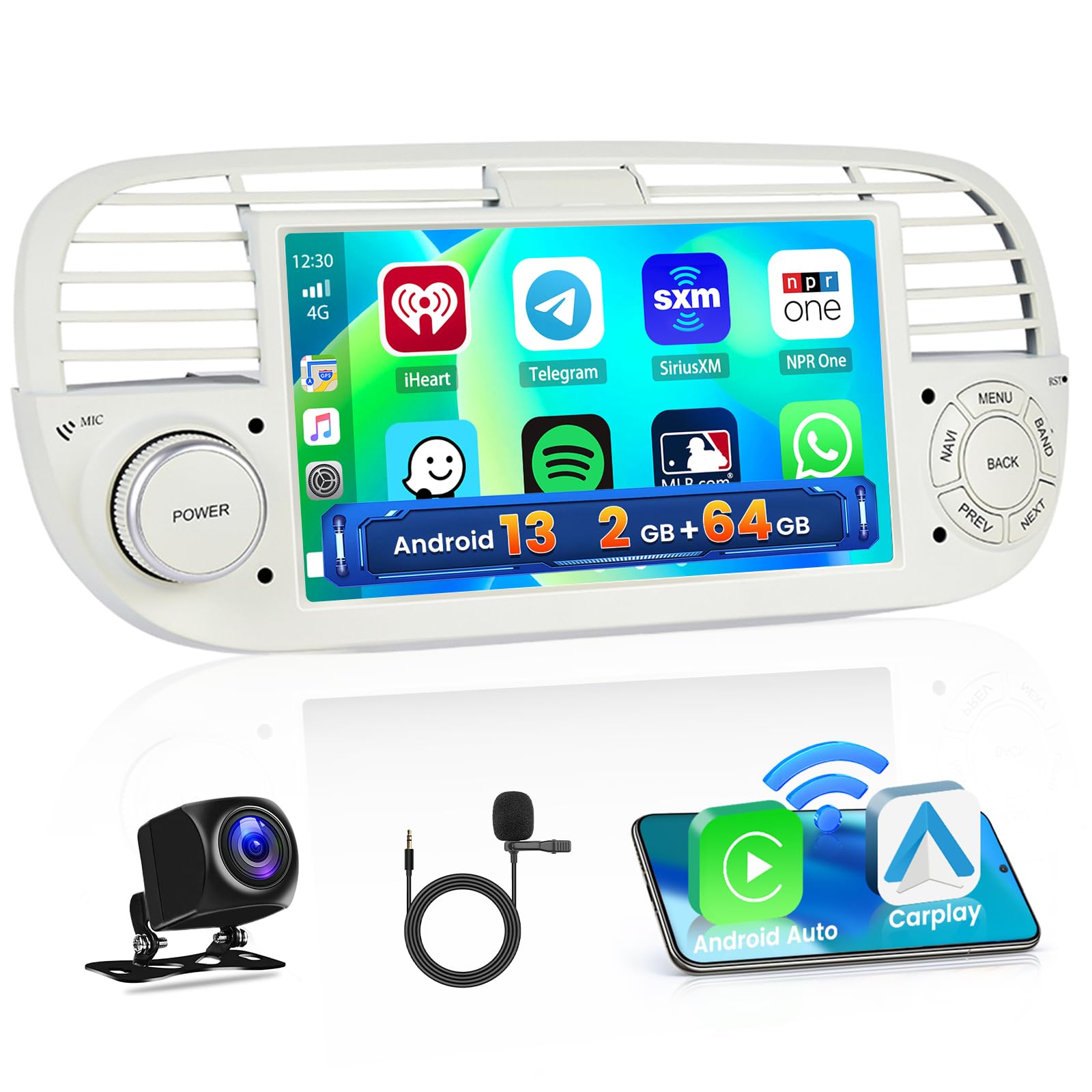
Image: The product is compatible with Fiat 500 models from 2007-2015 that feature the 'Model A' dashboard configuration, indicated by a checkmark. 'Model B' is shown as incompatible with an 'X' mark.
Package Contents
Verify that all items listed below are present in the package:
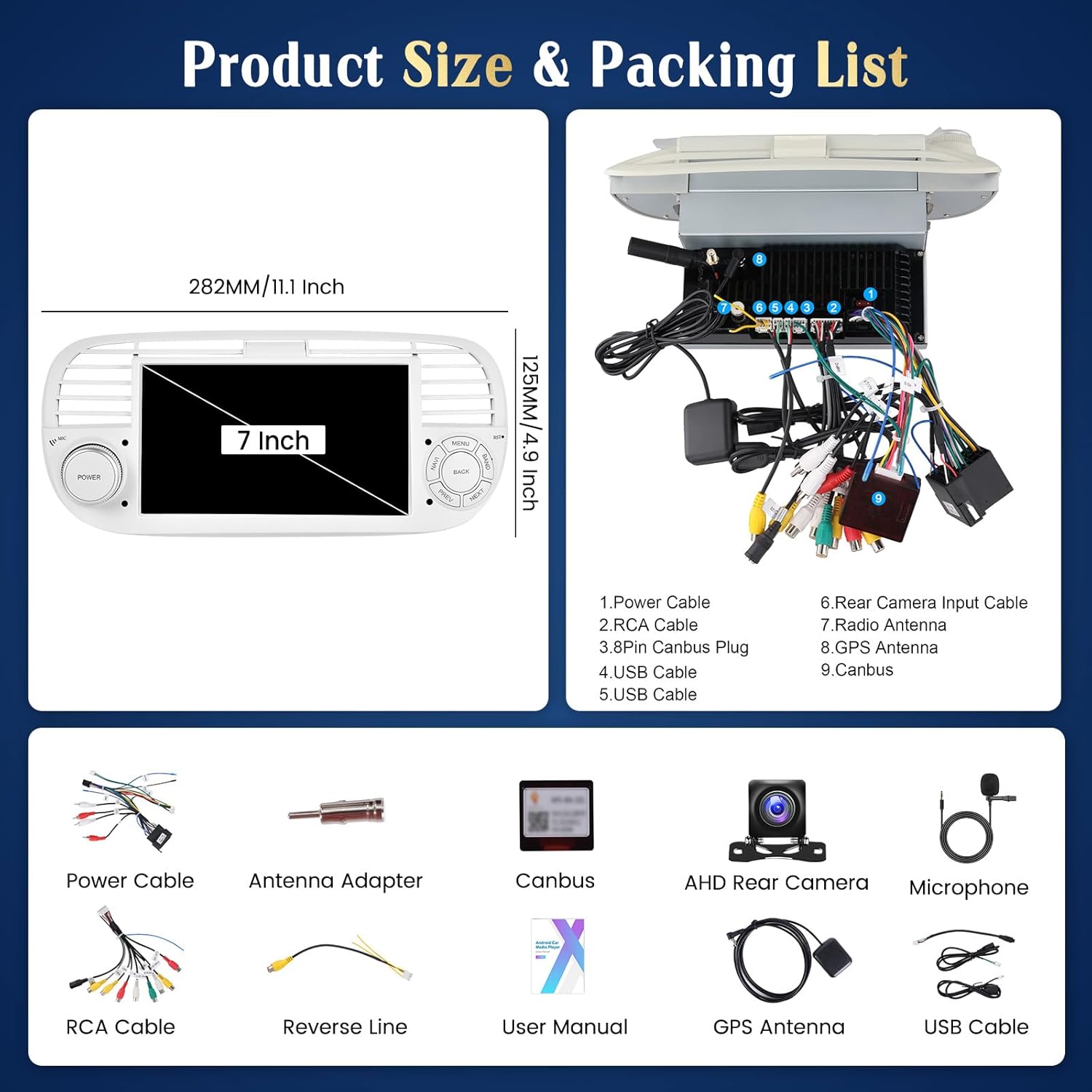
Image: This diagram illustrates the dimensions of the 7-inch head unit and provides a visual and numbered list of all included accessories, such as power cables, RCA cables, USB cables, GPS antenna, AHD rear camera, microphone, and Canbus box.
- Hikity Android Auto Radio Unit (7-inch screen)
- Power Cable
- RCA Cable
- 3Pin Canbus Plug
- USB Cables (x2)
- Rear Camera Input Cable
- Radio Antenna
- GPS Antenna
- Canbus Box
- Antenna Adapter
- AHD Rear Camera
- Microphone
- Reverse Line
- User Manual (this document)
Setup & Installation
General Installation Notes
- This unit is designed for plug-and-play installation in compatible FIAT 500 models (2007-2015).
- Professional installation is recommended if you are unfamiliar with car audio wiring.
- Disconnect the vehicle's battery before starting installation to prevent electrical damage.
Wiring Connections
Refer to the wiring diagram provided in the 'Package Contents' image for specific connections. Key connections include:
- Power Cable: Connect to the vehicle's power harness. Ensure correct positive, negative, and accessory wire connections.
- RCA Cables: For external amplifiers, subwoofers, or video output to headrests.
- USB Cables: For connecting USB devices or for wired CarPlay/Android Auto.
- GPS Antenna: Mount in a location with a clear view of the sky for optimal signal reception.
- Radio Antenna: Connect to the vehicle's existing radio antenna.
- Canbus Box: Connect as per the vehicle's wiring to enable steering wheel controls and other vehicle data integration.
Rear Camera Installation
The included AHD rear camera provides a clear view for parking. Connect the camera to the 'Rear Camera Input Cable' on the head unit. Ensure the camera's power is connected to the vehicle's reverse light circuit so it activates automatically when shifting into reverse.

Image: This image demonstrates the AHD reversing input, which automatically displays the rear camera feed when the car is in reverse. It highlights features like night vision, waterproofing, guidelines, and a wide-angle view, comparing the clarity of an AHD camera to a standard HD camera.
Operating Instructions
Power On/Off
The unit powers on automatically with the vehicle's ignition. To manually power off or on, press and hold the 'POWER' button on the unit's front panel.
Touchscreen Operation
The 7-inch HD 1080P touchscreen (1024*600 resolution) supports multi-touch gestures. Navigate through menus, select applications, and control functions by tapping, swiping, and pinching.

Image: This image emphasizes the screen's quality, including its 1024x600 resolution, 2.5D scratch-resistant glass, anti-knock durability, and accurate color reproduction. It also showcases different customizable user interface themes.
Wireless CarPlay / Android Auto
Connect your smartphone wirelessly for CarPlay or Android Auto functionality. This allows access to navigation, calls, messages, and music through the car's display, supporting voice assistance for safe driving.
- Ensure Bluetooth and Wi-Fi are enabled on your smartphone.
- On the head unit, select the CarPlay or Android Auto application.
- Follow the on-screen prompts to pair your device.
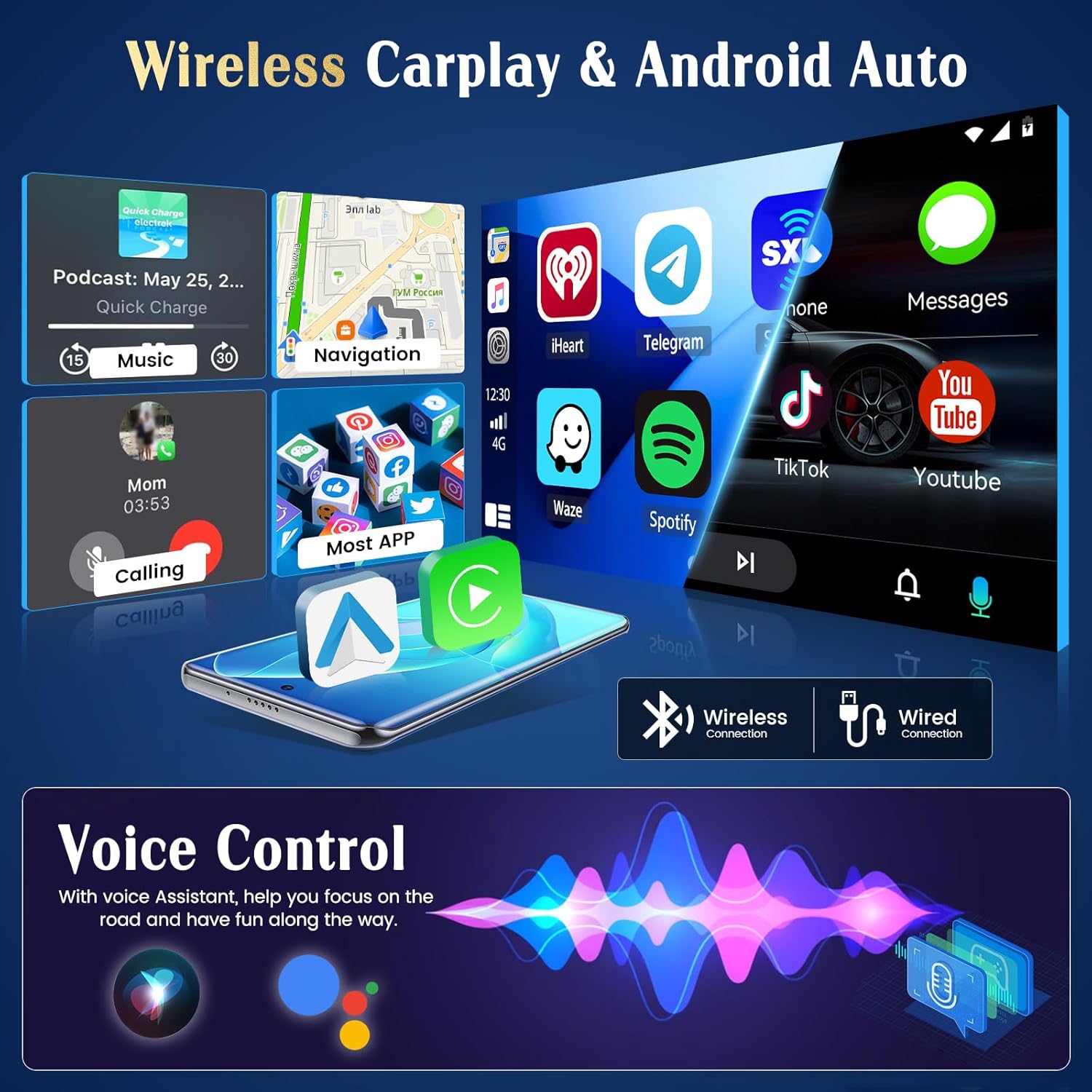
Image: This visual illustrates the seamless integration of wireless CarPlay and Android Auto, displaying common applications and emphasizing the convenience of voice control for hands-free operation while driving.
GPS Navigation & WiFi
The unit features integrated GPS for both online and offline navigation. Connect to a Wi-Fi hotspot to download maps, access real-time traffic information, and use online applications.
- GPS: Open the navigation app. Ensure the GPS antenna is properly installed.
- WiFi: Go to Settings > Network & Internet > Wi-Fi. Select your desired network and enter the password.

Image: This image displays the GPS navigation interface, indicating both offline and online map functionality. It also highlights the WiFi connection feature, enabling users to download applications and access internet content.
Bluetooth Connectivity
Pair your smartphone via Bluetooth for wireless music streaming, hands-free calling, and contact synchronization.
- On the head unit, open the Bluetooth application.
- Enable Bluetooth on your smartphone and search for available devices.
- Select the head unit from the list and confirm pairing.
FM/RDS Radio
Access FM radio stations with RDS (Radio Data System) functionality, which displays station information, traffic updates, and other data.

Image: This image illustrates the FM RDS radio interface, showing a tuned station with its frequency and RDS data. It highlights the feature's ability to provide real-time traffic, news broadcasts, and weather forecasts.
Audio Features (EQ)
Customize your audio experience with the integrated Equalizer (EQ). Adjust frequency bands to match your musical preferences. The unit also supports subwoofer output.

Image: This image displays the graphical equalizer interface, allowing users to fine-tune audio output with various presets like Pop, Rock, Jazz, and custom settings. It also shows the RDS radio interface in the background.
Steering Wheel Control
The unit supports integration with your vehicle's existing steering wheel controls, allowing you to manage essential functions (e.g., volume, track change) without taking your hands off the wheel. Configuration may be required in the unit's settings menu.
Maintenance
- Cleaning: Use a soft, dry cloth to clean the screen and unit. Avoid abrasive cleaners or solvents.
- Software Updates: Periodically check the manufacturer's website or the unit's settings for available software updates to ensure optimal performance and access to new features.
- Temperature: Avoid exposing the unit to extreme temperatures, which can affect its performance and lifespan.
Troubleshooting
| Problem | Possible Cause | Solution |
|---|---|---|
| Unit does not power on | Incorrect wiring; Blown fuse; Vehicle battery low | Check power connections; Inspect vehicle fuses; Charge vehicle battery |
| No sound | Volume muted/low; Speaker wiring incorrect; Amplifier issues | Adjust volume; Check speaker connections; Verify amplifier power |
| GPS signal lost/weak | GPS antenna obstructed/disconnected | Ensure GPS antenna has clear sky view; Check antenna connection |
| Bluetooth not connecting | Bluetooth off on phone/unit; Device not in pairing mode | Enable Bluetooth; Put device in pairing mode; Forget and re-pair device |
| Rear camera not displaying | Camera wiring incorrect; Reverse trigger not connected | Check camera power and video input; Verify reverse trigger wire connection |
Specifications
| Feature | Detail |
|---|---|
| Brand | Hikity |
| Model Number | Manju-A3423WEA4MI2 |
| Operating System | Android |
| Processor | 4 Cores |
| RAM | 2 GB |
| ROM (Internal Storage) | 64 GB |
| Screen Size | 7 inches |
| Screen Resolution | 1024*600 (HD1080P support) |
| Connectivity Technology | RCA, HDMI, Bluetooth, Wi-Fi |
| Special Features | Android Auto, Apple CarPlay (Wireless), GPS Navigation, RDS, Integrated Wi-Fi |
| Compatible Devices | Smartphone, Tablet, Camera |
| HDMI Ports | 1 |
| Audio Output Mode | Surround |
| Surround Sound Channels | 4.0 |
| Video Encoding | H.264, MPEG-4, etc. |
| Output Power (Max) | 180 Watts |
| Output Power (RMS per channel) | 45 Watts |
| Number of Channels | 4 |
| Internet Applications | Netflix, Pandora, iTunes (via app download) |
| Control Method | Touch |
| Audio Output Type | Internal, Bluetooth |
| Digital Media Format | MP3 audio, MPEG-2.5 |
| Dimensions (D x W x H) | 15.5 cm x 28 cm x 12.5 cm |
| Color | White |
| Country of Origin | China |
Warranty & Support
Warranty Information
This Hikity product comes with a 12-month warranty from the date of purchase, covering manufacturing defects and malfunctions under normal use.
Customer Support
For any inquiries, technical assistance, or warranty claims, please contact Hikity customer support. We offer lifetime online support and aim to respond to all inquiries within 24 hours.
- Email: hikityservices@163.com

Image: A customer service representative is shown, symbolizing the availability of 24-hour customer support. The image prominently displays the support email address: hikityservices@163.com.
Official Product Videos
No official product videos from the seller were found in the provided data.


