
Inefala Y3070G32-60US
Inefala USB Car DVR Camera Video Recorder User Manual
Model: Y3070G32-60US
1. Product Overview
The Inefala USB Car DVR Camera is a compact and versatile driving recorder designed to enhance vehicle safety and provide reliable video evidence. It features 1080P Full HD recording, a 170° ultra-wide viewing angle, advanced driver-assistance systems (ADAS) including Lane Departure Warning System (LDWS) and Forward Collision Warning System (FCWS), night vision with WDR technology, and seamless loop recording. This device is specifically designed for integration with Android large screen vehicle-mounted audio and video systems via a USB interface.

Image: The Inefala USB Car DVR Camera with its included USB cable.
2. What's in the Box
- USB Car Recorder
- 32G TF Card (Micro SD Card)

Image: The USB Car Recorder, 2.3 Meter Long USB Cable, and TF Card are included in the package.
3. Setup and Installation
Follow these steps to install and set up your Inefala USB Car DVR Camera:
- Insert SD Card: Locate the TF Card Slot on the side of the DVR and insert the provided 32GB Micro SD card.
- Connect to Android Radio: Connect the USB Dashcam to your Android Radio's USB Port using the provided USB cable.
- Install DVR APK:
- Turn on your Android car navigation system.
- Open the file manager application.
- Find the folder named "Buildwin U Disc".
- Click on the "DVR apk" file to install the application.
- Allow all necessary prompts encountered during installation.
- Check for ADAS Update: After successful installation, open the DVR application. Navigate to the settings and click "Check update" to ensure the ADAS function is enabled and up-to-date.

Image: Visual guide for connecting the dashcam to an Android head unit and installing the necessary APK.

Image: Detailed steps for installing the DVR APK from the 'Buildwin U Disc' folder.
Installation Video Guide
Video: This video demonstrates the installation and operation method of the Inefala USB Car DVR Camera, including connecting the USB cable, opening the file manager, installing the APK file, and checking for ADAS updates.
4. Operating Instructions
4.1. High Definition Recording
The dashcam records in Full HD 1080P, ensuring clear and detailed video capture. The WDR (Wide Dynamic Range) night vision technology optimizes image quality in various lighting conditions, providing clear footage both day and night.

Image: Illustrates the 1080P High Definition video quality during both daytime and nighttime driving conditions.
4.2. 170° Ultra-Wide Viewing Angle
Equipped with a 170° extra-wide-angle lens, the dashcam captures a broad field of view, minimizing blind spots and ensuring comprehensive coverage of road incidents. The camera lens also features free rotation for optimal positioning.

Image: Demonstrates the 170° High Resolution Super Wide Angle Lens and its adjustable angle feature.
4.3. ADAS (Advanced Driver Assistance System)
The ADAS feature enhances driving safety with two main functions:
- Lane Departure Warning System (LDWS): Alerts the driver if the vehicle drifts out of its lane at speeds over 50 km/h.
- Forward Collision Warning System (FCWS): Calculates the real-time distance to the vehicle ahead and issues a 3-level early warning based on collision risk, active above 30 km/h or under 30 km/h in busy city traffic.
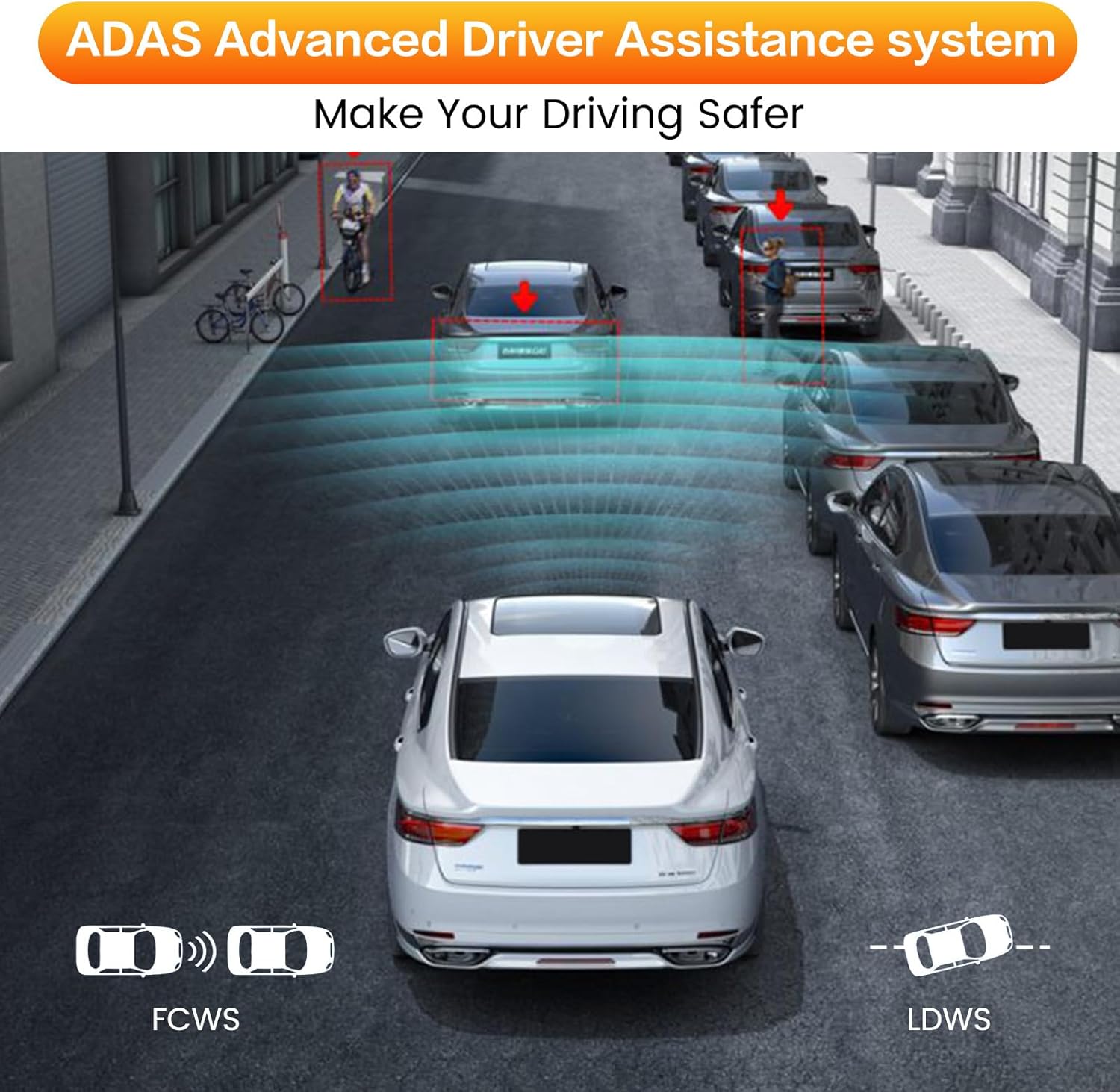
Image: Visual representation of the ADAS Advanced Driver Assistance System, highlighting FCWS and LDWS features.
4.4. Loop Recording
The dashcam utilizes intelligent overlapping technology for continuous loop recording. When the memory card is full, new recordings automatically overwrite the oldest unlocked recordings, ensuring that you never miss a moment. Locked videos are protected from being overwritten.

Image: Illustrates the Loop Recording function, which automatically overwrites old footage when the memory card is full.
5. Maintenance
To ensure optimal performance and longevity of your Inefala USB Car DVR Camera, consider the following maintenance tips:
- Keep Clean: Regularly wipe the camera lens with a soft, lint-free cloth to ensure clear recordings. Avoid using abrasive cleaners.
- Temperature Control: Avoid exposing the device to extreme temperatures (very hot or very cold) for extended periods, as this can affect battery life and internal components.
- SD Card Care: Periodically format the Micro SD card (e.g., once a month) through the DVR application settings to prevent data corruption and maintain recording efficiency. Back up important footage before formatting.
- Secure Mounting: Ensure the dashcam is securely mounted to prevent vibrations or dislodgement during driving, which could affect video quality or damage the device.
6. Troubleshooting
If you encounter issues with your Inefala USB Car DVR Camera, refer to the following common problems and solutions:
- No Image/Black Screen:
- Ensure the USB cable is securely connected to both the dashcam and the Android radio's USB port.
- Verify that the DVR APK has been correctly installed and all necessary permissions have been granted.
- Restart your Android car navigation system.
- ADAS Not Functioning:
- Confirm that the DVR APK is installed and updated to the latest version. Access settings within the DVR app and select "Check update".
- Ensure the camera lens is clean and unobstructed, and properly aligned with the road.
- Recording Issues (e.g., not recording, corrupted files):
- Check if the 32GB Micro SD card is properly inserted into the TF Card Slot.
- Ensure the SD card is not full. If it is, the loop recording function should automatically overwrite older files, but manual formatting may be required if issues persist.
- Try formatting the SD card through the DVR application settings.
- If the issue continues, the SD card may be faulty and require replacement.
- Device Not Recognized by Android System:
- Ensure your Android radio stereo system is compatible with external USB DVRs.
- Try connecting the dashcam to a different USB port on your Android radio, if available.
- Verify that the USB cable is not damaged.
7. Specifications
| Feature | Detail |
|---|---|
| Product Dimensions | 3.1 x 1.9 x 1.2 inches |
| Item Weight | 0.634 ounces |
| Item Model Number | Y3070G32-60US |
| Connectivity Technology | USB |
| Special Features | 170° Ultra-Wide Viewing Angle, ADAS, Automatic Incident Detection, Loop Recording, Night Vision |
| Color | Black |
| Video Capture Resolution | 720p (Note: Product title states 1080P, but specifications list 720p. Please refer to product packaging for definitive resolution.) |
| Mounting Type | Windshield Mount |
| Manufacturer | Inefala |
8. Warranty and Support
Inefala is committed to providing quality products and customer satisfaction. Your Inefala USB Car DVR Camera comes with the following:
- 24 Months Quality Assurance: We are responsible for handling all quality issues within 24 months from the date of purchase.
- 30 Days Free Return: Enjoy a 30-day free return period.
- Online Reply Within 24 Hours: Our customer support team aims to respond to inquiries within 24 hours.
For any questions or assistance, please do not hesitate to contact us directly at: inefalatech@163.com
Ask a question about this manual
Ask about setup, troubleshooting, compatibility, parts, safety, or missing instructions. Manuals+ will review the question and use this page’s manual context to help answer it.