
1. Introduction
The EVDO-LINK AT&T MiFi 8000 is a portable 4G LTE wireless hotspot designed to provide secure Wi-Fi connectivity on the go. This device offers high-speed mobile internet with global compatibility, supporting various LTE and 3G frequency bands for use in over 180 countries. It features a powerful battery, a user-friendly touchscreen display, and advanced settings accessible via a web interface.
2. What's Included
- Hotspot Device
- QC Charger with USB Type C Cable
- AT&T SIM card (requires data plan)

Image: The package contents, including the MiFi 8000 device, AT&T SIM card, manual, Type-C data cable, wall charger, and removable battery.
3. Product Features and Overview
The MiFi 8000 is engineered for reliable and fast mobile internet access. Key features include:
- High-Speed Connectivity: Near 5G speeds up to 1200 Mbps, compatible with 17 LTE and 5 3G frequency bands for global use.
- Integrated VPN: Configure your virtual location for secure browsing, requiring a subscription from your internet provider.
- Long-Lasting Battery: 4400 mAh battery provides up to 10 hours of active use and 24 hours of standby, with QC charging for quick recharges. Can also function as a power bank.
- Informative Touchscreen: Displays network status, data usage, and allows for detailed settings adjustments.
- External Antenna Support: Two MIMO connectors for an external amplifying antenna (not included) to improve signal in weak network areas.
- Unlocked Compatibility: Designed for AT&T networks but unlocked for use with other American operators without manual APN changes.

Image: The AT&T MiFi 8000 hotspot and an AT&T SIM card.

Image: Detailed view of the MiFi 8000's touchscreen display and its various indicators.

Image: Side view of the MiFi 8000, showing external ports and buttons.
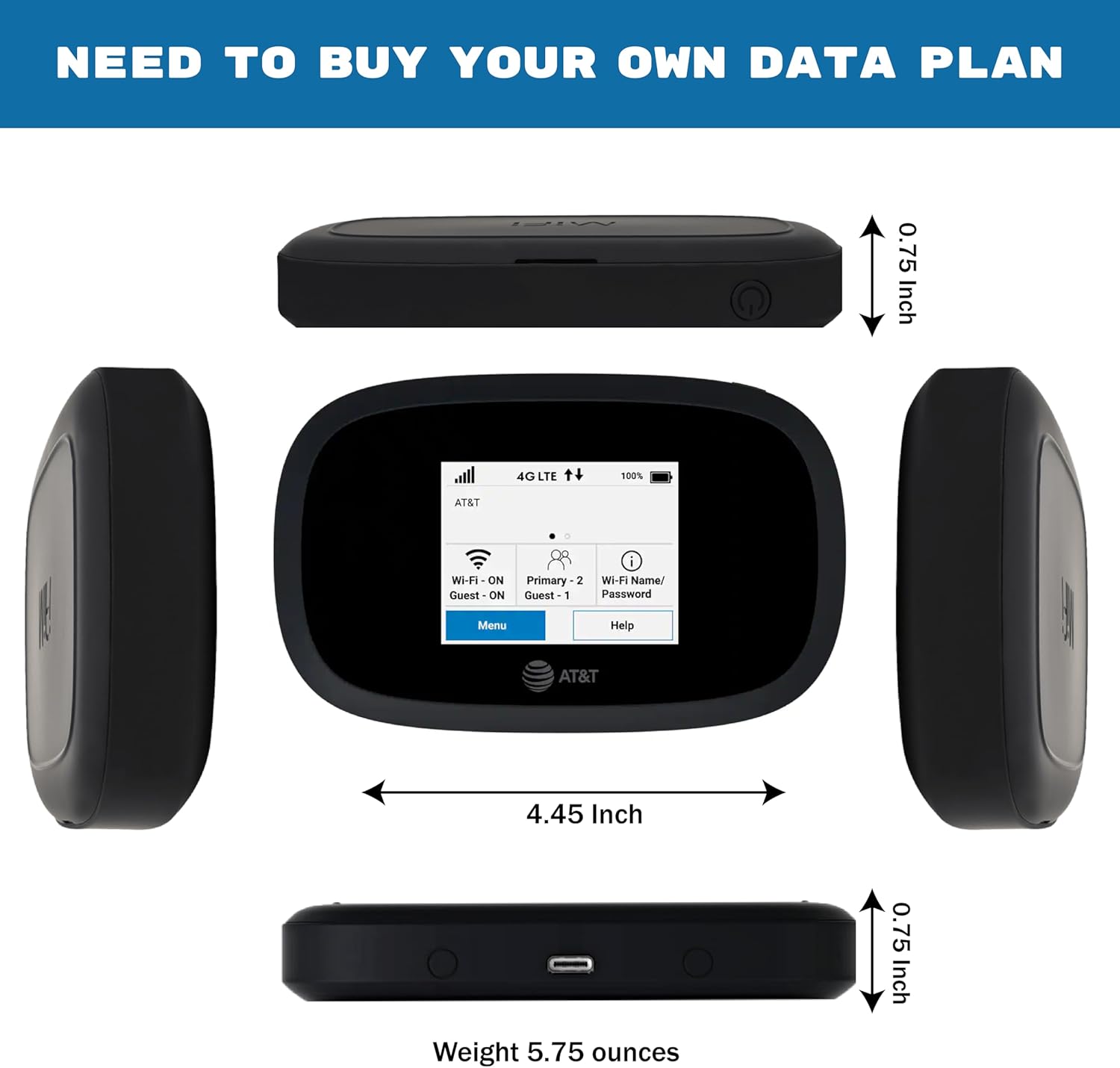
Image: Dimensions of the MiFi 8000 device.
4. Device Setup
4.1. SIM Card and Battery Installation
- Remove the battery cover from the back of the device.
- Insert the AT&T SIM card into the designated slot. Ensure correct orientation.
- Insert the provided 4400 mAh Lithium Ion battery.
- Replace the battery cover securely.
4.2. Initial Power On
Press and hold the power button located on the side of the device until the screen illuminates. The device will boot up and display the AT&T logo.
4.3. Connecting to AT&T Network
To activate your data plan and connect to the AT&T network, follow these steps:
- Gather Necessary Information: Locate your device's IMEI number and the SIM Card ICCID number on the device's packaging box or inside the battery compartment. Keep these numbers for reference.
- Begin Activation: Open your web browser and go to the AT&T prepaid new account activation page: https://www.att.com/prepaid-activate/. Select the number of lines you want to activate (1 in this case) and click "Continue".
- Enter Device Information: Choose ICCID or SIM number (default selection). Enter the ICCID number in the first field. Enter the IMEI number in the second field. Enter the service ZIP code where you'll use your wireless service (your actual residence). Click "Continue" to proceed.
- Choose Your Plan: Select a preferred data plan from the available options. Click "See plan details" for more information, then "Select this plan" to choose it, and "Continue" to proceed.
- Contact & Payment Info: Enter your contact details, billing details, and review the order summary. Click "Submit" to complete the payment.
- Payment Confirmation & Account Activation: Activation may take up to 5 minutes, but can take up to 24 hours. Do not close your browser or select the Back button during this time. Upon successful payment, a confirmation message, account details, and an email with instructions will be provided.
- Restart Your Device: Restart your MiFi 8000 device to ensure the prepaid plan is activated.

Image: Steps 1-3 of the AT&T Activation Guide.

Image: Steps 4-7 of the AT&T Activation Guide.
5. Operating the Device
5.1. Wi-Fi Connection
Once your MiFi 8000 is powered on and connected to the cellular network, its touchscreen will display the Wi-Fi name (SSID) and password. On your Wi-Fi-enabled device (smartphone, tablet, laptop), search for available Wi-Fi networks, select your MiFi's SSID, and enter the password to connect.
5.2. Managing Wi-Fi Networks
The MiFi 8000 supports two Wi-Fi networks: a primary network and a guest network. You can connect up to 15 Wi-Fi capable devices. The guest network is off by default but can be enabled and configured through the device's web interface. Access the web interface by connecting to the MiFi's Wi-Fi network and navigating to the IP address displayed on the device or in the manual (e.g., http://my.jetpack or 192.168.1.1). The default admin password is the same as your primary network's password.
5.3. Universal Charging (Power Bank Function)
The USB Type-C port on the device allows for universal charging of external devices such as smartphones and tablets. To use this feature:
- Turn on the Jetpack.
- Connect your device to the Jetpack using a USB-C cable.
- On your Jetpack, select "Charge connected device" from the menu.
6. Maintenance
6.1. Battery Life and Charging
The 4400 mAh battery provides extended usage. For optimal performance, charge the device fully using the provided QC charger and USB Type-C cable. A full charge takes approximately 2.5 hours. Avoid exposing the device to extreme temperatures.
6.2. External Antenna
For improved signal strength in areas with poor mobile network coverage, an external MIMO amplifying antenna (not included) can be connected to the two MIMO connectors on the device.
7. Troubleshooting
7.1. No Internet Connection
- Ensure your AT&T data plan is active and has available data.
- Check the cellular signal strength indicator on the device's screen. If the signal is weak, try moving to a different location or connecting an external antenna.
- Restart the MiFi 8000 device.
- Verify that your connected device is properly connected to the MiFi's Wi-Fi network using the correct password.
7.2. Device Reset
If you experience persistent issues, you may need to reset your Jetpack to factory settings. This will disconnect devices and reset network names and passwords.
- Ensure your Jetpack is on.
- Remove the battery cover from the back of your Jetpack.
- Insert an unfolded paper clip into the "Reset" hole and press until the Jetpack screen shows "MiFi Resetting".
Alternatively, to reset from the Admin website, go to Jetpack Settings > Backup and Restore.
8. Specifications
| Feature | Detail |
|---|---|
| Brand | EVDO-LINK |
| Model Name | MiFi 8000 |
| Item Model Number | 649496025052 |
| Manufacturer | Inseego |
| Connectivity Technology | USB |
| Wireless Communication Standard | 802.11a |
| Frequency Band Class | Dual-Band |
| Special Feature | WPS |
| Compatible Devices | Personal Computer |
| Recommended Uses | Home, Business, Remote Work, Students at Traveling |
| Battery | 1 Lithium Ion battery required (included) |
| Item Weight | 6 ounces |
| Package Dimensions | 5.28 x 3.62 x 2.28 inches |
9. Warranty and Support
For any assistance with setting up your portable Wi-Fi box or for further inquiries, please contact EVDO-LINK customer support by phone during business hours. Specific warranty details may be provided with your purchase documentation.