
1. Introduction
The Logitech Zone Wireless 2 is a premium noise-canceling headset designed for professionals and advanced users who require clear communication and focused work environments. This headset is certified for business applications such as Zoom, Google Meet, and Google Voice, ensuring seamless integration into your workflow. It features advanced call clarity, multiple noise-canceling microphones, and hybrid Active Noise Cancellation (ANC) to optimize your audio experience for both listening and speaking.
Engineered for comfort and durability, the Zone Wireless 2 offers a personalized audio experience through the Logi Tune app and is constructed with sustainable materials, including post-consumer recycled plastic and low-carbon aluminum.
2. What's in the Box
Upon unboxing your Logitech Zone Wireless 2 headset, verify that all components are present:
- Logitech Zone Wireless 2 Headset
- USB-C Charging Cable
- USB-A Receiver
- USB-C Receiver
- Protective Travel Case
- User Manual (this document)
- Interchangeable Ear Cushions (pre-installed or separate)
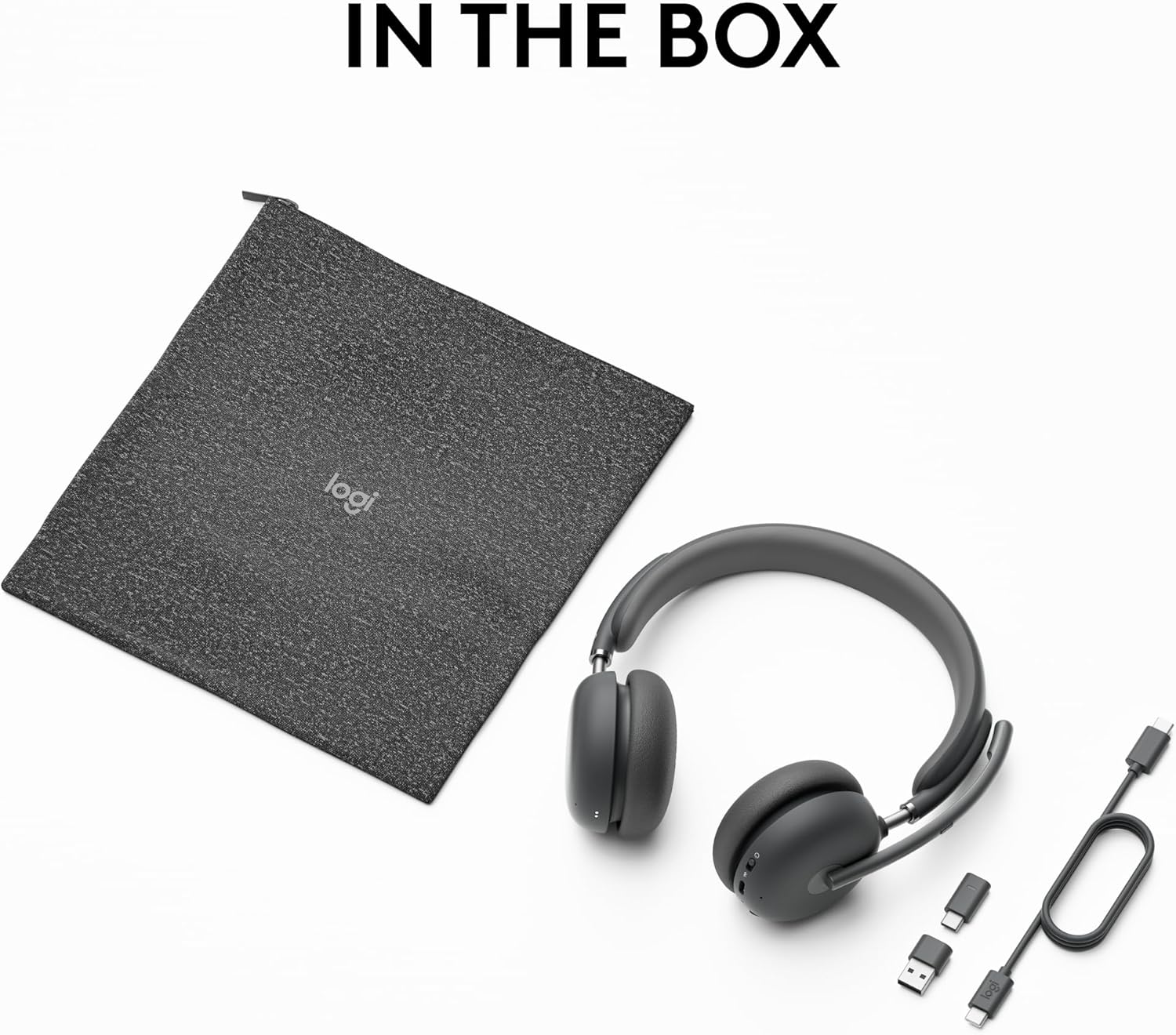
Image: The Logitech Zone Wireless 2 headset, its protective fabric case, USB-C charging cable, and both USB-A and USB-C receivers, laid out to show all included items.
3. Setup
3.1 Charging the Headset
Before initial use, fully charge your Zone Wireless 2 headset. Connect the included USB-C charging cable to the headset's charging port and to a power source (e.g., computer USB port or wall adapter). A full charge typically takes approximately 2 hours. The headset provides up to 15 hours of talk time and 22 hours of listening time with ANC enabled.
3.2 Connecting to Devices
The Zone Wireless 2 offers versatile connectivity options:
- Via USB Receiver (Laptop/PC): Insert either the USB-A or USB-C receiver into an available USB port on your computer. The headset will automatically pair with the receiver.
- Via Bluetooth (Mobile Phone/Tablet): Turn on the headset and activate Bluetooth pairing mode (refer to the headset's controls section for specific instructions). On your mobile device, search for 'Logitech Zone Wireless 2' in the Bluetooth settings and select it to pair.
The headset can connect simultaneously to a laptop via the USB receiver and to a mobile phone via Bluetooth, offering seamless switching between devices. The wireless range extends up to 170 feet (50 meters) in open line of sight.
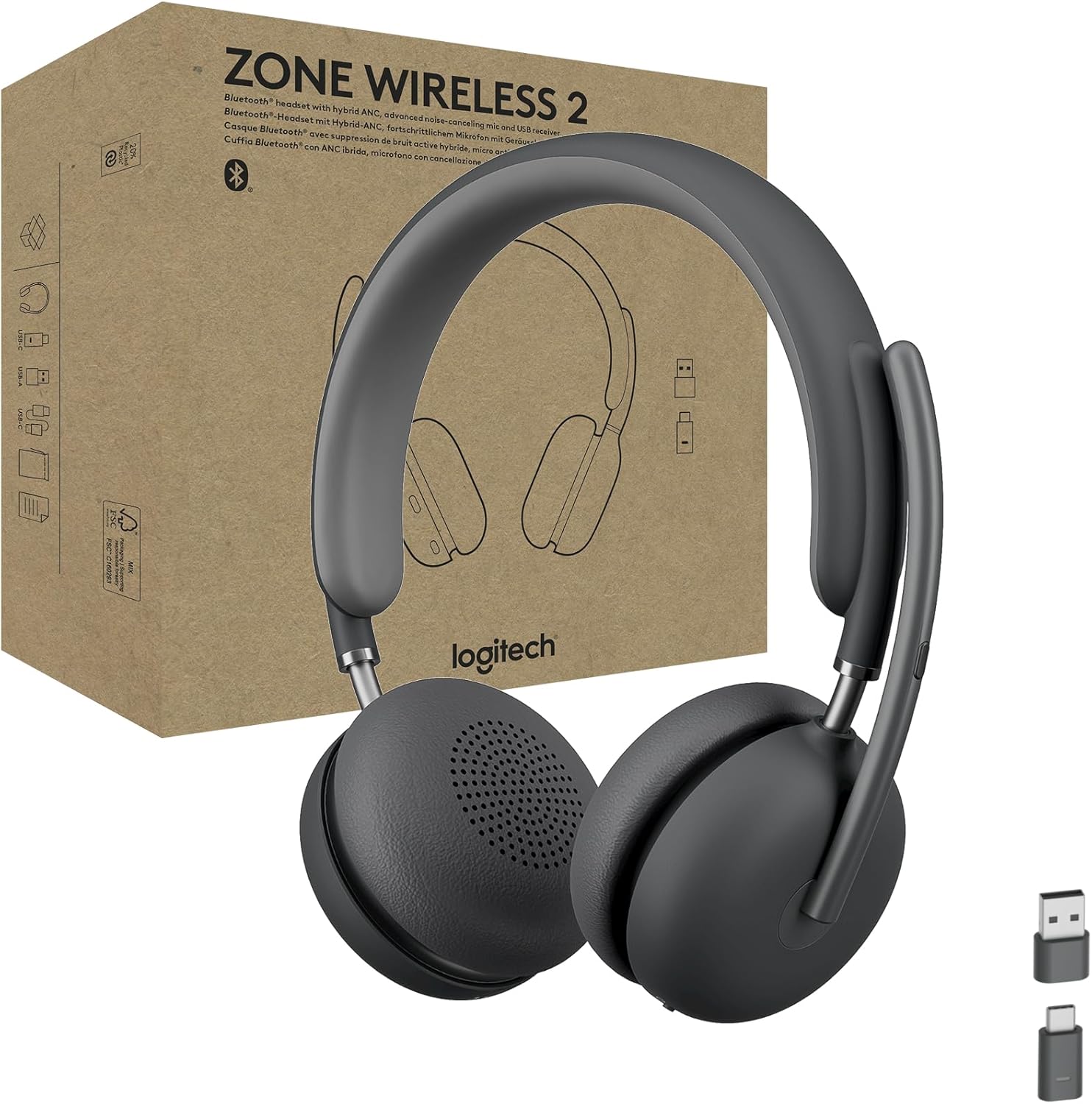
Image: The Logitech Zone Wireless 2 headset, showcasing its sleek design and the included USB-A and USB-C receivers for flexible connectivity.
4. Operating the Headset
4.1 Controls and Features Overview
The Zone Wireless 2 headset features intuitive on-ear controls and a flip-to-mute microphone boom for easy management of calls and audio settings.
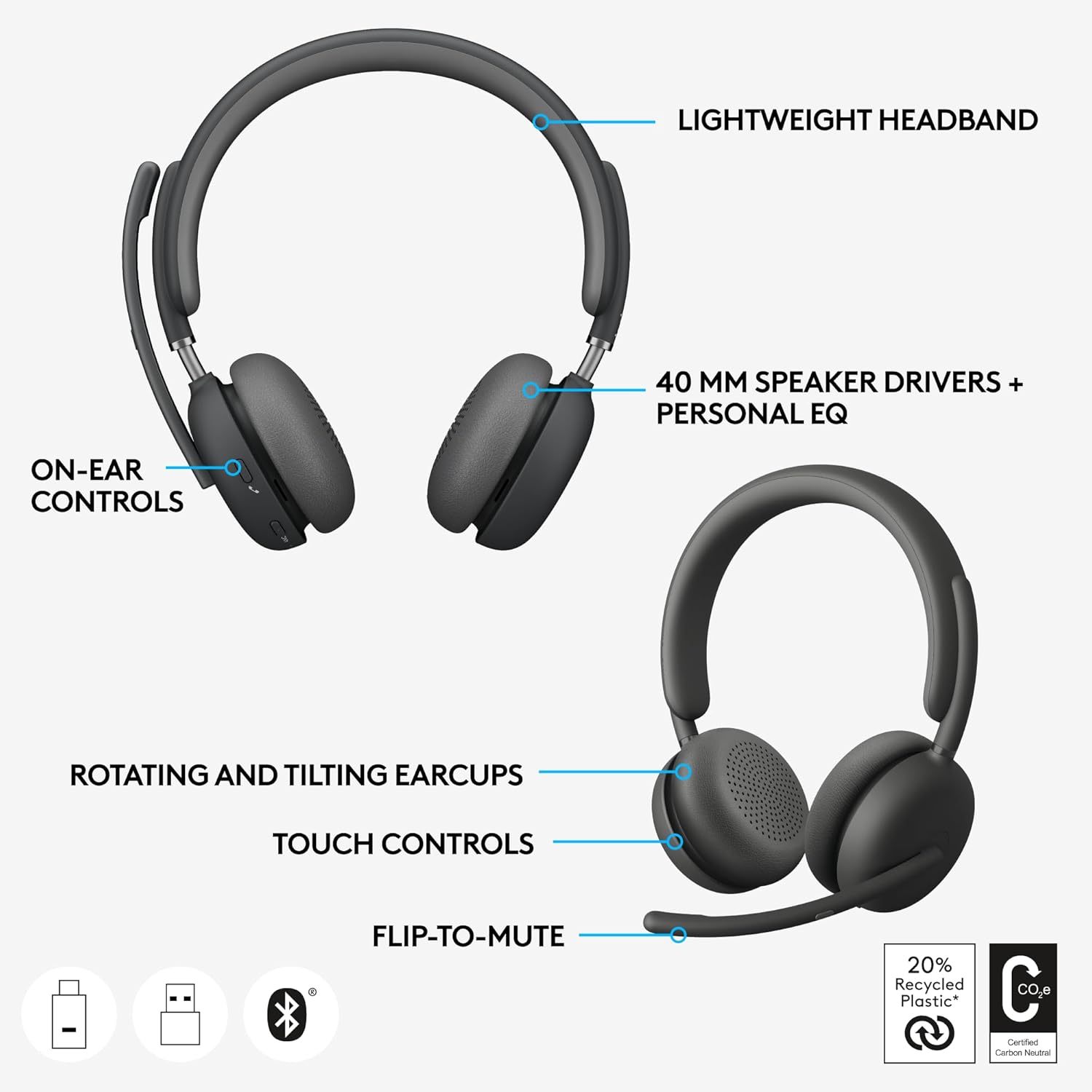
Image: A detailed diagram pointing out key features of the headset, including its lightweight headband, 40mm speaker drivers, on-ear controls, rotating and tilting earcups, touch controls, and the convenient flip-to-mute microphone function.
4.2 Call Clarity and Microphones
The headset is equipped with four noise-canceling microphones that work to elevate your voice while suppressing background sounds, ensuring you are heard clearly by others. Advanced Call Clarity, accessible through the Logi Tune app, further enhances your listening experience by suppressing far-end ambient noise, allowing you to hear colleagues more distinctly during calls.

Image: A user engaged in a video conference call, demonstrating the headset's ability to provide clear audio for both speaking and listening, enhanced by Advanced Call Clarity.

Image: A user communicating clearly during a call, highlighting the effectiveness of the headset's noise-canceling microphones in isolating the user's voice from background noise.
4.3 Hybrid Active Noise Cancellation (ANC)
The Hybrid ANC feature allows you to control your acoustic environment, helping you concentrate in noisy surroundings. It offers four distinct modes:
- ANC High: Maximum noise cancellation for very noisy environments.
- ANC Low: Moderate noise cancellation for less disruptive environments.
- Transparency On: Allows ambient sounds to pass through, keeping you aware of your surroundings.
- ANC and Transparency Off: No active noise cancellation or transparency mode.

Image: A user demonstrating deep concentration while working, facilitated by the headset's Hybrid ANC feature which minimizes distractions from the surrounding environment.
4.4 Personalized Audio with Logi Tune
Utilize the Logi Tune mobile app to enable Personal EQ, which creates a custom sound equalizer optimized for your specific hearing range. This feature, combined with the 40mm speaker drivers, delivers a premium and tailored audio experience.
5. Maintenance
To ensure the longevity and optimal performance of your Logitech Zone Wireless 2 headset, follow these maintenance guidelines:
- Earpad Replacement: The earpads are designed to be interchangeable, allowing for easy replacement if they become worn or damaged. Refer to Logitech's official support resources for instructions on how to replace them.
- Battery Replacement: The headset features a replaceable battery, extending its overall lifespan. Contact Logitech support or an authorized service center for battery replacement services.
- Cleaning: Gently wipe the headset with a soft, dry cloth. For stubborn dirt, a slightly damp cloth can be used, but avoid excessive moisture, especially near electronic components. Do not use harsh chemicals or abrasive cleaners.
- Storage: When not in use, store the headset in its protective travel case to prevent dust accumulation and physical damage.

Image: An exploded view of the headset showing its internal components, including the replaceable earpads and battery, emphasizing the product's design for repairability and sustainability.
6. Troubleshooting
If you encounter issues with your Logitech Zone Wireless 2 headset, consider the following troubleshooting steps:
- No Power/Not Charging: Ensure the USB-C cable is securely connected to both the headset and the power source. Try a different USB port or charging adapter. Verify the battery is not completely depleted.
- No Audio/Poor Audio Quality:
- Check the headset's volume levels and your device's audio output settings.
- Ensure the headset is correctly paired and connected to your device (via receiver or Bluetooth).
- If using the USB receiver, try plugging it into a different USB port.
- For Bluetooth, try unpairing and re-pairing the headset.
- Update the headset's firmware via the Logi Tune app.
- Microphone Not Working/Poor Clarity:
- Ensure the microphone boom is flipped down and not muted.
- Check your device's input settings to ensure the headset microphone is selected.
- Adjust microphone settings within the Logi Tune app.
- Connectivity Issues (Frequent Disconnections):
- Ensure you are within the headset's operating range (up to 170 ft).
- Minimize interference from other wireless devices.
- Restart both the headset and the connected device.
- ANC Performance: If ANC is not performing as expected, ensure it is enabled and try switching between ANC High and ANC Low modes. Ensure the earcups are properly sealed around your ears.
For more detailed troubleshooting or persistent issues, refer to the Logitech support website or the Logi Tune application.
7. Specifications
| Feature | Specification |
|---|---|
| Model Name | Zone Wireless 2 |
| Item Model Number | 981-001310 |
| Connectivity Technology | Wireless (Bluetooth, RF) |
| Bluetooth Version | 5.2 |
| Wireless Range | Up to 170 ft (50 m) |
| Noise Control | Active Noise Cancellation (Hybrid ANC) |
| Ear Placement | Over Ear |
| Form Factor | On Ear |
| Battery Life (Listening) | Up to 22 hours (with ANC on) |
| Battery Life (Talk Time) | Up to 15 hours (with ANC on) |
| Charging Time | Approx. 2 hours |
| Item Weight | 8.1 ounces (230 grams) |
| Product Dimensions (LxWxH) | 2.76 x 7.05 x 7.24 inches |
| Material | Aluminum, Fabric (carrying case), Recycled Plastic |
| Compatible Devices | Cellphones, Tablets, Gaming Consoles, Laptops, Desktops |
| Certifications | Zoom, Google Meet, Google Voice, Fast Pair |
8. Warranty and Support
Logitech products are manufactured to the highest quality standards and are backed by a limited hardware warranty. For specific warranty terms and conditions applicable to your region, please refer to the warranty information included with your product packaging or visit the official Logitech website.
For technical support, frequently asked questions, driver downloads, and additional resources, please visit the Logitech Support website:
You can also utilize the Logi Tune app for firmware updates and personalized settings, which can often resolve common issues.


