
1. Introduction
Thank you for choosing the freeVoice Wave 500 In-Ear Headphones. These wireless earbuds are designed to provide a superior audio experience with advanced features such as Active Noise Cancelling (ANC) and Environmental Noise Cancellation (ENC). With 6 integrated microphones, IPX5 water resistance, and up to 6 hours of playback, the Wave 500 is ideal for various activities, from business calls to sports. This manual provides detailed instructions for setup, operation, and maintenance to ensure optimal performance and longevity of your device.
2. What's in the Box
The freeVoice Wave 500 package includes the following components:
- freeVoice Wave 500 In-Ear Headphones (Left and Right Earbud)
- Charging Case
- USB Charging Cable
- Multiple Sizes of Ear Tips (Small, Medium, Large)
- User Manual (this document)
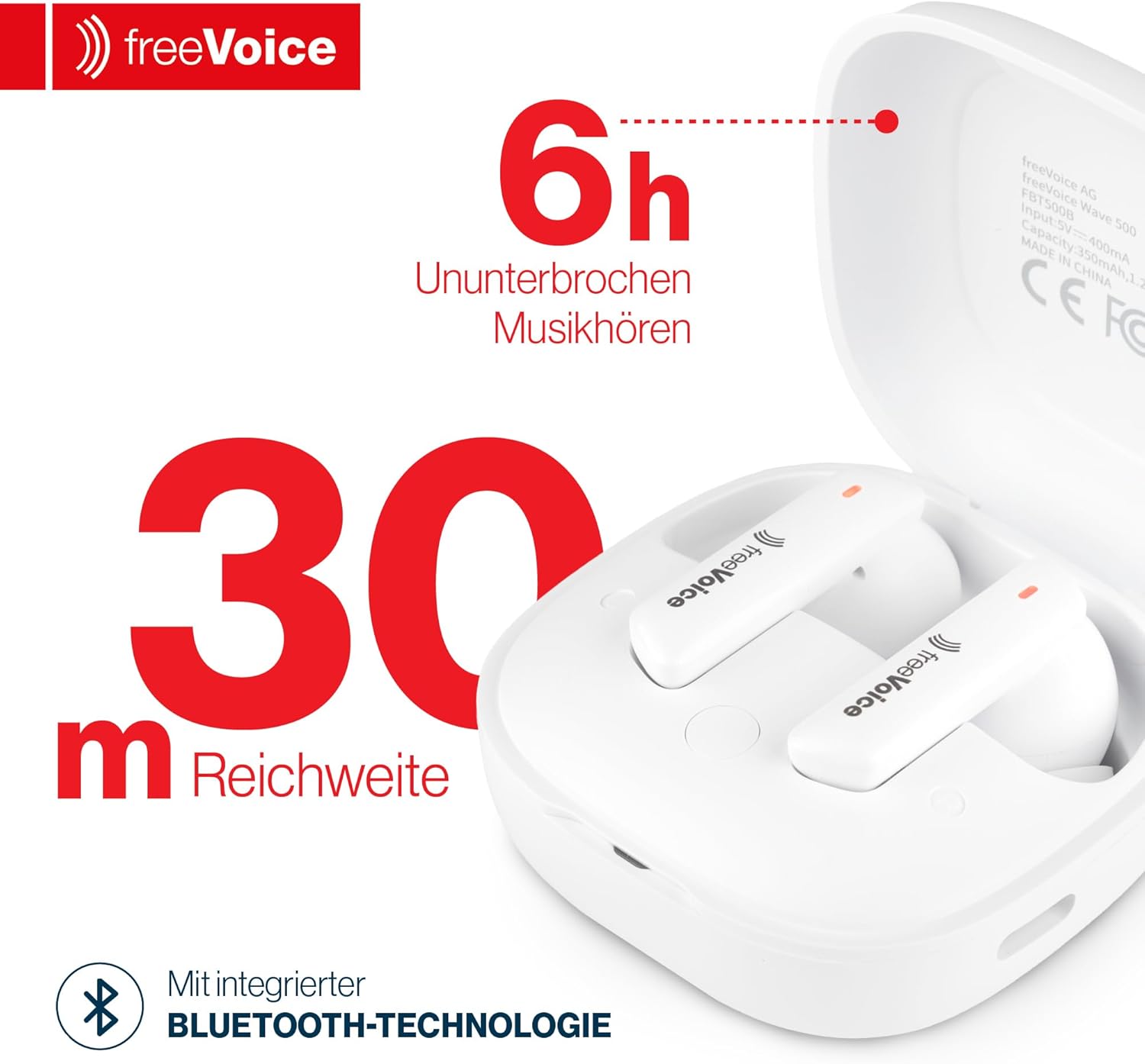
Image: The freeVoice Wave 500 earbuds are shown inside their charging case, alongside a USB charging cable and various sizes of ear tips, illustrating the complete package contents.
3. Product Overview
Familiarize yourself with the main components of your freeVoice Wave 500 headphones.
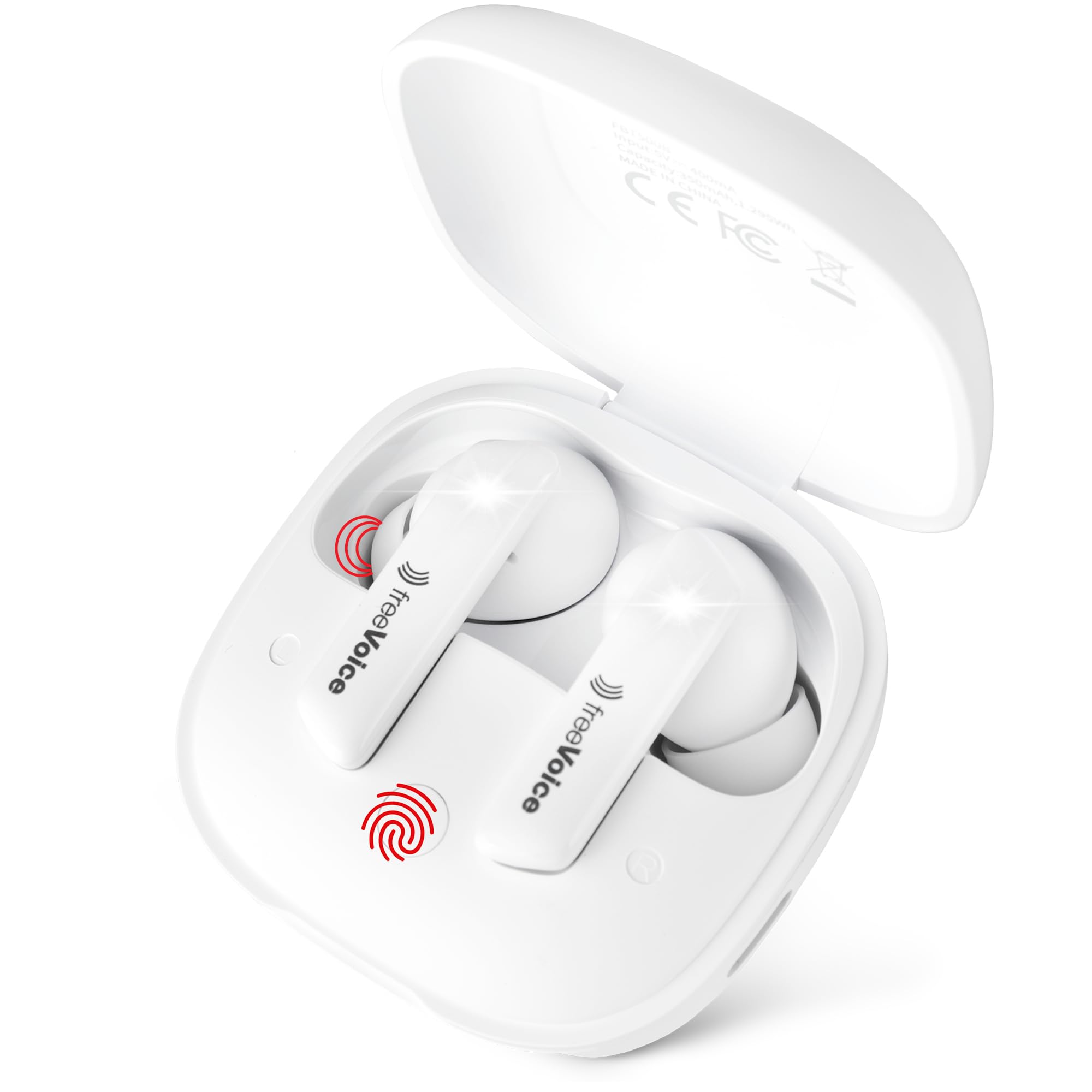
Image: The freeVoice Wave 500 earbuds are securely placed within their open charging case, highlighting their compact design and the charging indicators.

Image: This image displays the freeVoice Wave 500 earbuds in their charging case, emphasizing key features such as 6 hours of uninterrupted music playback and a 30-meter Bluetooth range.
- Earbuds: Each earbud features a touch control area, microphone, and charging contacts.
- Charging Case: Houses and charges the earbuds. It has a USB-C charging port and LED indicators for battery status.
4. Setup
4.1. Charging the Earbuds and Case
- Place the earbuds into the charging case. Ensure the charging contacts align.
- Connect the USB charging cable to the charging port on the case and to a power source (e.g., USB wall adapter, computer USB port).
- The LED indicator on the case will show the charging status. A full charge typically takes approximately 1.5-2 hours for the earbuds and 2-3 hours for the case.
- Once fully charged, disconnect the charging cable.

Image: The freeVoice Wave 500 earbuds and their charging case are displayed next to a USB-C charging cable, illustrating the charging components and emphasizing comfort and lightness.
4.2. Bluetooth Pairing
- Ensure the earbuds are charged.
- Open the charging case. The earbuds will automatically enter pairing mode, indicated by flashing LED lights on the earbuds.
- On your device (smartphone, tablet, laptop), enable Bluetooth and search for available devices.
- Select "freeVoice Wave 500" from the list of found devices.
- Once connected, the earbud LEDs will stop flashing, and you will hear a confirmation tone.
- The earbuds will automatically reconnect to the last paired device when taken out of the case, if Bluetooth is enabled on the device.
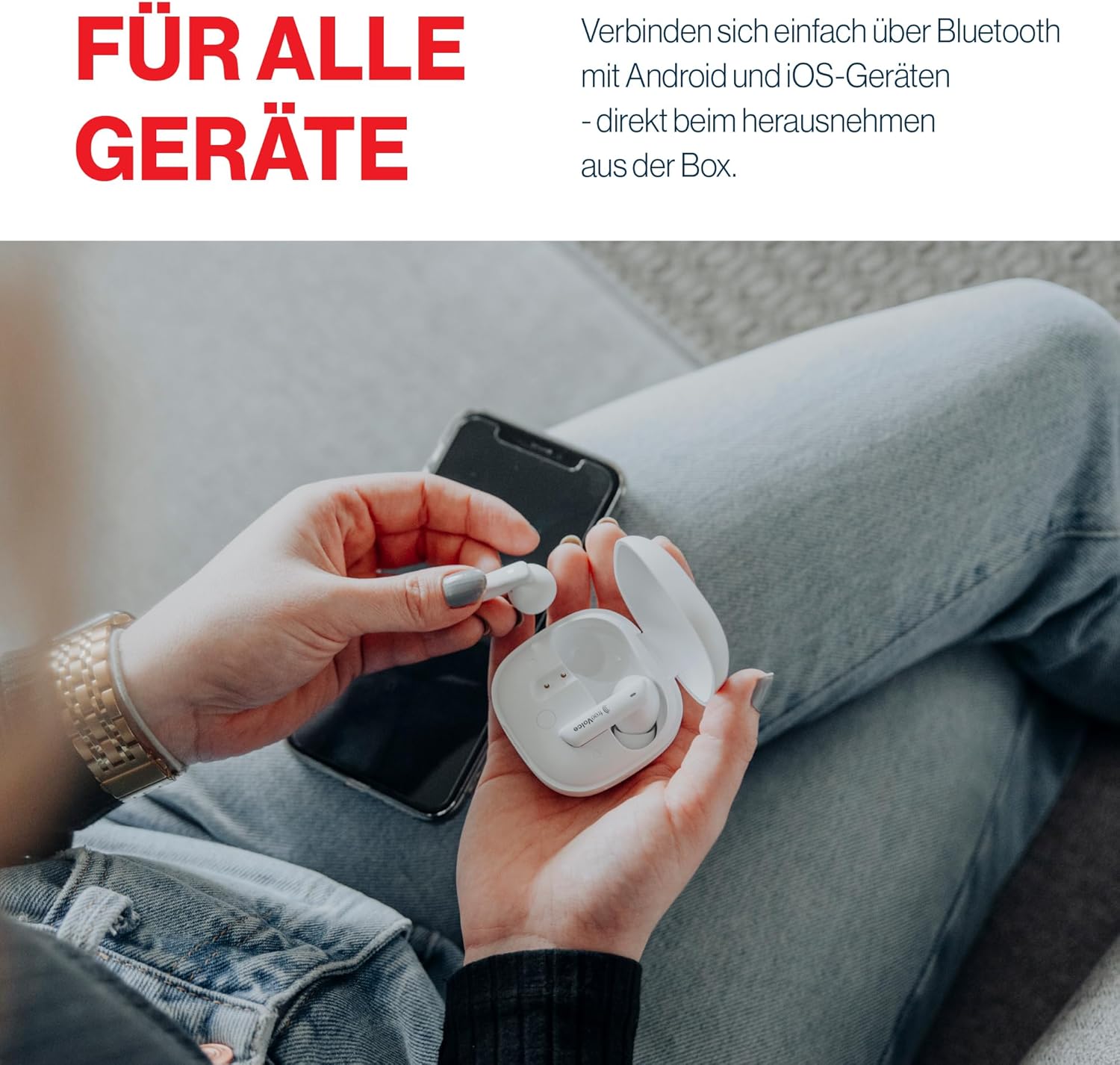
Image: A person is shown holding the freeVoice Wave 500 charging case and an earbud, with a smartphone in the background, demonstrating the process of connecting the earbuds to a device.

Image: This graphic highlights the freeVoice Wave 500 earbuds' compatibility with both Apple and Android devices, ensuring seamless connectivity across different operating systems.
4.3. Fitting the Earbuds
For optimal sound quality and comfort, choose the correct ear tip size and ensure a proper fit.
- Experiment with the different ear tip sizes provided (Small, Medium, Large) to find the best fit for your ears.
- Gently insert the earbud into your ear canal and twist slightly until it feels secure and comfortable.
- A good seal is crucial for effective noise cancellation and bass response.
5. Operating Instructions
The freeVoice Wave 500 earbuds feature intuitive touch controls. The functions are typically mirrored on both earbuds unless specified.
5.1. Power On/Off
- Power On: Open the charging case, or take the earbuds out of the case. They will power on automatically.
- Power Off: Place the earbuds back into the charging case and close the lid. They will power off automatically.
5.2. Music Playback
- Play/Pause: Single tap on either earbud.
- Next Track: Double tap on the right earbud.
- Previous Track: Double tap on the left earbud.
5.3. Call Management
- Answer/End Call: Single tap on either earbud.
- Reject Call: Press and hold on either earbud for 2 seconds.
5.4. Active Noise Cancelling (ANC) / Environmental Noise Cancellation (ENC)
The freeVoice Wave 500 features both ANC for reducing ambient noise and ENC for clear call quality.
- Toggle ANC/Transparency Mode: Triple tap on either earbud to cycle through ANC On, Transparency Mode, and ANC Off. Transparency Mode allows you to hear your surroundings while listening to audio.
- ENC is automatically active during calls to enhance voice clarity.

Image: A person is shown wearing the freeVoice Wave 500 earbuds, with visual sound waves emanating from the earbuds, representing the active noise cancelling feature for clear, undisturbed audio.

Image: The freeVoice Wave 500 earbuds are shown in their open charging case, accompanied by icons indicating features such as IPX5 water resistance, active noise cancellation, visible battery display, and a minimalist, lightweight design.
5.5. Volume Control
Volume control is managed directly through your connected device (smartphone, tablet, etc.). The earbuds do not feature integrated volume control via touch gestures.
6. Maintenance
6.1. Cleaning
- Regularly clean the earbuds and charging case with a soft, dry, lint-free cloth.
- Remove ear tips and clean them with mild soap and water, then dry thoroughly before reattaching.
- Use a cotton swab or a small, soft brush to gently clean the charging contacts on both the earbuds and the case.
- Avoid using abrasive materials, alcohol, or chemical cleaners.
6.2. Storage
- When not in use, always store the earbuds in their charging case to protect them and keep them charged.
- Store the device in a cool, dry place, away from extreme temperatures and direct sunlight.
7. Troubleshooting
| Problem | Possible Cause | Solution |
|---|---|---|
| Earbuds not pairing. | Earbuds not in pairing mode; Bluetooth off on device; already paired to another device. | Ensure earbuds are out of the case and in pairing mode. Turn Bluetooth off and on on your device. Forget "freeVoice Wave 500" from your device's Bluetooth list and re-pair. |
| No sound from one earbud. | Low battery; earbud not properly connected; earbud malfunction. | Place both earbuds back in the case, close, then reopen to reset. Ensure both earbuds are charged. Check device audio settings. |
| Charging case not charging. | Faulty cable; power source issue; dirty charging port. | Try a different USB-C cable and power adapter. Clean the charging port on the case. |
| ANC not effective. | Improper fit; ANC mode not activated. | Ensure earbuds are properly seated in your ears with a good seal. Triple tap to cycle through ANC modes and ensure ANC is active. |
| Touch controls unresponsive. | Dirty touch sensor; temporary software glitch. | Clean the touch sensor area on the earbuds. Place earbuds back in the case, close, then reopen to reset. |
8. Specifications
| Feature | Detail |
|---|---|
| Model Name | Wave 500 |
| Model Number | FBT500B |
| Connectivity Technology | Bluetooth Wireless |
| Noise Cancellation | Active Noise Cancelling (ANC), Environmental Noise Cancellation (ENC) |
| Microphones | 6 (for clear calls) |
| Playback Time | Up to 6 hours (with ANC activated) |
| Water Resistance | IPX5 (splash and light rain resistant) |
| Control Method | Touch |
| Impedance | 25 Ohms |
| Material | Plastic |
| Included Components | Earbuds, Charging Case, USB Cable, Ear Tips, User Manual |
9. Warranty and Support
The freeVoice Wave 500 In-Ear Headphones come with a 2-year manufacturer's warranty. This warranty covers defects in materials and workmanship under normal use.
For warranty claims, technical support, or further assistance, please contact freeVoice customer support through their official website or the retailer where you purchased the product. Please have your proof of purchase and product model number (FBT500B) ready when contacting support.
