
1. Introduction
The Hagibis MC100 is a magnetic M.2 2230 NVMe SSD enclosure designed for high-speed data transfer and external storage. It features a USB-C 3.2 Gen2 10Gbps interface, making it ideal for devices like the iPhone 15 Pro/Pro Max for direct ProRes video recording, MacBooks, iPad Pros, and Android devices. Its built-in magnetic structure ensures stable attachment, especially with MagSafe-compatible devices.
This manual provides detailed instructions to help you set up, operate, and maintain your Hagibis MC100 SSD Enclosure, ensuring optimal performance and longevity.
2. What's in the Box
Upon opening the package, please verify that all the following items are included:
- 1 x Hagibis Magnetic Hard Drive Enclosure (MC100)
- 2 x USB-C to USB-C Data Cables (10Gbps, with lanyard design)
- 1 x User Manual
- 2 x Screwdrivers
- 6 x Screws
- 2 x Magnetizing Rings (for non-magnetic devices)
- 1 x Storage Bag

Image: A diagram illustrating the Hagibis MC100 enclosure and its two included data cables, labeled with "Host Port 10Gbps" and "PD100W" for the enclosure, and "Data cable*2" for the cables.
3. Key Features
M.2 2230 NVMe SSD Compatibility
The Hagibis MC100 enclosure is specifically designed for M.2 2230 NVMe SSDs (B+M Key / M Key). It supports a 10Gbps USB 3.2 Gen2 Type-C interface for plug-and-play convenience.

Image: An internal view of the Hagibis MC100 enclosure, highlighting the M.2 2230 SSD slot and indicating compatibility with M Key and B+M Key SSDs, while showing incompatibility with B Key SSDs.
Magnetic Attachment with MagSafe Compatibility
Equipped with a built-in magnetic structure, the enclosure offers stable and secure adsorption to compatible devices. It can also hold a phone with a MagSafe-compatible case, ensuring it stays firmly attached.

Image: A visual representation of the Hagibis MC100 enclosure magnetically attaching to the back of an iPhone, illustrating the "Easy To Attach With A Click" feature.

Image: Two examples showing the double-sided magnetic suction feature: the enclosure attached to a magnetic power bank while connected to an iPhone, and the enclosure attached to a magnetic fan.
Direct ProRes Video Storage
Compatible with iPhone 15 Pro/Pro Max, this enclosure allows for direct external storage of 4K ProRes videos. This eliminates the need for post-recording transfers and helps manage phone memory efficiently.

Image: A person holding an iPhone with the Hagibis MC100 attached, illustrating the capability to record and store ProRes video directly to the external SSD.
Dual Power Outage Protection
Featuring a supercapacitor and RTL9210 main control, the enclosure provides dual software and hardware data protection. It offers an additional 10 seconds of power supply after an outage, ensuring FTL mapping table updates and cache data writing to protect data and the hard disk.
Note: The supercapacitor requires 5-6 minutes to fully charge. Once charged, it will not affect the hard drive during file reading or standby mode (not in write mode), power off, or unplugging, and will not increase unsafe shutdowns.

Image: A detailed view of the supercapacitor and RTL9210 master control chip within the Hagibis MC100, illustrating the hardware components responsible for power failure data protection.
10Gbps Super Speed Transfer
With USB 3.2 Type-C Gen2 interface, the enclosure supports transfer speeds up to 10Gbps. After installing an NVMe SSD, read and write speeds can reach 1000-1200MB/s, allowing for HD movie transmission in approximately 2 seconds. It is backward compatible with USB 3.1 Gen1 and USB 3.0.

Image: A graphic depicting the high-speed data transfer capability of the Hagibis MC100, emphasizing its 10Gbps (1000-1200MB/s) performance.
2TB Capacity Support
The enclosure supports capacity expansion up to 2TB, compatible with M-Key/M+B Key 2230 specification NVMe SSDs.
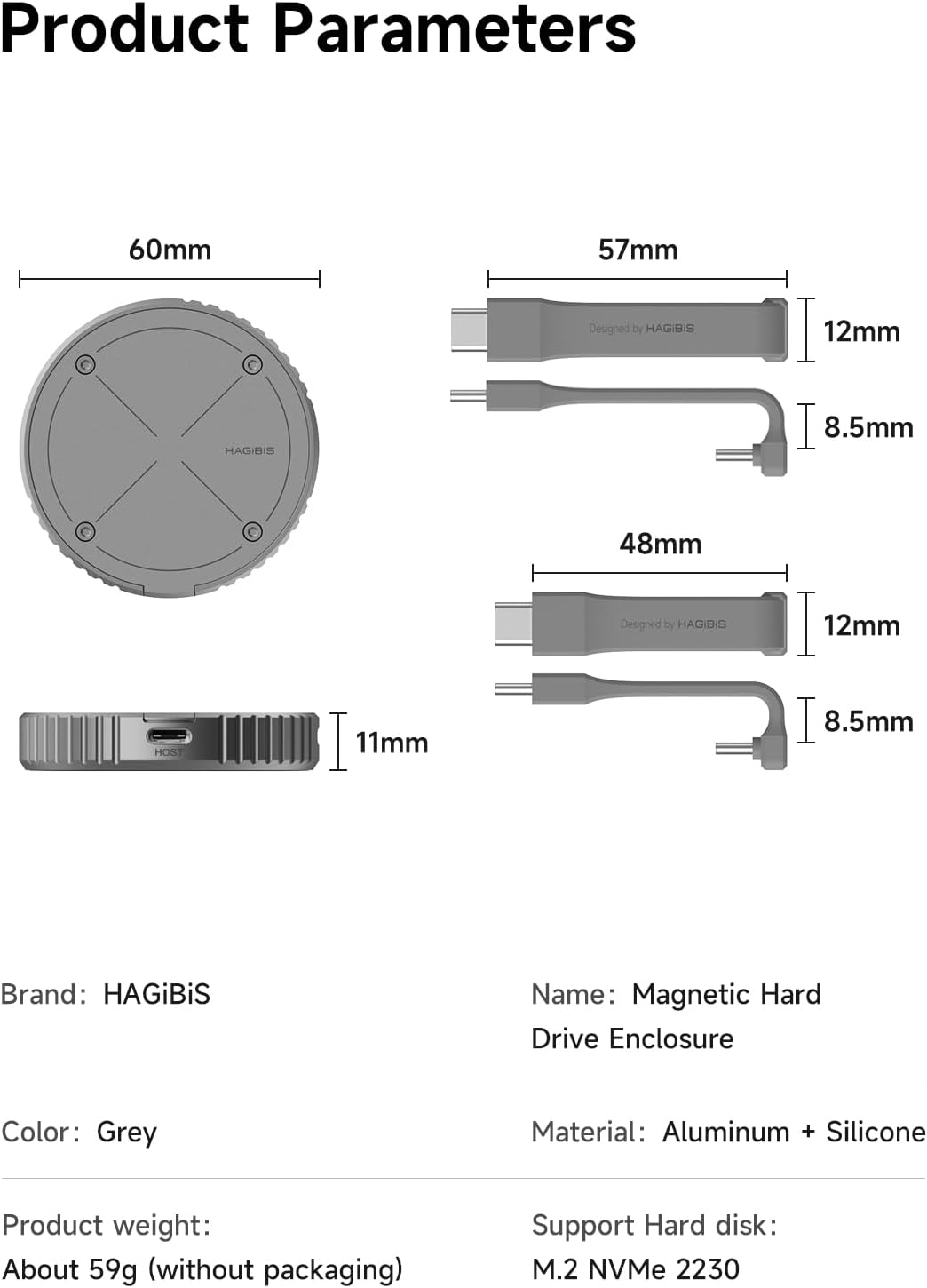
Image: A graphic illustrating the 2TB capacity support of the Hagibis MC100, showing various types of media that can be stored.
Wide Compatibility
Equipped with two 10Gbps USB 3.2 Gen2 Type-C lanyard data cables, the compact and portable enclosure is widely compatible with devices featuring a Type-C interface, including iPhone 15 Pro/Pro Max, iPad Pro, MacBook Pro/Air, Android devices, laptops, and tablets.

Image: A graphic showcasing the wide compatibility of the Hagibis MC100 with various devices such as laptops, cell phones, iPads, and game consoles.
4. Setup Instructions
4.1. Installing the M.2 2230 NVMe SSD
- Carefully open the Hagibis MC100 enclosure. Refer to the product diagram for the correct opening mechanism.
- Locate the M.2 SSD slot inside the enclosure.
- Gently insert your M.2 2230 NVMe SSD into the slot, ensuring it is aligned correctly with the M-Key or B+M Key notch.
- Secure the SSD in place using the provided screw.
- Close the enclosure securely.
4.2. Initial SSD Formatting
Important Note:
When connecting a new M.2 SSD to this product for the first time, you must format the M.2 SSD to exFAT format. Failure to do so may result in the SSD not being recognized by your device.
For Windows users, you can format the drive via Disk Management. For macOS users, use Disk Utility. Ensure you select the exFAT file system.
5. Operating Instructions
5.1. Connecting to Devices
- Attach the Hagibis MC100 enclosure to your device (e.g., iPhone, iPad, MacBook) using its magnetic back. For non-magnetic devices, use the provided magnetizing ring if desired.
- Connect one end of the provided USB-C data cable to the Type-C port on the Hagibis MC100 enclosure.
- Connect the other end of the USB-C data cable to the Type-C port on your host device.
- The SSD should now be recognized by your device as an external storage drive.
5.2. Using for ProRes Video Recording (iPhone 15 Pro/Pro Max)
For iPhone 15 Pro and iPhone 15 Pro Max users, the Hagibis MC100 allows direct recording of 4K ProRes video to the external SSD. Once connected, select the external drive as your storage destination within the camera app settings.
5.3. Power Delivery (PD100W)
The enclosure supports PD100W power delivery. This allows for simultaneous charging of your device while the enclosure is connected, provided your device and charger support PD.
5.4. Data Transfer
Drag and drop files to and from the external SSD as you would with any other external storage device. The 10Gbps speed ensures fast and efficient data transfer.
6. Maintenance
- Cleaning: Use a soft, dry cloth to clean the exterior of the enclosure. Avoid using liquid cleaners or solvents.
- Storage: Store the enclosure in a cool, dry place away from direct sunlight and extreme temperatures.
- Handling: Handle the enclosure with care to prevent drops or impacts, which could damage the internal SSD or the enclosure itself.
- Cable Care: Ensure the USB-C cables are not bent sharply or tangled, as this can damage the internal wires.
7. Troubleshooting
SSD Not Recognized
Possible Cause: New SSD not formatted or formatted incorrectly.
Solution: Ensure the SSD is formatted to exFAT format. Refer to Section 4.2 for instructions.
Possible Cause: Loose connection.
Solution: Re-seat the SSD inside the enclosure and ensure the USB-C cable is securely connected to both the enclosure and your device.
Slow Transfer Speeds
Possible Cause: USB port limitation or cable issue.
Solution: Ensure your device's USB-C port supports USB 3.2 Gen2 (10Gbps) or higher. Use the provided high-speed USB-C cables. Older USB standards (e.g., USB 2.0, USB 3.0/3.1 Gen1) will result in lower speeds.
Possible Cause: SSD performance limitations.
Solution: Verify the specifications of your M.2 NVMe SSD. Not all NVMe SSDs achieve maximum speeds.
Enclosure Disconnects or Behaves Erratically
Possible Cause: Insufficient power for the SSD.
Solution: If using an SSD with power consumption greater than 4.5W, it may require additional power. Ensure your host device can provide sufficient power, or consider using a powered USB hub if applicable (though less common for direct phone connection).
Possible Cause: Supercapacitor not fully charged (during initial use or after prolonged storage).
Solution: Allow the enclosure to remain connected to a power source for 5-6 minutes for the supercapacitor to fully charge. This ensures the power outage protection functions correctly.
8. Specifications
| Attribute | Detail |
|---|---|
| Product Name | Hagibis Magnetic M.2 2230 NVMe SSD Enclosure |
| Model Number | MC100 |
| Compatible SSDs | M.2 2230 NVMe SSD (B+M Key / M Key) |
| Max Capacity | Up to 2TB |
| Interface | USB 3.2 Gen2 Type-C (10Gbps) |
| Transfer Speed | Up to 1000-1200MB/s (Read/Write) |
| Power Protection | Supercapacitor + RTL9210 (Dual software/hardware data protection) |
| Magnetic Feature | Built-in magnetic structure, MagSafe compatible |
| Material | Aluminum + Silicone |
| Color | Grey |
| Product Dimensions | 2.3 x 2.2 x 0.1 inches (approx. 60 x 57 x 11 mm) |
| Item Weight | 2 ounces (approx. 59g without packaging) |
| Compatible Devices | iPhone 15 Pro/Pro Max, iPad Pro, MacBook Pro/Air, Android, Laptops, Tablets, Steam Deck, ROG Ally |

Image: A detailed diagram presenting the physical dimensions of the Hagibis MC100 enclosure and its accompanying data cables, along with a summary of key product parameters like brand, name, color, material, weight, and supported hard disk type.
9. Warranty and Support
9.1. Warranty Information
Hagibis products typically come with a standard manufacturer's warranty. Please refer to the warranty card included in your product packaging or visit the official Hagibis website for specific warranty terms and conditions applicable to the MC100 SSD Enclosure.
9.2. Customer Support
If you encounter any issues or have questions regarding your Hagibis MC100 SSD Enclosure that are not covered in this manual, please contact Hagibis customer support. You can usually find contact information on the official Hagibis website or through the retailer where you purchased the product.
For the latest support resources and FAQs, please visit the Hagibis Official Store on Amazon.
10. Product Videos
No official product video URLs were provided in the input data that met the criteria for embedding (e.g., "creator_type":"Seller"). If available, relevant instructional or overview videos would be displayed here.


