
1. Product Overview
The ZKCAMSPY D70-4K is a sophisticated 3-channel dash camera system designed to provide comprehensive surveillance for your vehicle. It records simultaneously from the front, interior, and rear, ensuring maximum coverage. Featuring 4K UHD resolution for the front camera, built-in IR night vision, G-Sensor for emergency locking, and continuous loop recording, this device is engineered for reliable performance and enhanced road safety.

Figure 1: ZKCAMSPY D70-4K Dash Cam main unit, rear camera, and included 32GB SD card.
2. Key Features
- 3-Channel Recording: Simultaneously captures video from the front (4K UHD), interior (720P), and rear (1080P) of the vehicle.
- High Resolution: Front camera records in stunning 4K Ultra HD (2160p) for clear detail.
- Wide Angle Lenses: Front 170°, Interior 120°, Rear 150° for extensive coverage.
- IR Night Vision: Built-in infrared lights on the interior camera ensure clear footage in low-light conditions.
- G-Sensor: Automatically detects sudden shakes or collisions and locks the current video footage to prevent overwriting.
- Loop Recording: Overwrites the oldest unlocked footage when the memory card is full, ensuring continuous recording.
- 24-Hour Parking Monitoring: With an optional hardwire kit (sold separately), the dash cam can monitor your vehicle for 24 hours, activating recording upon motion detection or impact.
- 2.0-inch IPS Screen: Provides a clear display for live view and playback.
- Included 32GB SD Card: Ready for immediate use upon purchase.
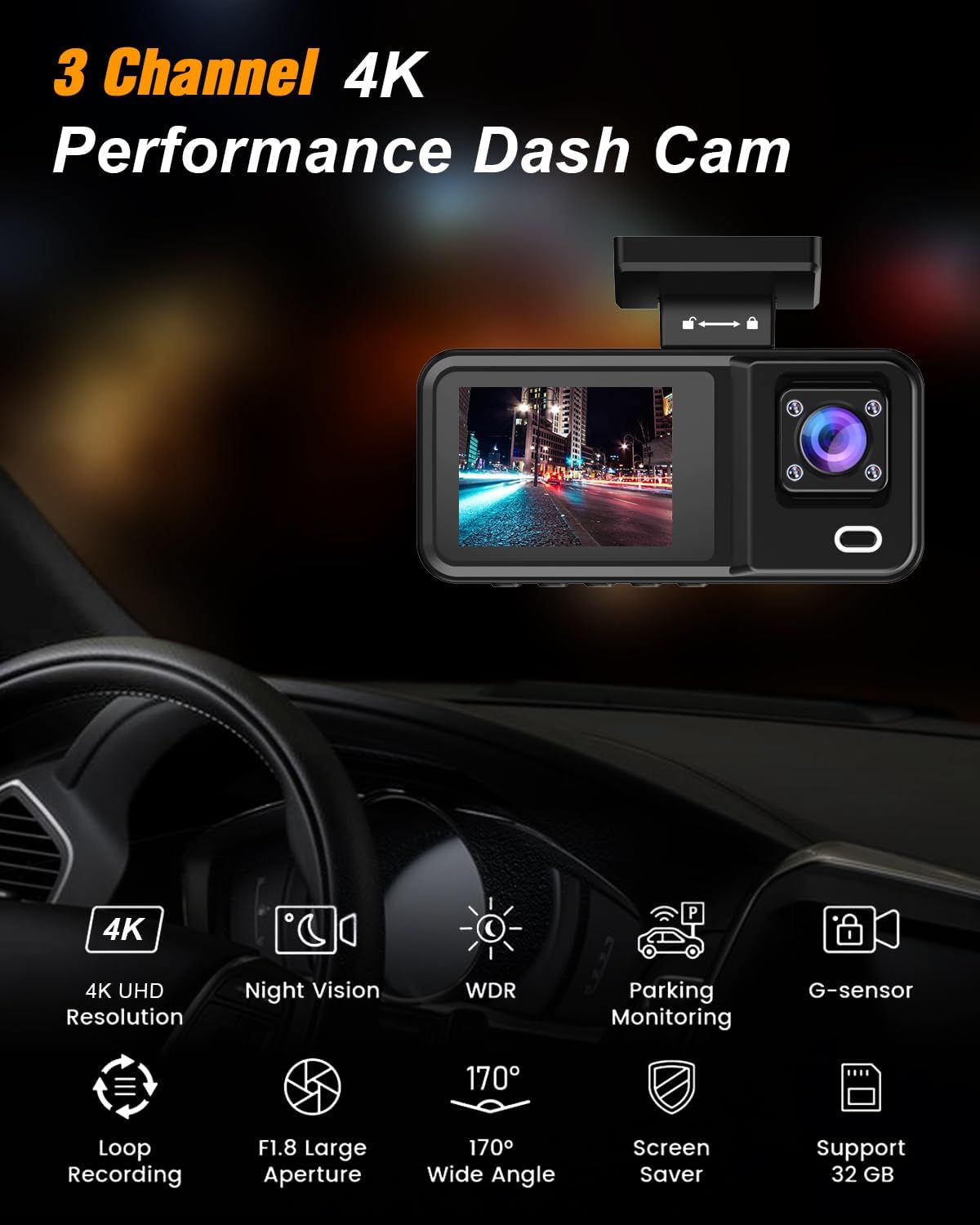
Figure 2: Overview of ZKCAMSPY D70-4K key features.

Figure 3: Illustration of simultaneous 3-channel recording.
3. Package Contents
Please verify that all items listed below are included in your package:
- ZKCAMSPY D70-4K Dash Cam Main Unit
- External Rear Camera (19.7 feet cable)
- 32GB SD Card
- Car Charger (11.5 feet cable)
- User Manual
- Installation Tool (Pry Tool)
- Adhesive Mount for Dash Cam
- Screws for Rear Camera Mounting

Figure 4: All components included in the ZKCAMSPY D70-4K Dash Cam package.
4. Setup and Installation
Follow these steps to properly install your ZKCAMSPY D70-4K Dash Cam system:
- Prepare the Windshield: Clean the area on your windshield where you intend to mount the dash cam. Ensure it is free of dust and grease for optimal adhesion.
- Apply Protective Film: Before attaching the dash cam, apply the clear protective film to the windshield first. This helps protect your windshield and ensures a strong bond for the dash cam's adhesive mount. Smooth out any air bubbles.
- Mount the Dash Cam: Attach the adhesive mount to the top of the main dash cam unit. Remove the protective backing from the adhesive and firmly press the dash cam onto the prepared area of your windshield, ideally behind the rearview mirror to avoid obstructing your view.
- Install the Rear Camera: Mount the external rear camera to the rear window or license plate area. Use the provided screws or adhesive as appropriate.
- Route Cables: Connect the car charger to the dash cam and route the cable along the edge of the windshield and dashboard to your vehicle's 12V power outlet. Use the included pry tool to tuck the cable neatly under the trim for a clean installation. Connect the rear camera cable to the main unit and route it similarly to the rear of the vehicle.
- Insert SD Card: Insert the provided 32GB SD card into the designated slot on the dash cam. Ensure it clicks into place.
- Power On and Format: Plug the car charger into the 12V outlet. The dash cam should power on automatically. It is recommended to format the SD card through the dash cam's settings menu before first use to ensure proper functionality.
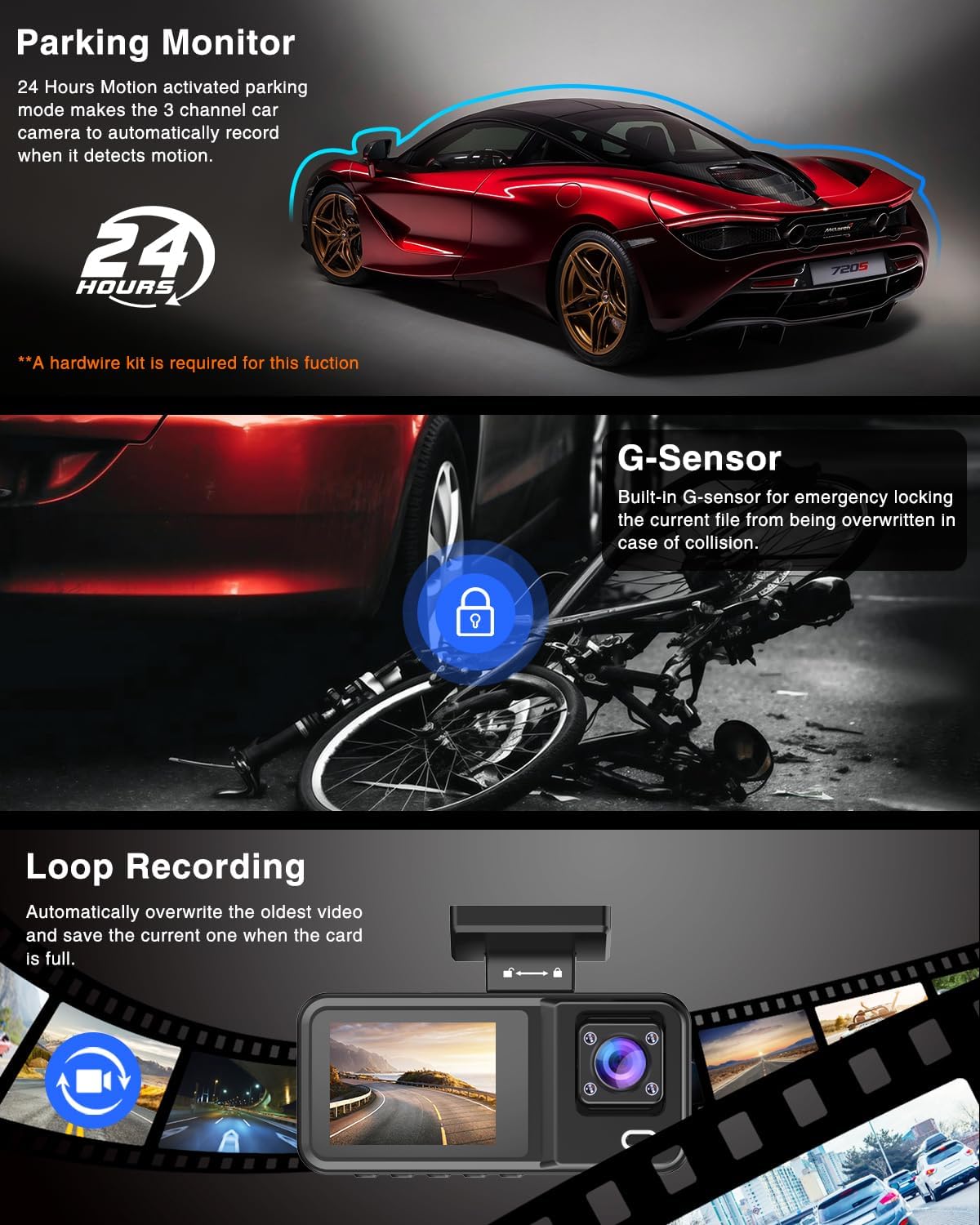
Figure 5: Simplified installation diagram for the dash cam and rear camera.
Installation Video Guide
Video 1: An influencer's unboxing and installation guide for the ZKCAMSPY D70-4K Dash Cam. This video demonstrates the physical setup and cable management.
5. Operating Instructions
5.1 Power On/Off
- Automatic Power On/Off: The dash cam will automatically power on and begin recording when connected to your vehicle's power supply and the engine starts. It will power off automatically when the engine is turned off.
- Manual Power On/Off: Press and hold the power button (usually located on the side or bottom of the unit) to manually turn the dash cam on or off.
5.2 Recording Modes
- Normal Recording: Continuous recording when the vehicle is in motion. Footage is saved in short segments (e.g., 1, 3, or 5 minutes) to the SD card.
- Loop Recording: When the SD card is full, the oldest unlocked video files will be automatically overwritten by new recordings.
- G-Sensor (Emergency Recording): In the event of a sudden impact or collision, the built-in G-Sensor will automatically detect it and lock the current video file, preventing it from being overwritten by loop recording. These files are typically stored in a separate "Event" folder.
- Parking Monitoring (Requires Hardwire Kit): If a hardwire kit is installed, the dash cam can monitor your vehicle while parked. It will automatically start recording if motion is detected or an impact occurs.

Figure 6: Visual representation of Parking Monitor, G-Sensor, and Loop Recording functionalities.
5.3 Playback and Settings
- On-Screen Playback: Use the buttons below the screen to navigate through recorded videos and play them back directly on the 2.0-inch IPS display.
- Menu Navigation: Access the settings menu to adjust various parameters such as video resolution, loop recording duration, G-Sensor sensitivity, date/time, and more. Refer to the detailed user manual (physical copy) for specific menu options.
- PC Playback: Remove the SD card and insert it into a computer's card reader to view and manage video files.
6. Maintenance
- SD Card Formatting: It is recommended to format the SD card once a month to maintain optimal recording performance and prevent data corruption. This can usually be done directly through the dash cam's settings menu.
- Cleaning: Use a soft, dry cloth to clean the dash cam's lenses and screen. Avoid using abrasive cleaners or solvents.
- Temperature: Avoid exposing the dash cam to extreme temperatures for prolonged periods, as this can affect its lifespan and performance.
7. Troubleshooting
| Problem | Possible Cause | Solution |
|---|---|---|
| Dash cam does not power on. | No power supply; faulty cable; loose connection. | Check car charger connection; try a different 12V outlet; ensure engine is running. |
| Recording stops unexpectedly. | SD card full; SD card error; low power. | Format SD card; replace SD card; ensure continuous power supply. |
| Video footage is blurry or unclear. | Protective film on lens; dirty lens; incorrect focus. | Remove lens film; clean lenses; check focus settings if adjustable. |
| Parking monitor not working. | No hardwire kit installed; feature not enabled. | Install hardwire kit (ASIN B0C2C2MFPJ); enable parking monitor in settings. |
8. Specifications
| Feature | Detail |
|---|---|
| Model Name | D70-4K |
| Brand | ZKCAMSPY |
| Video Capture Resolution | Front: 2160p (4K UHD), Interior: 720p, Rear: 1080p |
| Screen Size | 2.0 inch IPS Screen |
| Lens Angle | Front: 170°, Interior: 120°, Rear: 150° |
| Flash Memory Type | SD (32GB card included) |
| Control Method | Buttons |
| Mounting Type | Suction Cup Mount (Adhesive mount also included) |
| Item Weight | 12.3 ounces |
| Color | Black |
9. Warranty and Support
ZKCAMSPY is committed to providing high-quality products and customer satisfaction. For any product-related issues, technical support, or warranty inquiries, please contact ZKCAMSPY customer service. Refer to the contact information provided in your product packaging or on the official ZKCAMSPY website for assistance.