
1. Product Overview
The ACAGALA KWS-302 series is an 8-in-1 multi-function AC energy meter designed for comprehensive monitoring of electrical parameters. It features a clear color screen for real-time data display and is engineered for standard DIN rail mounting, ensuring straightforward installation in various electrical setups.
This device measures and displays eight key electrical parameters:
- Voltage (V)
- Current (A)
- Active Power (KW)
- Timing (Hours)
- Electric Energy (Kwh)
- Temperature (°C)
- Frequency (Hz)
- Power Factor (PF)
All models in the KWS-302 series include a power-off memory function, retaining data even after power interruptions. The KWS-302WF and KWS-302L models also feature under-voltage and over-voltage protection. The KWS-302WF model uniquely offers Tuya WiFi connectivity for remote monitoring and control via a mobile application.

Figure 1: Front view of the ACAGALA KWS-302 8in1 Power Meter, showing the color display and terminals.

Figure 2: Illustration highlighting the multi-functional design of the KWS-302 series, capable of measuring various electrical parameters.
2. Safety Information
Please read all safety instructions carefully before installation and operation. Failure to follow these instructions may result in electric shock, fire, or damage to the device.
- Electrical Hazard: Installation and wiring must be performed by qualified personnel in accordance with local electrical codes and regulations.
- Power Disconnection: Always disconnect power to the circuit before installing or servicing the meter.
- Voltage and Current Limits: Do not exceed the specified voltage (170-270V) and current (0-63A) ratings of the device.
- Indoor Use Only: This device is designed for indoor use in a dry environment. Avoid exposure to moisture, dust, or extreme temperatures.
- Proper Wiring: Ensure all connections are secure and correctly wired to prevent short circuits or malfunction.
3. Package Contents
Upon opening the package, verify that all items are present and undamaged:
- 1 x ACAGALA KWS-302 Series 8in1 Energy Meter
4. Specifications
| Parameter | Specification |
|---|---|
| Model | KWS-302, KWS-302L, KWS-302WF |
| Material | ABS+PC+VO |
| Voltage Measurement Range | 170-270V |
| Current Measurement Range | 0-63A |
| Power Measurement Range | 0-17KW |
| Timing Measurement Range | 0-999 Hours |
| Electricity Measurement Range | 0-9999 Kwh |
| Temperature Range | 20-150 °C |
| Frequency Measurement Range | 50-60Hz |
| Power Factor | 0.00-1.00PF |
| Power Failure Memory | Yes (All models) |
| Under-voltage Protection | Yes (KWS-302WF, KWS-302L), None (KWS-302) |
| Over-voltage Protection | Yes (KWS-302WF, KWS-302L), None (KWS-302) |
| WiFi Connectivity | Yes (KWS-302WF), None (KWS-302L, KWS-302) |
| Item Size | 66mm x 66mm x 82mm (approx. 2.60in x 2.60in x 3.23in) |
| Weight (KWS-302) | 182g (6.42 ounces) |
| Weight (KWS-302L) | 213g (7.51 ounces) |
| Weight (KWS-302WF) | 215g (7.58 ounces) |
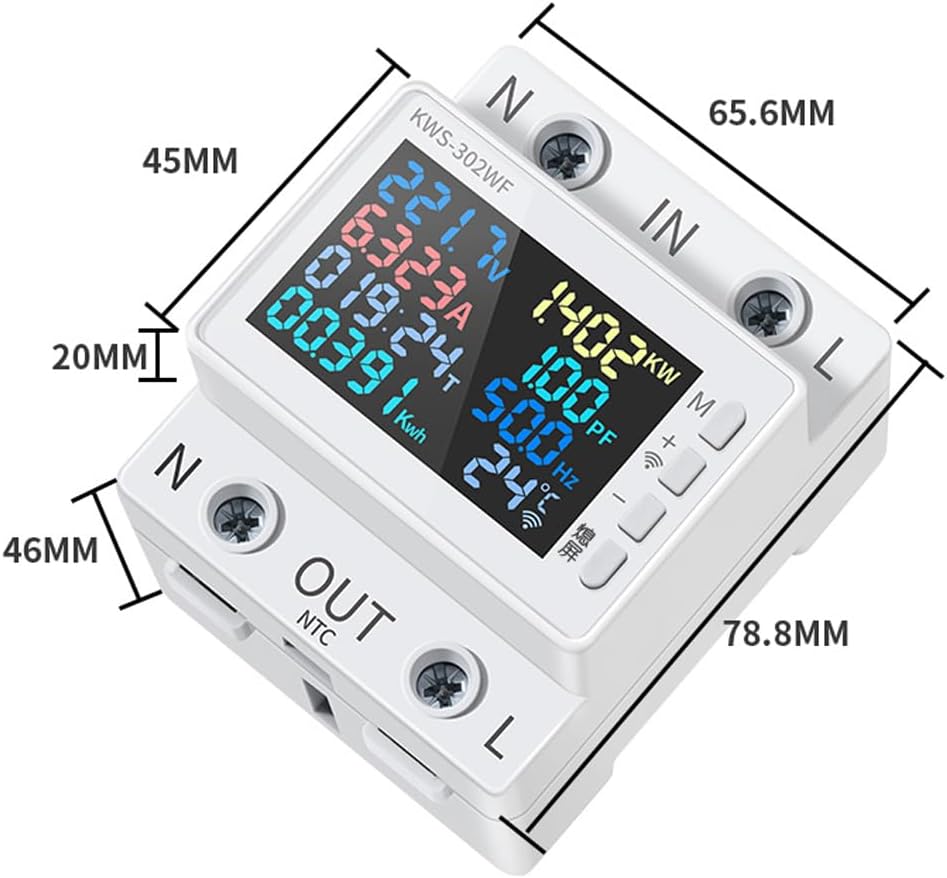
Figure 3: Detailed dimensions of the KWS-302 series power meter.
5. Installation (Setup)
5.1 Guide Rail Mounting
The KWS-302 series is designed for standard DIN rail installation. This snap-on mounting method requires no screws, making installation convenient and efficient.
- Ensure the DIN rail is securely mounted in your electrical panel.
- Align the meter's mounting clips with the DIN rail.
- Press the meter firmly onto the rail until it clicks into place.

Figure 4: Illustration of the snap-on guide rail installation process.
5.2 Wiring
WARNING: Ensure all power is disconnected before performing any wiring. Incorrect wiring can cause damage to the device or electrical hazards.
- Identify the 'IN' (Input) and 'OUT' (Output) terminals on the meter.
- Connect the incoming AC power supply (Live 'L' and Neutral 'N') to the 'IN' terminals.
- Connect the load (device to be monitored) to the 'OUT' terminals, ensuring Live 'L' and Neutral 'N' connections are correct.
- Tighten all terminal screws securely to prevent loose connections.

Figure 5: Diagram illustrating the electrical input and output wiring connections for safe operation.
6. Operation
6.1 Display Interface
Once powered on, the color screen will display various electrical parameters simultaneously. The layout is designed for clear readability, showing values such as voltage, current, power, energy consumption, and more.
6.2 Button Functions
The meter features several buttons on its side for interaction:
- 'M' Button: Typically used to cycle through different display modes or access menu options.
- '+' and '-' Buttons: Used for navigation within menus, adjusting settings, or clearing specific data (e.g., Kwh).
- Screen-off Button: Allows you to turn off the display while the meter continues to function and record data. Press again to reactivate the screen.
6.3 APP Control (KWS-302WF Model Only)
The KWS-302WF model integrates Tuya WiFi for remote monitoring and control via a smartphone application. This functionality allows users to view real-time data, track historical consumption, and manage settings from anywhere with an internet connection.
- Download the App: Search for the 'Tuya Smart' or 'Smart Life' app in your mobile app store and install it.
- Register/Log In: Create an account or log in to your existing account.
- Add Device: Follow the in-app instructions to add your KWS-302WF meter. This typically involves putting the meter into pairing mode (refer to the meter's display for instructions) and connecting it to your home WiFi network.
- Remote Monitoring: Once connected, you can view all measured parameters remotely on your phone.
- APP Timing Function: Utilize the app's timing function to set countdowns or schedule power on/off times for connected loads.

Figure 6: The KWS-302WF model demonstrating mobile application control capabilities.

Figure 7: The mobile application's timing function, allowing users to schedule power operations.

Figure 8: Example of controlling multiple KWS-302WF meters through a single mobile application interface.
7. Maintenance
The ACAGALA KWS-302 series power meter requires minimal maintenance.
- Cleaning: Use a soft, dry cloth to clean the exterior of the device. Do not use abrasive cleaners, solvents, or immerse the device in water.
- No User-Serviceable Parts: The device contains no user-serviceable parts. Do not attempt to open or repair the meter, as this will void the warranty and may pose a safety risk.
- Environmental Conditions: Ensure the operating environment remains within the specified temperature and humidity ranges to prolong the device's lifespan.
8. Troubleshooting
If you encounter issues with your ACAGALA KWS-302 power meter, refer to the following troubleshooting guide:
| Problem | Possible Cause | Solution |
|---|---|---|
| No display/Device not powering on | No power supply; Loose wiring; Faulty device | Check power connections; Ensure wiring is secure; Contact support if power is confirmed and device remains off. |
| Incorrect readings (Voltage, Current, etc.) | Incorrect wiring; Device operating outside specified ranges; External interference | Verify wiring against the diagram; Ensure measured values are within 170-270V and 0-63A; Relocate device if interference is suspected. |
| APP connection failure (KWS-302WF only) | Incorrect WiFi password; Weak WiFi signal; Meter not in pairing mode; App issues | Verify WiFi password; Ensure meter is within WiFi range; Put meter into pairing mode as per app instructions; Restart app and meter. |
| Under/Over-voltage protection tripping frequently (KWS-302WF, KWS-302L only) | Unstable power supply; Protection thresholds set too narrow | Consult an electrician to check power supply stability; Adjust protection thresholds if configurable via app (KWS-302WF) or device settings. |
9. Warranty and Support
Warranty Information: Specific warranty terms and conditions for the ACAGALA KWS-302 series power meter may vary. Please refer to the documentation provided at the time of purchase or contact your retailer for detailed warranty information.
Technical Support: For technical assistance, troubleshooting beyond this manual, or inquiries regarding your device, please contact the seller or manufacturer directly. Have your product model and purchase details ready when seeking support.