
Introduction
This manual provides detailed instructions for the setup, operation, and maintenance of your sfjhdfhuiedfvdnbfed Desktop Conference USB Microphone. Please read this manual thoroughly before using the product to ensure proper function and longevity.

Image: The sfjhdfhuiedfvdnbfed Desktop Conference USB Microphone, showing its compact design and integrated USB cable.
Package Contents
Verify that all items listed below are included in your package:
- 1x Desktop Conference USB Microphone
- 1x User Manual (this document)

Image: The microphone alongside its retail packaging and a blank instruction sheet, illustrating the typical contents.
Product Features
- Omnidirectional Pickup: Captures sound from all directions (360°).
- Double-Capacitor Anti-Interference Microphone Core: Designed to reduce noise.
- Zinc Alloy Base + Steel Mesh: Provides durability and stability.
- Touch-Sensitive Mute Switch: Allows for quick muting and unmuting.
- Anti-Folding Braided Shielded Wire: Enhances cable durability and signal integrity.
- USB Gold-Plated Head: Ensures reliable connection.
- Built-in Noise Filter Sponge: Further reduces ambient noise.
- USB Plug & Play: No driver installation required for most operating systems.
- Anti-slip Mat: Integrated into the base for desktop stability.

Image: A diagram highlighting various components of the microphone, including the compact design, microphone cable connection, anti-slip sponge, touch-sensitive mute switch, metal spray net, and USB gold-plated plug.
Setup
- Placement: Place the microphone on a stable, flat surface, such as a desktop, ensuring it is centrally located for optimal voice pickup during conferences or recordings.
- Connection: Insert the USB gold-plated plug of the microphone cable into an available USB port on your computer (PC, Laptop, Notebook).
- Driver Installation: The microphone is plug-and-play and typically does not require additional driver installation. Your operating system should automatically recognize the device.
- Audio Settings:
- Windows: Go to Sound Settings > Input and select the USB microphone as your input device. Adjust the input volume as needed.
- macOS: Go to System Settings > Sound > Input and select the USB microphone. Adjust the input volume.
- Testing: Perform a test recording or use a communication application to verify that the microphone is functioning correctly and capturing audio clearly.
Operating Instructions
Omnidirectional Voice Pickup
The microphone features an omnidirectional pickup pattern, meaning it captures sound equally from all directions around the microphone. This is ideal for conference settings where multiple participants are speaking around a central microphone.

Image: A graphic illustrating the 360° omnidirectional design of the microphone, showing sound waves emanating from all sides and a polar pattern chart indicating uniform sensitivity.
Mute Function
The microphone is equipped with a touch-sensitive mute switch located on the top surface. To mute or unmute the microphone:
- To Mute: Gently tap the touch-sensitive area. The indicator light will change (e.g., from blue to red, or off) to indicate that the microphone is muted.
- To Unmute: Tap the touch-sensitive area again. The indicator light will return to its active state, signifying that the microphone is live.

Image: A hand pressing the touch-sensitive mute button on the microphone, with a blue light indicating its status.
Maintenance
- Cleaning: Use a soft, dry cloth to wipe the microphone's surface. Avoid using liquid cleaners or abrasive materials, as they may damage the device.
- Storage: When not in use, store the microphone in a clean, dry place away from extreme temperatures and direct sunlight.
- Cable Care: Do not sharply bend or pull the USB cable. The braided design helps prevent damage, but proper handling extends its lifespan.
Troubleshooting
| Problem | Possible Cause | Solution |
|---|---|---|
| Microphone not detected by computer. | USB connection issue, incorrect audio settings. |
|
| No sound or low volume. | Microphone muted, low input volume setting, application settings. |
|
| Sound is distorted or unclear. | Microphone too far/close, background noise, high input sensitivity. |
|
Specifications
| Feature | Detail |
|---|---|
| Sensitivity | -38 dB ± 3dB |
| Directivity | Omnidirectional |
| Impedance | ≤2.2KΩ |
| Working Voltage | 5V |
| Standard Working Voltage | 5V |
| Frequency Response | 50 Hz - 16 KHz |
| Weight (with color box) | 213 grams |
| Dimensions (approx.) | 80mm (W) x 84mm (L) x 19mm (H) |
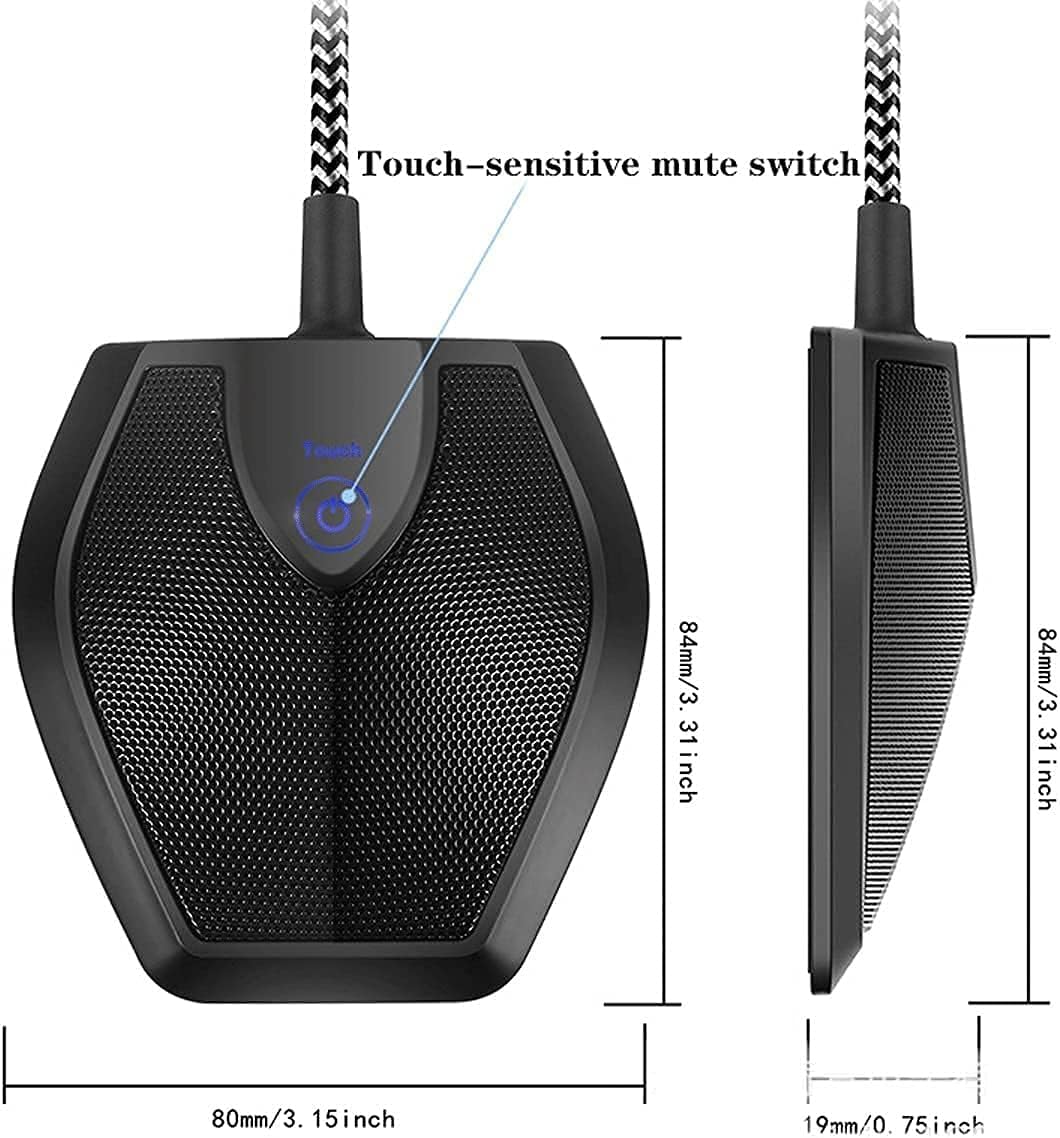
Image: A diagram showing the approximate dimensions of the microphone: 80mm width, 84mm length, and 19mm height.
Warranty and Support
For warranty information or technical support, please refer to the seller's contact information provided at the point of purchase or on the product packaging. If you have any questions about our products, you can contact us.
Please retain your proof of purchase for any warranty claims.