
1. Introduction
This manual provides comprehensive instructions for the setup, operation, and troubleshooting of your Binken Wireless HDMI Transmitter and Receiver Model 810. This device allows for wireless transmission of 1080P@60Hz video and audio signals, eliminating the need for traditional HDMI cables. It is designed for various applications including home entertainment, business meetings, and multimedia education.
2. Product Overview
2.1 Package Contents
- 1x Wireless HDMI Transmitter (TX)
- 1x Wireless HDMI Receiver (RX)
- 2x HDMI Adapters
- USB Power Cables (for Transmitter and Receiver)
2.2 Key Features
- Wireless Transmission: Streams video and audio content without cables.
- Low Latency: Approximately 0.1 seconds delay for near real-time performance.
- High Resolution: Supports up to 1080P@60Hz video resolution.
- Dual-Band Technology: Utilizes 2.4G/5GHz transmission for stable and efficient signal.
- Extended Range: Transmits signals up to 98 feet (30 meters).
- Multi-Receiver Support: One transmitter can connect to up to four receivers.
- Plug and Play: No software, apps, or Wi-Fi connection required for basic operation.
- Wide Compatibility: Compatible with most HDMI output devices (laptops, PCs, Blu-ray players, cameras, set-top boxes, game consoles) and HDMI input devices (HDTVs, projectors, monitors).

Figure 1: Overview of Transmitter (TX) and Receiver (RX) connections with various HDMI input and output devices.

Figure 2: Physical dimensions and port layout of the Transmitter and Receiver units.
3. Setup Instructions
The Binken Wireless HDMI system is designed for simple plug-and-play operation. Follow these steps to set up your device:
- Connect the Transmitter (TX): Plug the Wireless HDMI Transmitter into the HDMI output port of your source device (e.g., laptop, PC, game console). Ensure the transmitter is powered by connecting its USB-C port to a power source (e.g., USB port on your device or a USB power adapter).
- Connect the Receiver (RX): Plug the Wireless HDMI Receiver into the HDMI input port of your display device (e.g., HDTV, projector, monitor). Ensure the receiver is powered by connecting its USB-C port to a power source (e.g., USB port on your display or a USB power adapter).
- Power On Devices: Turn on both your source device and your display device.
- Automatic Pairing: The transmitter and receiver will automatically pair. The indicator lights on both units will show their connection status. Once connected, the video and audio from your source device will be displayed on your screen.

Figure 3: Simple plug-and-play connection between a laptop and a TV.
4. Operating Instructions
Once the setup is complete, operating the Binken Wireless HDMI system is straightforward:
- Source Selection: Ensure your display device is set to the correct HDMI input channel where the receiver is connected.
- Content Playback: Play any video or audio content on your source device. The content will be mirrored wirelessly to your connected display.
- Multi-Receiver Use (Optional): If you have additional receivers, connect them to other display devices as described in Section 3. The single transmitter can broadcast to multiple receivers simultaneously within the specified range.
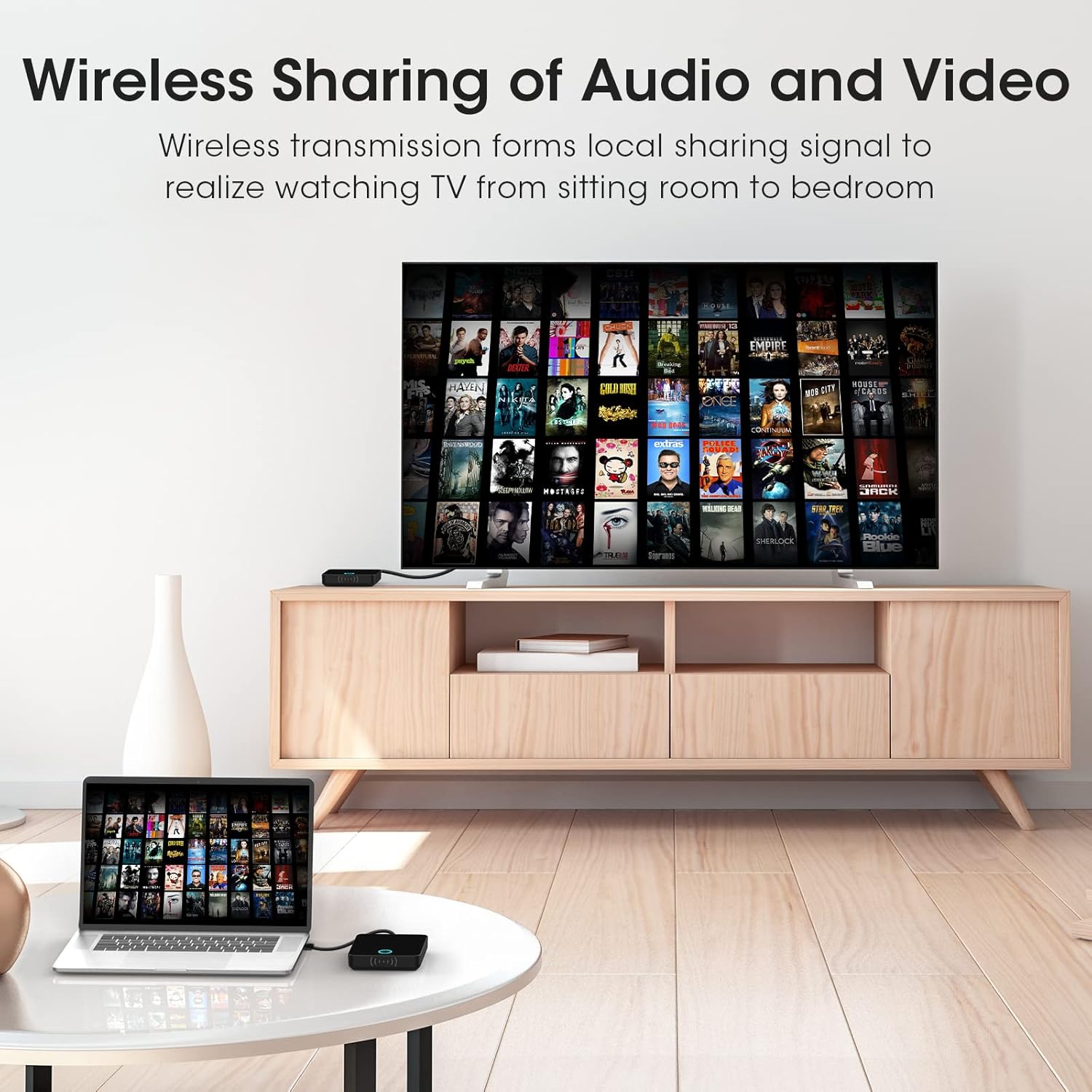
Figure 4: Wireless streaming of audio and video from a laptop to a TV.

Figure 5: Wireless presentation from a laptop to a projector in a meeting environment.

Figure 6: Gaming experience with minimal delay using the wireless HDMI system.

Figure 7: Example of one transmitter connecting to multiple receivers for extended coverage.
5. Troubleshooting
If you encounter issues with your Binken Wireless HDMI system, refer to the following troubleshooting tips:
5.1 No Signal or Intermittent Connection
- Check Power: Ensure both the transmitter and receiver are properly powered via their USB-C ports. The indicator lights should be on.
- Verify HDMI Connections: Confirm that the HDMI cables/adapters are securely connected to both the source device and the display device.
- Select Correct Input: Make sure your display device is set to the correct HDMI input source.
- Reduce Distance/Obstacles: The maximum transmission range is 98 feet (30 meters) with a clear line of sight. Walls, furniture, and other wireless devices can interfere with the signal. Try moving the devices closer or removing obstructions.
- Re-pair Devices: Disconnect and reconnect power to both the transmitter and receiver to force a re-pairing attempt.
5.2 Poor Video/Audio Quality
- Check Source Resolution: Ensure your source device is outputting a compatible resolution (up to 1080P@60Hz).
- Minimize Interference: Other 2.4GHz or 5GHz wireless devices (Wi-Fi routers, cordless phones) can cause interference. Try to operate the HDMI system away from such devices or turn them off temporarily for testing.
- Signal Strength: If the signal is weak due to distance or obstacles, video quality may degrade. Refer to the 'Reduce Distance/Obstacles' tip above.
5.3 Latency Issues
- While the system offers low latency (approx. 0.1s), some applications like competitive gaming may still benefit from a direct wired connection.
- Ensure no other high-bandwidth wireless activities are occurring nearby that could impact performance.
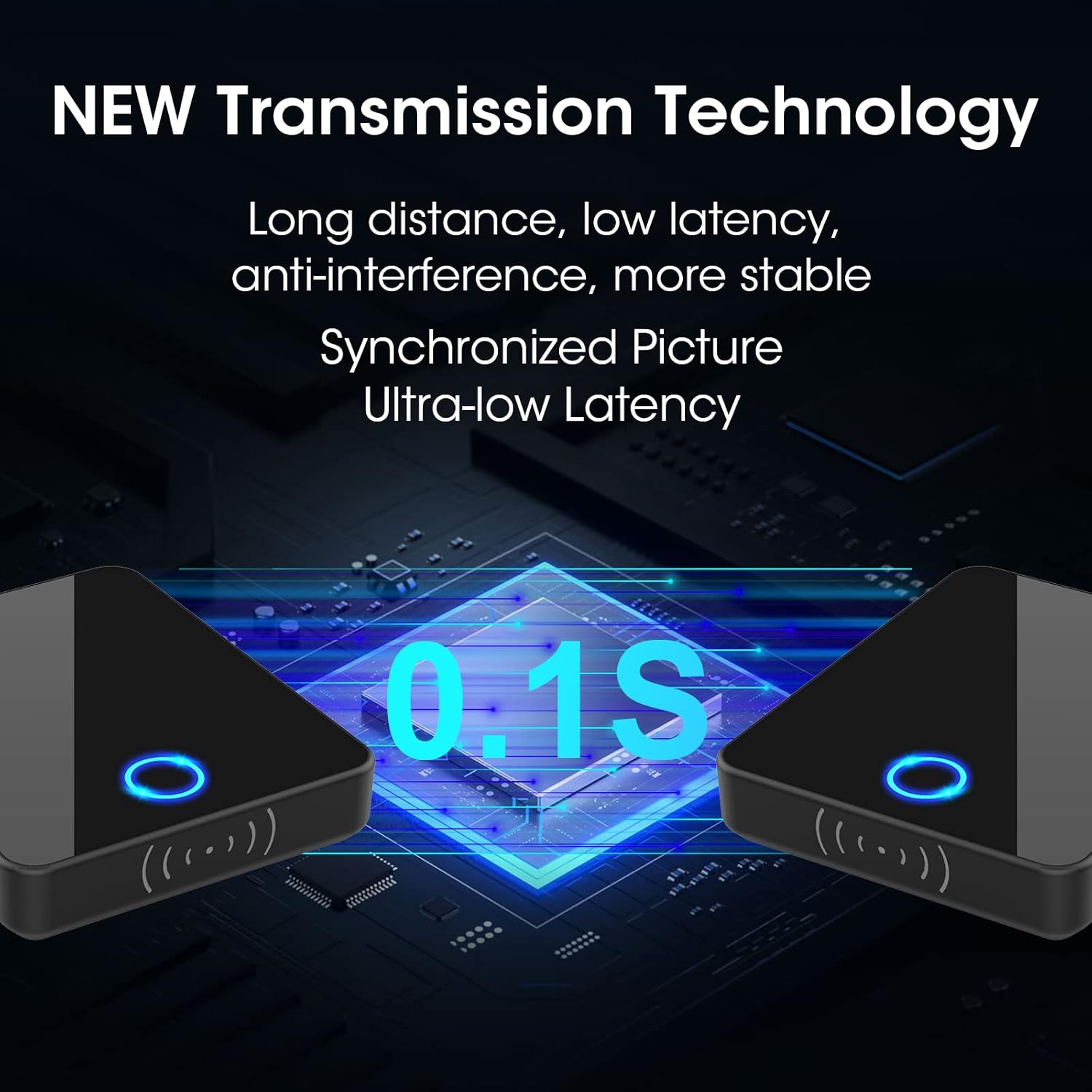
Figure 8: Illustration of the system's ultra-low latency transmission.
6. Specifications
| Model Number | BIN-810 |
| Video Output Resolution | 1080p@60Hz |
| Connectivity Technology | HDMI Wireless (2.4G/5GHz) |
| Connector Type | HDMI |
| Transmission Distance | Up to 98 feet (30 meters) |
| Latency | Approx. 0.1 seconds |
| Compatible Devices | Game Console, Personal Computer, Television, Blu-ray players, Cameras, Set-top boxes |
| Product Dimensions | 6.5 x 6.27 x 1.19 cm (2.56 x 2.47 x 0.47 inches) |
| Item Weight | 240 g (0.24 Kilograms) |
| Included Components | Wireless HDMI Transmitter, Wireless HDMI Receiver, 2x HDMI Adapters |
7. Warranty and Support
Binken products are designed for reliability and performance. For warranty information or technical support, please refer to the contact details provided with your purchase or visit the official Binken website. Keep your purchase receipt for warranty claims.