
1. Introduction
Thank you for purchasing the Usparkle 15.6-inch Portable Monitor. This device is designed to enhance your productivity and entertainment experience with its high-resolution display, wide compatibility, and portable design. This manual provides essential information for proper setup, operation, and maintenance of your monitor. Please read it thoroughly before use.

2. Package Contents
Please check the package for the following items:
- Usparkle 15.6-inch Portable Monitor
- Power Adapter
- USB-C to USB-C Cable
- USB-A to USB-C Cable
- Mini HDMI to HDMI Cable
- Stand Protective Cover
- User Manual (Japanese, for reference)

3. Product Features
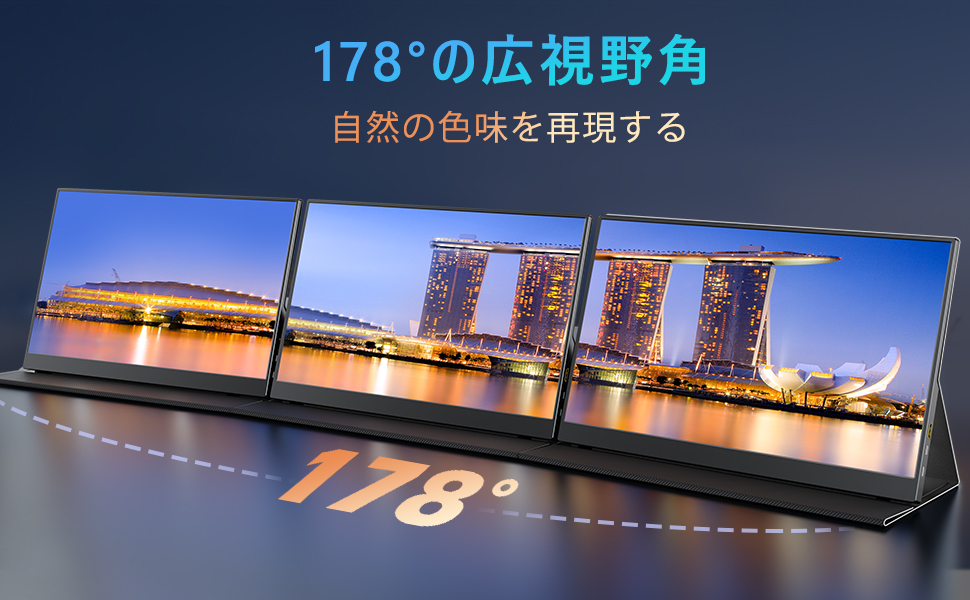
- IPS Panel & Full HD Resolution: Equipped with a high-quality IPS LCD panel, offering superior image quality and color reproduction. Enjoy a wide 178-degree viewing angle with minimal distortion and color shift. The 1920x1080 Full HD resolution ensures crisp and clear visuals.
- HDR Mode Support: Supports High Dynamic Range (HDR) technology, providing a wider range of colors and contrasts for a more immersive viewing experience with reduced white washout and black crush.
- 100% sRGB & 400 nits Brightness: Features 100% sRGB wide color gamut for accurate and vibrant color reproduction, ideal for video and gaming. With 400 nits high brightness, the display remains clear even in well-lit environments.
- 60Hz Refresh Rate: Provides a smooth visual experience, especially beneficial for fast-moving scenes in games, minimizing motion blur.
- Versatile Connectivity: Supports single-cable connection via Type-C (for compatible devices with Thunderbolt 3/4 or DisplayPort Alternate Mode) for both video output and power supply. Also includes Mini HDMI and USB-A ports for broad compatibility.
- Wide Device Compatibility: Connects to a variety of devices including laptops, desktop PCs, smartphones, PS4/PS5, Xbox, Nintendo Switch, Macbooks, and iPads (with Type-C port supporting DisplayPort Alt Mode).
- Blue Light Reduction: Features a blue light cut function to reduce eye strain and irritation from prolonged screen use, making it suitable for long working hours.
- Durable & Lightweight Design: Constructed with 70% aluminum alloy, offering excellent durability while maintaining a lightweight profile of approximately 780g. Its thin design (7mm) makes it highly portable.


4. Setup
Follow these steps for initial setup:
- Unpack: Carefully remove the monitor and all accessories from the packaging.
- Position: Place the monitor on a stable, flat surface. Use the included stand protective cover to prop up the monitor to your desired viewing angle.
- Connect Power: If your device does not support single-cable power delivery via Type-C, connect the power adapter to the monitor's DC-5V port and plug it into a power outlet.
- Connect to Device: Refer to the "5. Connections" section for detailed instructions on connecting your monitor to your source device (laptop, smartphone, game console, etc.).
- Power On: Press the power button on the monitor to turn it on.
5. Connections
The Usparkle portable monitor offers flexible connectivity options:
5.1. Single-Cable Type-C Connection (Video & Power)
For devices with a full-featured USB-C port (supporting Thunderbolt 3/4 or DisplayPort Alternate Mode), you can connect the monitor using a single USB-C to USB-C cable for both video signal and power.
- Connect one end of the USB-C to USB-C cable to your device's Type-C port.
- Connect the other end to one of the monitor's Type-C ports.
- If the monitor does not power on or flickers, your device's Type-C port may not provide sufficient power. In this case, connect the external power adapter to the monitor.

5.2. Dual-Cable Connection (Mini HDMI & USB-C for Power)
For devices without a full-featured Type-C port, or for game consoles, use the Mini HDMI cable for video and a USB-C cable for power.
- Connect one end of the Mini HDMI to HDMI cable to your device's HDMI port.
- Connect the Mini HDMI end to the monitor's Mini HDMI port.
- Connect the USB-A to USB-C cable (or power adapter) to the monitor's Type-C power input port and to a power source (e.g., USB wall charger, laptop USB-A port).

5.3. Port Overview
Familiarize yourself with the monitor's ports and buttons:

- Power Button (1): Press to turn the monitor on/off. Also functions as a 'Return' button in the OSD menu.
- Menu Button (2): Press to access the On-Screen Display (OSD) menu.
- Speakers (3): Integrated stereo speakers for audio output.
- Mini HDMI Port (4): For video input from devices with HDMI output.
- Type-C Ports (5): Two full-featured Type-C ports for video input, data transfer, and power delivery.
- DC-5V Port (6): Dedicated power input port for external power adapter.
6. Operating Instructions
Once connected, the monitor will automatically detect the input signal. You can adjust settings via the On-Screen Display (OSD) menu.
6.1. OSD Menu Navigation
- Press the Menu button (2) to open the OSD menu.
- Use the Power button (1) to navigate left/down and the Menu button (2) to navigate right/up through menu options.
- Press the Power button (1) to confirm a selection or exit a sub-menu.
6.2. Common Settings
- Brightness/Contrast: Adjust these settings to optimize visual clarity for your environment.
- Color Settings: Fine-tune color temperature, hue, and saturation.
- HDR Mode: Enable or disable HDR based on your content and preference.
- Input Source: Manually select the input source (Type-C 1, Type-C 2, Mini HDMI) if auto-detection fails.
- Aspect Ratio: Choose between 16:9, 4:3, or other available options.
- Volume: Adjust the volume of the built-in speakers or connected headphones.
6.3. Display Modes
The monitor supports various display modes when connected to a computer:
- Duplicate Mode: Displays the same content on both your primary device and the portable monitor, useful for presentations.
- Extend Mode: Extends your desktop across both screens, providing more screen real estate for multitasking.

7. Maintenance
To ensure the longevity and optimal performance of your monitor, follow these maintenance guidelines:
- Cleaning the Screen: Use a soft, lint-free cloth slightly dampened with water or a screen-cleaning solution. Do not spray liquid directly onto the screen. Avoid using harsh chemicals or abrasive materials.
- Cleaning the Casing: Wipe the monitor casing with a soft, dry cloth.
- Storage: When not in use, store the monitor in a cool, dry place. Use the included stand protective cover to protect the screen from scratches and dust.
- Avoid Extreme Conditions: Do not expose the monitor to extreme temperatures, humidity, or direct sunlight.
- Handle with Care: Avoid dropping or subjecting the monitor to strong impacts.

8. Troubleshooting
If you encounter issues with your monitor, refer to the following common problems and solutions:
| Problem | Possible Cause | Solution |
|---|---|---|
| No display/No signal | Incorrect cable connection; insufficient power; incorrect input source selected. | Ensure all cables are securely connected. Verify your device's Type-C port supports video output and power delivery, or use the external power adapter. Manually select the correct input source in the OSD menu. |
| Screen flickers or turns off intermittently | Insufficient power supply; faulty cable; power adapter issue. | Ensure the monitor is receiving adequate power, especially if using a single Type-C cable. Connect the external power adapter. Try a different cable. If the power adapter is suspected, contact customer service. |
| No sound or low volume | Monitor volume too low; device volume too low; incorrect audio output selected on device. | Adjust the monitor's volume in the OSD menu. Check your source device's volume settings. Ensure the monitor is selected as the audio output device on your computer or console. |
| Image is distorted or colors are off | Incorrect display settings; faulty cable. | Reset display settings to default in the OSD menu. Try a different cable. Ensure your device's graphics drivers are up to date. |
If the problem persists after trying these solutions, please contact Usparkle customer support.
9. Specifications
Here are the technical specifications for the Usparkle 15.6-inch Portable Monitor:
| Feature | Specification |
|---|---|
| Brand | Usparkle |
| Model | 156DM2 |
| Screen Size | 15.6 inches |
| Resolution | 1920 x 1080 (FHD 1080p) |
| Panel Type | IPS |
| Screen Surface | Anti-Glare |
| Brightness | 400 nits |
| Refresh Rate | 60 Hz |
| Viewing Angle | 178 degrees |
| HDR Support | Yes |
| Connectivity | 2x Type-C, 1x Mini HDMI, 1x USB (for power) |
| Built-in Speakers | Yes |
| Product Weight | Approx. 780g |
| GTIN | 762715407177 |
10. Warranty and Support
Usparkle is committed to providing high-quality products and customer service.
- Quality Assurance: All products undergo 100% inspection before shipment to ensure quality.
- 30-Day Return Policy: You may return the product within 30 days of purchase for any product-related issues.
- 1-Year Warranty: The product comes with a 1-year warranty from the date of purchase. In case of product defects during this period, we offer replacement or refund.
- Customer Service: For any questions or concerns regarding your product, please feel free to contact our customer support team.