
1. Introduction
Welcome to the user manual for your ASUS ROG Ally Gaming Handheld. This device is designed to provide a powerful and versatile gaming experience, combining the portability of a handheld console with the flexibility of a Windows 11 PC. Featuring an AMD Ryzen Z1 Extreme processor, 16GB LPDDR5X RAM, and a 7-inch FHD 120Hz touchscreen display, the ROG Ally is built for high-performance gaming on the go. This manual will guide you through the setup, operation, maintenance, and troubleshooting of your device to ensure optimal performance and longevity.
2. Product Overview and Components
Familiarize yourself with the various components and controls of your ASUS ROG Ally.

Figure 2.1: ASUS ROG Ally Gaming Handheld with the included Dockztorm USB Port Expander.

Figure 2.2: Front view of the ROG Ally with key controls labeled, including the 7-inch touchscreen, left and right sticks, directional buttons, A/B/X/Y buttons, View button, Menu button, Command Center button, Armoury Crate button, and array microphones.

Figure 2.3: Side view of the ROG Ally showing the right bumper, right trigger, power button/fingerprint sensor, power indicator, two-color battery charge indicator, volume buttons, ROG XG Mobile interface, USB 3.2 Type-C / DisplayPort 1.4 / Power (DC) input combo port, UHS-II MicroSD card slot, and 3.5mm Combo audio jack.
Package Contents:
- ASUS ROG Ally Gaming Handheld
- Power Adapter (65W)
- Dockztorm Portable USB Hub (Special Edition)
- User Manual (this document)
3. Initial Setup
3.1 Charging the Device
Before first use, fully charge your ROG Ally. Connect the included 65W power adapter to the USB 3.2 Type-C / Power (DC) input combo port on the top of the device. The battery charge indicator will show charging status.
3.2 Powering On and Initial Configuration
- Press and hold the Power button (located on the top edge) until the ASUS ROG logo appears on the screen.
- Follow the on-screen prompts to complete the Windows 11 Home setup, including language selection, region, network connection (Wi-Fi 6E), and user account creation.
- It is recommended to connect to a Wi-Fi network during initial setup to download necessary updates.
3.3 Fingerprint Sensor Setup
The power button integrates a fingerprint sensor for secure and quick login. During Windows 11 setup, you will have the option to configure Windows Hello Fingerprint. Follow the instructions to register your fingerprints.
3.4 Installing Updates and Armoury Crate
After initial Windows setup, ensure all system updates are installed. The ROG Ally comes with ASUS Armoury Crate software pre-installed, which is essential for managing game libraries, performance profiles, and device settings. Launch Armoury Crate and check for any available updates for the application and device drivers.
3.5 Using the Dockztorm Portable USB Hub
The included Dockztorm Portable USB Hub provides additional connectivity. Connect the hub to the USB-C port on your ROG Ally. This hub allows for super speedy data sync rates up to 5Gbps, enabling connection of various USB peripherals.
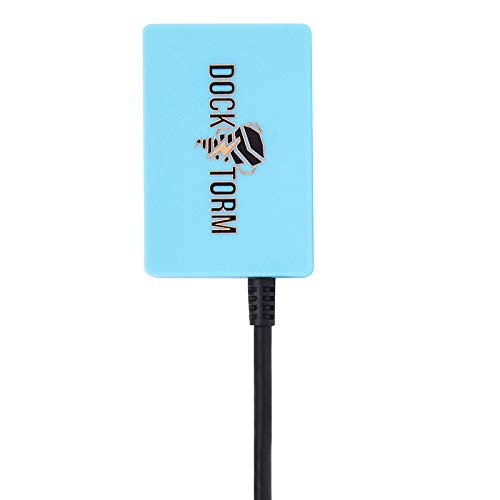
Figure 3.1: Dockztorm Portable USB Hub.
4. Operating Your ROG Ally
4.1 Basic Navigation
- Touchscreen: Navigate Windows 11 and applications using the 7-inch FHD touchscreen.
- Game Controls: Use the integrated joysticks, directional buttons, A/B/X/Y buttons, bumpers, and triggers for gaming.
- View Button: Typically functions as a 'back' or 'select' button in games and applications.
- Menu Button: Often functions as a 'start' or 'options' button.
- Command Center Button: Provides quick access to common settings like performance modes, brightness, and Wi-Fi.
- Armoury Crate Button: Launches the Armoury Crate SE application for game management and system settings.
4.2 Performance Modes
Armoury Crate allows you to switch between different performance modes to optimize for battery life or gaming performance.
- Silent Mode: Prioritizes quiet operation and battery efficiency, suitable for light tasks or less demanding games.
- Performance Mode: Balances performance and power consumption for a good gaming experience.
- Turbo Mode: Maximizes performance for demanding games, utilizing the full power of the AMD Ryzen Z1 Extreme processor and AMD Radeon graphics. This mode may consume more battery and generate more heat.
- Manual Mode: Allows advanced users to customize CPU and GPU settings.
4.3 Connecting to External Displays and Peripherals
The ROG Ally can be connected to external displays, keyboards, and mice for a desktop-like experience.
- USB-C Port: Use the USB 3.2 Type-C port for video output (DisplayPort 1.4 compatible) to an external monitor or TV. This port also supports power delivery.
- Bluetooth 5.3: Connect wireless headphones, gamepads, or other Bluetooth devices.
- Dockztorm USB Hub: Utilize the included hub to connect multiple USB-A peripherals such as keyboards, mice, or external storage.
- ROG XG Mobile Interface: For ultimate gaming performance, connect an optional ROG XG Mobile external GPU (sold separately) via this dedicated port.
5. Maintenance
5.1 Cleaning Your Device
- Use a soft, lint-free cloth to clean the screen and exterior. For stubborn smudges, slightly dampen the cloth with water or a screen cleaner.
- Avoid using harsh chemicals, abrasive cleaners, or aerosol sprays directly on the device.
- Keep the air vents clear of dust and debris to ensure proper cooling.
5.2 Software and Driver Updates
Regularly update Windows 11, graphics drivers (AMD Radeon), and Armoury Crate software to ensure optimal performance, security, and compatibility with new games.
- Windows Updates: Go to Settings > Windows Update to check for and install system updates.
- Armoury Crate Updates: Launch Armoury Crate and navigate to the "Update Center" to check for and install device-specific drivers and firmware.
5.3 Storage Management
Your ROG Ally comes with a 512GB PCIe NVMe SSD. For additional storage, you can use the UHS-II MicroSD card slot.
- Regularly manage your installed games and applications to free up SSD space.
- Consider using a high-speed MicroSD card for storing less frequently played games or media files.
5.4 Battery Care
To maximize battery lifespan:
- Avoid fully discharging the battery frequently.
- Store the device in a cool, dry place when not in use for extended periods.
- If storing for a long time, charge the battery to around 50-60%.
6. Troubleshooting
This section addresses common issues you might encounter with your ROG Ally.
6.1 Device Not Powering On or Responding
- Ensure the device is sufficiently charged. Connect the power adapter and wait a few minutes before attempting to power on.
- Perform a hard reset by holding the power button for 15-20 seconds.
- If connected to an external display, ensure the display is powered on and the correct input is selected.
6.2 Short Battery Life
- Gaming, especially demanding titles, will consume battery quickly. This is normal for high-performance handhelds.
- Adjust performance modes in Armoury Crate to "Silent" or "Performance" for longer battery life.
- Lower screen brightness.
- Disable Wi-Fi and Bluetooth when not in use.
- Close background applications.
6.3 MicroSD Card Reader Issues
Some users have reported issues with the MicroSD card reader.
- Ensure the MicroSD card is fully inserted and properly formatted.
- Try a different MicroSD card to rule out card compatibility issues.
- Update all drivers via Armoury Crate and Windows Update.
- If issues persist, contact ASUS support for further assistance, as this may indicate a hardware concern.
6.4 System Crashes or Unresponsiveness
- Ensure all Windows updates and graphics drivers are current.
- Check for overheating. Ensure vents are clear and the device is used in a well-ventilated area.
- Run a system diagnostic tool (available in Windows or Armoury Crate) to check for hardware issues.
- If crashes occur during specific games, try lowering in-game graphics settings or updating the game itself.
- Consider a system restore or clean installation of Windows 11 if software corruption is suspected (backup data first).
6.5 Clunky Operating System Interface
The ROG Ally runs full Windows 11 Home, which is optimized for desktop use. While Armoury Crate provides a console-like overlay, some Windows elements may feel less intuitive on a handheld.
- Utilize the touchscreen for navigation where appropriate.
- Familiarize yourself with Windows 11 tablet mode features.
- Customize Windows settings for a more streamlined experience.
- Use the on-screen keyboard (accessible via the Command Center or Windows settings) for text input.
7. Specifications
| Feature | Detail |
|---|---|
| Model Number | ROG Ally |
| Processor | AMD Ryzen Z1 Extreme (Octa Core, up to 5.1 GHz) |
| Graphics | AMD Radeon Integrated Graphics |
| Display | 7" IPS Full HD (1920x1080) 120Hz Touchscreen |
| RAM | 16GB LPDDR5X OnBoard RAM |
| Storage | 512GB PCIe NVMe SSD |
| Operating System | Windows 11 Home-64 |
| Wireless Connectivity | Wi-Fi 6E MT7922, Bluetooth 5.3 |
| Ports | USB 3.2 Type-C (DisplayPort 1.4 / Power input), Micro SD Reader (UHS-II), 3.5mm Combo Audio Jack, ROG XG Mobile Interface |
| Security | Fingerprint Security System |
| Battery | 4-Cell 40 WHr Battery |
| Dimensions | 11 x 4.5 x 1.5 inches |
| Weight | 2 pounds |
8. Warranty and Support
Your ASUS ROG Ally Gaming Handheld is covered by a manufacturer's warranty. Please refer to the warranty card included in your product packaging for specific terms and conditions, including the warranty period and coverage details.
For technical support, driver downloads, and additional resources, please visit the official ASUS support website. You can find contact information and FAQs there.
ASUS Support Website: www.asus.com/support/