
1. Introduction
This manual provides essential instructions for the safe operation, setup, and maintenance of your SwellPro FD3 Fisherman Waterproof Fishing Drone. The FD3 is designed for marine environments, featuring IP67 waterproofing, a 4K camera, and a dual bait release mechanism for fishing applications. Please read this manual thoroughly before operating the drone to ensure proper use and to prevent damage or injury.
Safety Guidelines
- Always operate the drone in open areas, away from people, animals, and obstacles.
- Maintain a safe distance from the drone during operation.
- Do not operate the drone in strong winds, heavy rain, or lightning.
- Ensure all batteries are fully charged before each flight.
- Regularly inspect the drone for any damage before and after use.
- Adhere to all local regulations and laws regarding drone operation.
2. Package Contents
Verify that all items listed below are present in your package. If any items are missing or damaged, please contact SwellPro support.
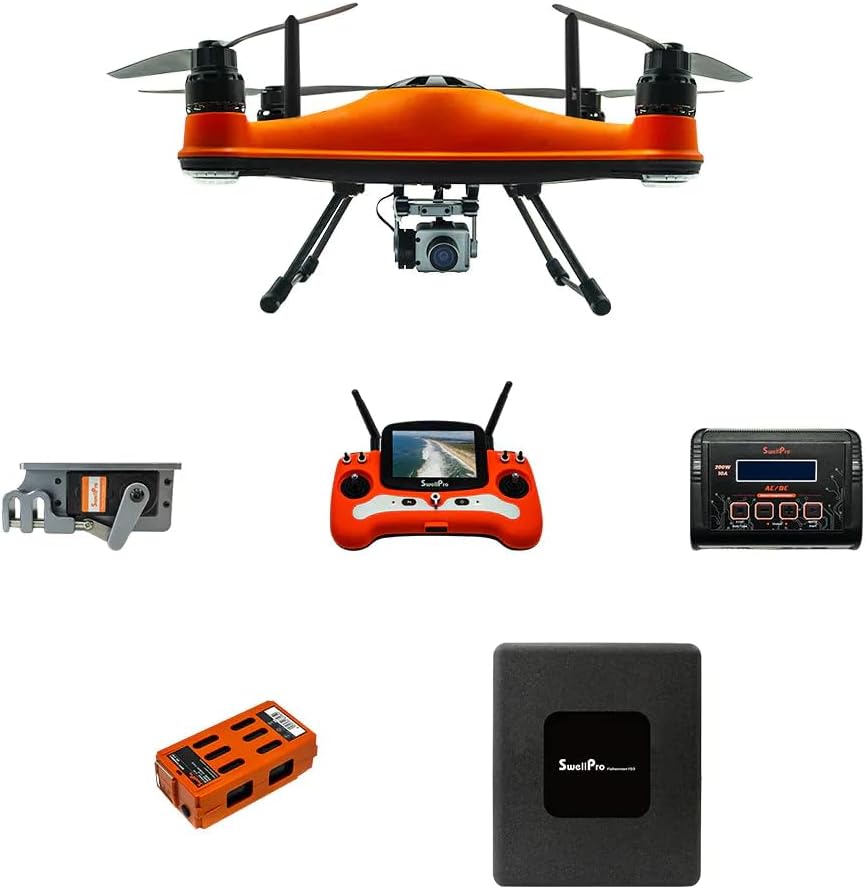
Figure 2.1: The SwellPro FD3 Fisherman drone shown with its primary accessories, including the remote control, flight battery, charger, and bait release mechanism.
- SwellPro FD3 Fisherman Drone (x1)
- Remote Controller (x1)
- Intelligent Flight Battery (x1)
- Battery Charger (x1)
- Propellers (sets)
- Dual Bait Release Mechanism (x1)
- User Manual (this document)
- Other accessories (e.g., cables, tools)
3. Setup
3.1 Drone Assembly
- Attach Propellers: Carefully attach the propellers to the motor shafts. Ensure correct propeller type (CW/CCW) matches the corresponding motor. Tighten securely.
- Install Flight Battery: Insert the intelligent flight battery into the drone's battery compartment until it clicks into place.
- Attach Bait Release Mechanism: Secure the dual bait release mechanism to the drone's underside according to the provided diagrams. Ensure it is firmly attached and cables are connected.
- Install Camera: Mount the 4K camera onto its designated gimbal or mounting point, ensuring all connections are secure.

Figure 3.1: Top-down view of the SwellPro FD3 drone, illustrating the propeller and motor configuration. Ensure propellers are correctly installed for safe flight.
3.2 Battery Charging
Charge both the intelligent flight battery and the remote controller battery before first use and after each flight.
- Connect the battery charger to a power outlet.
- Connect the flight battery to the charger. The indicator light will show charging status.
- Connect the remote controller to its charger (usually via USB).
- Charge until all indicator lights show a full charge.
3.3 Remote Control Setup
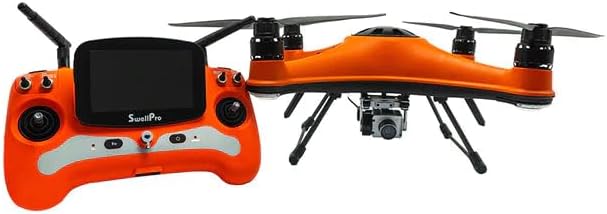
Figure 3.2: The SwellPro FD3 drone positioned next to its remote control, which features a built-in display for real-time flight data and camera feed.
Power on the remote controller. If it does not automatically connect to the drone, follow the binding procedure outlined in the quick start guide or the full manual (if available separately) to establish a connection.
3.4 App Installation (Optional)
For advanced features and real-time telemetry, download the official SwellPro app from your device's app store. Follow the in-app instructions to connect your drone and remote controller.
4. Operating the Drone
4.1 Pre-flight Checklist
- Ensure all batteries (drone and remote) are fully charged.
- Check propellers for damage and ensure they are securely attached.
- Verify the bait release mechanism and camera are properly installed.
- Check the weather conditions (wind speed, rain).
- Ensure sufficient GPS signal (if operating in GPS mode).
- Clear the flight area of any obstacles, people, or animals.

Figure 4.1: The SwellPro FD3 drone in flight over water, demonstrating its waterproof capabilities. Always perform a pre-flight check before launching.
4.2 Basic Flight Controls
Refer to the remote controller diagram (usually found in the quick start guide) for specific stick and button functions. Common controls include:
- Left Stick: Throttle (up/down), Yaw (rotate left/right)
- Right Stick: Pitch (forward/backward), Roll (left/right)
- Return-to-Home (RTH) Button: Initiates automatic return to the takeoff point.
- Bait Release Button: Activates the bait release mechanism.
- Camera Controls: Buttons for photo capture and video recording.
4.3 Bait Release Operation
- Securely attach your fishing line with bait to the dual bait release mechanism. Ensure the weight does not exceed the drone's maximum payload capacity (4.4 lbs).
- Fly the drone to your desired casting location.
- Once in position, press the dedicated bait release button on the remote controller. The mechanism will open, dropping the bait.
- Confirm the bait has been released via the camera feed or visual observation.
4.4 4K Camera Operation
- Ensure a compatible microSD card is inserted into the camera.
- Use the dedicated buttons on the remote controller to start/stop video recording or take photos.
- The live video feed will be displayed on the remote controller's screen or connected mobile device.
4.5 Auto Drop & Return
The FD3 features intelligent flight functions:
- Auto Drop: This refers to the automated bait release function, triggered by the remote controller.
- Return-to-Home (RTH): When activated, the drone will automatically fly back to its recorded takeoff point and land. This feature is also triggered automatically if the battery level is critically low or if the control signal is lost.
5. Maintenance
5.1 Cleaning
- After use, especially in saltwater environments, rinse the drone thoroughly with fresh water.
- Wipe the drone dry with a soft cloth. Ensure all ports and connectors are free of moisture before charging or storing.
- Clean the camera lens with a microfiber cloth.
5.2 Storage
- Store the drone and batteries in a cool, dry place, away from direct sunlight and extreme temperatures.
- For long-term storage, discharge batteries to approximately 50-60% capacity.
- Remove propellers if storing in a compact case.
5.3 Battery Care
- Do not overcharge or over-discharge batteries.
- If a battery appears swollen or damaged, discontinue use immediately and dispose of it properly.
- Avoid puncturing or exposing batteries to extreme heat.
6. Troubleshooting
| Problem | Possible Cause | Solution |
|---|---|---|
| Drone does not power on | Low battery; Battery not properly inserted; Power button not pressed correctly. | Charge battery; Reinsert battery; Press and hold power button for 2 seconds. |
| No GPS signal | Operating indoors; Obstructions (buildings, trees); Magnetic interference. | Move to an open outdoor area; Avoid areas with strong magnetic fields. |
| Remote controller loses connection | Out of range; Interference; Low remote battery. | Fly drone closer; Avoid areas with strong radio interference; Charge remote battery. |
| Camera not recording/taking photos | No microSD card; Full microSD card; Card error. | Insert microSD card; Format or replace microSD card. |
| Bait release not working | Mechanism jammed; Cable disconnected; Overloaded payload. | Inspect mechanism for obstructions; Check cable connections; Reduce payload weight. |
7. Specifications
| Feature | Detail |
|---|---|
| Brand | SwellPRO |
| Model Name | FD3 |
| Waterproof Rating | IP67 |
| Video Capture Resolution | 4K |
| Optical Sensor Technology | CMOS |
| Max Bait Release Payload | 4.4 lbs (2 kg) |
| Battery Capacity | 4200 mAh |
| Battery Type | Lithium Polymer |
| Item Weight (Drone) | (Specific drone weight not provided, package weight is 30 lbs) |
| Remote Control | Included, with display |
| Manufacturer Part Number | SWP-FD3-ADV_1 |
| UPC | 880591956814 |
8. Warranty and Support
For warranty information, please refer to the warranty card included with your product or visit the official SwellPro website. For technical support, troubleshooting assistance, or spare parts, please contact SwellPro customer service.
SwellPro Official Website: www.swellpro.com
Amazon Store: Visit the SwellPRO Store on Amazon


