
NOBKLEN J12
NOBKLEN J12 Kids Tablet User Manual
Your comprehensive guide to setting up and using your NOBKLEN J12 Kids Tablet.
1. Introduction
Welcome to the NOBKLEN J12 Kids Tablet user manual. This guide provides detailed instructions on how to set up, operate, and maintain your tablet. Please read this manual carefully to ensure proper use and to maximize your tablet's features.
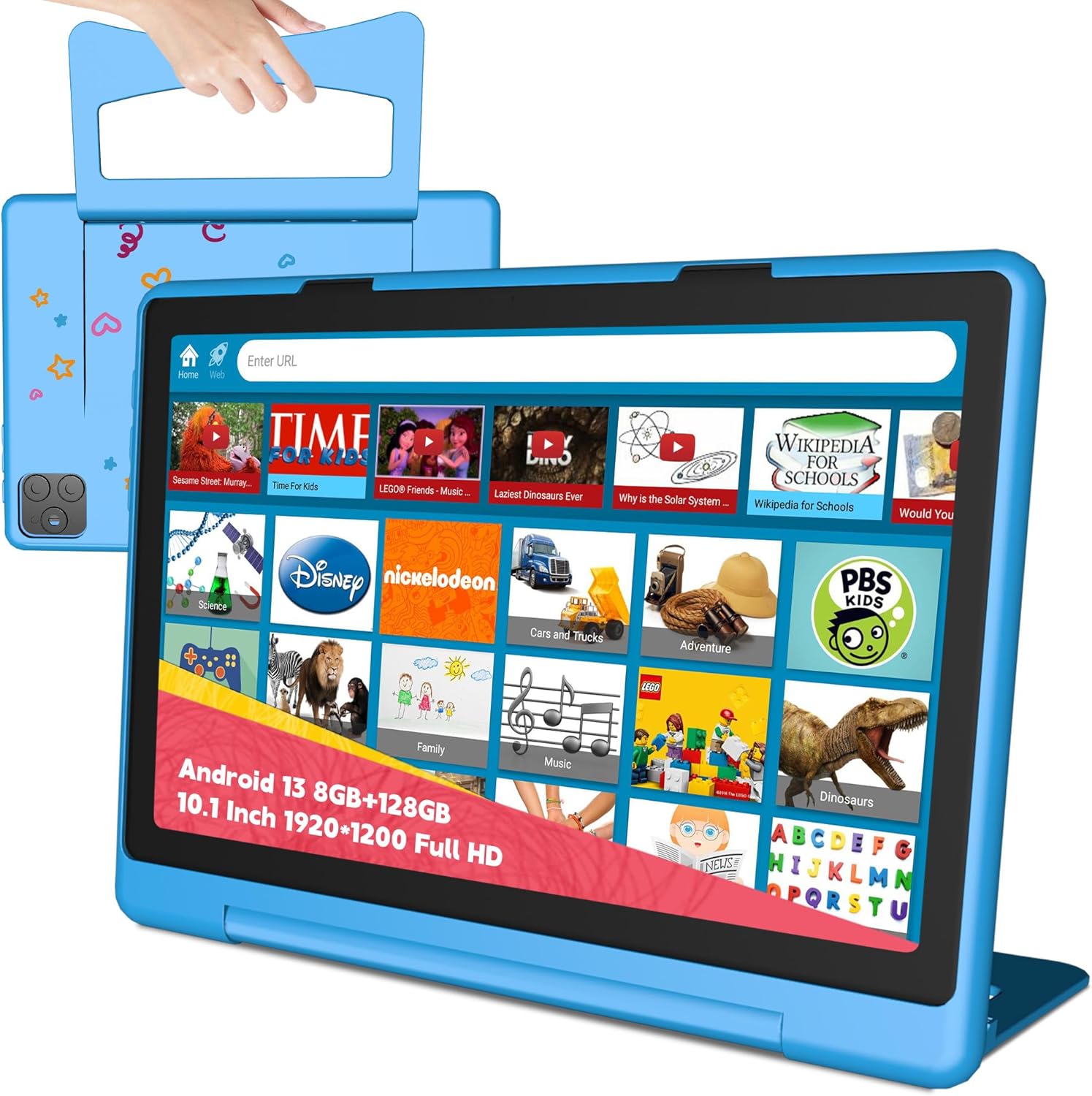
Image 1.1: The NOBKLEN J12 Kids Tablet in its protective blue case.
2. Getting Started: Setup
2.1 Unboxing and Initial Inspection
Upon opening the package, verify that all components are present:
- NOBKLEN J12 Kids Tablet
- Kid-proof case (pre-installed or separate)
- Type-C charging cable
- Power adapter
- User Manual (this document)
2.2 Charging the Tablet
Before first use, fully charge the tablet. Connect the Type-C charging cable to the tablet's charging port and the power adapter to a wall outlet. The tablet features an 8000mAh battery with fast-charging support.
2.3 Powering On/Off
- To Power On: Press and hold the power button located on the side of the tablet until the NOBKLEN logo appears on the screen.
- To Power Off: Press and hold the power button, then select 'Power off' from the options that appear on the screen.
- To Restart: Press and hold the power button, then select 'Restart' from the options.
2.4 Initial Setup Wizard
Upon first power-on, the tablet will guide you through an initial setup process. This includes selecting your language, connecting to a Wi-Fi network, and setting up a Google account. Follow the on-screen prompts.
3. Operating the Tablet
3.1 Basic Navigation (Android 13)
The NOBKLEN J12 runs on Android 13, offering an intuitive user experience. Use touch gestures for navigation:
- Tap: Select an item or open an app.
- Swipe: Scroll through pages or lists.
- Pinch: Zoom in or out on images and web pages.
- Long Press: Access contextual menus or move app icons.
3.2 Face Recognition Unlocking
The tablet supports face recognition for convenient and secure unlocking. To set up:
- Go to Settings > Security & privacy > Face unlock.
- Follow the on-screen instructions to register your face.

Image 3.1: A child unlocking the tablet using face recognition.
3.3 App Management
The tablet is GMS certified, allowing full access to the Google Play Store. You can download and install a wide range of applications, including educational content, games, and streaming services.
- Install Apps: Open the Play Store app, search for your desired app, and tap 'Install'.
- Uninstall Apps: Long-press an app icon on the home screen or app drawer, then drag it to 'Uninstall', or go to Settings > Apps > select the app > 'Uninstall'.
3.4 Wireless Projection
The tablet supports wireless projection, enabling you to cast its screen to compatible large-screen TVs or monitors. This feature is useful for sharing content or for a larger viewing experience.
Image 3.2: The tablet's screen being wirelessly projected to a television for family viewing.
4. Parental Controls
The NOBKLEN J12 Kids Tablet includes a child monitoring app and integrates with Google's Family Link for robust parental control features. These tools allow parents to manage their children's tablet usage effectively.
4.1 Setting Up Parental Controls
- Access the pre-installed child monitoring app or download Google Family Link from the Play Store on both the parent's and child's devices.
- Follow the instructions to link the child's tablet to the parent's account.
4.2 Key Parental Control Features
- Screen Time Management: Set daily limits for tablet usage and schedule device downtime.
- App Filtering and Approval: Control which apps your child can download and use. Approve or block apps directly from your device.
- Content Filtering: Restrict access to inappropriate websites and content within browsers and apps.
- Location Tracking: Monitor your child's device location (requires location services to be enabled).
- Usage Reports: Receive reports on your child's app usage and screen time.

Image 4.1: A mother and child interacting with the tablet, highlighting parental control features.
5. Display and Performance
5.1 Display Features
The NOBKLEN J12 features a 10.1-inch IPS Full HD display with a resolution of 1920x1200 pixels. This provides wide viewing angles and clear, vivid images for an enhanced viewing experience.

Image 5.1: The tablet's display showcasing vibrant content, emphasizing its 1920x1200 resolution and IPS technology.
5.2 Processor and Memory
Equipped with an 8-core MTK8183 CPU (4*A73 + 4*A53, max frequency 2.0GHz) and a Mali-G72 graphics processor, the tablet delivers smooth and speedy performance. It includes 8GB of RAM and 128GB of internal storage, expandable up to 1TB via a MicroSD card (not included).

Image 5.2: A visual representation of the MTK8183 Octa-core CPU, highlighting its architecture.
6. Connectivity and Battery
6.1 Wireless Connectivity
- Dual-band Wi-Fi: Supports both 2.4G and 5G frequency bands for fast and reliable internet access with minimal interference.
- Bluetooth 5.0: Provides low-power consumption and high-quality sound for connecting wireless headphones, speakers, and other Bluetooth devices.
- GPS: Built-in GPS allows for navigation using apps like Google Maps, even offline with downloaded maps.

Image 6.1: Children using their tablets, illustrating the benefit of fast dual-band WiFi.
6.2 Battery and Charging
The tablet is equipped with an 8000mAh battery, providing up to 10 hours of video playback on a single charge. It supports Type-C charging for convenient and reversible connection.
- Use the provided Type-C cable and power adapter for optimal charging.
- Avoid using damaged cables or chargers.
6.3 Audio Output
The tablet includes a 3.5mm headphone jack for wired audio connections, in addition to Bluetooth 5.0 support for wireless headphones.

Image 6.2: A detailed view of the tablet's 3.5mm earphone jack.
7. Camera Features
The NOBKLEN J12 tablet is equipped with dual cameras:
- Front Camera: 5 Megapixels (MP) for video calls and selfies.
- Rear Camera: 13 Megapixels (MP) with flash for capturing photos and videos, even in low-light conditions.

Image 7.1: The rear camera module of the NOBKLEN J12 tablet, featuring a 13MP lens.
8. Maintenance
8.1 Cleaning the Tablet
- Use a soft, lint-free cloth to clean the screen and body of the tablet.
- Avoid using harsh chemicals, abrasive cleaners, or aerosol sprays.
- If necessary, slightly dampen the cloth with water or a screen-cleaning solution.
8.2 Software Updates
Regularly check for and install software updates to ensure optimal performance, security, and access to new features. Go to Settings > System > System update.
8.3 Storage Management
To maintain performance, periodically manage the tablet's storage:
- Delete unused apps and files.
- Move large files (photos, videos) to a MicroSD card or cloud storage.
- Clear app cache in Settings > Apps > select app > Storage & cache > Clear cache.
9. Troubleshooting
This section addresses common issues you might encounter with your NOBKLEN J12 Kids Tablet.
| Problem | Solution |
|---|---|
| Tablet does not turn on. | Ensure the tablet is charged. Connect it to the charger for at least 30 minutes, then try powering on again. If it still doesn't turn on, perform a forced restart by holding the power button for 10-15 seconds. |
| Apps are crashing or freezing. | Clear the app's cache (Settings > Apps > [App Name] > Storage & cache > Clear cache). If the problem persists, try uninstalling and reinstalling the app. Ensure the tablet's software is up to date. |
| Wi-Fi connection issues. | Restart the tablet and your Wi-Fi router. Go to Settings > Network & internet > Internet, forget the network, and reconnect. Ensure you are within range of the Wi-Fi signal. |
| Battery drains quickly. | Reduce screen brightness. Close unused apps running in the background. Disable Wi-Fi, Bluetooth, and GPS when not in use. Check for apps consuming excessive battery in Settings > Battery. |
| Tablet is slow or unresponsive. | Close unnecessary apps. Clear cache for frequently used apps. Free up storage space. Restart the tablet. If issues persist, consider a factory reset (back up data first). |
10. Specifications
Key technical specifications for the NOBKLEN J12 Kids Tablet:
| Feature | Specification |
|---|---|
| Model Name | J12 |
| Operating System | Android 13 |
| Display Size | 10.1 inches (25.65 Centimeters) |
| Screen Resolution | 1920 x 1200 pixels (FHD IPS) |
| Processor | MTK8183 8-core (4*A73+4*A53, 2.0GHz) |
| Graphics Processor | Mali-G72 |
| RAM | 8 GB |
| Internal Storage | 128 GB |
| Expandable Storage | Up to 1 TB via MicroSD card |
| Rear Camera | 13 MP with flash |
| Front Camera | 5 MP |
| Battery Capacity | 8000 mAh |
| Battery Life (Average) | Up to 10-12 hours (video playback) |
| Charging Port | Type-C |
| Wireless Connectivity | Dual-band Wi-Fi (802.11ac), Bluetooth 5.0, GPS |
| Audio Jack | 3.5mm headphone jack |
| Dimensions (LxWxH) | 10 x 8 x 2 inches |
| Item Weight | 2.51 pounds (approx. 420.5g without case) |
| Color | Horizon Blue |
11. Warranty and Support
11.1 Product Warranty
Your NOBKLEN J12 Kids Tablet is covered by a manufacturer's warranty against defects in materials and workmanship. Please refer to the warranty card included in your product packaging for specific terms, conditions, and duration. Keep your proof of purchase for warranty claims.
11.2 Customer Support
For technical assistance, troubleshooting beyond this manual, or warranty inquiries, please contact NOBKLEN customer support. You can typically find contact information on the official NOBKLEN website or through the retailer where you purchased the product.
When contacting support, please have your tablet's model number (J12) and purchase information readily available.
Related documentsJ12

Ask a question about this manual
Ask about setup, troubleshooting, compatibility, parts, safety, or missing instructions. Manuals+ will review the question and use this page’s manual context to help answer it.