
1. Product Overview
The VECHTEL 4Core 2G+64G Android 15 Car Stereo is designed for Honda Fit models from 2008 to 2013. It features a 10.1-inch 1024*600 HD 2.5D touchscreen display, 2GB RAM, and 64GB ROM. This unit supports wireless CarPlay and Android Auto, GPS navigation, 5G WiFi, Bluetooth connectivity, Steering Wheel Control (SWC), and includes a backup camera input. It aims to integrate modern smartphone functionalities into your vehicle's dashboard.
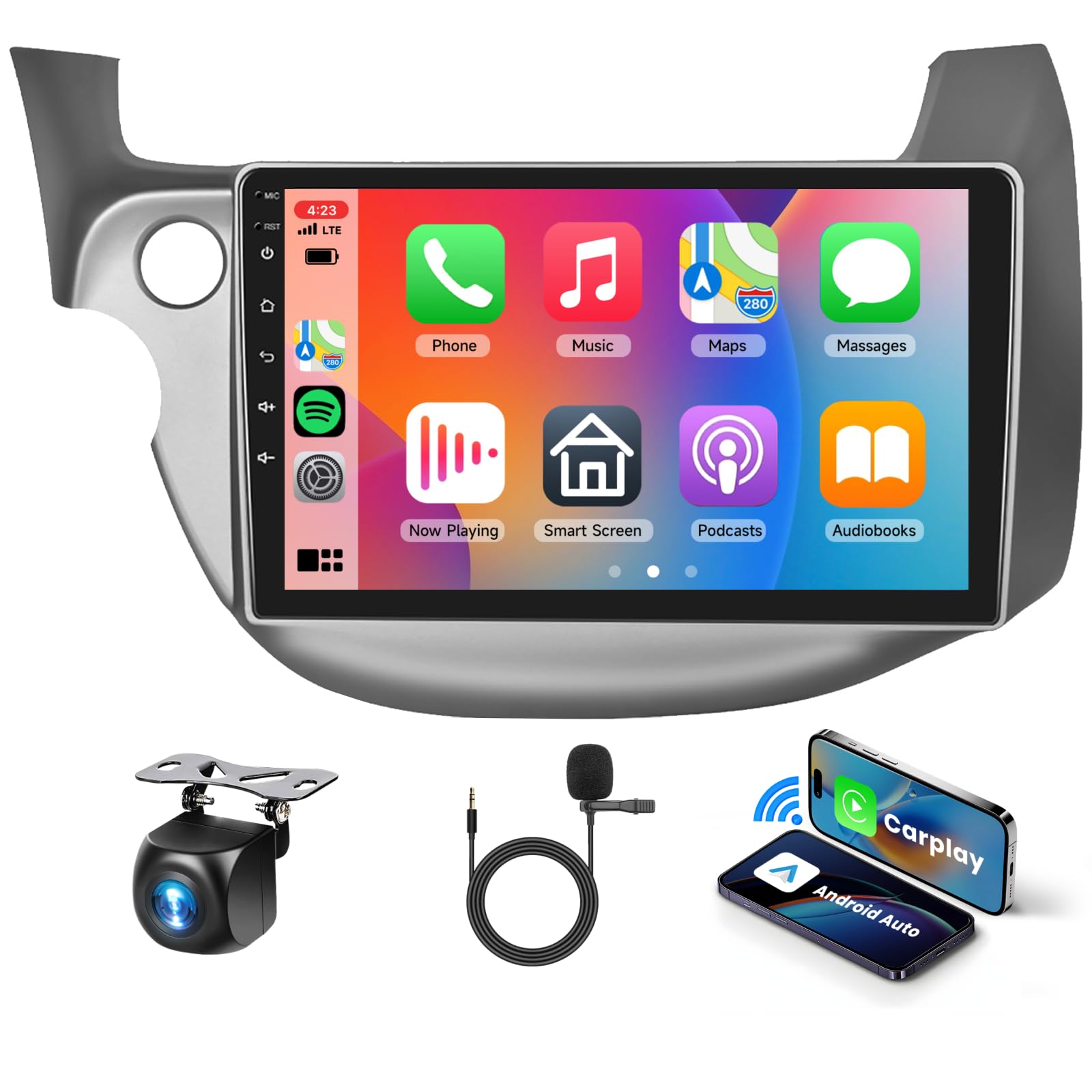
Image 1.1: VECHTEL 4Core 2G+64G Android 15 Car Stereo main unit.
2. Package Contents
Verify that all components are present in the package before beginning installation.
- 1 x Car Radio Unit
- 1 x Power Cable
- 1 x GPS Antenna
- 1 x Rear Camera
- 1 x Rear Camera Input Cable

Image 2.1: Illustration of included components in the package.
3. Installation Guide
Professional installation is recommended. Ensure the vehicle's power is disconnected before starting the installation process to prevent electrical damage or injury.
3.1 Tools Required
- Plastic pry tool
- Screwdriver
3.2 Disassembly Steps
- Use a pry bar to open the trim panel above the power outlet.
- Use a screwdriver to remove the two internal screws.
- Unplug the cables connecting the original car radio.
- Remove the five screws securing the air vent from the radio panel and take out the air vent.
- Remove all air clips.
- Unscrew the screw securing the emergency button and remove the emergency button.
3.3 Assembly Steps
- Connect the new VECHTEL car stereo wiring harness to the vehicle's existing harness.
- Secure the emergency button and air clips.
- Mount the new car stereo unit into the dashboard opening.
- Reinstall all trim panels and screws.
- Reconnect the vehicle's power.

Image 3.1: Visual comparison of the dashboard before and after car stereo installation.
4. Wiring Diagram
Refer to the following diagram for proper wiring connections. Ensure all connections are secure to prevent malfunctions.

Image 4.1: Detailed back wiring diagram and wiring harness diagram for the car stereo.
5. Initial Setup
After installation, power on the unit. Follow the on-screen prompts to complete the initial setup, including language selection, time zone, and network configuration. Connect to a Wi-Fi network to ensure the system is up-to-date and to access online features.
6. Operating Instructions
6.1 Wireless CarPlay and Android Auto
Connect your smartphone wirelessly via Bluetooth or USB to access CarPlay or Android Auto. This allows for seamless integration of phone features like navigation, music, calls, and messages directly on the car stereo display. Voice control is supported for hands-free operation.

Image 6.1: Display showing wireless CarPlay and Android Auto functionality.
6.2 GPS Navigation
The unit features built-in GPS navigation with support for both online and offline maps. Download your preferred navigation apps from the Play Store and ensure the GPS antenna is properly installed for optimal signal reception.

Image 6.2: Screen displaying GPS navigation with online and offline map options.
6.3 5G WiFi Connectivity
Connect to 5G WiFi networks or use your phone's hotspot to access the internet. This enables downloading apps, streaming media, and using online services directly on the car stereo.

Image 6.3: Illustration of 5G WiFi connectivity for app downloads and media streaming.
6.4 Bluetooth Functions
Pair your phone via Bluetooth for hands-free calling, music playback, and automatic phone book loading. Access the Bluetooth menu on the stereo to manage paired devices and settings.

Image 6.4: Bluetooth interface showing hands-free calling and music streaming options.
6.5 Steering Wheel Control (SWC)
If your vehicle supports it, connect the SWC wires to enable control of volume, calls, and tracks directly from your steering wheel buttons. This enhances driving safety by keeping your hands on the wheel.
6.6 Mirror Link
Use the Mirror Link function to display your smartphone's screen directly on the car stereo. This can be done wirelessly or via a USB connection, supporting both iOS and Android devices.

Image 6.5: Screen demonstrating the Mirror Link function with iOS and Android phones.
6.7 Split Screen Functionality
The split-screen feature allows you to run two applications simultaneously on the display, such as navigation and music, or radio and a web browser. This enhances multitasking capabilities while driving.

Image 6.6: Examples of split-screen layouts, showing two apps running concurrently.
6.8 FM Radio and EQ Adjustment
Tune into FM radio stations to listen to news, traffic, and music. The built-in Equalizer (EQ) allows you to customize audio settings to match your preferred sound profile.

Image 6.7: Screenshots of the FM radio tuner and the graphic equalizer settings.
6.9 Multiple UI Themes
Personalize your car stereo experience with various user interface themes. Navigate to the settings menu to browse and select different UI designs.

Image 6.8: Examples of different user interface themes available on the car stereo.
7. Rear Camera Operation
The included rear camera provides enhanced visibility when reversing or parking. When the vehicle is shifted into reverse gear, the display will automatically switch to the camera feed. The camera features a 170° wide-angle view, HD image quality, IP68 waterproof rating, and night vision capabilities.

Image 7.1: View of the AHD backup camera and its display on the car stereo, alongside steering wheel control functions.
8. Troubleshooting
If you encounter issues, refer to the following common troubleshooting steps:
- No Power: Check all power cable connections. Ensure the vehicle's ignition is on.
- No Sound: Verify speaker connections. Check volume levels and EQ settings. Ensure Bluetooth audio is not connected to another device.
- GPS Signal Loss: Ensure the GPS antenna is installed correctly and has a clear view of the sky.
- CarPlay/Android Auto Connection Issues: Ensure your phone's operating system is up-to-date. Try reconnecting via Bluetooth or USB.
- Touchscreen Unresponsive: Restart the unit. If the issue persists, a factory reset may be required (note: this will erase all user data).
For further assistance, please contact customer support.
9. Specifications
| Feature | Detail |
|---|---|
| Model | 4Core 2G+64G |
| Operating System | Android 15 |
| RAM | 2GB |
| ROM | 64GB |
| Display Size | 10.1 Inches |
| Resolution | 1024 x 600 HD |
| Special Features | Wireless Android Auto, Wireless CarPlay, GPS Navigation, 5G WiFi, Touchscreen |
| Connectivity | Bluetooth, USB, Wi-Fi |
| Vehicle Service Type | Car (Honda Fit 2008-2013) |
| Included Components | Car Radio, GPS Antenna, Power Cable, Rear Camera, Rear Camera Input Cable |
| Item Weight | 4.16 pounds |
| Product Dimensions | 13.78 x 9.45 x 3.15 inches |
10. Warranty and Support
The VECHTEL 4Core 2G+64G Android 15 Car Stereo comes with a 24-month quality guarantee. For any questions during installation or use, please contact our professional after-sales support team, available 24/7.
To find VECHTEL technical support:
- On the product page, locate and click on "Sold by VECHTEL".
- On the seller's page, click "Ask a question" to contact support.