
TMEZON MZ-M730+MZ-E10
TMEZON WLAN Video Door Intercom System User Manual
Model: MZ-M730+MZ-E10
Introduction
This user manual provides comprehensive instructions for the installation, operation, and maintenance of your TMEZON WLAN Video Door Intercom System. This system is designed to enhance home security and communication, allowing you to see, hear, and speak to visitors at your door, as well as remotely unlock your door via a mobile application. Please read this manual thoroughly before installation and use to ensure proper functionality and safety.
Safety Information
- Ensure all power is disconnected before performing any wiring or installation procedures.
- Installation should be performed by qualified personnel if you are unsure about electrical wiring.
- Do not expose the outdoor unit to extreme temperatures or direct water immersion. The outdoor unit is IP65 weatherproof, but not submersible.
- Use only the power adapter and cables supplied or recommended by TMEZON.
- Keep the indoor monitor away from heat sources and direct sunlight.
- Avoid placing the indoor monitor in areas with high humidity.
- Do not attempt to disassemble or repair the device yourself. Contact customer support for assistance.
Package Contents
Please check the package contents upon opening to ensure all components are present:
- 1 x Outdoor Doorbell Unit (MZ-E10)
- 1 x Indoor Monitor (MZ-M730)
- 1 x Power Adapter for Indoor Monitor
- Mounting Screws and Wall Plugs
- Wiring Connectors
- RFID Key Fobs (Quantity may vary, typically 5-8)
- User Manual (This document)

Image: Overview of the TMEZON WLAN Video Door Intercom System components, showing the outdoor doorbell unit, the indoor monitor, several RFID key fobs, and a smartphone displaying the companion app.
Product Overview
Outdoor Doorbell Unit (MZ-E10)
- Camera Lens: Captures video of visitors.
- Infrared LEDs: Provides night vision capabilities.
- Microphone: Captures audio from visitors.
- Speaker: Outputs audio for two-way communication.
- Call Button: Initiates a call to the indoor monitor and mobile app.
- RFID Reader: For unlocking the door with RFID key fobs.
Indoor Monitor (MZ-M730)
- Display Screen: Shows live video feed from the outdoor unit.
- Touch Buttons: For answering calls, unlocking, monitoring, and settings.
- Microphone: For speaking to visitors.
- Speaker: For hearing visitors.
- SD Card Slot: For video recording storage (supports up to 256GB Micro SD card).
- Power Port: Connects to the power adapter.
- Wiring Terminals: For connecting to the outdoor unit and electronic lock.

Image: Diagram showing the physical dimensions of both the indoor monitor and the outdoor doorbell unit.
Setup
1. Wiring Diagram
The system uses a 2-wire connection between the outdoor unit and the indoor monitor. An additional 2 wires are needed for connecting to an electronic lock (if applicable).
Important: Ensure power is off before wiring. Refer to the detailed wiring diagram provided in the separate installation guide for specific terminal connections.
2. Mounting the Outdoor Unit
- Choose a suitable location near your door, approximately 1.5 meters (5 feet) from the ground, avoiding direct sunlight or rain exposure (though the unit is IP65 weatherproof, sheltered placement is recommended).
- Use the mounting bracket as a template to mark drilling holes on the wall.
- Drill holes and insert wall plugs.
- Secure the mounting bracket to the wall with screws.
- Connect the wiring from the outdoor unit to the pre-installed cables.
- Attach the outdoor unit to the mounting bracket.
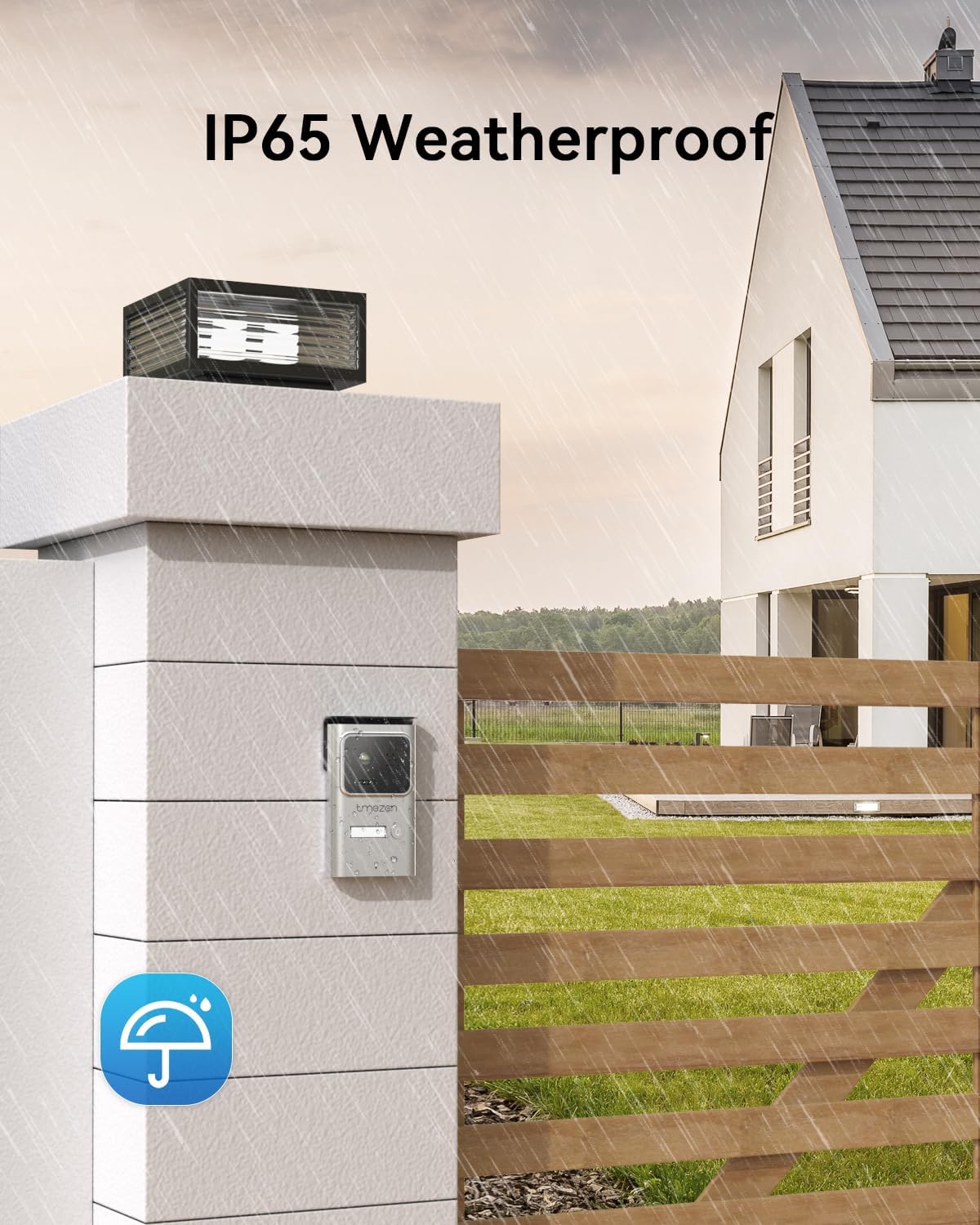
Image: The outdoor doorbell unit installed on a wall, illustrating its IP65 weatherproof design, suitable for outdoor conditions like rain.
3. Mounting the Indoor Monitor
- Select a convenient indoor location, such as a hallway or living room.
- Mark drilling holes using the monitor's mounting bracket.
- Drill holes, insert wall plugs, and secure the bracket.
- Connect the 2-wire cable from the outdoor unit and the power adapter to the indoor monitor's terminals.
- Mount the indoor monitor onto the bracket.
4. Initial Power-On and Wi-Fi Setup
- Plug in the power adapter for the indoor monitor. The monitor will power on.
- Follow the on-screen prompts to configure the date, time, and language.
- Navigate to the Wi-Fi settings on the indoor monitor. Select your home Wi-Fi network and enter the password.
- Download the "Tuya Smart" or "Smart Life" app from your smartphone's app store (iOS App Store or Google Play Store).
- Register an account and log in.
- In the app, add a new device. Select "Video Surveillance" > "Smart Doorbell" or scan the QR code displayed on the indoor monitor for quick pairing.
- Follow the app's instructions to complete the pairing process. Ensure your phone is connected to a 2.4GHz Wi-Fi network during setup.
Operating Instructions
1. Answering a Call
When a visitor presses the call button on the outdoor unit, the indoor monitor will ring, and you will receive a notification on your paired smartphone app.
- On Indoor Monitor: Tap the "Answer" icon on the screen to establish two-way audio and video communication.
- On Smartphone App: Tap the notification to open the app and view the live feed. Tap the "Answer" button to speak with the visitor.

Image: The indoor monitor screen showing a live video feed of visitors, with on-screen icons for two-way audio communication and one-key door unlocking.
2. Unlocking the Door
The system supports multiple unlocking methods:
- From Indoor Monitor: During a call or while monitoring, tap the "Unlock" icon on the screen.
- From Smartphone App: During a call or while viewing the live feed, tap the "Unlock" icon in the app.
- Using RFID Key Fob: Present a registered RFID key fob to the RFID reader area on the outdoor unit. The door will unlock.

Image: Visual representation of three unlocking methods: using an RFID key fob, a generic touch/fingerprint icon (note: this model primarily uses RFID, not fingerprint), and unlocking via the mobile application.

Image: A smartphone displaying the TMEZON app interface, showing a live video feed and a prominent "Unlock" button for remote access control.
3. Monitoring
You can view the live feed from the outdoor unit at any time:
- On Indoor Monitor: Tap the "Monitor" icon on the main screen.
- On Smartphone App: Open the app and select the doorbell device to view the live feed.
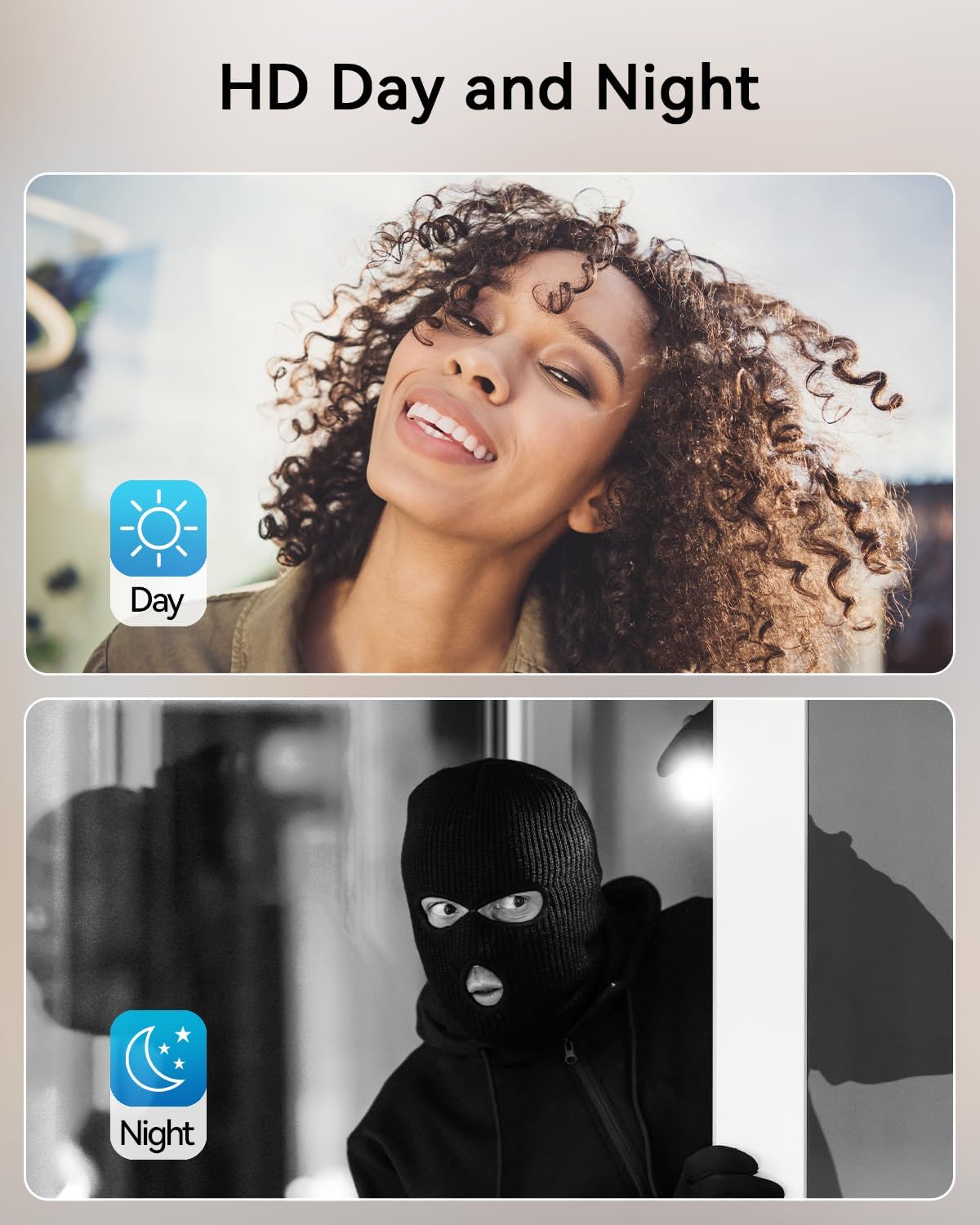
Image: Split image demonstrating the clear HD video quality during the day and the effective infrared night vision capability of the doorbell camera in low light conditions.
4. Video Recording and Playback
The system supports recording video to a Micro SD card (not included) inserted into the indoor monitor.
- Manual Recording: During a live view or call, tap the "Record" icon on the indoor monitor or app.
- Automatic Recording: Configure motion detection settings to automatically record when motion is detected.
- Playback: Access recorded videos via the "Playback" or "Gallery" option on the indoor monitor or within the smartphone app.

Image: The indoor monitor highlighting its Micro SD card slot for local storage, alongside a visual depicting the video recording and playback functionality.
5. Smart Motion Detection
The outdoor unit features motion detection. When motion is detected, the system can:
- Send push notifications to your smartphone.
- Automatically record video clips.
Adjust motion detection sensitivity and detection zones in the indoor monitor's settings or through the smartphone app to minimize false alarms.

Image: A visual demonstrating the smart motion detection feature, where the doorbell unit detects movement and triggers a notification on a connected smartphone.
Maintenance
- Cleaning: Use a soft, dry cloth to clean the indoor monitor screen and the outdoor unit's camera lens. Do not use abrasive cleaners or solvents.
- Firmware Updates: Periodically check for firmware updates via the indoor monitor's settings or the smartphone app to ensure optimal performance and new features.
- Cable Inspection: Regularly inspect all cables and connections for any signs of wear or damage.
- SD Card Management: If using an SD card for recording, periodically review and delete old footage to free up space, or enable loop recording if supported.
Troubleshooting
| Problem | Possible Cause | Solution |
|---|---|---|
| No power to indoor monitor. | Power adapter unplugged or faulty; power outlet issue. | Check power adapter connection. Try a different power outlet. |
| No video/audio from outdoor unit. | Incorrect wiring; damaged cable; outdoor unit not powered. | Verify 2-wire connection between units. Check for cable damage. Ensure outdoor unit is receiving power from indoor monitor. |
| Cannot connect to Wi-Fi or app. | Incorrect Wi-Fi password; 5GHz Wi-Fi network; weak signal; router issues. | Ensure correct 2.4GHz Wi-Fi password. Move monitor closer to router. Restart router. Re-pair device in app. |
| Motion detection false alarms. | High sensitivity; environmental factors (e.g., moving trees, shadows). | Adjust motion detection sensitivity in settings. Define specific detection zones to exclude busy areas. |
| RFID key fob not working. | Key fob not registered; faulty key fob; incorrect placement. | Ensure key fob is properly registered with the system. Try another key fob. Present the fob directly to the RFID reader area. |
If the problem persists after trying these solutions, please contact TMEZON customer support.
Specifications
| Feature | Detail |
|---|---|
| Model Number | MZ-M730+MZ-E10 |
| Brand | TMEZON |
| Connectivity | 2-Wire (Outdoor to Indoor), Wi-Fi (2.4GHz for App) |
| Outdoor Unit IP Rating | IP65 Weatherproof |
| Display Size (Indoor Monitor) | Not specified in input, will omit or generalize if not found. |
| Video Resolution | HD (Specific resolution not provided in input) |
| Storage | Supports Micro SD Card up to 256GB (not included) |
| Unlocking Methods | Indoor Monitor, Mobile App, RFID Key Fobs |
| Power Supply | 24 Volts (from power adapter to indoor monitor) |
| Operating Temperature | Not specified in input, will omit. |
| Package Dimensions | 27.9 x 19.8 x 9.5 cm |
| Item Weight | 1.46 kg |
Warranty and Support
TMEZON products typically come with a standard manufacturer's warranty. Please refer to the warranty card included in your package or visit the official TMEZON website for detailed warranty terms and conditions.
For technical support, troubleshooting assistance, or warranty claims, please contact TMEZON customer service through their official website or the contact information provided in your product packaging. When contacting support, please have your model number (MZ-M730+MZ-E10) and purchase details ready.
Guaranteed software updates until: unknown (as per product specifications).