
d5443bdc-81fa-41ee-a2aa-fe45a5b7f2ab
User Manual: Car Stereo Radio for Isuzu D-max 2020
Model: d5443bdc-81fa-41ee-a2aa-fe45a5b7f2ab
Introduction
This manual provides comprehensive instructions for the installation, operation, and maintenance of your new Car Stereo Radio designed specifically for the Isuzu D-max 2020 model. Please read this manual thoroughly before using the product to ensure proper functionality and safety.
Safety Information
- Ensure the vehicle is turned off and the battery is disconnected before beginning installation.
- Consult a professional for installation if you are unsure about any steps.
- Do not operate the device in a manner that distracts you from driving.
- Avoid exposing the unit to extreme temperatures, moisture, or direct sunlight for prolonged periods.
- Use only specified accessories and parts.
Product Overview
The Car Stereo Radio features an 8-Core CPU, 4GB RAM, and 64GB ROM, providing enhanced performance and storage. It comes with a 13.1-inch large display for intuitive control and includes built-in CarPlay and Android Auto functionality.

Image: Overview of the car stereo radio highlighting its main features such as Android OS, 4GB RAM, 64GB ROM, 8-Core processor, 1280x720 IPS display, AV Output, DSP+RDS, and Carplay+Auto compatibility.
Included Accessories
The package includes the car stereo radio unit and various cables and connectors necessary for installation.
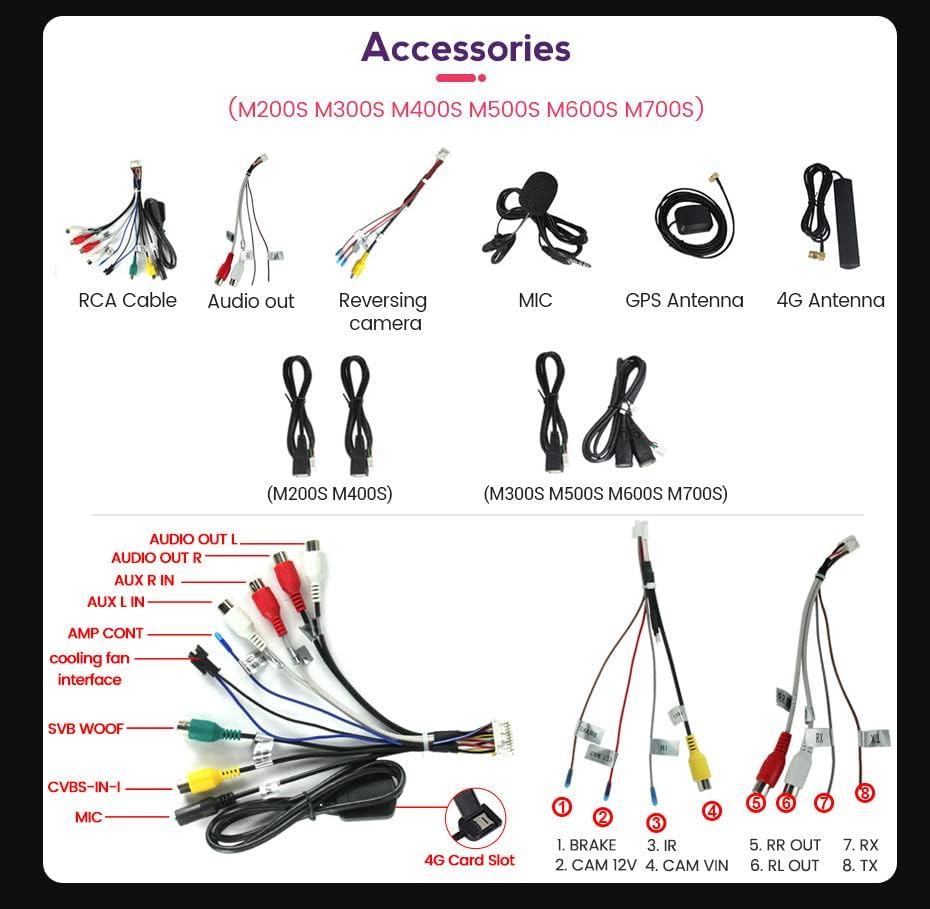
Image: A collection of accessories including RCA cables, audio output cables, reversing camera cable, microphone, GPS antenna, 4G antenna, and various wiring harnesses for different models (M200S, M300S, M400S, M500S, M600S, M700S).
- Car Stereo Radio Unit
- RCA Cable
- Audio Out Cable
- Reversing Camera Cable
- Microphone
- GPS Antenna
- 4G Antenna
- USB Cables (2x)
- Wiring Harnesses (model specific)
Setup and Installation
Follow these steps for proper installation of the car stereo radio in your Isuzu D-max 2020.
1. Wiring Connections
Identify the correct ports on the back of the host device and connect the corresponding cables. Refer to the wiring diagram for detailed connections.

Image: Detailed diagram of the rear panel of the car stereo, illustrating connection points for GPS, 5G WiFi, Radio, 4G Antenna, USB ports, and various audio/video inputs and outputs. It also shows the cooling fan and main power harness connections.
Key Connections:
- GPS: Connect the GPS antenna.
- Radio: Connect the vehicle's radio antenna.
- 4G Antenna: Connect the provided 4G antenna for network connectivity.
- USB: Connect USB devices via the USB ports.
- Power Harness: Connect the main power harness to the vehicle's wiring. Ensure correct connections for ACC, Battery +12V, Battery GND, and speaker outputs (FL, FR, RL, RR).
- Cooling Fan: Ensure the cooling fan is properly connected.
- CANBUS: If your car requires a CANBUS decoder, ensure it is connected correctly.
2. Physical Installation
Carefully integrate the stereo unit into the dashboard of your Isuzu D-max 2020. Ensure all cables are securely connected and routed to avoid interference.

Image: The car stereo unit seamlessly integrated into the center console of an Isuzu D-max 2020, demonstrating its fit and appearance after installation.
3. Initial Setup and Software Installation
After physical installation, power on the unit and proceed with initial software setup, such as installing the DVR application if applicable.

Image: A four-panel guide showing the steps for connecting a USB device, navigating to the File Manager, installing an application (e.g., uCarDvr.apk) from the USB drive, and confirming successful installation of the DVR software.
- Connection via USB Cable: Connect your USB device (e.g., USB drive with software) to the unit's USB port.
- File Manager: On the unit's screen, navigate to the "FileManager" application.
- Install Software: Browse to the location of the software file (e.g., uCarDvr.apk) on your USB device and tap to install.
- Confirmation: Once installed, a confirmation message will appear.

Image: A four-panel guide illustrating setup steps: 1. Connecting cables to the device. 2. Navigating to Settings > Device > Sound. 3. Activating the AMP (Amplifier) by setting "AMP ON/OFF" to ON. 4. Confirmation that the cooling fan starts working after AMP activation.
- Connect: Ensure all necessary cables are connected to the device.
- Settings Navigation: Go to Settings > Device > Sound.
- Activate AMP: Within the Sound settings, locate and set AMP ON/OFF to ON.
- Cooling Fan: The cooling fan will activate, indicating proper amplifier function.
Operating Instructions
This section covers the basic operation of your car stereo radio, including navigation, media playback, and smartphone integration.
User Interface

Image: The car stereo display showing the Apple CarPlay interface with icons for Phone, Music, Maps, Messages, Now Playing, Settings, Podcasts, and Audiobooks, indicating smartphone integration capabilities.
The large 13.1-inch touchscreen provides an intuitive interface for accessing various functions. Navigate through applications by tapping their icons.
CarPlay and Android Auto
The unit supports both wireless CarPlay (for iOS devices) and wired Android Auto (for Android devices), allowing seamless integration of your smartphone's features.

Image: A multi-panel image demonstrating how to connect Wireless CarPlay (iOS system) via Bluetooth and then selecting "Car Link," and how to connect Wired Android Auto (Android system) by connecting the mobile phone via USB cable and then selecting "Car Link."
Wireless CarPlay (iOS System)
- Connect BT: On your iPhone, go to Bluetooth settings and pair with the car stereo unit.
- Select Car Link: On the car stereo, tap the "Car Link" icon and wait for the connection to establish.
Wired Android Auto (Android System)
- Connect USB: Connect your Android phone to the car stereo using a USB cable.
- Select Car Link: On the car stereo, tap the "Car Link" icon and wait for the connection to establish.
Maintenance
To ensure the longevity and optimal performance of your car stereo radio, follow these maintenance guidelines:
- Cleaning: Use a soft, dry cloth to clean the screen and exterior. For stubborn smudges, slightly dampen the cloth with water or a screen cleaner. Avoid abrasive cleaners or solvents.
- Temperature: Do not expose the unit to extreme temperatures. While designed for automotive use, prolonged exposure to direct sunlight in a parked car can cause damage.
- Ventilation: Ensure the cooling fan area is not obstructed to allow proper airflow and prevent overheating.
- Software Updates: Periodically check for and install software updates to improve performance and add new features. Refer to the manufacturer's website or the unit's system settings for update procedures.
Troubleshooting
If you encounter issues with your car stereo radio, refer to the following common problems and solutions:
| Problem | Possible Cause | Solution |
|---|---|---|
| No Power | Loose power connection, blown fuse, vehicle battery issue. | Check power harness connections. Inspect vehicle fuses. Ensure vehicle battery is charged. |
| No Sound | Speaker wires disconnected, volume too low, AMP not activated. | Verify speaker wire connections. Increase volume. Check if AMP is ON in settings (refer to Setup section). |
| CarPlay/Android Auto Not Connecting | Incorrect connection method, phone settings, incompatible cable. | For Wireless CarPlay, ensure Bluetooth is on and paired. For Wired Android Auto, use a high-quality USB cable. Check phone settings for projection mode. Restart both phone and stereo. |
| GPS Signal Weak/Lost | GPS antenna not properly installed or obstructed. | Ensure GPS antenna is securely connected and placed in an area with clear sky view. |
| Touchscreen Unresponsive | Temporary software glitch, extreme temperature. | Restart the unit. Allow unit to return to normal operating temperature. |
If the problem persists after trying these solutions, please contact customer support.
Specifications
| Feature | Detail |
|---|---|
| Model Number | d5443bdc-81fa-41ee-a2aa-fe45a5b7f2ab |
| CPU | 8 Core |
| RAM | 4GB |
| ROM | 64GB |
| Screen Size | 13.1-inch |
| Display Resolution | 1280*720 IPS |
| Connectivity Technology | Bluetooth, Wi-Fi, USB |
| Special Features | Bluetooth, Built-in CarPlay, Built-in Android Auto, DSP+RDS |
| Audio Output Mode | Stereo |
| Surround Sound Channel Configuration | 2.0 |
| Video Encoding | H.264, H.265/HEVC |
| Compatible Devices | Television |
| Connector Type | USB Type A |
| Total HDMI Ports | 1 |
| Manufacturer | Generic |
| Country of Origin | China |
Warranty and Support
For warranty information and technical support, please refer to the documentation provided with your purchase or contact the seller directly. Keep your proof of purchase for any warranty claims.
Seller: Custom DDT Car Lights
Return Policy: 30-day refund/replacement policy from the date of purchase.
Ask a question about this manual
Ask about setup, troubleshooting, compatibility, parts, safety, or missing instructions. Manuals+ will review the question and use this page’s manual context to help answer it.