1. Introduction
This manual provides detailed instructions for the setup, operation, and maintenance of your ALOEU MD80 Mini Sport Camcorder. Please read this manual thoroughly before using the device to ensure proper functionality and to maximize its lifespan. This compact and portable camcorder is designed for various recording needs, including outdoor activities, surveillance, and general video capture.
2. Package Contents
Verify that all items listed below are included in your package:
- 1 x ALOEU MD80 Mini Camera
- 1 x USB Cable
- 1 x Belt
- 3 x Camera Holders (various types for mounting)
- 1 x User Manual (this document)
- 1 x High Capacity Lithium Polymer Battery (pre-installed or separate)
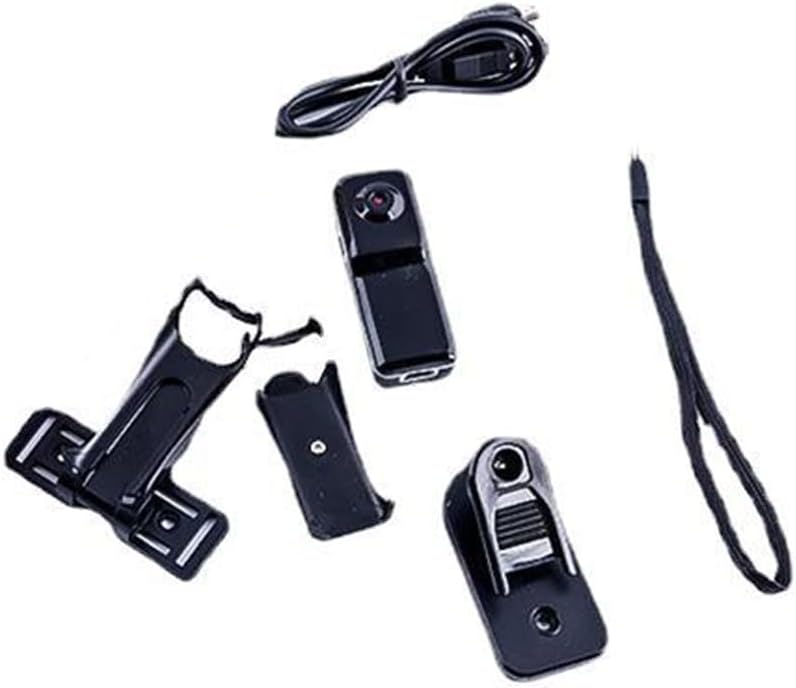
Figure 2.1: All components included in the MD80 Mini Camera package.
3. Product Overview
The MD80 Mini Camera is a compact device with intuitive controls and essential ports for its operation.
3.1 Camera Components

Figure 3.1: Front and side view of the MD80 Mini Camera, highlighting the Micro SD slot, Mode button, and Reset button.
- Lens: The primary component for capturing video and images.
- Micro SD Card Slot: Insert your TF/Mini SD card here (up to 32GB) for storage.
- Mode Button: Used to switch between different operating modes (e.g., video recording, photo capture).
- Reset Button: A small button, typically recessed, used to reset the device in case of malfunction.
- USB Port: For charging the device and transferring data to a computer.
- Power Button: Used to turn the device on and off.

Figure 3.2: Side view of the MD80 Mini Camera, showing the Power button and USB port.

Figure 3.3: Frontal view of the MD80 Mini Camera, highlighting the lens.
3.2 Key Features
The MD80 Mini Camera offers several features for versatile use:
- HD Camera: Capable of capturing clear video.
- One-Click Recording: Simplifies the process of starting video capture.
- Wide-Angle Camera: Provides a broader field of view for comprehensive recording.
- Card Storage: Supports TF/Mini SD cards up to 32GB for ample storage.
- Small Size: Extremely compact and portable, ideal for discreet use or mounting.
- Easy to Install: Designed for straightforward setup with included holders.
- Sound Detection: Can initiate recording based on detected sound.
- Super Battery Life: Equipped with a high-capacity lithium polymer battery for extended operation.

Figure 3.4: Visual representation of the MD80 Mini Camera's key features.
4. Setup
4.1 Charging the Battery
Before first use, fully charge the camera's internal high-capacity lithium polymer battery. Use the provided USB cable to connect the camera to a DC-5V power source (e.g., computer USB port, USB wall adapter).
- Connect the small end of the USB cable to the camera's USB port.
- Connect the standard USB end to a power source.
- An indicator light on the camera will typically show charging status (e.g., solid red while charging, off when fully charged). Refer to the quick start guide for specific light indicators.
4.2 Inserting a Memory Card
The MD80 Mini Camera requires a TF/Mini SD card (not included) for storing recordings. It supports cards up to 32GB.
- Ensure the camera is powered off.
- Locate the Micro SD card slot on the side of the camera.
- Gently insert the TF/Mini SD card into the slot with the gold contacts facing down (or as indicated by a small diagram near the slot) until it clicks into place.
- To remove the card, gently push it in again until it springs out.
4.3 Attaching Holders
Use the included camera holders and belt to mount the MD80 Mini Camera in various positions for different recording scenarios.
- Select the appropriate holder for your intended use (e.g., clip-on, swivel mount).
- Securely attach the camera to the chosen holder.
- Mount the holder to your desired surface or clothing.

Figure 4.1: Examples of the MD80 Mini Camera's versatile applications and included accessories.
5. Operating Instructions
5.1 Powering On/Off
- To Power On: Press and hold the Power button for a few seconds until the indicator light illuminates.
- To Power Off: Press and hold the Power button again until the indicator light turns off.
5.2 Switching Modes
The MD80 Mini Camera typically supports different modes, such as video recording and photo capture. Use the Mode button to cycle through these options.
- After powering on, short press the Mode button to switch between available modes.
- Observe the indicator lights for confirmation of the current mode (refer to the quick start guide for specific light patterns).
5.3 Video Recording
To record video:
- Ensure the camera is in video recording mode.
- Press the Power/Record button once to start recording. The indicator light will typically flash to indicate recording is in progress.
- Press the Power/Record button again to stop recording. The video file will be saved to the memory card.
5.4 Photo Capture
To take a photo:
- Switch the camera to photo capture mode using the Mode button.
- Press the Power/Record button once to take a photo. The image will be saved to the memory card.
5.5 Sound Detection Recording
The MD80 Mini Camera supports recording triggered by sound. This feature is useful for surveillance or monitoring.
- Consult the quick start guide for specific instructions on activating sound detection mode.
- Once activated, the camera will automatically begin recording when a sound above a certain threshold is detected.
5.6 Data Transfer
To transfer files to your computer:
- Connect the camera to your computer using the provided USB cable.
- The camera should appear as a removable disk drive.
- Navigate to the camera's storage, locate your video and photo files, and copy them to your computer.
- Alternatively, you can remove the TF/Mini SD card and insert it into a card reader connected to your computer.
Note: The camera is compatible with Windows (ME/2000/XP/2003/Vista), Mac OS 10.4, and Linux operating systems.
6. Maintenance
6.1 Cleaning
- Use a soft, dry cloth to clean the camera body.
- For the lens, use a specialized lens cleaning cloth and solution to avoid scratches.
- Do not use harsh chemicals or abrasive cleaners.
6.2 Storage
- Store the camera in a cool, dry place away from direct sunlight and extreme temperatures.
- If storing for an extended period, ensure the battery is partially charged (around 50%) to preserve battery health.
- Keep the camera away from dust and moisture.
7. Troubleshooting
If you encounter issues with your MD80 Mini Camera, refer to the following common problems and solutions:
| Problem | Possible Cause | Solution |
|---|---|---|
| Camera does not turn on. | Battery is depleted. | Charge the camera fully using the USB cable. |
| Camera does not turn on. | Device frozen/unresponsive. | Press the Reset button with a thin object (e.g., paperclip). |
| Cannot record video/take photos. | No memory card inserted or card is full. | Insert a TF/Mini SD card or delete old files to free up space. |
| Cannot record video/take photos. | Memory card error or incompatible card. | Try reformatting the card (this will erase all data) or use a different TF/Mini SD card (up to 32GB). |
| Computer does not recognize the camera. | Faulty USB cable or port. | Try a different USB cable or a different USB port on your computer. Ensure the camera is powered on when connected. |
| Poor video/image quality. | Dirty lens or insufficient lighting. | Clean the lens carefully. Ensure adequate lighting in the recording environment. |
8. Specifications
| Feature | Detail |
|---|---|
| Model Name | MD80 |
| Brand | ALOEU |
| Camcorder Type | Action Camera |
| Photo Sensor Technology | Other |
| Video Capture Resolution | 480p |
| Video Capture Format | MP4 |
| Supported Audio Format | MP3, AAC |
| Connectivity Technology | USB |
| Lens Type | Zoom |
| Memory Card Support | TF/Mini SD, up to 32GB |
| Recharge Voltage | DC-5V |
| Battery Type | High capacity lithium polymer battery |
| System Compatibility | Windows ME/2000/XP/2003/Vista, Mac OS 10.4, Linux |
| Dimensions (approx.) | 27x26x26mm (1.06 x 1.02 x 1.02 inches) |
| Item Weight | 2.49 ounces |
| Material | Plastic |
| Color | Black |
9. Warranty and Support
For specific warranty information regarding your ALOEU MD80 Mini Camera, please refer to the documentation provided at the time of purchase or contact the retailer/manufacturer directly. Keep your proof of purchase for warranty claims.
If you require further assistance or encounter issues not covered in this manual, please contact ALOEU customer support through their official channels.