
1. Introduction
This manual provides instructions for the installation, operation, and maintenance of your NGNSKY Tuya WiFi RGBCW & CCT E27 Smart Bulb. This smart bulb offers adjustable color (RGB), warm white (2800K), and cool white (6500K) lighting, controllable via a mobile application or voice commands through compatible smart home assistants.

Image: The NGNSKY Tuya WiFi RGBCW & CCT E27 Smart Bulb.
2. Safety Information
- Ensure the power is off before installing or removing the bulb.
- Do not use the bulb in fully enclosed fixtures, as this may reduce its lifespan.
- This bulb is designed for indoor use only.
- Do not disassemble the bulb.
- Keep out of reach of children.
3. Package Contents
- 1 x NGNSKY Tuya WiFi RGBCW & CCT E27 Smart Bulb

Image: Two NGNSKY E27 Smart Bulbs, showing the E27 base.
4. Specifications
| Feature | Specification |
|---|---|
| Model Name | W-001XV |
| Light Type | LED |
| Wattage | 9 Watts |
| Brightness | 850 Lumens |
| Bulb Base | E27 |
| Bulb Shape Size | A19 |
| Color Temperature | 2800K-6500K (RGBCW & CCT) |
| Voltage | AC 85V~265V (Accepted: 100 to 240 Volts) |
| Control Method | App, Voice |
| Material | Aluminium+Plastic |
| Product Dimensions | 2.36"W x 4.72"H (60x60x120 mm) |
| Color Rendering Index (CRI) | 80 |
| Certifications | CE, FCC, RoHS |

Image: Diagram showing the dimensions of the smart bulb (2.36 inches width, 4.72 inches height).
5. Setup Guide
5.1. Install the Bulb
- Ensure the power to the light fixture is turned off at the switch.
- Screw the NGNSKY Smart Bulb into a standard E27 light socket.
- Turn on the power to the light fixture. The bulb should blink rapidly, indicating it is in pairing mode. If it does not blink, turn it off and on three times to reset it.
5.2. Download the App
Download the Tuya Smart or Smart Life app from the Apple App Store or Google Play Store. Register or log in to your account.
5.3. Pair the Bulb with the App
- Open the Tuya Smart app.
- Tap the "+" icon in the top right corner to add a device.
- Select "Lighting" > "Light Source (Wi-Fi)" or allow the app to auto-discover the device.
- Confirm that the bulb is blinking rapidly. If not, reset it by cycling power off/on three times.
- Enter your 2.4GHz Wi-Fi network password. The bulb does not support 5GHz Wi-Fi.
- Follow the on-screen instructions to complete the pairing process. Once connected, the bulb will stop blinking and glow steadily.
6. Operating Instructions
6.1. App Control
Once paired, you can control the smart bulb using the Tuya Smart app.
- Color and Brightness Adjustment: Select the bulb in the app to change its color (RGB), color temperature (warm to cool white), and brightness levels.

Image: App interface for adjusting bulb color and brightness, demonstrating warm and cool light settings.
- Scenes and Automation: Create custom lighting scenes or set up automated routines based on time, weather, or other smart home device triggers.

Image: App interface displaying options for creating scenes and automation rules, such as turning on lights when someone arrives home.
- Scheduling: Set timers or schedules for the bulb to turn on/off at specific times, or to simulate occupancy when away from home.
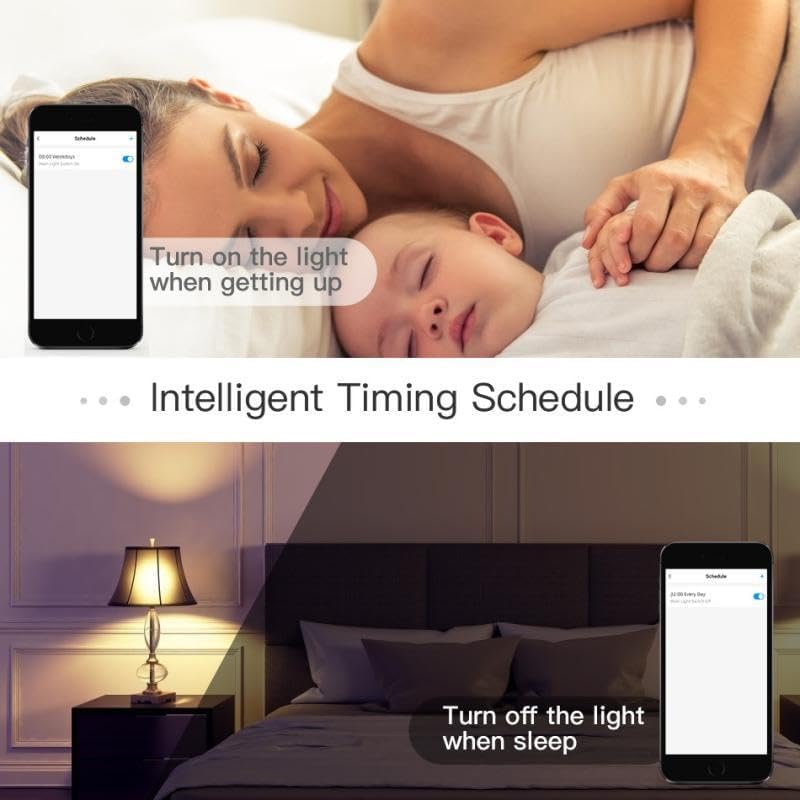
Image: App interface demonstrating intelligent timing schedules, such as turning on the light when getting up or turning it off when sleeping.
- Group Control: Group multiple smart bulbs together to control them simultaneously with a single command.

Image: A modern house with various rooms illuminated by smart bulbs, demonstrating the concept of group control where one app can manage multiple lights.
6.2. Voice Control
The NGNSKY Smart Bulb is compatible with Amazon Alexa and Google Assistant for hands-free voice control.
- Connect to Voice Assistant: In the Tuya Smart app, navigate to the "Me" or "Profile" section, then select "Third-Party Voice Services" (or similar) to link your Amazon Alexa or Google Assistant account. Follow the in-app instructions.
- Voice Commands: Once linked, you can use commands such as:
- "Alexa, turn on the [Bulb Name]."
- "Hey Google, dim the [Bulb Name] to 50%."
- "Alexa, change [Bulb Name] to blue."
- "Hey Google, set [Bulb Name] to warm white."

Image: A woman interacting with an Amazon Alexa device to control a smart bulb, demonstrating voice connection capabilities.
7. Maintenance
- Ensure the bulb is cool and the power is off before cleaning.
- Wipe the bulb with a soft, dry cloth. Do not use liquid cleaners or abrasive materials.
8. Troubleshooting
- Bulb not turning on: Check if the power switch is on and the bulb is screwed in correctly. Test the bulb in another fixture if possible.
- Bulb not entering pairing mode (not blinking): Turn the bulb off and on three times consecutively. Wait a few seconds between cycles.
- Unable to connect to Wi-Fi:
- Ensure your Wi-Fi network is 2.4GHz. The bulb does not support 5GHz networks.
- Check your Wi-Fi password for accuracy.
- Move the bulb closer to your Wi-Fi router during the pairing process.
- Restart your router and try again.
- Voice control not working:
- Ensure the bulb is successfully paired with the Tuya Smart app.
- Verify that your Tuya Smart account is correctly linked to your Amazon Alexa or Google Assistant account.
- Check your internet connection.
- Try re-discovering devices in your Alexa or Google Home app.
9. Warranty and Support
For warranty information or technical support, please refer to the contact details provided with your purchase or visit the manufacturer's official website. Keep your purchase receipt for warranty claims.