
Urban Zippy
Urban Zippy Smart Watch User Manual
Model: Urban Zippy (B0CS9M9YH1)
Brand: Generic
Introduction
Welcome to your Urban Zippy Smart Watch. This manual provides essential information for setting up, operating, maintaining, and troubleshooting your device to ensure optimal performance and user experience.
The Urban Zippy Smart Watch features a full touch screen with a high-resolution AMOLED display, offering smooth operation and vibrant visuals. It boasts an impressive battery life of up to 7 days with typical usage and up to 20 days on standby. Key functionalities include comprehensive activity tracking, sleep monitoring, Bluetooth calling with an inbuilt microphone, and a variety of inbuilt games. Additionally, a companion app allows for parental control features, enabling time management for younger users.
What's in the Box
Upon unboxing your Urban Zippy Smart Watch, please ensure all components are present:
- Urban Zippy Smart Watch (Blue)
- Charger
Setup Guide
1. Charging the Device
Before initial use, it is recommended to fully charge your Urban Zippy Smart Watch. Connect the provided charger to the charging port on the watch and plug the other end into a standard USB power adapter (not included) or a computer's USB port. The watch display will show a charging indicator.

Image: The Urban Zippy Smart Watch in blue, showcasing its design and the area for charger connection.
2. Initial Power On
To power on your watch, press and hold the side button (typically located on the right side of the watch casing) for approximately 3-5 seconds until the screen illuminates and the boot animation appears.
3. Pairing with a Smartphone
To unlock the full potential of your Urban Zippy Smart Watch, pair it with your smartphone using the dedicated companion application.
- Download the App: Search for the "Urban Zippy" companion application in your smartphone's app store (Google Play Store for Android, Apple App Store for iOS) and install it.
- Enable Bluetooth: Ensure Bluetooth is activated on your smartphone.
- Open the App: Launch the Urban Zippy app and follow the on-screen prompts to create an account or log in.
- Add Device: Within the app, select the option to "Add Device" or "Pair New Device." The app will search for nearby watches.
- Confirm Pairing: Select "Urban Zippy" from the list of found devices. A pairing request will appear on both your watch and smartphone. Confirm the request on both devices to complete the pairing process.

Image: A blue Urban Zippy Smart Watch on a wrist, showing an incoming call notification, illustrating its connectivity for calls.
Operating Instructions
Touchscreen Navigation
The Urban Zippy Smart Watch features a responsive full touch screen. Use the following gestures for navigation:
- Swipe Up/Down: Scroll through menus or notifications.
- Swipe Left/Right: Access different feature screens or quick settings.
- Tap: Select an item, open an application, or confirm an action.
- Long Press: On the home screen, long-press to change watch faces.
Customizing Watch Faces
Personalize your watch with a wide selection of over 100 watch faces.
- From the main watch face screen, long-press the display until the watch face selection menu appears.
- Swipe left or right to browse through the available watch face options.
- Tap on your preferred watch face to set it as active.

Image: A visual representation of the Urban Zippy Smart Watch's customizable watch faces and available color options.
Bluetooth Calling with Mic
The Urban Zippy Smart Watch allows you to make and receive calls directly from your wrist when connected to your smartphone via Bluetooth.
- Making Calls: Access the "Dialer Pad" or "Address Book" from the watch's main menu. You can dial numbers directly or select contacts to initiate a call.
- Receiving Calls: When a call comes in, the watch will display the caller ID. Tap the green icon to answer or the red icon to reject the call.

Image: Three Urban Zippy Smart Watches showcasing the Address Book, Bluetooth Calling with Mic, and Dialer Pad functionalities.
Activity Tracking
Your watch continuously monitors your daily activity, including steps taken and calories burned. This data can be viewed on the watch's display or in more detail within the companion app.
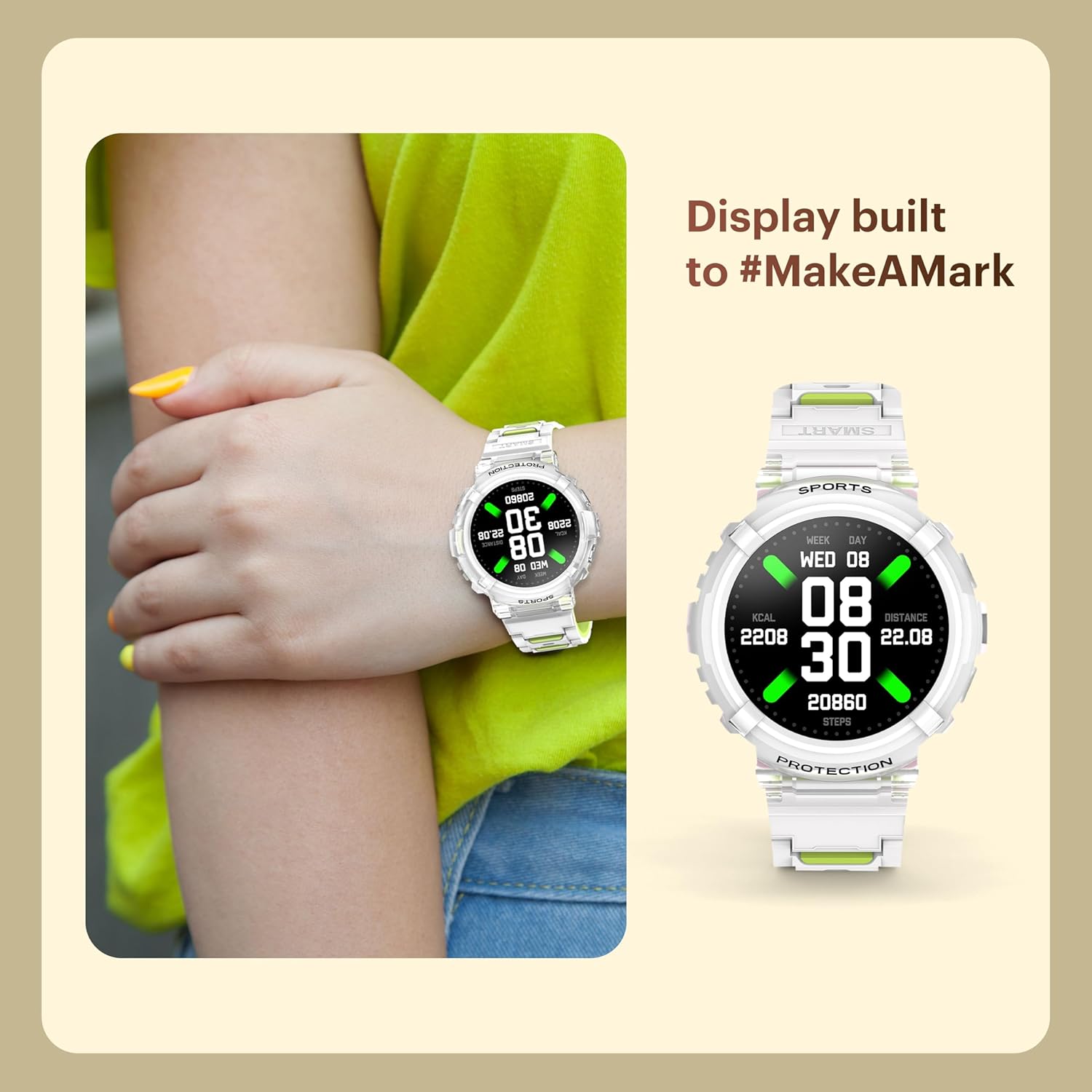
Image: A white Urban Zippy Smart Watch on a wrist, showing its display with current steps count and other activity data.
Sleep Monitoring
Wear your Urban Zippy Smart Watch to bed to automatically track your sleep patterns. The companion app provides detailed insights into your sleep quality, including deep sleep, light sleep, and awake times.
Inbuilt Games
The watch comes with multiple pre-installed games for entertainment during your downtime.
- From the main menu, navigate to the "Games" section.
- Select the game you wish to play by tapping on its icon.

Image: A blue Urban Zippy Smart Watch showing a screen with various game options, highlighting its entertainment features and battery performance.
Parental Control Features
For users with children, the companion app offers parental control functionalities. This allows you to set specific times during which the watch can be locked, such as during school hours, homework time, or sleep, promoting focused activities.
Maintenance
Cleaning Your Watch
To keep your Urban Zippy Smart Watch in optimal condition, regularly clean the screen and strap. Use a soft, lint-free cloth. For light smudges, a dry cloth is sufficient. For more persistent dirt, slightly dampen the cloth with water. Avoid using harsh chemicals, abrasive cleaners, or solvents, as these can damage the watch's finish or internal components.
Water Resistance
The Urban Zippy Smart Watch is designed to be waterproof, making it suitable for daily wear and exposure to splashes. However, it is not recommended for prolonged submersion, hot water baths, saunas, or diving. Always dry the watch thoroughly after exposure to water.
Battery Care
To maximize the lifespan and performance of your watch's Lithium Ion battery:
- Avoid completely draining the battery frequently.
- Charge the watch regularly, ideally before the battery level drops below 20%.
- Use only the provided charger.
Troubleshooting
Watch Not Turning On
- Ensure the watch is sufficiently charged. Connect it to the charger and allow it to charge for at least 30 minutes before attempting to power on again.
- Perform a forced restart by pressing and holding the side button for approximately 10-15 seconds.
Unable to Pair with Smartphone
- Verify that Bluetooth is enabled on both your watch and smartphone.
- Ensure the watch is within close proximity (typically within 10 meters) of your smartphone.
- Restart both your Urban Zippy Smart Watch and your smartphone.
- If issues persist, try unpairing the device from your smartphone's Bluetooth settings and then re-attempt the pairing process through the Urban Zippy app.
Inaccurate Activity Tracking
- Ensure the watch is worn snugly on your wrist, about one finger's width above your wrist bone.
- Check for any app updates for the Urban Zippy companion application, as updates often include performance improvements and bug fixes.
Short Battery Life
- Reduce screen brightness settings on your watch.
- Limit the use of power-intensive features such as continuous Bluetooth calling or frequent screen wake-ups.
- Ensure the watch is fully charged each time you charge it.
Specifications
| Feature | Detail |
|---|---|
| Model Name | Urban Zippy |
| Display Type | AMOLED |
| Resolution | 240 x 240 |
| Battery Average Life | 7 Days (typical usage) |
| Standby Time | Up to 20 Days |
| Battery Cell Composition | Lithium Ion |
| Wireless Type | Bluetooth |
| Device Interface | Touchscreen |
| Special Features | Activity Tracker, Sleep Monitor, Inbuilt Games, Bluetooth Calling |
| Compatible Devices | Smartphone |
| Manufacturer | Anhul G-tel Optoelectronic Co.Ltd China |
| Country of Origin | China |
Warranty and Support
For detailed warranty information and customer support, please refer to the specific warranty card or documentation included with your Urban Zippy Smart Watch purchase. Warranty terms and conditions may vary based on your region and point of purchase.
Manufacturer: Anhul G-tel Optoelectronic Co.Ltd China
Packer: Sunshine Tele Link, Chennai
Related Documents - Urban Zippy
 |
Games & Activities Resource Guide | Western DuPage Special Recreation Association Explore a wide range of fun and engaging games and activities for groups, including icebreakers, athletic, cooperative, water, drama, and music games. This resource guide from Western DuPage Special Recreation Association offers detailed instructions and ideas for various recreational settings. |
 |
ZL54CJ Smart Watch User Manual User manual for the ZL54CJ Smart Watch, covering features like activity tracking, heart rate monitoring, sleep tracking, sports modes, notifications, and device settings. |
 |
Gydom IDW13 Smart Watch FAQ and User Guide Comprehensive FAQ and troubleshooting guide for the Gydom IDW13 Smart Watch, covering setup, hardware, Bluetooth connectivity, smart reminders, heart rate, sleep tracking, step counting, and other common user queries. |
 |
AW01 Smartwatch User Manual and Features Comprehensive guide to the AW01 smartwatch, detailing its features, functions, and usage instructions. Learn about calorie tracking, alarm reminders, call and message notifications, and social media integration. |
 |
URBAN Lumina Smartwatch User Manual Comprehensive user manual for the URBAN Lumina smartwatch, detailing setup, features like Bluetooth calling, sports modes, health tracking, voice assistant, music control, and more. Learn how to connect and use your device with the Hry Fine App. |
 |
SmartKitchen Alarms Management Guide A comprehensive guide to managing alarms within the SmartKitchen service, covering alarm triggers, setting recipients, temperature limit configurations, and notification acknowledgments. |
Ask a question about this manual
Ask about setup, troubleshooting, compatibility, parts, safety, or missing instructions. Manuals+ will review the question and use this page’s manual context to help answer it.