
1. Introduction
This manual provides essential information for the installation, operation, and maintenance of the JOCCOS FX3U-24MR and FX3U-24MT series Programmable Logic Controllers (PLCs). These devices are designed for industrial control applications, offering robust performance and versatile connectivity. Please read this manual thoroughly before using the product to ensure safe and correct operation.
2. Safety Information
Always observe the following safety precautions to prevent personal injury or damage to the equipment:
- Ensure power is disconnected before performing any wiring or maintenance.
- Only qualified personnel should install, operate, and maintain this equipment.
- Do not operate the PLC in environments exceeding its specified temperature, humidity, or vibration limits.
- Ground the PLC properly to prevent electrical shock and ensure stable operation.
- Verify all wiring connections are secure and correct before applying power.
3. Product Overview
The JOCCOS FX3U-24MR and FX3U-24MT PLCs are compact industrial control boards featuring a range of digital and analog I/O, along with communication interfaces.
3.1. Key Features
- Digital I/O: 14 Digital Inputs (DI) / 10 Digital Outputs (DO)
- Analog I/O: 6 Analog Inputs (AI) / 2 Analog Outputs (AO)
- Communication: RS232 and RS485 ports
- Models: FX3U-24MR (Relay Output), FX3U-24MT (Transistor Output)
3.2. Component Identification (FX3U-24MR)
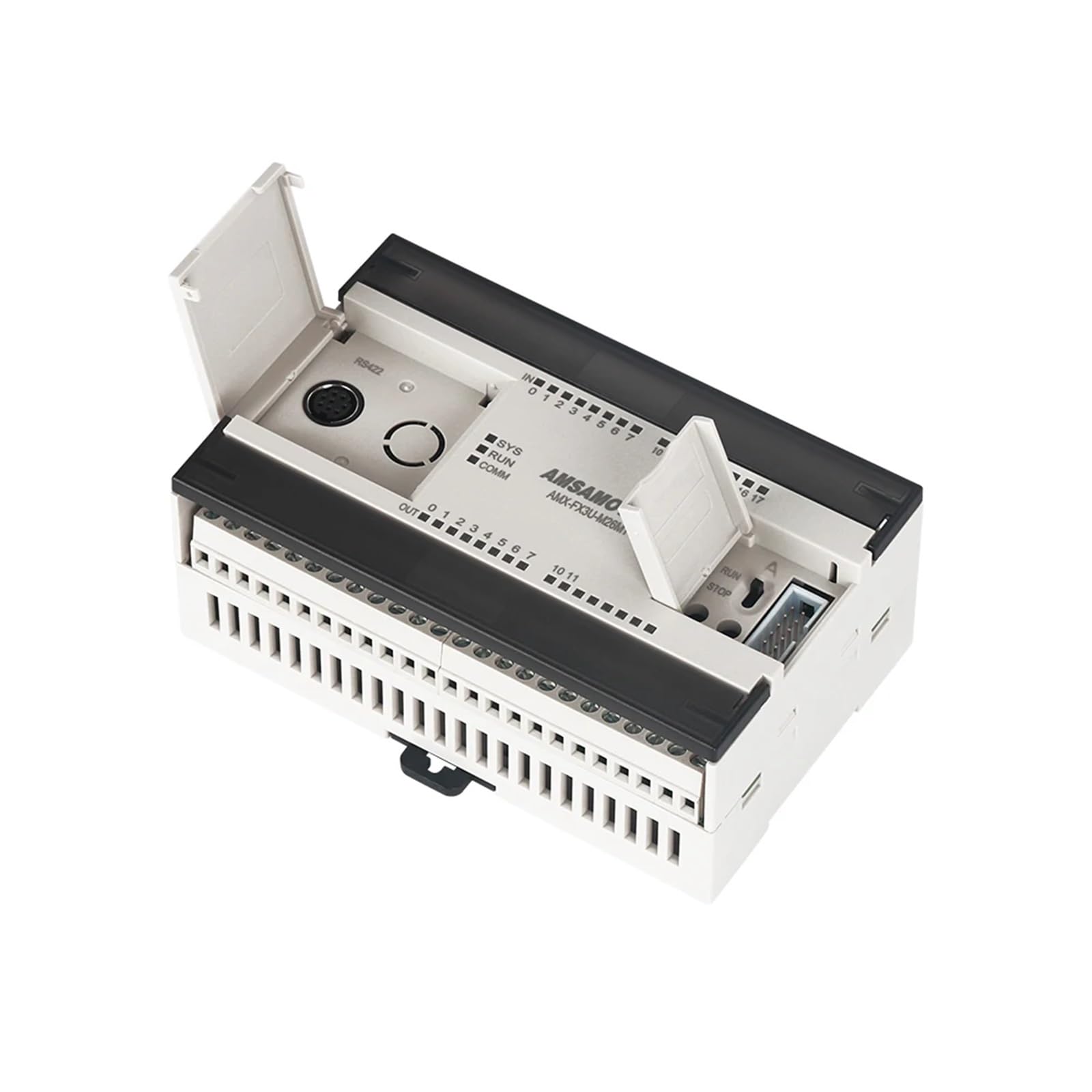
Figure 1: Top view of the JOCCOS FX3U-24MR PLC. This image displays the green terminal blocks for digital inputs (top) and digital outputs (bottom right), the blue DB9 RS232 serial port (bottom left), and the internal circuit board with various electronic components visible through the transparent casing.
3.3. Component Identification (FX3U-24MT)
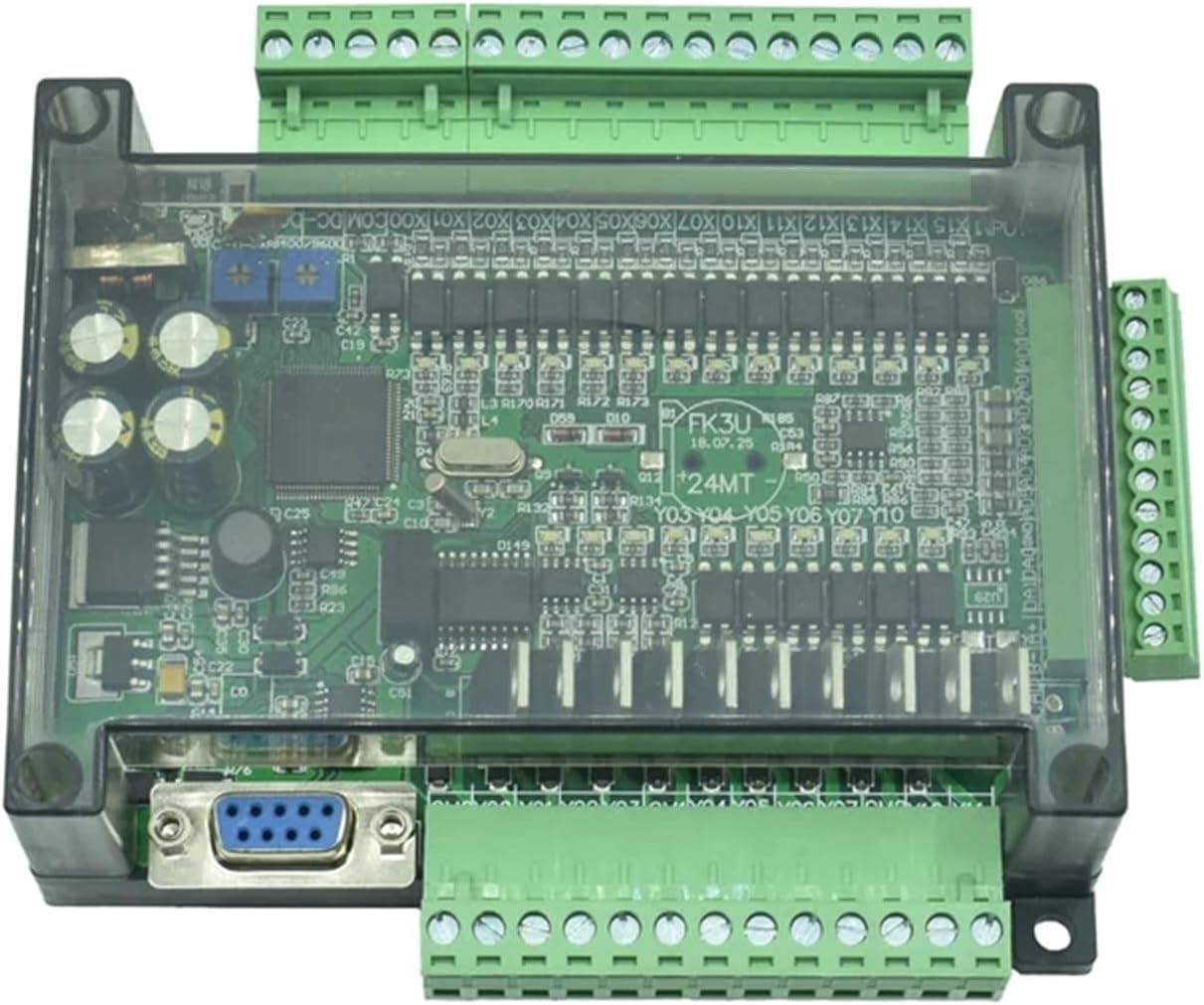
Figure 2: Top view of the JOCCOS FX3U-24MT PLC. Similar to the MR model, this image highlights the green terminal blocks for digital inputs and outputs, the DB9 RS232 port, and the internal components, specifically indicating the transistor output type.
4. Specifications
| Feature | Specification |
|---|---|
| Digital Inputs (DI) | 14 |
| Digital Outputs (DO) | 10 (MR: Relay, MT: Transistor) |
| Analog Inputs (AI) | 6 |
| Analog Outputs (AO) | 2 |
| Communication Ports | RS232, RS485 |
| Power Supply | DC 24V (typical) |
| Item Weight | 50 Grams (1.76 ounces) |
| Package Dimensions | 1.18 x 0.79 x 0.39 inches |
| Manufacturer | JOCCOS |
| Model Number | JOCCOS (Generic, refer to FX3U-24MR/MT for specific model) |
5. Setup
5.1. Mounting
The PLC is designed for panel mounting. Use appropriate screws to secure the unit to a stable surface. Ensure adequate ventilation around the unit to prevent overheating.
5.2. Wiring
All wiring should be performed with power disconnected. Use appropriate wire gauges for power and signal connections. Refer to the terminal labels on the PLC for correct connections.
- Power Supply: Connect a stable DC 24V power source to the designated power terminals. Observe polarity.
- Digital Inputs: Connect sensors, switches, or other input devices to the DI terminals (X0-X13).
- Digital Outputs: Connect actuators, relays, or other output devices to the DO terminals (Y0-Y9). Ensure the load current does not exceed the specified limits for relay (MR) or transistor (MT) outputs.
- Analog Inputs: Connect analog sensors (e.g., 0-10V, 4-20mA) to the AI terminals.
- Analog Outputs: Connect analog actuators or drives to the AO terminals.
- Communication Ports: Use standard RS232 or RS485 cables to connect to programming devices or other communication modules.

Figure 3: Angled view of the JOCCOS FX3U-24MR PLC, illustrating the accessible terminal blocks for wiring. This perspective helps in identifying the connection points for power, digital inputs, digital outputs, analog signals, and communication interfaces.
6. Operating Instructions
6.1. Programming Software
The JOCCOS FX3U series PLCs are compatible with standard Mitsubishi FX series programming software, such as GX Works2 or GX Developer. Install the software on your computer and ensure proper communication drivers are installed.
6.2. Establishing Communication
Connect the PLC to your computer using an RS232 or RS485 programming cable. Configure the communication settings in the programming software to match the PLC's default or configured settings (e.g., baud rate, data bits, stop bits, parity).
6.3. Program Download and Upload
- Download: After creating your ladder logic program, compile it and download it to the PLC's memory. Ensure the PLC is in STOP mode before downloading.
- Upload: You can upload the existing program from the PLC to your computer for backup or modification.
6.4. Run/Stop Mode
The PLC can be switched between RUN and STOP modes via the programming software. In RUN mode, the PLC executes the loaded program. In STOP mode, the program execution is halted, allowing for program changes or debugging.
7. Maintenance
7.1. Cleaning
Periodically clean the PLC's exterior with a soft, dry cloth. Do not use solvents or abrasive cleaners. Ensure no dust or debris accumulates in the ventilation openings.
7.2. Firmware Updates
Check the manufacturer's website for any available firmware updates. Follow the provided instructions carefully when performing updates to avoid damaging the unit.
7.3. Battery Replacement (if applicable)
Some PLC models may include a battery for retaining program data or real-time clock settings. If your model has a battery, refer to specific instructions for replacement to avoid data loss.
8. Troubleshooting
This section addresses common issues you might encounter.
| Problem | Possible Cause | Solution |
|---|---|---|
| PLC not powering on | No power supply, incorrect wiring, faulty power supply | Check power connections, verify DC 24V supply, test power supply unit. |
| Cannot establish communication with PC | Incorrect cable, wrong communication settings, driver issues | Ensure correct RS232/RS485 cable, match baud rate/settings in software, reinstall communication drivers. |
| Digital input not responding | Sensor faulty, incorrect wiring, input not configured in program | Check sensor operation, verify input wiring, confirm input address in PLC program. |
| Digital output not activating | Actuator faulty, incorrect wiring, output not configured in program, overload | Check actuator, verify output wiring, confirm output address in PLC program, check for overcurrent. |
| Analog input reading incorrect | Sensor faulty, incorrect wiring, scaling issues in program | Verify sensor output, check analog input wiring, review scaling parameters in PLC program. |
9. Warranty and Support
JOCCOS products are manufactured to high-quality standards. For warranty information, please refer to the terms and conditions provided at the time of purchase or contact your vendor. For technical support, please reach out to your supplier or the JOCCOS customer service department with your product model and purchase details.