
1. Introduction
Thank you for choosing the YUNCHANG T90 Wireless Gaming Mouse. This manual provides detailed instructions on how to set up, operate, and maintain your mouse to ensure optimal performance and longevity. Please read this manual thoroughly before using the product.
2. Product Overview
The YUNCHANG T90 is a versatile wireless gaming mouse designed for comfort and performance, featuring multiple connectivity options, adjustable DPI, and customizable RGB lighting.

Figure 2.1: Overall view of the YUNCHANG T90 Wireless Gaming Mouse, showcasing its ergonomic design and RGB lighting strip.

Figure 2.2: Dimensions of the YUNCHANG T90 mouse, measuring 128mm in length, 63mm in width, and 40mm in height. Also shows item weight (101g) and rated voltage/current (3.7V/15mA).

Figure 2.3: Illustration of the YUNCHANG T90 mouse connecting to three different computers using 2.4GHz wireless, Bluetooth 1 (BT1), and Bluetooth 2 (BT2) modes.

Figure 2.4: Depiction of the YUNCHANG T90 mouse's RGB backlight, highlighting its 11 available lighting modes.

Figure 2.5: Bottom view of the YUNCHANG T90 mouse, showing the power switch (OFF/ON), the 2.4GHz USB receiver storage slot, and the mode switch button for 2.4GHz, BT3.0, and BT5.0 connections.

Figure 2.6: Visual representation of the YUNCHANG T90's 5 DPI settings (800, 1200, 1600, 2400, 3600) and the 125Hz polling rate across all connection modes (BT1, BT2, 2.4G).

Figure 2.7: Highlights the silent click design of the YUNCHANG T90 mouse and its 10 million keystroke lifetime, indicating durability and quiet operation.
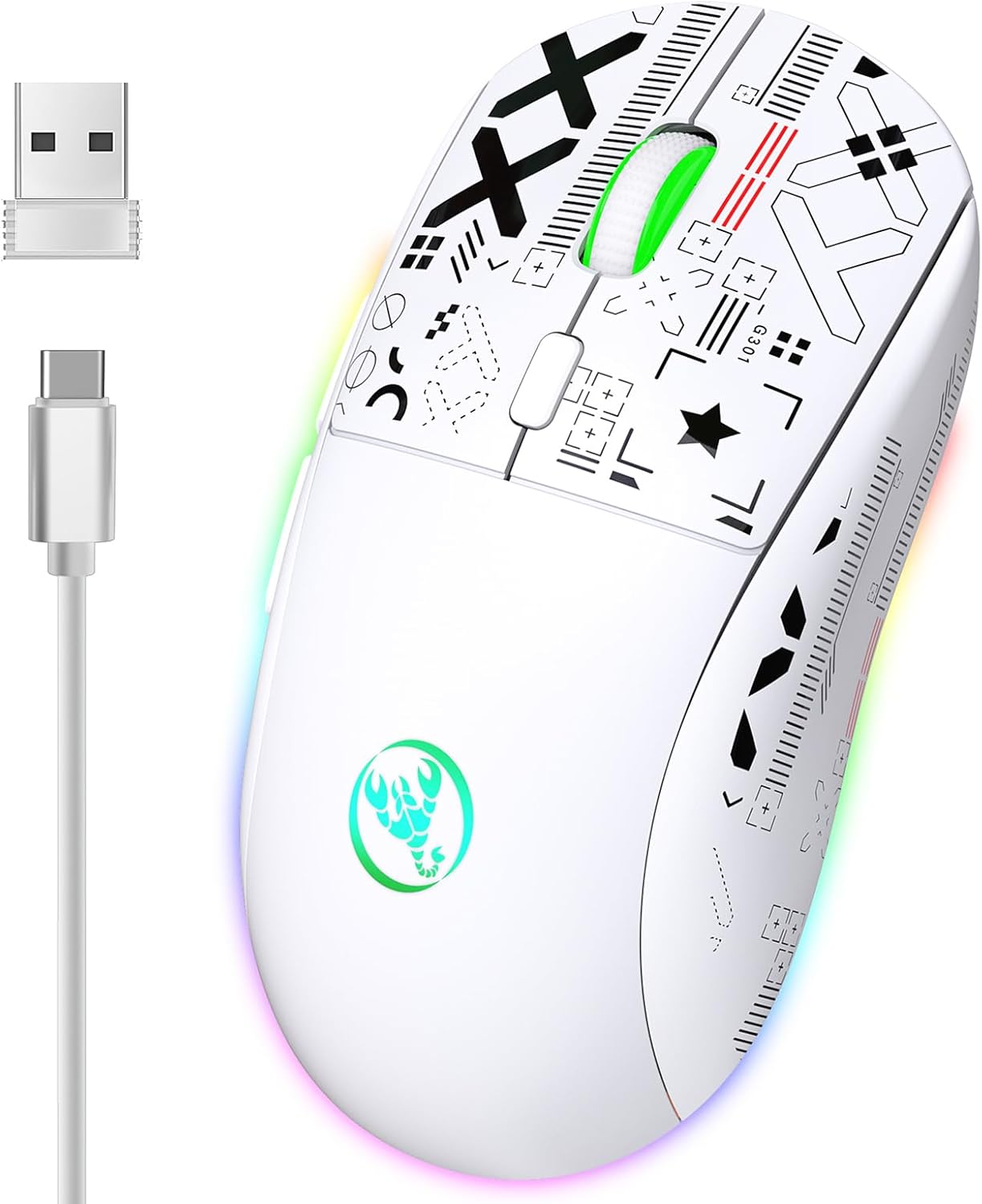
Figure 2.8: The YUNCHANG T90 mouse shown with its USB-C charging cable, indicating its rechargeable battery feature.
3. Specifications
| Feature | Detail |
|---|---|
| Brand | YUNCHANG |
| Model | T90 |
| IC | PixArt 3212 |
| Connectivity | 2.4 GHz Wireless, Bluetooth 1 (BT3.0), Bluetooth 2 (BT5.0) |
| DPI Settings | 800-1200-1600-2400-3600 (5 levels) |
| Polling Rate | 125Hz |
| Movement Speed | 30 IPS |
| Refresh Rate | 4800 FPS |
| Acceleration | 10G |
| Operation Mode | Opto-electronic |
| Number of Keys | 6 |
| Key Life | 10 million switches |
| Light Type | RGB Backlight (11 modes) |
| Wireless Distance | 10m |
| Battery Capacity | 750mAh Rechargeable |
| Rated Voltage/Current | 3.7V / 15mA |
| Product Weight | 101g (3.56 ounces) |
| Product Dimensions | 12.8 x 6.3 x 4 cm (5.04 x 2.48 x 1.57 inches) |
4. Setup
4.1 Initial Charging
Before first use, it is recommended to fully charge the mouse. Connect the provided USB-C cable to the charging port on the front of the mouse and the other end to a USB power source (e.g., computer USB port, USB wall adapter). The RGB lighting may indicate charging status.
4.2 Power On/Off
Locate the power switch on the bottom of the mouse. Slide it to the "ON" position to power on the mouse. Slide it to "OFF" when not in use to conserve battery.
5. Operating Instructions
5.1 Connecting the Mouse
The YUNCHANG T90 supports three connection modes: 2.4GHz wireless, Bluetooth 1 (BT1), and Bluetooth 2 (BT2). You can switch between these modes using the mode switch button on the bottom of the mouse.
- 2.4GHz Wireless Mode:
- Slide the mode switch on the bottom of the mouse to the "2.4G" position.
- Take out the USB receiver from its storage slot on the bottom of the mouse.
- Plug the USB receiver into an available USB port on your computer.
- The mouse should connect automatically.
- Bluetooth 1 (BT1) Mode:
- Slide the mode switch on the bottom of the mouse to the "BT1" position.
- The mouse will enter pairing mode (indicator light may flash).
- On your computer or device, go to Bluetooth settings and search for new devices.
- Select "YUNCHANG T90" or a similar name from the list to pair.
- Bluetooth 2 (BT2) Mode:
- Slide the mode switch on the bottom of the mouse to the "BT2" position.
- Repeat the pairing process as described for BT1 mode. This allows connection to a third device.
To switch between connected devices, simply slide the mode switch on the bottom of the mouse to the desired connection mode (2.4G, BT1, or BT2).
5.2 DPI Adjustment
The mouse features 5 adjustable DPI settings: 800, 1200, 1600, 2400, and 3600. To change the DPI, press the DPI button located on the top of the mouse, behind the scroll wheel. Each press will cycle through the available DPI levels.
5.3 RGB Backlight Modes
The YUNCHANG T90 mouse has 11 different RGB backlight modes. To cycle through these modes, press the dedicated RGB light mode button, usually located near the DPI button or on the side of the mouse (refer to product diagram for exact location if available).
5.4 Button Functions
- Left Click: Primary action.
- Right Click: Secondary action/context menu.
- Scroll Wheel: Scroll up/down, middle click.
- DPI Button: Adjusts mouse sensitivity (DPI).
- Forward/Backward Buttons: (Typically on the side) Used for navigation in web browsers or other applications.
- RGB Light Mode Button: Cycles through RGB lighting effects.
6. Charging
The YUNCHANG T90 mouse is equipped with a 750mAh rechargeable battery. When the battery is low, the indicator light may change or flash. To charge, connect the mouse to a USB power source using the provided USB-C cable. A full charge can provide up to 30 days of use, depending on usage patterns and RGB lighting settings.
7. Maintenance
- Cleaning: Use a soft, dry cloth to wipe the mouse. For stubborn dirt, a slightly damp cloth can be used, ensuring no liquid enters the mouse.
- Storage: Store the mouse in a cool, dry place away from direct sunlight and extreme temperatures.
- USB Receiver: When not in use, store the 2.4GHz USB receiver in its designated slot on the bottom of the mouse to prevent loss.
- Battery Care: Avoid fully discharging the battery frequently. Charge the mouse regularly to maintain battery health.
8. Troubleshooting
- Mouse not responding:
- Ensure the mouse is powered on.
- Check battery level and charge if necessary.
- For 2.4GHz mode, ensure the USB receiver is securely plugged in and the mouse is set to 2.4G mode.
- For Bluetooth mode, ensure Bluetooth is enabled on your device and the mouse is correctly paired and set to the correct BT mode (BT1/BT2). Try re-pairing.
- Cursor movement is erratic or slow:
- Clean the optical sensor on the bottom of the mouse.
- Ensure you are using the mouse on a suitable surface (not highly reflective or transparent).
- Adjust the DPI setting to a higher value if movement is too slow.
- RGB lighting not working:
- Ensure the mouse is powered on.
- Press the RGB light mode button to cycle through modes.
- Check battery level; low battery might disable lighting.
- Cannot connect via Bluetooth:
- Ensure the mouse is in the correct Bluetooth pairing mode (BT1 or BT2).
- Make sure your device's Bluetooth is on and discoverable.
- Remove previous pairings of the mouse from your device's Bluetooth list and try pairing again.
9. Warranty and Support
The YUNCHANG T90 Wireless Gaming Mouse comes with a standard manufacturer's warranty. For specific warranty details, please refer to the documentation provided at the time of purchase or contact your retailer. For technical support or further assistance, please reach out to YUNCHANG customer service through their official website or the contact information provided with your product.