
Introduction
This manual provides detailed instructions for the installation, operation, and maintenance of your We Technology R03YDFP Smart Double Gate Lock. This waterproof keyless smart rim lock offers multiple access methods including fingerprint, passcode, IC card, mechanical key, and Tuya App control, designed for outdoor gate security.
Product Overview
The We Technology R03YDFP Smart Double Gate Lock is engineered for robust outdoor security, featuring a durable, waterproof construction. It integrates advanced biometric and digital technologies for convenient and secure access management.
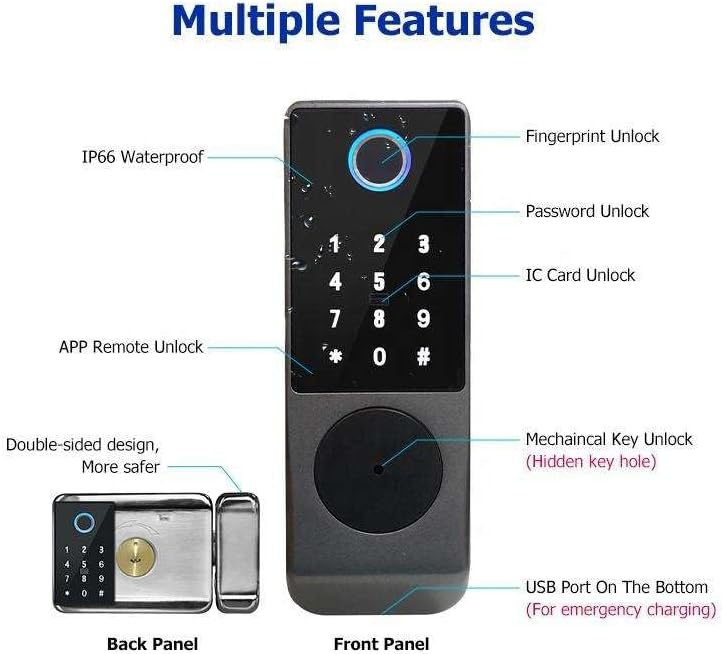
Image: Multiple Features of the Smart Gate Lock. This image highlights the various features of the smart lock, including fingerprint unlock, password unlock, IC card unlock, app remote unlock, double-sided design, mechanical key unlock (hidden key hole), and a USB port on the bottom for emergency charging.
Key Features:
- Waterproof Design: Constructed to withstand various outdoor weather conditions.
- 5-in-1 Keyless Entry: Fingerprint, Wi-Fi Access (Tuya App), Passcodes, Key Cards, and Mechanical Keys.
- Double-Sided Keypad: Electronic keypad on both sides for enhanced security and convenience.
- Custom Passwords: Ability to set permanent or temporary access codes for different users.
- Easy Installation: Designed for straightforward setup, often without the need for drilling.
- Swift Fingerprint Recognition: Provides quick and accurate access.
- Alarm Function: Activates after 5 consecutive incorrect password attempts, locking for 3 minutes.
- Remote Control: Effortless management via smartphone app for remote code setup and real-time access monitoring.
Package Contents
Verify that all components are present before beginning installation:
- 1 x Install Screw Package
- 1 x User Manual
- 2 x IC Card
- 2 x Lock Side Strip
- 2 x Mechanical Key

Image: Components of the Smart Gate Lock. This image displays all the items included in the package, such as the main lock unit, internal mechanism, mounting plates, screws, IC cards, mechanical keys, and the user manual.
Setup
1. Installation
The smart lock is designed for easy installation. Ensure your gate dimensions are compatible before proceeding. External wiring and network equipment are utilized for functionality.
Video: Smart Door Installation. This video demonstrates the step-by-step process of installing the smart door lock on a gate, including preparing the mounting surface and securing the components.

Image: Smart Door Lock Dimensions and Installation Diagram. This image provides critical dimensions of the lock components and an installation diagram to guide users during setup.
2. Battery Installation
The lock is powered by 4 AA batteries. Ensure correct polarity when inserting the batteries into the battery box located within the internal mechanism.

Image: Battery Box Location in Smart Lock. This image shows the internal battery box where 4 AA batteries are inserted to power the lock.
3. Initial Configuration (Admin Setup)
Before regular use, an administrator must be set up. The default admin password is 123456. It is highly recommended to change this immediately after initial setup.
- Press "*", "#" then enter the Admin Password (default: 123456) then "#".
- Press "1" for Administrator Setting.
- Press "1" to Add Administrator.
- Enter a new 6-8 digit password twice, followed by "#".
- Follow voice prompts to register a fingerprint (input 4 times) and/or an IC card (input once).
Video: How to Add Admin to your Lock. This video guides you through the process of setting up the administrator for your smart lock, including password and biometric registration.
4. Tuya App Connection
Connect your smart lock to the Tuya App for remote control and monitoring.
- Press "*", "#" then enter the Admin Password then "#".
- Press "1" for Administrator Setting, then Press "3" to Add a Network.
- Press "2" for Intelligent connection (TUYA APP).
- From the Tuya App, press "+" to Add Device.
- From Camera & Locks, select Lock (Wi-Fi).
- Enter your Network and Password then click Next.
- Confirm the indicator is blinking rapidly and select easy mode for successful distribution network.
Video: How to link Smart Lock with Tuya APP. This video demonstrates the steps to connect your smart lock to the Tuya mobile application for remote management and control.

Image: Remote App Unlock with Tuya App. This image illustrates the remote unlocking capability of the smart lock through the Tuya mobile application.
Operating Instructions
1. Unlocking Methods
The R03YDFP Smart Lock offers multiple ways to unlock your gate:
- Fingerprint: Place your registered finger on the sensor.
- Passcode: Enter your registered passcode on the keypad.
- IC Card: Tap your registered IC card on the card reader.
- Mechanical Key: Use the provided mechanical key in the hidden keyhole for manual override.
- Tuya App: Remotely unlock via the Tuya App on your smartphone.

Image: Multiple Unlocking Methods for Smart Gate Lock. This image visually represents the various ways to unlock the smart gate lock, including app unlock, fingerprint, card unlock, password, and key unlock.

Image: Biometric Identification for Smart Door Lock. This image highlights the fast and accurate 0.5-second biometric identification with a 99.9% recognition rate for fingerprint unlocking.

Image: Password Protection for Smart Door Lock. This image demonstrates the use of passcodes, including random digits, for secure entry.

Image: IC Card Unlock for Smart Door Lock. This image shows an IC card being used to unlock the smart door lock.

Image: Mechanical Key Backup for Smart Door Lock. This image illustrates the use of a mechanical key as a backup unlocking method for the smart door lock.
2. Adding Multiple Users
You can add multiple users with unique fingerprints, passcodes, or IC cards.
- Press "*", "#" then enter the Admin Password then "#".
- Press "2" for User Setting.
- Press "1" for Adding Users.
- Enter a 6-8 digit password twice, followed by "#".
- Follow voice prompts to register a fingerprint (input 4 times) and/or an IC card (input once).
Video: How to Add Multi User. This video demonstrates the procedure for adding multiple users to the smart lock, allowing them access via various methods.

Image: Multi-Pin Codes for Smart Door Lock. This image illustrates the capability to set up multiple pin codes for different users, enhancing access control.
3. Deleting Users
To remove a user from the system:
- Press "*", "#" then enter the Admin Password then "#".
- Press "2" for User Setting.
- Press "2" for Deleting Users.
- Press "1" to delete a specific user number (e.g., 003#) or "2" to delete all users.
Video: How to Delete Users. This video provides instructions on how to remove individual users or all users from the smart lock's memory.
4. Custom Passcodes (Temporary/Scheduled)
Generate various types of passcodes for different access needs:
- Permanent: For regular users like family members.
- Timed: For specific periods, ideal for service personnel.
- One-time: For single use, perfect for deliveries or quick access.
- Cycle: For recurring access on specific days/times.

Image: Custom Passcodes for Smart Lock. This image illustrates the flexibility of setting up different types of access codes: single, permanent, custom, and cycle, catering to various user needs.

Image: One-time Code Generation for Smart Door Lock. This image shows a scenario where a one-time code is generated and shared for temporary access.

Image: Scheduled Code Generation for Smart Door Lock. This image demonstrates how to generate and share a scheduled passcode for planned access, useful for guests or recurring services.
5. Access Monitoring
Monitor access logs in real-time through the Tuya App to track who enters and exits your property.

Image: Access Monitoring via Smartphone App. This image shows the smartphone app interface displaying real-time access logs, including successful unlocks and incorrect attempts.
6. Voice Control Integration
The smart lock is compatible with Amazon Alexa and Google Assistant for convenient voice-activated control.

Image: Smart Door Lock with Alexa and Google Assistant. This image illustrates the smart lock's compatibility with voice assistants like Amazon Alexa and Google Assistant for hands-free control.
Maintenance
Battery Management
The lock provides a low battery alert to notify you when the batteries need replacement. Typically, the batteries can last up to 6 months depending on usage.

Image: Battery Low Alert on Smart Door Lock App. This image shows a notification on the smartphone app indicating a low battery level (10%) for the smart lock.
Troubleshooting
Alarm Function
If someone enters the wrong password 5 times in a row, the system will trigger an alarm and lock for 3 minutes to prevent unauthorized access.
Factory Reset
If you encounter persistent issues or need to clear all user data, a factory reset can be performed.
Video: Rim Factory Reset. This video demonstrates the steps to perform a factory reset on the smart rim lock, which can resolve certain operational issues.
Specifications
| Brand | We Technology |
| Model Number | R03YDFP |
| Lock Type | Biometric |
| Material | Aluminum, Metal |
| Item Dimensions (L x W x H) | 6.6 x 6.5 x 2.5 inches |
| Item Weight | 1.53 Kilograms |
| Special Features | Alarm, Auto-Lock, Battery Indicator, Fingerprint, Passcode Unlock |
| Connectivity Protocol | Wi-Fi |
| Control Method | App |
| Controller Type | Amazon Alexa, Google Assistant |
| Color | Black |
Support
For further assistance or inquiries regarding your We Technology R03YDFP Smart Double Gate Lock, please refer to the contact information provided with your purchase or visit the official We Technology store on Amazon.
We Technology Store: Visit Store