
Introduction
This manual provides detailed instructions for the Symcode Bluetooth 2D Barcode Scanner, Model 2D QR Black. This versatile device offers 3-in-1 connectivity (Bluetooth, 2.4G Wireless, and USB Wired) and is designed for efficient barcode scanning across various platforms.

Image: The Symcode Bluetooth 2D Barcode Scanner, a compact black device, held comfortably in a user's hand, demonstrating its portable design. USB cables and a 2.4G dongle are also visible, indicating its versatile connectivity options.
Package Contents
Please verify that all items listed below are included in your package:
- 1x Symcode 2D barcode scanner
- 1x USB Charging Cable
- 1x 2.4G USB Dongle
- 1x Manual
- 1x Sling

Image: A clear layout of the Symcode barcode scanner package contents, including the scanner unit, 2.4GHz wireless dongle, user manual, USB charging cable, and a sling for portability.
Key Features
- Portable Design: Weighing only 35g (1.23oz), with a mini size for easy pocket storage and a retractable rope for convenient carrying.
- 3-in-1 Connection: Supports 2.4G wireless, Bluetooth wireless, and USB wired connection modes.
- Wide Compatibility: Compatible with Windows XP, Win7, Win8, Win10, Android, iOS devices, PC, POS, laptop, tablet, and smartphone.
- Long Transmission Distance: Up to 15m/49ft in obstacle environments for 2.4G transmission, and 20m/66ft for Bluetooth transmission. In barrier-free environments, 2.4G wireless offers up to 150m/492ft and Bluetooth up to 50m/164ft.
- Super Decoding Ability: Capable of scanning common 1D and 2D barcodes, including QR Code, Data Matrix, PDF417, Aztec code, Maxicode, JAN/EAN-13, UPC-A, Code128, and many more, even if blurred or incomplete.
- Battery Life: Built-in 650mAh rechargeable battery provides up to 5 hours of continuous scanning time and 30 days of standby time. Full charge in approximately 2 hours.
- Storage Mode: 16MB large capacity storage, capable of storing over 100,000 barcodes in offline scanning mode.
- Customization Options: Sound and vibration can be turned off. Supports hiding/adding custom prefix/suffix digits, deleting characters, and adding keyboard keys (TAB, CR&LF) to scanning operations.
- Trigger Button: Adopts an imported trigger button for long life and comfortable use.
Setup
1. Charging the Scanner
Before first use, fully charge the scanner. Connect the provided USB charging cable to the scanner's charging port and the other end to a USB power source (e.g., computer USB port, USB wall adapter). The charging indicator light will show the charging status.
- Charging Time: Approximately 2 hours for a full charge.
- Continuous Scanning Time: Up to 5 hours.
- Standby Time: Up to 30 days.

Image: An exploded view of the Symcode barcode scanner, highlighting its internal components including the circuit board and battery. Note: The image indicates a 3000mAh battery, however, the product specifications state a 650mAh battery. Please refer to the text specifications for accurate battery capacity and usage times.
2. Connection Modes
The scanner supports three connection modes: USB Wired, 2.4G Wireless, and Bluetooth Wireless. You can switch between these modes freely based on your needs.
USB Wired Mode
Connect the scanner directly to your computer using the provided USB cable. The scanner will be recognized as a keyboard device, and scanned data will be input directly into any active text field.
2.4G Wireless Mode
Insert the 2.4G USB dongle into an available USB port on your computer. The scanner will automatically pair with the dongle. This mode offers a transmission distance of up to 150m/492ft in barrier-free environments and 15m/49ft in obstacle environments.
Bluetooth Wireless Mode
- Turn on the scanner.
- Activate Bluetooth on your host device (smartphone, tablet, computer).
- Search for available Bluetooth devices and select "Symcode Scanner" (or similar name) to pair.
- Once paired, the scanner is ready for use. This mode offers a transmission distance of up to 50m/164ft in barrier-free environments and 20m/66ft in obstacle environments.

Image: A visual representation of the three connection modes: Wired (USB), 2.4G Wireless (via dongle), and Bluetooth Wireless, illustrating how the scanner connects to various devices like laptops and smartphones.

Image: A diagram showing the long transmission distances for both 2.4GHz Wireless and Bluetooth Wireless modes, differentiating between barrier environments and barrier-free environments.
3. System Compatibility
The Symcode scanner is highly compatible with a wide range of operating systems and devices:
- Operating Systems: Windows XP, Win7, Win8, Win10, Mac OS, Linux.
- Devices: PC, POS systems, Laptops, Tablets, Smartphones (Android, iOS).

Image: Icons representing various operating systems (iOS, Android, Windows, Mac OS, Linux) indicating the scanner's broad compatibility with different devices such as laptops and tablets.
Operating Instructions
1. Basic Scanning Operation
To scan a barcode, point the scanner's window at the barcode and press the trigger button. A successful scan will typically be indicated by a beep and/or vibration (if enabled).
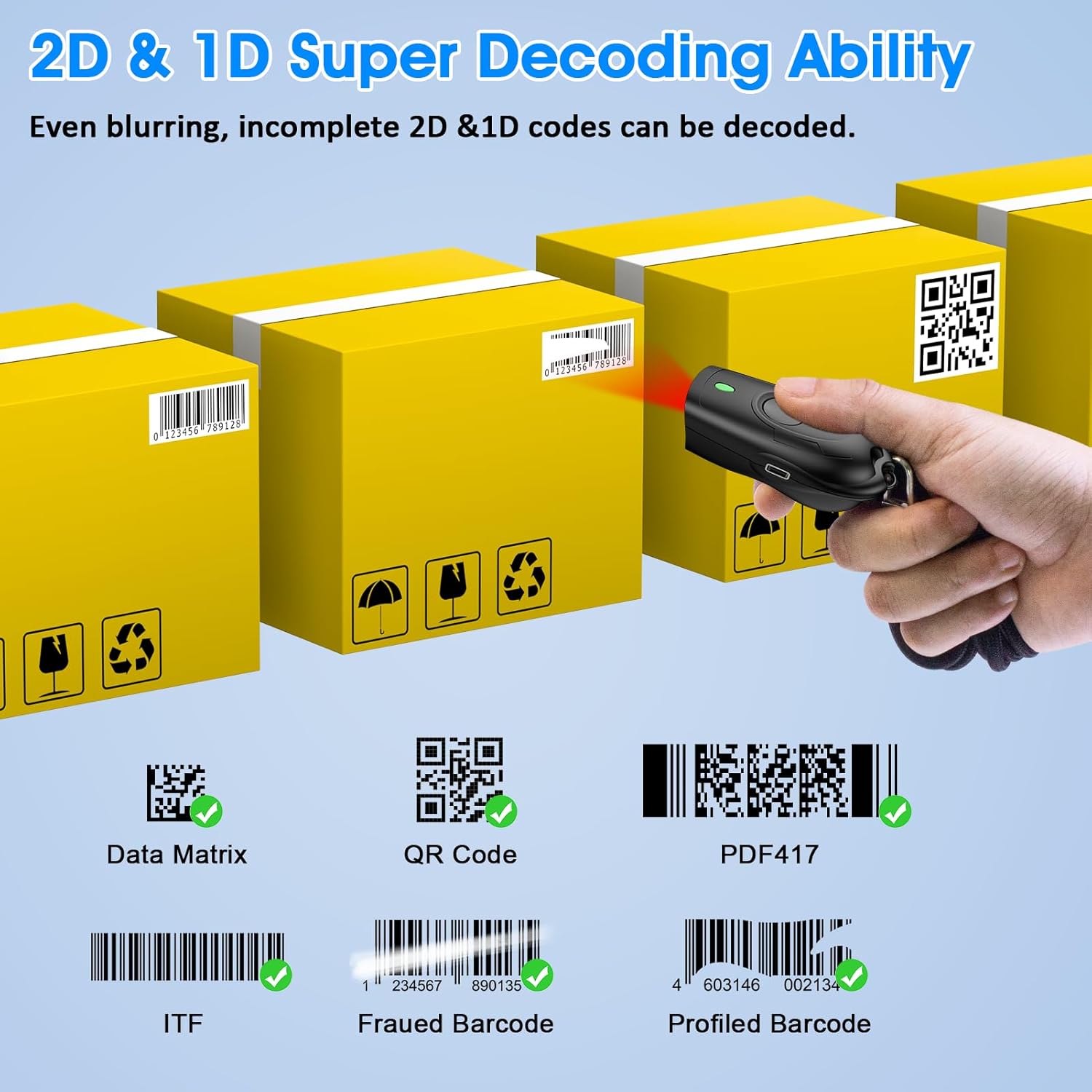
Image: The scanner positioned to scan various 2D and 1D barcodes, including QR Code, Data Matrix, PDF417, ITF, Frauded Barcode, and Profiled Barcode, illustrating its super decoding ability.
2. Operating Modes: Instant Upload vs. Storage Mode
The scanner supports two primary operating modes:
- Instant Upload Mode: Scanned data is immediately transmitted to the connected device. This is the default mode and suitable for real-time data entry.
- Storage Mode (Offline Scanning): Scanned data is stored in the scanner's internal 16MB memory. This mode is useful when out of range or not connected to a host device. The scanner can store over 100,000 barcodes. To upload stored data, connect the scanner to your device and follow the instructions in the full user manual (refer to the included manual for specific barcode commands to switch modes and upload data).
3. Customization Options
The scanner offers several customization features, typically configured by scanning specific setup barcodes found in the comprehensive user manual:
- Sound and Vibration: Enable or disable the audible beep and tactile vibration feedback upon successful scans.
- Prefix/Suffix: Add custom characters before or after the scanned barcode data.
- Character Deletion: Remove specific characters from the scanned data.
- Keyboard Keys: Add special keyboard keys (e.g., TAB, Carriage Return & Line Feed - CR&LF) after each scan for automated data entry.
For detailed instructions on configuring these options, please refer to the dedicated section in the physical user manual included with your product.
Maintenance
1. Cleaning
To maintain optimal performance, keep the scanner's scanning window clean. Use a soft, lint-free cloth, slightly dampened with water or a mild, non-abrasive cleaner. Do not use harsh chemicals or abrasive materials.
2. Battery Care
- Avoid fully discharging the battery frequently.
- Charge the scanner regularly, even if not in constant use, to prolong battery life.
- Store the scanner in a cool, dry place when not in use for extended periods.
Troubleshooting
| Problem | Possible Cause / Solution |
|---|---|
| Scanner not connecting via Bluetooth/2.4G. |
|
| Scanner not reading barcodes. |
|
| Scanned data is incorrect or incomplete. |
|
| Short battery life. |
|
If you encounter issues not covered here, please refer to the comprehensive user manual or contact Symcode customer support.
Specifications
- Model: 2D QR Black
- Dimensions: Approximately 74mm (Length) x 39mm (Width) x 25.5mm (Thickness)
- Weight: 35g / 1.23oz
- Connectivity: Bluetooth, 2.4G Wireless, USB Wired
- Battery: 650mAh Lithium Polymer (rechargeable)
- Charging Time: Approx. 2 hours
- Continuous Scanning Time: Approx. 5 hours
- Standby Time: Up to 30 days
- Storage Capacity: 16MB (stores over 100,000 barcodes in offline mode)
- Transmission Distance (2.4G Wireless): 150m/492ft (barrier-free), 15m/49ft (obstacle environment)
- Transmission Distance (Bluetooth): 50m/164ft (barrier-free), 20m/66ft (obstacle environment)
- Decoding Capability (2D): QR Code, Data Matrix, PDF417, Aztec code, Maxicode
- Decoding Capability (1D): JAN/EAN-13, JAN/EAN-8, UPC-A, UPC-E, Code11, Code32, Code39, Code 39 Full ASCII, Code93, Code128, Codabar (NW-7), Interleaved 2 of 5, Matrix 2 of 5, Industrial 2 of 5, Standard 2 of 5, PLESSEY, MSI, ITF14, ISBN, ISSN, GS1 Databar, GS1-128 (UCC/EAN128), ISBT-128.
- Compatible Devices: Desktop, Laptop, Smartphone, POS systems, Tablets.
- Operating Systems: Windows XP/7/8/10, Mac OS, Linux, Android, iOS.

Image: A visual representation of the scanner's compact dimensions (74mm length, 39mm width, 25.5mm thickness) and its portability, showing it easily fitting into a pocket.

Image: A close-up showing the Symcode barcode scanner being placed into a shirt pocket, emphasizing its ultra-mini and lightweight design (stated weight 33.4g/1.2oz, actual product description states 35g/1.23oz).
Warranty and Support
Symcode provides dedicated pre-sale and after-sales service for its products. If you experience any issues or have questions regarding your Symcode barcode scanner, please contact the seller directly for assistance.
For support, please refer to the contact information provided with your purchase or on the official Symcode website.


