1. Introduction
Thank you for choosing the Gigaset Pure 100 Cordless Phone. This manual provides essential information for setting up, operating, and maintaining your new phone. Please read these instructions carefully to ensure optimal performance and longevity of your device.
The Gigaset Pure 100 is designed for ease of use, featuring a call blocking button, a 50-contact address book, hearing aid compatibility, and programmable function keys to enhance your communication experience.

Image: The Gigaset Pure 100 cordless phone positioned in a home environment, showcasing its sleek design.
2. What's in the Box
Before you begin, please check the contents of your package. Ensure all items listed below are present:
- 1 Handset
- 1 Base Station
- 2 AAA Rechargeable Batteries
- 1 Battery Cover
- 1 Power Adapter
- 1 Telephone Connection Cable
- 1 Quick Guide
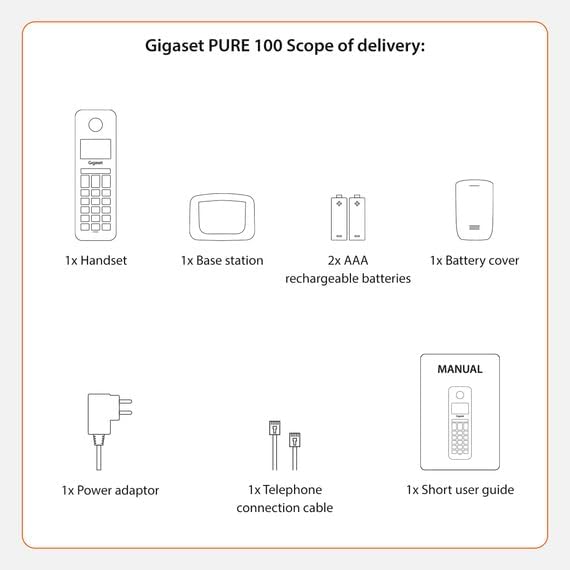
Image: A visual representation of the Gigaset Pure 100's scope of delivery, including handset, base, batteries, and cables.
3. Setup
3.1. Battery Installation
- Remove the battery cover from the back of the handset.
- Insert the two supplied AAA rechargeable batteries, observing the correct polarity (+/-).
- Replace the battery cover until it clicks into place.

Image: The rear side of the Gigaset Pure 100 handset, illustrating where the battery cover is located for installation.
3.2. Base Station Connection
- Connect the power adapter to the base station and plug it into a wall outlet.
- Connect the telephone connection cable to the base station and plug the other end into your telephone wall socket.
- Place the base station on a flat, stable surface.
3.3. Handset Registration
The handset is usually pre-registered to the base station. If not, or if you are registering an additional handset:
- Place the handset in the base station.
- Press and hold the registration/paging button on the base station for approximately 3 seconds. The base station will enter registration mode.
- Follow the on-screen prompts on the handset to complete the registration process. You may need to enter a PIN (default is 0000).

Image: The Gigaset Pure 100 handset securely placed in its charging and communication base station.
4. Operating Instructions
4.1. Making Calls
- Lift the handset or press the Green Call Key.
- Dial the desired phone number.
- Press the Green Call Key again to initiate the call.
- To end a call, press the Red End Call Key or place the handset back in the base station.
4.2. Receiving Calls
When the phone rings, press the Green Call Key to answer the call.
4.3. Address Book
The Gigaset Pure 100 can store up to 50 contacts in its address book.
- To access the address book, press the Directory Key (usually an icon resembling an open book or person).
- Use the navigation keys to scroll through your contacts.
- To dial a contact, select their entry and press the Green Call Key.
- To add a new contact, navigate to an empty entry or select the 'New Entry' option and follow the on-screen instructions to enter the name and number.
4.4. Call Blocking
The Gigaset Pure 100 features a dedicated call blocking button to help manage unwanted calls.
- During an incoming call from an unwanted number, press the Call Blocking Button (often marked with a shield or 'Block' icon).
- The number will be added to your block list, and subsequent calls from this number will be rejected.
- Refer to the quick guide for detailed instructions on managing your block list.

Image: The Gigaset Pure 100 handset screen showing a 'Blocked Number' notification, highlighting its call blocking feature.
4.5. Programmable Function Keys
The phone includes programmable function keys that can be assigned to frequently used numbers or features. Consult your quick guide for instructions on how to program these keys to suit your needs.

Image: An illustration demonstrating the Gigaset Pure 100's effective range, allowing calls from various locations within a property.
5. Maintenance
5.1. Cleaning
Wipe the handset and base station with a soft, damp cloth. Do not use abrasive cleaners or solvents. Ensure no liquid enters the device openings.
5.2. Battery Care
Use only the recommended rechargeable AAA batteries. If the phone will not be used for an extended period, remove the batteries to prevent leakage. Replace batteries when their performance significantly degrades.
6. Troubleshooting
- No Dial Tone:
Check if the power adapter and telephone connection cable are securely plugged into the base station and wall outlets. Ensure the handset is registered to the base. - Cannot Make/Receive Calls:
Verify that the telephone line is active. Check if the handset batteries are charged. Ensure the handset is within range of the base station. - Poor Sound Quality:
Move closer to the base station. Check for interference from other electronic devices. - Handset Display is Blank:
Place the handset in the base station to charge the batteries. If the issue persists, replace the batteries.
7. Specifications
| Feature | Description |
|---|---|
| Brand | Gigaset |
| Model Number | PURE 100 |
| Color | Black |
| Screen | 1.5 Inches |
| Power Type | Battery |
| Dial Type | Single Keypad |
| Caller Identification | Yes |
| Material | Plastic |
| System Type | Digital |
8. Warranty and Support
For warranty information and technical support, please refer to the quick guide included in your package or visit the official Gigaset website. Keep your proof of purchase for warranty claims.


