1. Introduction
This manual provides comprehensive instructions for the installation, operation, and maintenance of your Tuya Smart Home Digital Electronic Lock (Model: 5572 22x235). This keyless fingerprint door lock offers multiple unlocking methods including fingerprint, password, IC card, mechanical key, and Tuya App control, designed for enhanced security and convenience in various door types such as wooden, stainless steel, bronze, double, and old-fashioned security doors.

Figure 1: Front and back view of the Tuya Smart Home Digital Electronic Lock. The lock features a sleek black design with integrated handles and a digital keypad on the front panel.
2. Product Overview
2.1 Key Features
- Multiple Unlock Methods: Fingerprint, password, IC card, mechanical key, and Tuya App.
- Fast Fingerprint Recognition: Unlocks in approximately 1 second after 0.5 seconds recognition.
- Tuya App Integration: Remote control, unlock record viewing, temporary password generation, and password validity period settings (no gateway required).
- High Capacity: Stores up to 100 fingerprints and 300 combinations of fingerprints, passwords, and cards.
- Emergency Power: USB power supply for emergency situations.
- Durable Construction: Made from aluminum alloy.
- Versatile Application: Suitable for wooden, stainless steel, bronze, double, and old-fashioned security doors.
2.2 Components

Figure 2: Detailed view of the smart lock components. Key features include an LED indicator, digital keypad, IC card reader, fingerprint reader, free handles, USB power supply port, key hole, and battery box.
- LED Indicator: Provides status feedback.
- Digital Keypad: For password entry.
- IC Card Reader: For unlocking with compatible cards (13.56MHz Mifare card, Phone NFC).
- Fingerprint Reader: For biometric authentication.
- Free Handles: Ergonomically designed for ease of use.
- USB Power Supply: Micro-USB port for emergency power.
- Key Hole: For mechanical key override.
- Battery Box: Houses 4x AA batteries (not included).

Figure 3: Visual representation of the various unlock methods supported by the smart lock, including APP remote control, fingerprint, password, RFID card, mechanical key, and temporary password.
3. Setup & Installation
3.1 Pre-Installation Checklist
- Ensure your door type is compatible: Wooden door, stainless steel door, bronze door, double door, or old-fashioned security door.
- Verify door thickness and mortise dimensions. Refer to the provided mortise diagram.
- Gather necessary tools (screwdriver, drill, measuring tape, etc.).
- Prepare 4x AA batteries for power.
3.2 Mortise Selection and Orientation
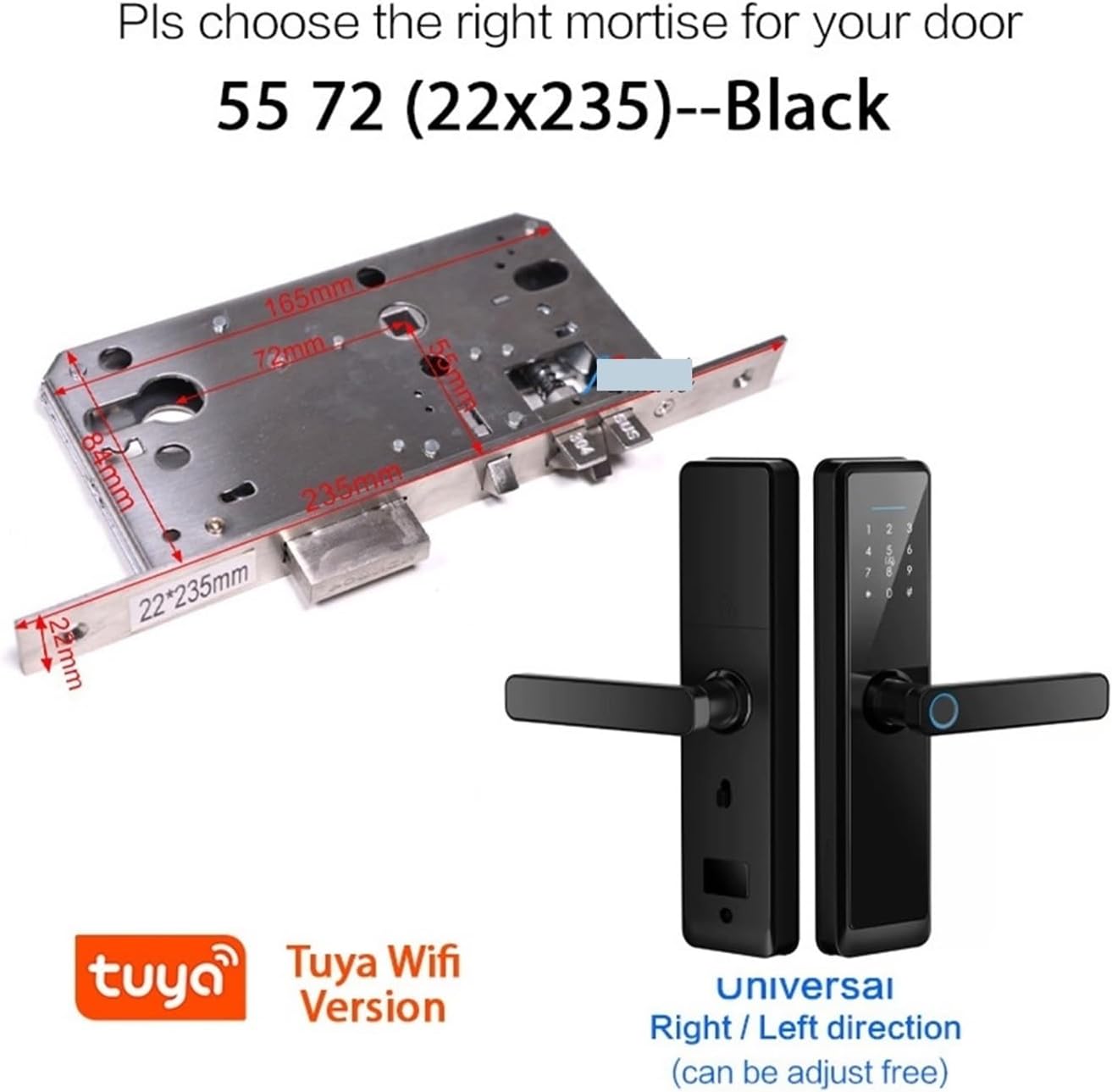
Figure 4: Diagram illustrating the mortise dimensions (5572 22x235) and confirming the lock's universal right/left direction adjustability. Ensure the correct mortise is selected for your door.
The lock supports universal right/left door opening directions and can be adjusted freely during installation. Carefully select the correct mortise for your door based on the dimensions provided in Figure 4.
3.3 Installation Steps (General Guide)
- Prepare the Door: If replacing an existing lock, remove it. Drill necessary holes according to the provided template (if applicable, not included in data, but standard for locks).
- Install Mortise: Insert the mortise into the door edge and secure it with screws.
- Install Front Panel: Connect the front panel (with keypad and fingerprint reader) to the mortise, ensuring cables pass through the door.
- Install Back Panel: Connect the back panel (with battery box) to the front panel using the provided screws, ensuring cables are properly connected and not pinched.
- Insert Batteries: Open the battery cover on the back panel and insert 4x AA batteries, observing polarity.
- Test Operation: After installation, test all mechanical functions (handles, deadbolt) and initial electronic functions.
For detailed installation instructions, refer to the specific installation guide included with your product packaging.
4. Operating Instructions
4.1 Initial Setup and User Management
Upon first use, follow the instructions in the Tuya App to register the lock and set up administrator fingerprints/passwords. This typically involves pairing the lock with the app via Bluetooth or Wi-Fi.
- Adding Users: The administrator can add up to 100 fingerprints and 300 total users (fingerprints, passwords, cards) through the Tuya App.
- Setting Passwords: Create permanent or temporary passwords via the app.
- Registering Cards: Enroll 13.56MHz Mifare cards or enable Phone NFC card access through the app.
4.2 Unlocking Methods
- Fingerprint Unlock: Place a registered finger on the fingerprint reader. The lock will unlock within 1 second if recognized.
- Password Unlock: Enter your registered password on the digital keypad, followed by '#'.
- IC Card/NFC Unlock: Present a registered IC card or NFC-enabled phone to the IC card reader area.
- Mechanical Key Unlock: Insert the mechanical key into the keyhole and turn to unlock. This is for emergency use.
- Tuya App Remote Unlock:

Figure 5: Steps for remote unlocking using the Tuya app. Press "9+#" on the lock, then use the app to receive the unlock request and open the door remotely.
To unlock remotely, press "9+#" on the lock's keypad. The Tuya app will receive an unlock request, allowing you to open the door from your smartphone.
- Temporary Password Unlock:

Figure 6: Interface for generating a temporary password within the Tuya app. This feature allows sharing time-limited or dynamic access codes.
Generate time-limited or dynamic passwords through the Tuya App for guests or service providers. These passwords can be set with specific validity periods.
4.3 Locking the Door
The lock typically features an automatic locking mechanism after the door closes. Verify this function after installation. Manual locking may also be available depending on the specific model configuration.
5. Maintenance
5.1 Battery Replacement
The lock is powered by 4x AA batteries. When the battery level is low, the lock will provide an alert (e.g., sound or light indicator). Replace all four batteries promptly to ensure continuous operation. Use high-quality alkaline AA batteries.
In case of complete battery depletion, use the mechanical key or connect a power bank to the USB emergency power port to temporarily power the lock and gain access.
5.2 Cleaning
Clean the lock's surface and fingerprint reader with a soft, dry cloth. Avoid using abrasive cleaners, solvents, or excessive moisture, as these can damage the electronic components or finish.
5.3 Environmental Conditions
The lock is designed to operate within a working temperature range of -25°C to 60°C and a working humidity of 20% to 90% RH. Avoid exposing the lock to extreme temperatures or humidity outside these ranges to prevent malfunction.
6. Troubleshooting
| Problem | Possible Cause | Solution |
|---|---|---|
| Lock does not respond (no lights, no sound). | Batteries are dead or incorrectly installed. | Replace all 4x AA batteries, ensuring correct polarity. Use the mechanical key or emergency USB power if locked out. |
| Fingerprint not recognized. | Finger is dirty, wet, or improperly placed. Fingerprint not registered. | Ensure finger is clean and dry. Place finger flat on the sensor. Try re-registering the fingerprint via the Tuya App. |
| Password not accepted. | Incorrect password entered. Password expired (for temporary passwords). | Verify the password. Check the validity period for temporary passwords in the Tuya App. |
| Tuya App cannot connect to the lock. | Bluetooth/Wi-Fi issue. Lock is out of range. App not updated. | Ensure Bluetooth/Wi-Fi is enabled on your phone. Move closer to the lock. Update the Tuya App to the latest version. Restart your phone and the lock (by removing and reinserting batteries). |
| Lock is difficult to operate mechanically. | Improper installation or alignment. | Check the installation for proper alignment of the mortise and lock panels. Ensure no screws are overtightened causing binding. |
7. Specifications
| Feature | Detail |
|---|---|
| Model | 5572 22x235 |
| Brand | mijob |
| Lock Material | Aluminum Alloy |
| Power Supply | 4x AA Batteries |
| Unlock Methods | Fingerprint, Password, IC Card, Mechanical Key, Tuya App |
| Fingerprint Capacity | 100 |
| Total User Capacity (Fingerprint+Password+Card) | 300 |
| Card Type Supported | 13.56MHz Mifare Card, Phone NFC Card |
| Emergency Power | USB (Micro-USB port) |
| Working Temperature | -25°C to 60°C (-13°F to 140°F) |
| Working Humidity | 20% to 90% RH |
| Compatible Door Types | Wooden Door, Stainless Steel Door, Bronze Door, Double Door, Old-fashioned Security Doors |
| Item Weight | 50 Grams (1.76 ounces) |
| Package Dimensions | 1.18 x 0.79 x 0.39 inches |
Note: The listed item weight and package dimensions appear to be for a small component rather than the full lock assembly. Please refer to the product packaging for accurate overall dimensions and weight.
8. Warranty and Support
For warranty information, please refer to the documentation provided with your purchase or contact the retailer/manufacturer directly. Keep your proof of purchase for warranty claims.
If you encounter any issues not covered in this manual or require further assistance, please contact mijob customer support through the contact information provided at the point of purchase or on the official mijob website.


