
KuWFi SL-C130
KuWFi Outdoor 5G Router User Manual
Model: SL-C130
Brand: KuWFi
1. Introduction
This user manual provides comprehensive instructions for the installation, operation, maintenance, and troubleshooting of your KuWFi Outdoor 5G Router (Model: SL-C130). Please read this manual carefully before using the device to ensure proper functionality and to prevent damage.
The KuWFi SL-C130 is a high-performance outdoor 5G router designed for robust and reliable internet connectivity in various environments. It features dual SIM card slots, IP67 waterproofing, Wi-Fi 6 (AX3000) capabilities, and Power over Ethernet (PoE) support.
2. Product Overview
2.1 Key Features
- SDX62 5G NR SA/NSA Modem: Supports 5G NR downlink speeds up to 2.5 Gbps and 4G LTE downlink speeds up to 1 Gbps.
- Outdoor Design with IP67 Waterproofing: Engineered for outdoor use, capable of operating in rain, snow, wind, and other harsh weather conditions.
- Dual-Band Gigabit Wi-Fi 6 (AX3000): Provides high-speed wireless connectivity with dual-band support (2.4GHz and 5GHz).
- Dual Nano SIM Card Slots: Offers network redundancy and compatibility with various global networks.
- 48V PoE Power Supply: Conforms to IEEE 802.3AF/AT standard for flexible power installation.
- High-Gain Detachable Antennas: Six antennas ensure stable network performance and extended Wi-Fi signal range (360-degree coverage radius 100-200 meters).
- Advanced Features: Supports TTL update, IMEI update, OpenVPN, TR069, Zerotier, VPN, SNMP, and bridge mode.
- Flexible Installation: Supports wall hanging and bar bracket mounting for diverse outdoor scenarios.
2.2 Package Contents
- 1 x KuWFi Outdoor 5G WiFi 6 Extender (Model: SL-C130)
- 1 x POE Power Supply
- 1 x 1M Cat6 Ethernet Cable
- 1 x Quick Start Guide
2.3 Product Diagram and Components
The following images illustrate the KuWFi Outdoor 5G Router and its key components.
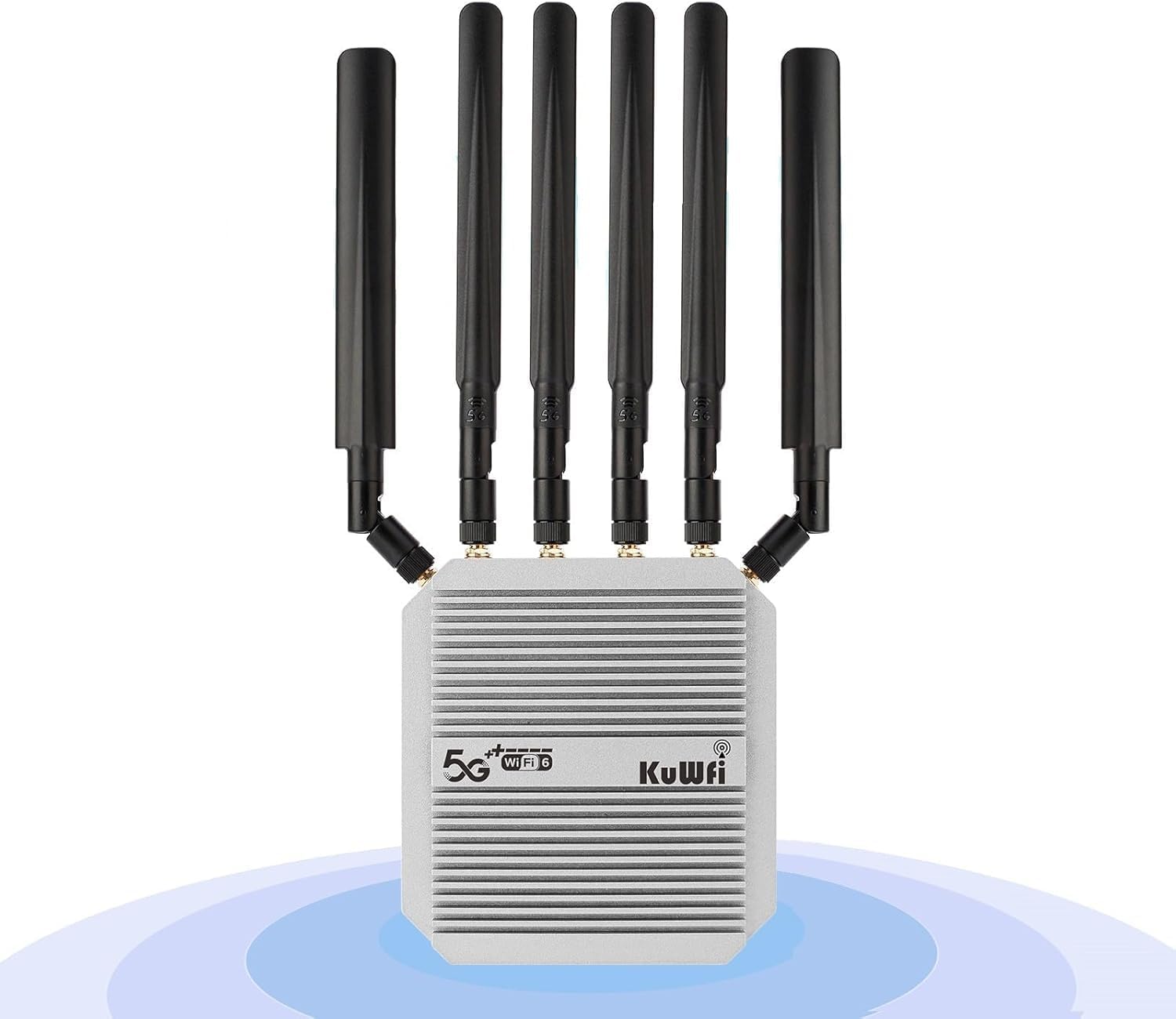
Figure 2.3.1: Front view of the KuWFi Outdoor 5G Router with six detachable antennas.

Figure 2.3.2: Various views of the router, including dimensions, LED indicators, SIM card slots, Type-C port, Reset button, and Ethernet port.
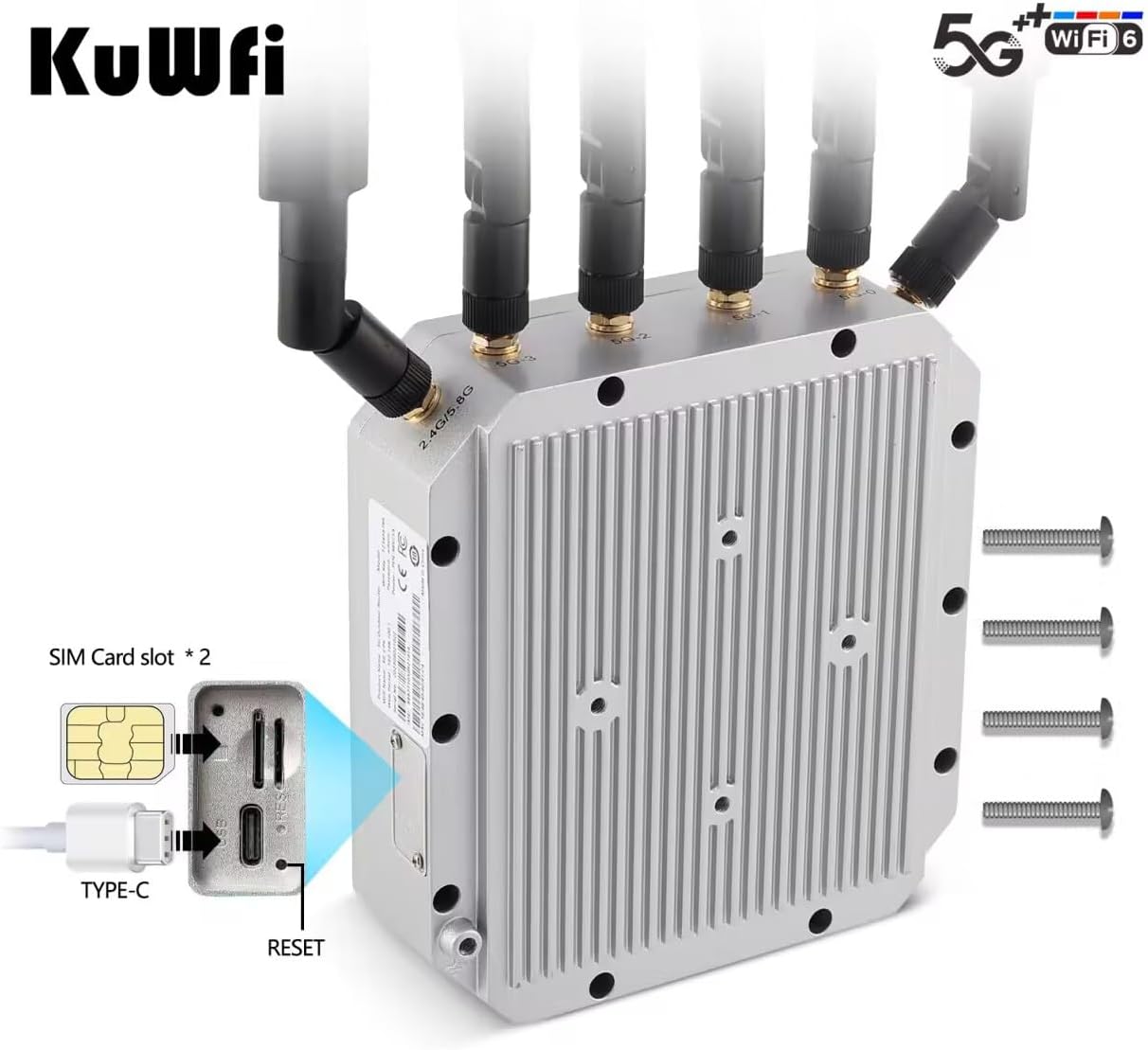
Figure 2.3.3: Close-up of the dual Nano SIM card slots, Type-C port, and Reset button.
3. Setup
3.1 Initial Setup
- Insert SIM Cards: Locate the dual Nano SIM card slots on the device. Carefully insert your activated Nano SIM cards into the slots until they click into place. Ensure the SIM cards are correctly oriented.
- Attach Antennas: Screw the six high-gain detachable antennas onto their respective connectors on the router. Ensure they are securely tightened.
- Connect PoE Power: Connect one end of the provided Cat6 Ethernet cable to the PoE port on the router. Connect the other end of the Ethernet cable to the PoE Power Supply. Plug the PoE Power Supply into a standard electrical outlet.
- Network Connection: Connect your computer or another network device to the LAN port of the PoE Power Supply using an Ethernet cable. Alternatively, you can connect wirelessly to the router's default Wi-Fi network (SSID and password typically found on a label on the device or in the Quick Start Guide).
3.2 Mounting Instructions
The KuWFi SL-C130 is designed for flexible outdoor installation. It supports both wall hanging and pole/bar bracket mounting.
- Wall Mounting: Use appropriate screws and anchors (not included) to secure the router to a sturdy wall. Ensure the mounting location provides optimal signal reception and is protected from direct impact.
- Pole/Bar Mounting: Utilize the included mounting brackets to attach the router to a pole or bar. Securely fasten the brackets to ensure stability, especially in windy conditions.
Consider the following for optimal placement:
- Choose a location with clear line-of-sight to cellular towers for best 5G/4G signal.
- Ensure the Wi-Fi signal can effectively cover the desired area.
- Mount the device at a height that minimizes obstructions and maximizes coverage.

Figure 3.2.1: The router's IP67 waterproof rating ensures durability in various weather conditions.

Figure 3.2.2: Example of the router's outdoor Wi-Fi coverage extending to indoor areas.
4. Operating Instructions
4.1 Basic Operation
- Power On: Once the PoE power supply is connected and plugged in, the router will automatically power on. Observe the LED indicators for status.
- Network Status: The LED indicators on the device will show the status of the 5G/4G connection, Wi-Fi activity, and power. Refer to the Quick Start Guide for specific LED meanings.
- Accessing the Web Interface: Open a web browser on a device connected to the router's network. Enter the default IP address (e.g., 192.168.1.1 or as specified in the Quick Start Guide) into the address bar. Log in using the default username and password (also found on the device label or Quick Start Guide).
4.2 Network Configuration
Through the web interface, you can configure various network settings:
- Wi-Fi Settings: Change SSID, password, security type, and Wi-Fi channel.
- Cellular Settings: Configure APN settings, enable/disable specific 5G/4G bands (Band Lock), and manage dual SIM preferences.
- LAN Settings: Adjust DHCP server settings, IP address, and subnet mask.
- Advanced Features: Configure VPN (OpenVPN, Zerotier), TTL settings, IMEI updates, and cloud management options.
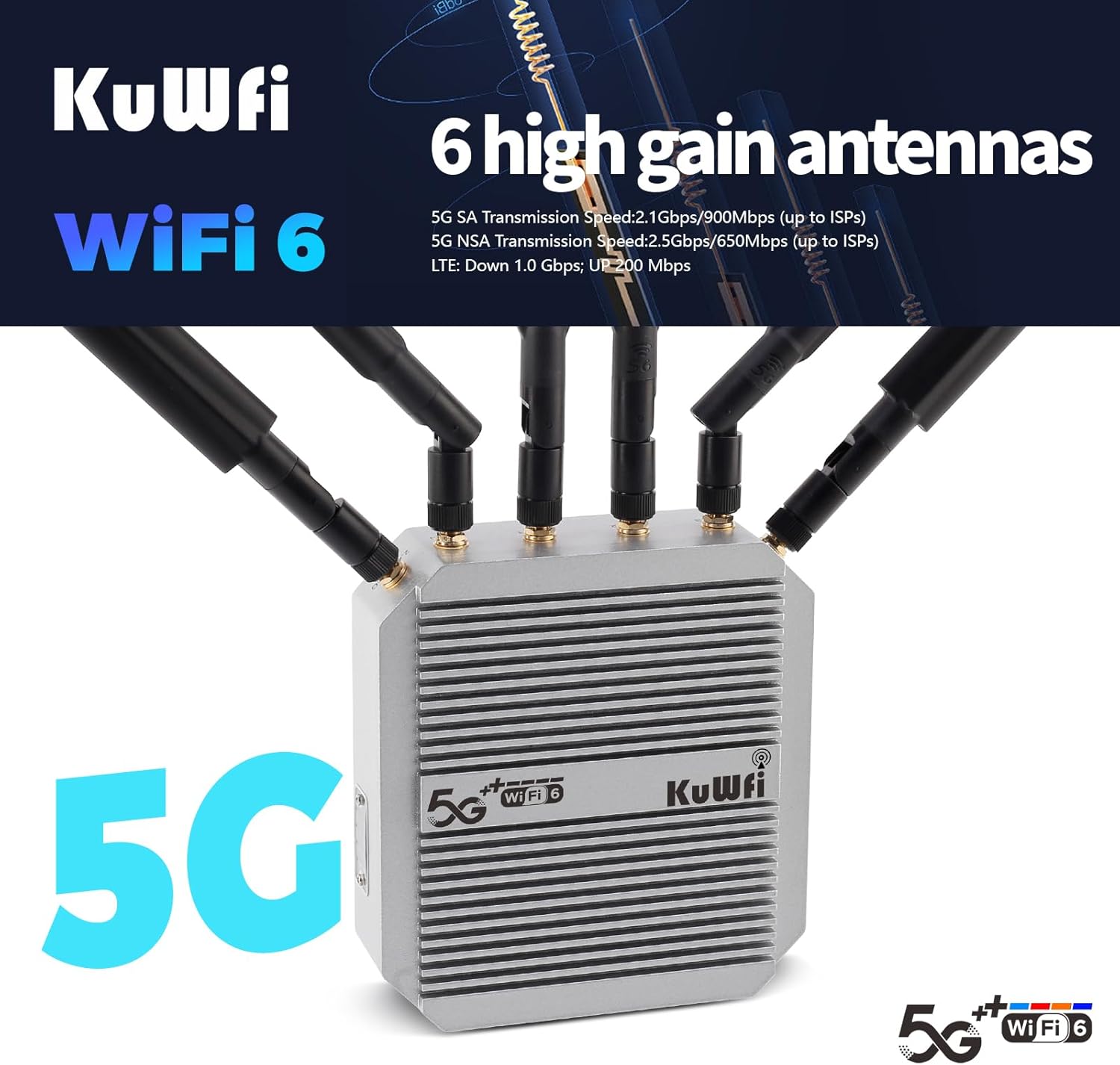
Figure 4.2.1: The router features six high-gain antennas for enhanced signal reception and transmission.
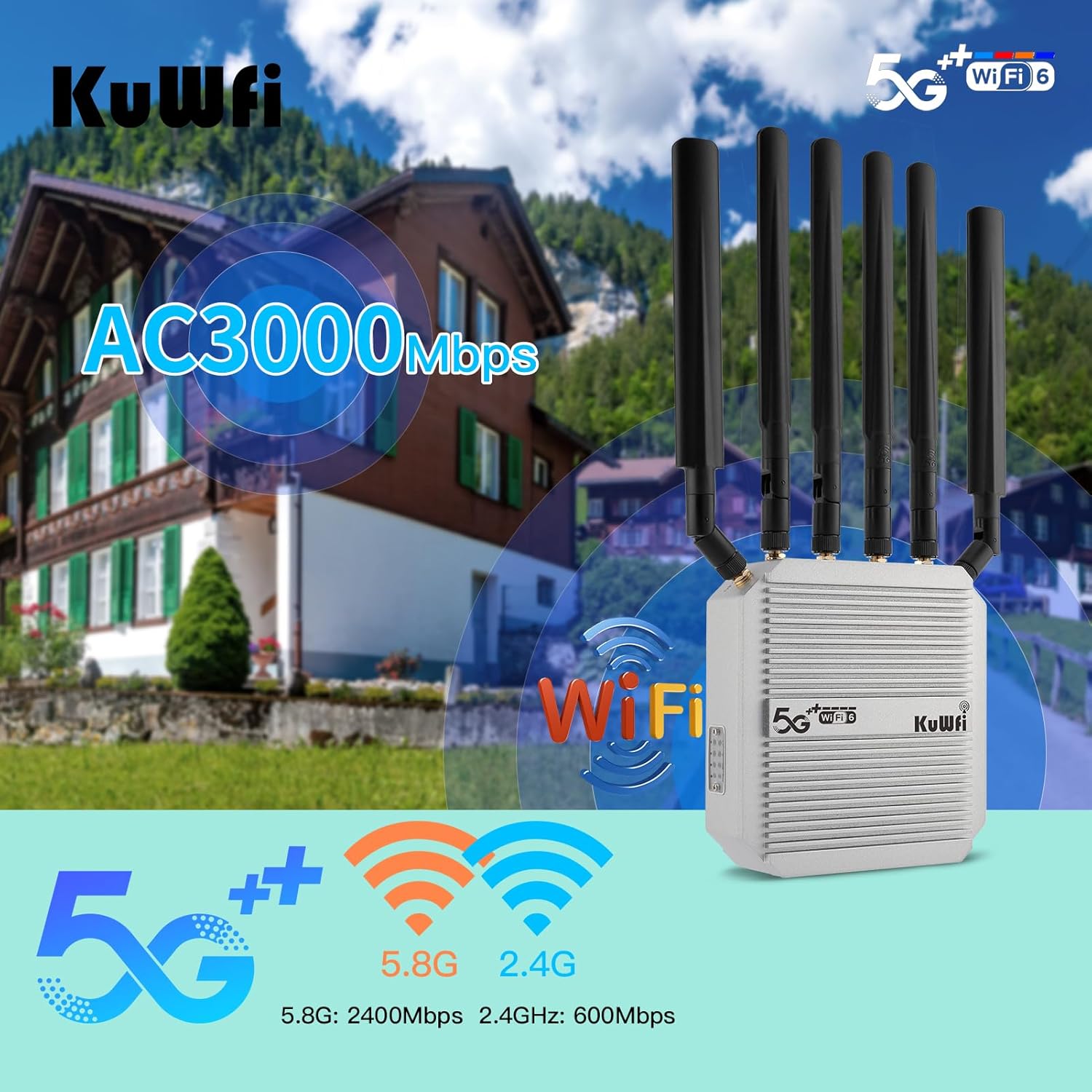
Figure 4.2.2: The router supports AC3000Mbps Wi-Fi speeds across 5.8GHz (2400Mbps) and 2.4GHz (600Mbps) bands.

Figure 4.2.3: The router provides 360-degree Wi-Fi coverage and features a LAN port for wired connections and dual SIM slots.

Figure 4.2.4: The router is powered via a 48V PoE Power Supply, conforming to IEEE 802.3af/at standards.

Figure 4.2.5: Supported 5G and LTE Frequency Bands for global compatibility.
5. Maintenance
To ensure the longevity and optimal performance of your KuWFi Outdoor 5G Router, follow these maintenance guidelines:
- Cleaning: Periodically clean the exterior of the router with a soft, dry cloth. Do not use liquid cleaners or aerosols. Ensure all ports are free of dust and debris.
- Firmware Updates: Check the manufacturer's website (KuWFi) regularly for firmware updates. Keeping the firmware updated ensures the latest features, security patches, and performance improvements. Follow the instructions provided with the firmware update carefully.
- Antenna Check: Periodically check that all antennas are securely attached and free from damage.
- Environmental Conditions: While the device is IP67 rated, avoid exposing it to extreme conditions beyond its operating specifications. Ensure proper ventilation if installed in an enclosed space (though designed for outdoor, open-air use).
6. Troubleshooting
If you encounter issues with your KuWFi Outdoor 5G Router, refer to the following common problems and solutions:
| Problem | Possible Cause | Solution |
|---|---|---|
| No Power/LEDs Off | Power cable disconnected; Faulty PoE injector/power supply. | Check all power connections. Ensure the PoE injector is receiving power and is correctly connected to the router. |
| No Internet Connection | SIM card not inserted correctly; Invalid APN settings; No cellular signal; SIM card not activated/no data plan. | Reinsert SIM cards; Verify APN settings in the web interface; Relocate the router for better signal; Contact your mobile carrier. |
| Slow Internet Speed | Weak cellular signal; Network congestion; Incorrect antenna orientation. | Check signal strength in the web interface; Adjust router position/antenna direction; Contact your mobile carrier for network status. |
| Cannot Access Web Interface | Incorrect IP address; Network cable issue; Router not powered on; Firewall blocking access. | Verify the router's IP address; Check Ethernet cable connection; Ensure router is powered on; Temporarily disable firewall. |
| Wi-Fi Not Broadcasting | Wi-Fi disabled in settings; Incorrect Wi-Fi configuration. | Access the web interface and ensure Wi-Fi is enabled and configured correctly. |
| Forgot Login Password | Password lost. | Perform a factory reset using the reset button (refer to Quick Start Guide for location and procedure). Note: This will erase all custom settings. |
If the problem persists after trying these solutions, please contact KuWFi customer support.
7. Specifications
| Feature | Detail |
|---|---|
| Product Dimensions | 5.3 x 1.8 x 13.8 inches |
| Item Weight | 3.27 pounds |
| Model Number | SL-C130 |
| Brand | KuWFi |
| Special Feature | Weatherproof, LED Indicator |
| Frequency Band Class | Dual-Band (2.4GHz, 5.8GHz) |
| Wireless Communication Standard | 802.11n, 802.11b, 802.11ax (Wi-Fi 6), 802.11a, 802.11ac |
| Compatible Devices | Personal Computer, Tablet, Smart Television, Smartphone |
| Recommended Uses For Product | Outdoor |
| Connectivity Technology | Ethernet, Wireless |
| Manufacturer | KuWFi |
| Country of Origin | China |
8. Warranty and Support
8.1 Warranty Information
KuWFi offers a 3-Year Quality Service for this product. Please retain your proof of purchase for warranty claims. The warranty covers manufacturing defects and malfunctions under normal use conditions.
8.2 Customer Support
Should you have any queries about the KuWFi C130 5G SIM router, require further details, or need assistance, please feel free to reach out to our support team.
Email: support@kuwfi.com
Our team is available for one-to-one VIP service and 24-hour support.
Ask a question about this manual
Ask about setup, troubleshooting, compatibility, parts, safety, or missing instructions. Manuals+ will review the question and use this page’s manual context to help answer it.