
1. Introduction
This manual provides detailed instructions for the installation, operation, and maintenance of your Qiumi Zigbee Thermostat, Model QM-T5Z-01. This battery-powered smart thermostat is designed to control gas and water boiler systems, offering convenient temperature management through its physical buttons, a mobile application, and voice commands via Alexa and Google Home. Please read this manual thoroughly before installation and use to ensure proper function and safety.
2. Product Overview
The Qiumi Zigbee Thermostat is a smart device engineered for efficient home heating control. It features a clear LCD display, intuitive physical buttons, and advanced connectivity options.
2.1 Key Features
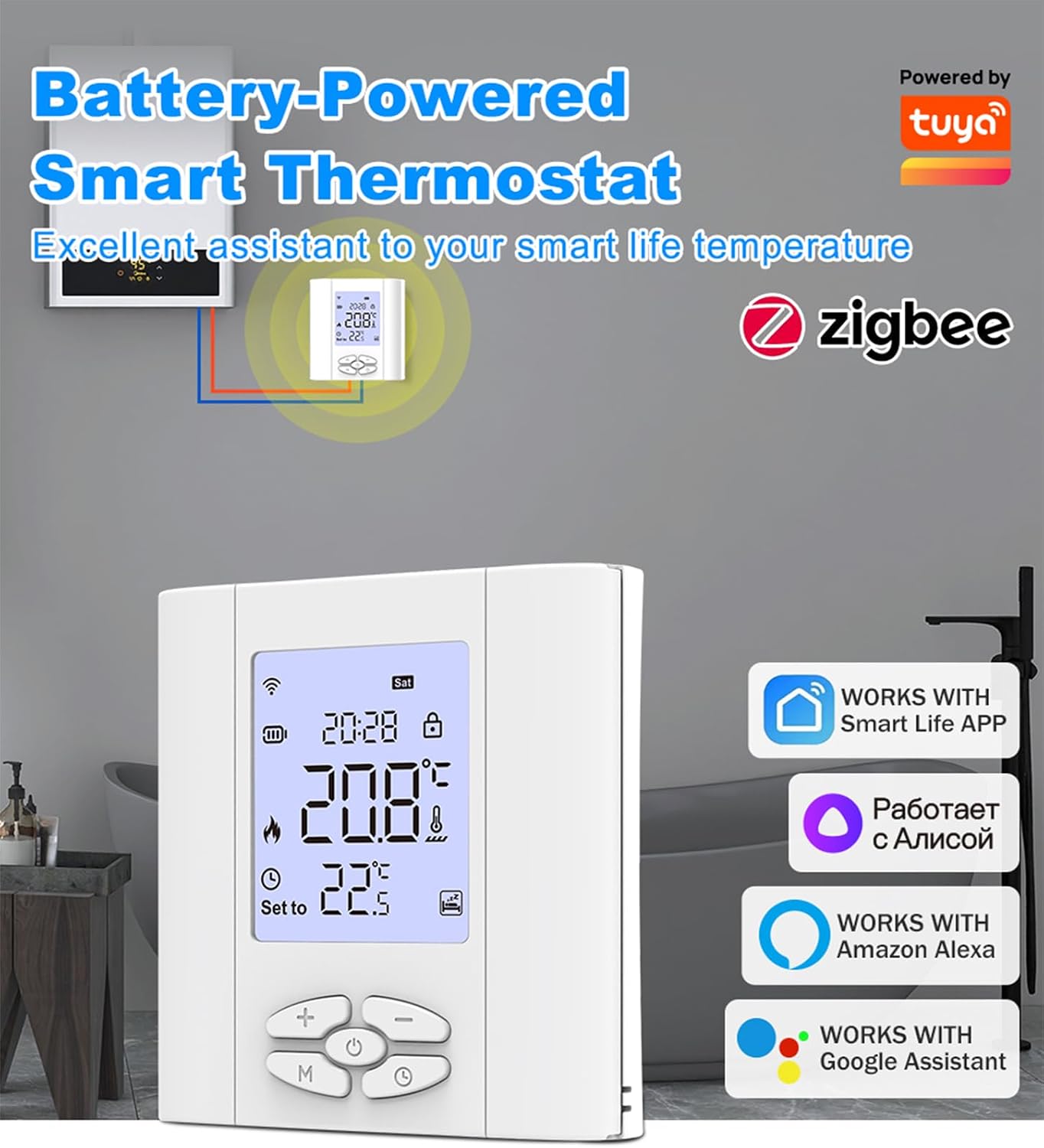
- Zigbee Wireless Connectivity: Requires a Tuya Zigbee wireless gateway for smart functions.
- Voice Control: Compatible with Amazon Alexa and Google Assistant for hands-free operation.
- Remote Control: Manage your home's temperature from anywhere using the Tuya / Smart Life mobile application.
- Battery Powered: Operates on 2x 1.5V AA batteries, suitable for installations without direct AC power.
- High Precision Sensors: Ensures accurate temperature measurement and control for optimal comfort.
- Dry Contact Output: Designed for boiler control with a dry contact signal, supporting up to 5A maximum load current.
- Clear LCD Display: A 1.8-inch TN LCD screen with backlight, which can be turned off to avoid disturbance.
- Child Lock Function: Prevents unauthorized changes to settings.
2.2 Product Components

The thermostat unit includes a main body with an LCD screen, five physical control buttons (+, -, Power, Mode, Clock), and a battery compartment on the rear. It is designed for wall mounting.

The thermostat is powered by two 1.5V AA batteries, which are not included. The battery compartment is easily accessible for replacement.
3. Specifications
| Specification | Value |
|---|---|
| Model Number | QM-T5Z-01 |
| Power Supply | 2 x 1.5V AA Batteries (not included) |
| Power Consumption | 1W max (Wi-Fi 3W max) |
| Setting Temperature Range | 5 ~ 95 ℃ |
| Floor Limited Range | 20 ~ 90 ℃ |
| On/Off Deviation | 0.5 ~ 10 ℃ (Factory setting ± 1 ℃) |
| Ambient Temperature | -5 ~ 50 ℃ |
| Protection Level | IP20 |
| Shell Material | Anti-flammable PC |
| Display Size | 1.8 Inches |
| Connectivity Technology | Zigbee (requires gateway) |
| Control Type | Button, App, Voice (Alexa, Google Home) |
4. Setup and Installation
Proper installation is crucial for the safe and efficient operation of your thermostat. It is recommended that installation be performed by a qualified professional.
4.1 Battery Installation
- Gently remove the front panel of the thermostat to access the battery compartment.
- Insert two 1.5V AA batteries, ensuring correct polarity (+/-).
- Replace the front panel securely.

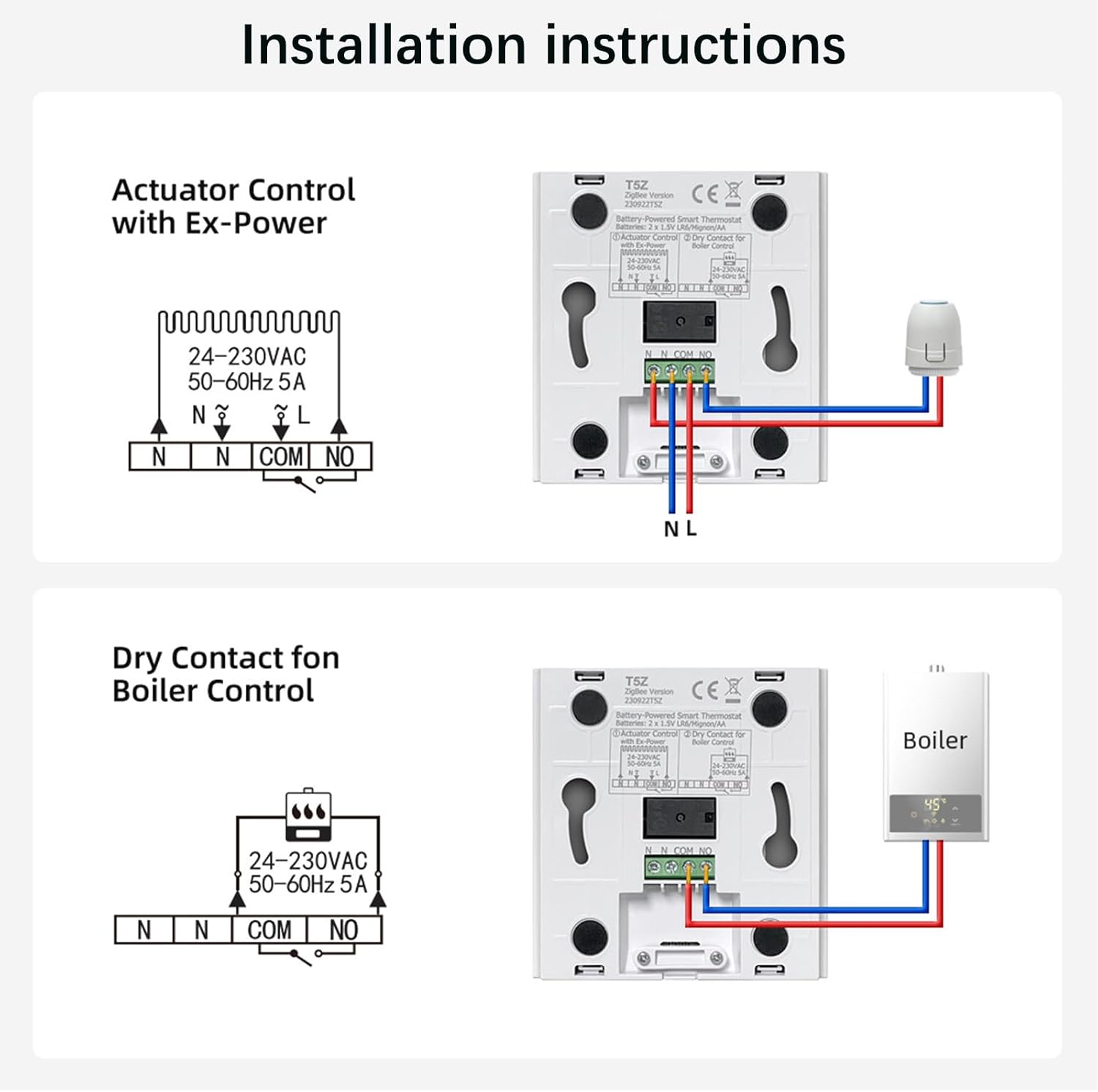
4.2 Wiring Diagrams
The thermostat is designed for use with valve actuators or water/gas boilers. Ensure the power supply is disconnected before performing any wiring.
4.2.1 Actuator Control Wiring
For actuator control, connect the N (Neutral) and L (Live) terminals to the 24-230VAC 50-60Hz power supply. Connect the COM (Common) and NO (Normally Open) terminals to your valve actuator. Refer to the diagram for precise connections.
4.2.2 Dry Contact for Boiler Control Wiring
For dry contact boiler control, connect the N (Neutral) and L (Live) terminals to the 24-230VAC 50-60Hz power supply. Connect the COM (Common) and NO (Normally Open) terminals to the boiler's dry contact input. This configuration allows the thermostat to switch the boiler on or off. Refer to the diagram for precise connections.
4.3 Zigbee Gateway Connection
This thermostat requires a Tuya Zigbee wireless gateway to enable smart features like app control and voice commands. Ensure your Zigbee gateway is set up and connected to your home Wi-Fi network.

- Power on your thermostat and ensure it is in pairing mode (refer to the thermostat's display for pairing indicators, typically a flashing Wi-Fi or Zigbee icon).
- Open the Tuya / Smart Life app on your smartphone.
- Add a new device and select the Zigbee Thermostat from the list.
- Follow the in-app instructions to complete the pairing process with your Zigbee gateway.
5. Operation
The Qiumi Zigbee Thermostat offers multiple ways to control your home's heating system.
5.1 Basic Button Functions
The thermostat features five physical buttons for direct control:
- '+' Button: Increases the set temperature or navigates menu options.
- '-' Button: Decreases the set temperature or navigates menu options.
- Power Button: Turns the thermostat on/off.
- 'M' (Mode) Button: Switches between different operating modes (e.g., manual, automatic, programmable).
- Clock Button: Accesses time and schedule settings.
5.2 Screen Display
The 1.8-inch LCD screen provides real-time information about the current temperature, set temperature, operating mode, and connectivity status. The backlight can be adjusted or turned off to prevent disturbance, especially during sleep, while maintaining display clarity.

5.3 Mobile App Control (Tuya / Smart Life)
Once paired with your Zigbee gateway, you can control the thermostat remotely using the Tuya or Smart Life application on your smartphone (Android or iOS).
- Adjust temperature settings.
- Change operating modes.
- Set up weekly programming schedules.
- Monitor current room temperature.
5.4 Voice Control (Alexa / Google Home)
Integrate your thermostat with Amazon Alexa or Google Home for convenient voice-activated control. After linking your Tuya/Smart Life account to your voice assistant, you can use commands such as:
- "Alexa, set the thermostat to 22 degrees."
- "Hey Google, what's the temperature in the living room?"
- "Alexa, turn on the heating."
5.5 Home Sharing Function
The thermostat supports a home sharing function, allowing multiple family members to control the device through their respective mobile applications. This feature enables collaborative management of your smart home environment.

6. Maintenance
Regular maintenance ensures the longevity and optimal performance of your thermostat.
- Cleaning: Wipe the thermostat's surface with a soft, dry cloth. Do not use abrasive cleaners or solvents.
- Battery Replacement: Replace the AA batteries when the low battery indicator appears on the display. Always use new, high-quality alkaline batteries.
- Firmware Updates: Periodically check the Tuya / Smart Life app for available firmware updates to ensure your thermostat has the latest features and security enhancements.
7. Troubleshooting
If you encounter issues with your Qiumi Zigbee Thermostat, refer to the following common problems and solutions:
- Thermostat not powering on: Check if the batteries are correctly inserted and fully charged. Replace if necessary.
- No connection to Zigbee gateway: Ensure the gateway is powered on and connected to your Wi-Fi. Re-initiate the pairing process in the Tuya / Smart Life app.
- Inaccurate temperature readings: Ensure the thermostat is not exposed to direct sunlight, drafts, or heat sources that could affect its sensor.
- Boiler not responding: Verify the wiring connections to the boiler. Check the thermostat's operating mode and set temperature. Ensure the boiler itself is functioning correctly.
- Voice control not working: Confirm that your Tuya / Smart Life account is correctly linked to Alexa or Google Home. Check your internet connection and voice assistant device status.
- Display backlight issues: Check settings within the thermostat or app to ensure the backlight is enabled or set to your preferred duration.
If problems persist, consult the Tuya / Smart Life app's help section or contact Qiumi customer support.
8. Safety Information
- Always disconnect power before performing any wiring or installation procedures.
- Do not expose the thermostat to water or excessive humidity.
- Keep the device away from direct heat sources or open flames.
- Ensure proper ventilation around the thermostat.
- Do not attempt to disassemble or repair the thermostat yourself. Contact qualified personnel for service.
- Dispose of used batteries according to local regulations.
9. Warranty and Support
For warranty information and customer support, please refer to the documentation included with your purchase or visit the official Qiumi website. Support is typically available through the brand's customer service channels for technical assistance and troubleshooting beyond this manual.