Introduction
Thank you for choosing the Generic Wireless Bluetooth Keyboard with Touchpad. This ultra-slim, portable keyboard is designed for seamless connectivity with your tablets, smartphones, and laptops running iOS, Android, or Windows operating systems. This manual provides essential information for setup, operation, maintenance, and troubleshooting to ensure optimal performance.
What's in the Box
- 1 x Wireless Bluetooth Keyboard
- 1 x USB Charging Cable (No Charger)
- 1 x User Manual

Image: The Wireless Bluetooth Keyboard connected to a tablet, ready for use.
Product Features
- Wide Compatibility: Compatible with iOS, Android, and Windows tablets, smartphones, and laptops. Note: Not compatible with Mac OS.
- Integrated Multi-Touch Trackpad: Features a sensitive and precise touchpad for navigation and control, eliminating the need for an external mouse.
- Rechargeable Battery: Built-in battery provides over 130 days of standby time on a single charge (2-3 hours charging time) and includes an automatic sleep mode for power saving.
- Ultra-Slim & Portable Design: Compact size (9.56 x 6.85 x 0.23 inches) and lightweight (0.49 lb) for easy transport during travel or business trips.
- Bluetooth 5.1 Connectivity: Ensures a stable wireless connection with a working distance of up to 33 feet.
- Comfortable Typing: Ergonomic design with scissors-key construction provides a laptop-like typing experience, reducing finger fatigue.
- Magnetic Attachment: The aluminum alloy bottom allows for magnetic attachment to compatible iPad cases.
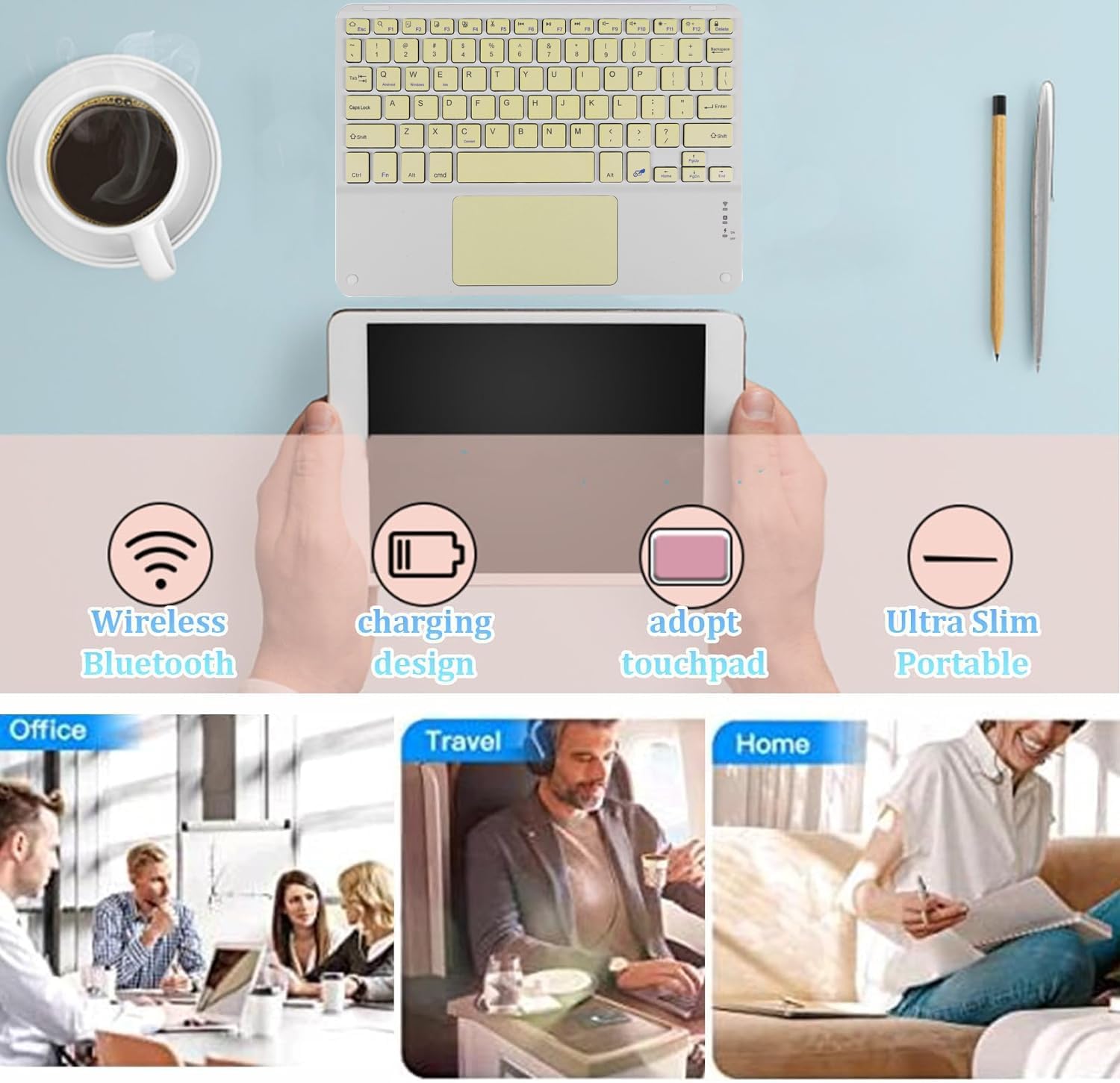
Image: Overview of the keyboard's main features and versatile usage environments.
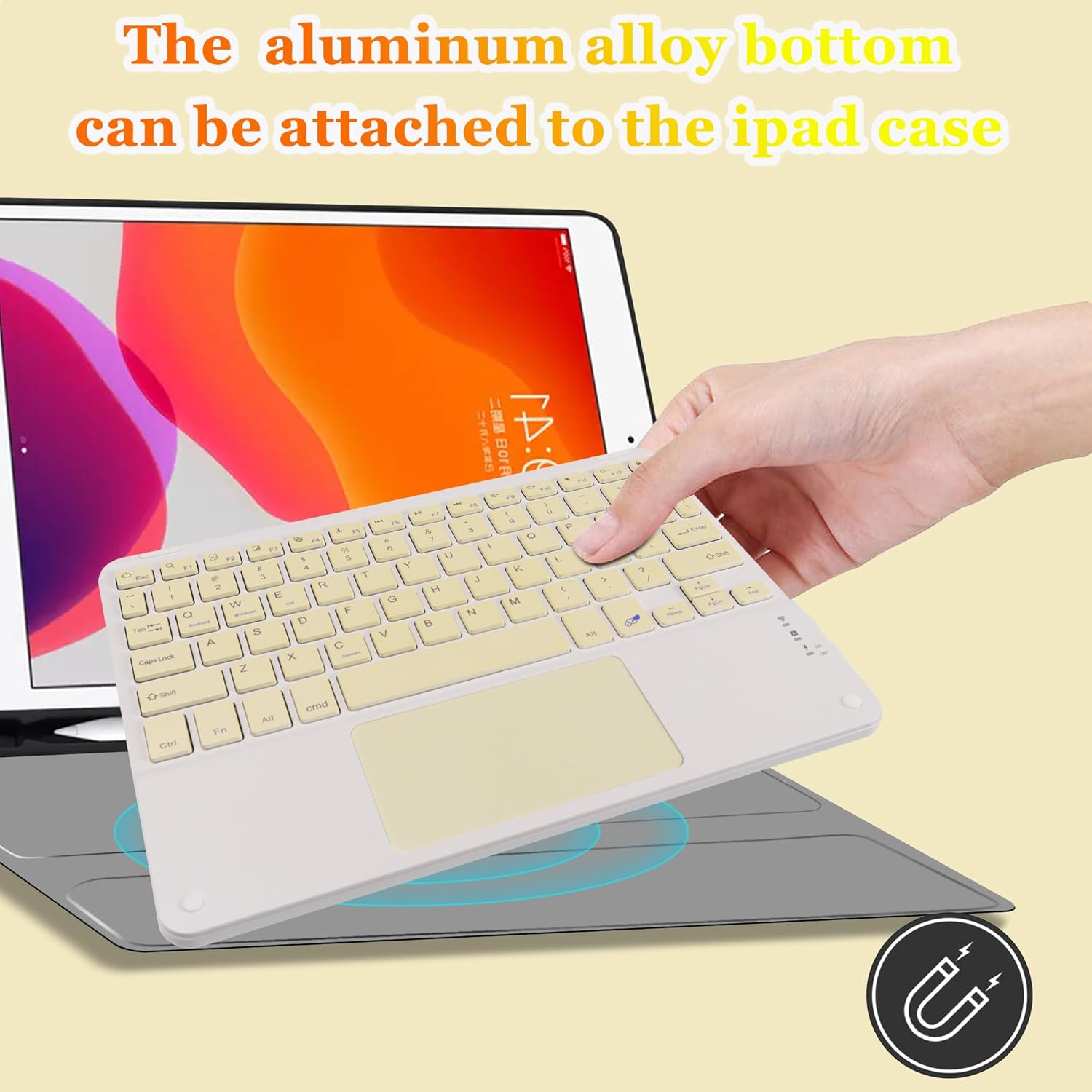
Image: Demonstrating the magnetic attachment feature of the keyboard to a tablet case.

Image: Detail of the keyboard's keys and the comfortable typing experience provided by its design.
Setup Instructions
Follow these steps to connect your Wireless Bluetooth Keyboard to your device:
- Power On: Locate the ON/OFF switch on the keyboard and slide it to the 'ON' position.
- Activate Bluetooth Pairing: Press the FN + C keys simultaneously. The Bluetooth indicator light on the keyboard will begin to flash, indicating it is in pairing mode.
- Enable Bluetooth on Your Device: On your tablet, smartphone, or other Bluetooth-enabled device, go to the Bluetooth settings and turn on Bluetooth.
- Search for Device: Your device will search for available Bluetooth devices. Look for a device named "Bluetooth Keyboard" in the list.
- Connect: Click on "Bluetooth Keyboard" on your device's screen. Your device may prompt you to enter a code displayed on the screen; type this code on the keyboard and press Enter to complete the connection.
Once connected, the Bluetooth indicator light on the keyboard will stop flashing and remain solid or turn off, depending on the keyboard model, indicating a successful connection.

Image: The keyboard demonstrating its wide compatibility with Windows, Android, and iOS devices.
Operating Instructions
Using the Touchpad
The integrated multi-touch touchpad allows for intuitive navigation without a separate mouse. Use standard gestures for pointing, clicking, and scrolling. Refer to your device's operating system settings for specific touchpad gesture configurations.
- Single Finger Tap: Functions as a left-click.
- Two Finger Tap: Functions as a right-click.
- Two Finger Scroll: Drag two fingers up or down to scroll content.

Image: A hand interacting with the keyboard's built-in multi-touch trackpad.
Charging the Keyboard
The keyboard features a built-in rechargeable battery. When the battery is low, the indicator light will signal. Use the provided USB charging cable to recharge the keyboard.
- Connect the small end of the USB charging cable to the keyboard's charging port.
- Connect the larger end of the USB cable to a USB power source (e.g., computer USB port, USB wall adapter).
- The charging indicator light will illuminate during charging and turn off once fully charged.
- A full charge typically takes 2-3 hours.
Maintenance
To ensure the longevity and optimal performance of your keyboard, follow these maintenance guidelines:
- Cleaning: Use a soft, dry, lint-free cloth to clean the keyboard surface. For stubborn dirt, slightly dampen the cloth with water or a mild cleaning solution. Avoid excessive moisture.
- Storage: When not in use for extended periods, store the keyboard in a cool, dry place away from direct sunlight and extreme temperatures.
- Avoid Liquids: Do not expose the keyboard to liquids. In case of accidental spills, immediately power off the keyboard and allow it to dry completely before reuse.
- Handle with Care: Avoid dropping the keyboard or subjecting it to strong impacts, which can damage internal components.
Troubleshooting
If you encounter issues with your keyboard, please refer to the following common solutions:
- Keyboard Not Connecting:
- Ensure the keyboard is powered on and fully charged.
- Make sure Bluetooth is enabled on your device.
- Put the keyboard back into pairing mode (FN + C) and re-attempt connection.
- Forget the "Bluetooth Keyboard" device from your device's Bluetooth settings and try pairing again.
- Ensure the keyboard is within the 33-foot operating range of your device.
- Keys Not Responding:
- Check if the keyboard battery is low and recharge it.
- Reconnect the keyboard to your device.
- Restart both the keyboard and your connected device.
- Touchpad Not Working Correctly:
- Ensure your device's operating system supports external touchpads and that touchpad functionality is enabled in settings.
- Clean the touchpad surface to remove any dirt or debris.
- Reconnect the keyboard.
- Lag or Disconnections:
- Reduce the distance between the keyboard and your device.
- Avoid interference from other wireless devices operating on the same frequency.
- Ensure the keyboard is fully charged.
Specifications
| Feature | Detail |
|---|---|
| Product Dimensions | 9.64 x 7.08 x 0.2 inches (24.48 x 17.98 x 0.5 cm) |
| Item Weight | 8.6 ounces (243.8 grams) |
| Connectivity Technology | Bluetooth 5.1 |
| Compatible Devices | iOS, Android, Windows Tablets, Smartphones, Laptops (Not Mac OS) |
| Special Features | Lightweight, Portable, Built-in Trackpad |
| Battery | 1 Lithium Ion battery (included) |
| Charging Time | 2-3 hours |
| Standby Time | Up to 130 days |
| Material | Plastic (with aluminum alloy bottom) |
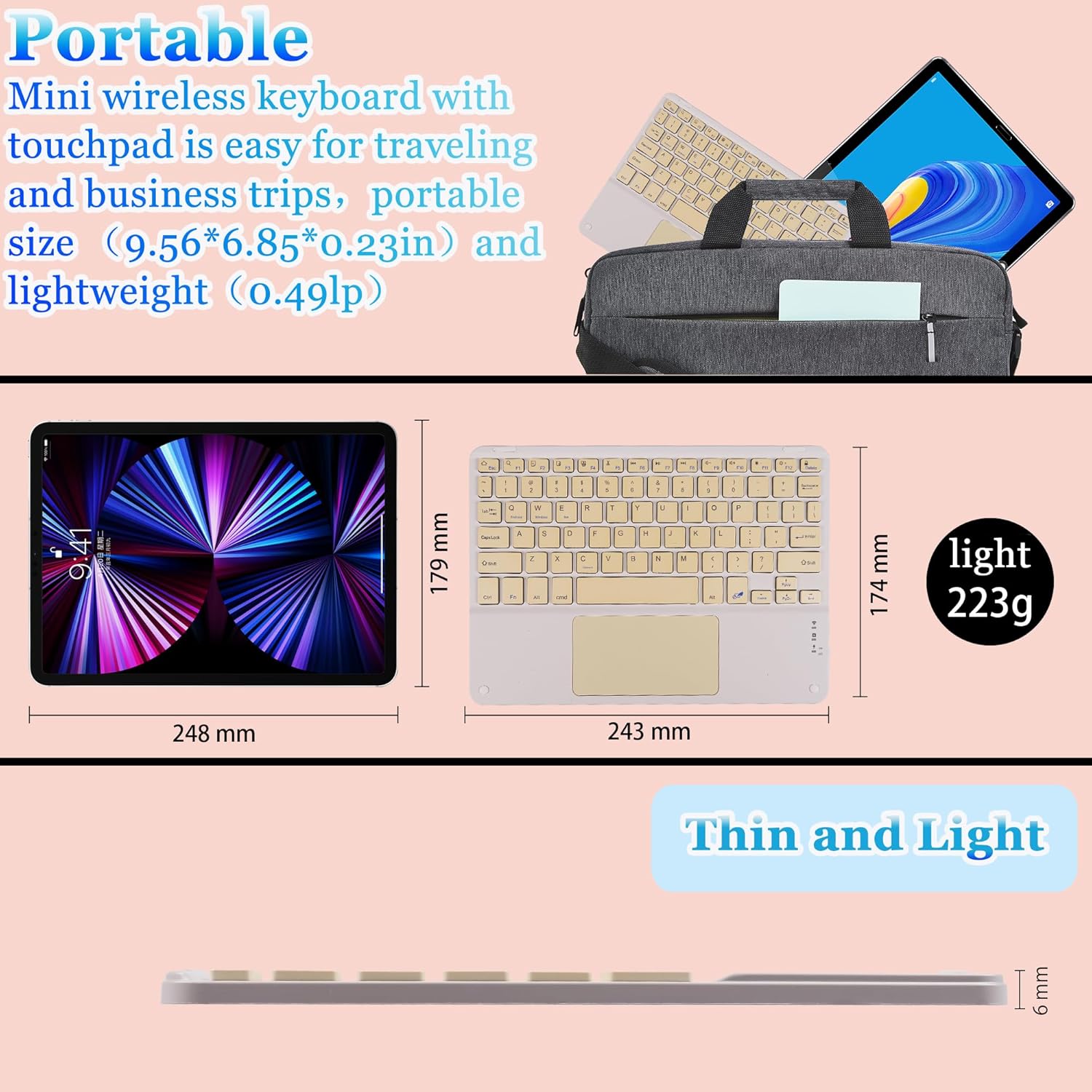
Image: Visual representation of the keyboard's dimensions and lightweight design.
Warranty and Support
This product comes with a standard manufacturer's warranty. For specific warranty details, please refer to the documentation included with your purchase or contact the retailer.
If you require further assistance, technical support, or have questions not covered in this manual, please contact the seller or manufacturer through your purchase platform. Please have your product model number (B0CS63W1NC) and purchase date ready when contacting support.