1. Introduction
This manual provides comprehensive instructions for the setup, operation, maintenance, and troubleshooting of your vretti TP6 Mini Sticker Printer. Please read this manual thoroughly before using the device to ensure proper function and longevity.
2. Product Overview
The vretti TP6 is a portable thermal printer designed for printing black and white photos, sticky notes, scrapbooks, memos, to-do lists, and various DIY projects. It operates wirelessly via Bluetooth and utilizes thermal paper, eliminating the need for ink, toner, or ribbons.
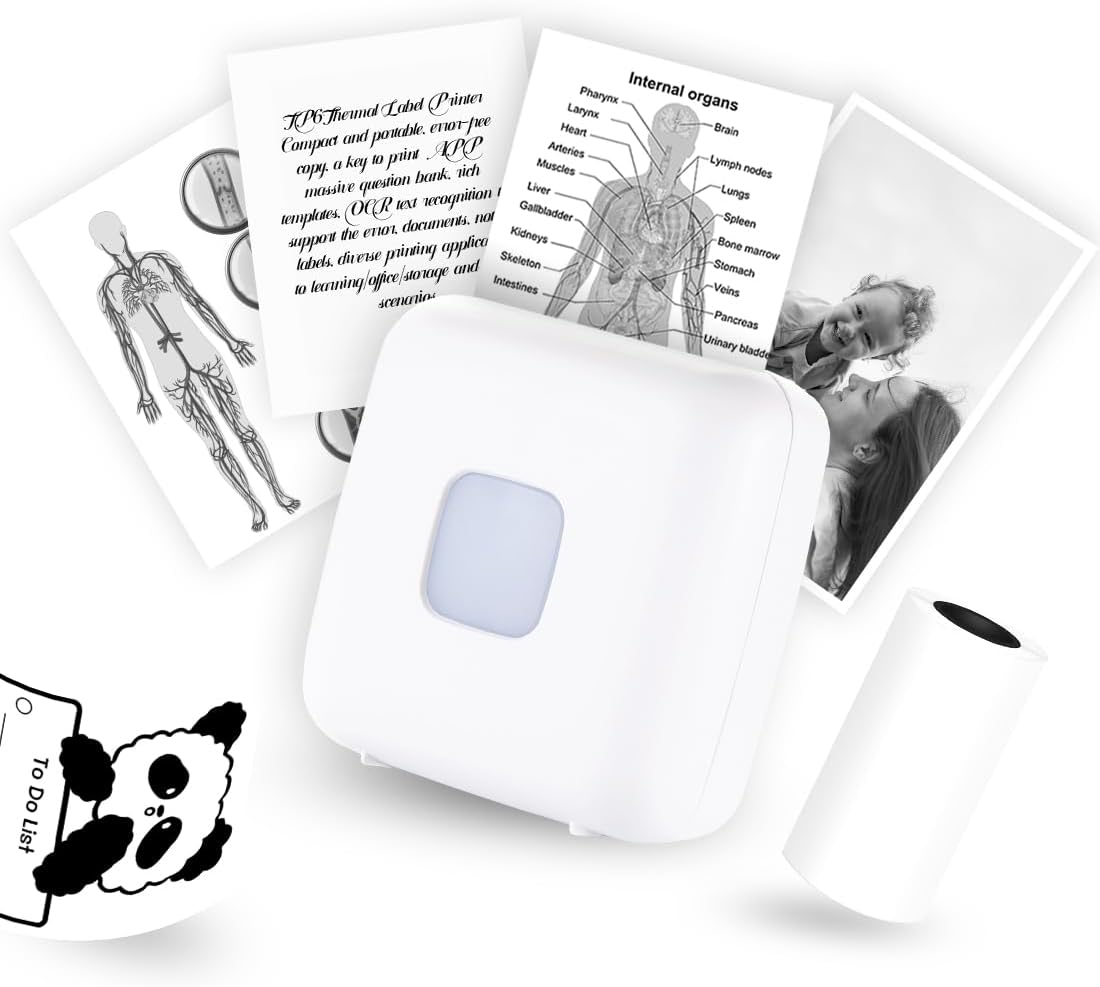
Image: The vretti TP6 Mini Sticker Printer, a compact white device, surrounded by examples of its printouts including diagrams, text documents, and black and white photographs. A roll of thermal paper is also visible.
Key Features:
- High Resolution: 300 DPI for clear black and white printouts.
- Inkless Printing: Utilizes thermal paper, requiring no ink cartridges.
- Portable Design: Compact and lightweight for easy carrying.
- Wireless Connectivity: Connects via Bluetooth to smartphones and tablets.
- Versatile Application: Suitable for printing photos, study notes, labels, and various creative projects.
- Powerful "Xlife Pro" App: Offers various fonts, filter effects, themes, and templates for customization.

Image: A collage demonstrating various applications of the vretti TP6 printer, such as printing shopping lists, outlines for color filling, study notes, custom stickers, black and white photos, and quick memos.

Image: The vretti TP6 printer shown in use, producing a black and white photo. The image highlights the 300 DPI resolution for high-definition printouts.
3. Setup Guide
Follow these steps to set up your vretti TP6 Mini Sticker Printer for the first time.
3.1 Package Contents:
- 1x vretti TP6 Mini Sticker Printer
- 1x 57x30mm Non-Sticker Thermal Paper Roll
- 1x USB Type-C Charging Cable
- 1x Instruction Manual (this document)
Please verify all items are present upon unboxing.
3.2 Initial Charging:
Before first use, fully charge the printer using the provided USB Type-C cable. Connect the cable to the printer's charging port and a standard USB power adapter (not included). The charging indicator light will provide status.
3.3 Installing Thermal Paper:
- Open the printer cover by gently sliding it open or pressing the release button (refer to diagram).
- Insert the thermal paper roll into the paper compartment, ensuring the printing side of the paper faces the thermal print head.
- Pull a small length of paper out of the printer and close the cover firmly until it clicks into place.

Image: A visual guide showing the steps for setting up the printer: 1. Opening the printer cover. 2. Inserting the thermal paper roll. 3. Long pressing the power button to turn on the device. 4. Begin printing using the "Xlife Pro" app.
3.4 App Installation and Bluetooth Connection:
- Download the "Xlife Pro" app from your device's app store (Google Play Store for Android or Apple App Store for iOS).
- Ensure your phone's Bluetooth is enabled.
- Long press the power button on the vretti TP6 printer for 3 seconds to turn it on. The indicator light will illuminate.
- Open the "Xlife Pro" app. The app will guide you to connect to the printer via Bluetooth. Select "TP6" from the list of available devices.
- Once connected, the app will indicate a successful pairing.

Image: A step-by-step visual guide for Bluetooth connection: 1. Download the "Xlife Pro" app. 2. Activate Bluetooth on your phone and connect to the printer. 3. Load thermal paper into the printer. 4. Begin printing using the app.
4. Operating Instructions
The vretti TP6 printer is operated primarily through the "Xlife Pro" mobile application.
4.1 Using the "Xlife Pro" App:
- Main Interface: Upon opening the app and connecting to your printer, you will see options for various printing functions.
- Photo Printing: Select "Picture printing" to choose images from your gallery. The app allows for basic editing, filters, and themes to enhance your black and white prints.
- Text & Memo Printing: Use "Text note" or "Creative template" to create and print notes, lists, or short messages.
- Document Printing: The app supports printing of certain document types.
- Web Printing: Print content directly from web pages.
- Templates: Explore a variety of pre-designed templates for labels, to-do lists, and decorative borders.
- Adjusting Print Quality: Within the app, you may find settings to adjust print density or contrast for optimal results, especially for photos.

Image: A visual representation of the "Xlife Pro" app's multifunctional interface, displaying options for template printing, text notes, picture printing, document printing, web printing, and stick drawing. Examples of printed output are shown next to the app interface.
4.2 Printing Process:
- Select the content you wish to print within the "Xlife Pro" app.
- Review the preview if available.
- Tap the print button in the app. The printer will begin feeding and printing the thermal paper.
- Once printing is complete, gently tear the paper along the serrated edge of the printer.
5. Maintenance
Proper maintenance ensures the longevity and optimal performance of your vretti TP6 printer.
5.1 Cleaning the Print Head:
The thermal print head can accumulate dust or paper residue over time, affecting print quality. To clean:
- Ensure the printer is turned off and disconnected from power.
- Open the printer cover.
- Gently wipe the thermal print head (the dark strip) with a cotton swab lightly dampened with isopropyl alcohol.
- Allow the print head to dry completely before closing the cover and resuming use.
5.2 Paper Handling and Storage:
- Use only 57x30mm thermal paper rolls. Using incorrect paper types can damage the printer.
- Store thermal paper in a cool, dry place away from direct sunlight and excessive heat to prevent premature fading.
- Avoid touching the printing surface of the thermal paper excessively, as oils from skin can affect print quality.
5.3 Battery Care:
- Charge the printer regularly, even if not in frequent use, to maintain battery health.
- Avoid completely draining the battery before recharging.
- If the printer will not be used for an extended period, charge it to about 50% before storage.
6. Troubleshooting
This section addresses common issues you might encounter with your vretti TP6 printer.
| Problem | Possible Cause | Solution |
|---|---|---|
| Printer does not turn on. | Low battery; Power button not pressed long enough. | Charge the printer fully. Press and hold the power button for at least 3 seconds. |
| Cannot connect via Bluetooth. | Bluetooth off on phone; Printer not in pairing mode; Interference. | Ensure Bluetooth is on. Restart printer and app. Move closer to printer. Forget device in phone's Bluetooth settings and re-pair. |
| Poor print quality (faint, blurry, lines). | Low battery; Dirty print head; Incorrect paper orientation; Low resolution image. | Charge printer. Clean print head (see Maintenance). Ensure paper is inserted correctly. Use higher resolution images. Adjust print density in app. |
| Paper jam. | Improper paper insertion; Foreign object. | Turn off printer. Open cover and carefully remove jammed paper. Reinsert paper correctly. Check for any obstructions. |
| App crashes or freezes. | App bug; Outdated app version; Device memory issues. | Restart the app. Check for app updates. Restart your mobile device. |
7. Specifications
Detailed technical specifications for the vretti TP6 Mini Sticker Printer.
| Feature | Detail |
|---|---|
| Model | TP6 |
| Printing Technology | Thermal |
| Print Resolution | 300 DPI (Monochrome) |
| Connectivity | Bluetooth, USB Type-C |
| Compatible Devices | Smartphones, Tablets (Android, iOS) |
| Maximum Media Size | 57x30mm (Roll Paper) |
| Supported Paper Types | Thermal non-sticker and sticker paper rolls |
| Battery Type | Lithium Ion (Included) |
| Product Dimensions | 8.6 x 8.6 x 4.1 cm |
| Item Weight | 0.17 Kilograms |
| Manufacturer | vretti |
8. Warranty and Support
For any issues or inquiries regarding your vretti TP6 Mini Sticker Printer, please contact our customer support.
- Customer Service: vretti offers 24-hour after-sales service.
- Email Support: You can reach us at support@vretti.net.
- Manufacturer Address: Zhu hai, Guangdong, China.
Please retain your purchase receipt for warranty purposes.


