Introduction
This manual provides comprehensive instructions for the Dehuka Wireless Gamepad, designed for use with Nintendo Switch, PC, and Android devices. It features precise control, ergonomic comfort, and advanced wireless connectivity. Please read this manual carefully before using the product to ensure proper operation and longevity.

Figure 1: Dehuka Wireless Gamepad. This image displays the front of the controller, highlighting its design and the included interchangeable D-pads.
Package Contents
Upon unpacking, please verify that all the following items are included:
- 1 x Dehuka Wireless Gamepad
- 1 x USB-C Charging Cable
- 1 x Interchangeable D-pad (additional to the pre-installed one)
- 1 x Instruction Manual (this document)
Key Features
The Dehuka Wireless Gamepad is equipped with a range of features to enhance your gaming experience:
- Advanced Bluetooth Connectivity: Ensures a stable and high-quality wireless connection.
- Ergonomic Design: Crafted for comfort during extended gaming sessions with anti-slip ABS grips.
- Wide Compatibility: Supports Nintendo Switch (including Lite and OLED), PC (Steam), Android, and iOS devices.
- Dual Vibration Motors: Provides immersive haptic feedback for a realistic gaming experience.
- Gyro Axis Function: Offers precise motion control for compatible games.
- Turbo Function: Allows for rapid, repeated button presses with adjustable speeds.
- Long-lasting Battery: Built-in 400mAh lithium battery provides up to 10 hours of continuous play.
- Programmable Buttons: Customize your gameplay experience by remapping buttons.
- Adjustable RGB LED Lighting: Personalize the controller's appearance.
- Headphone Jack: Connect your headphones for immersive audio and communication.
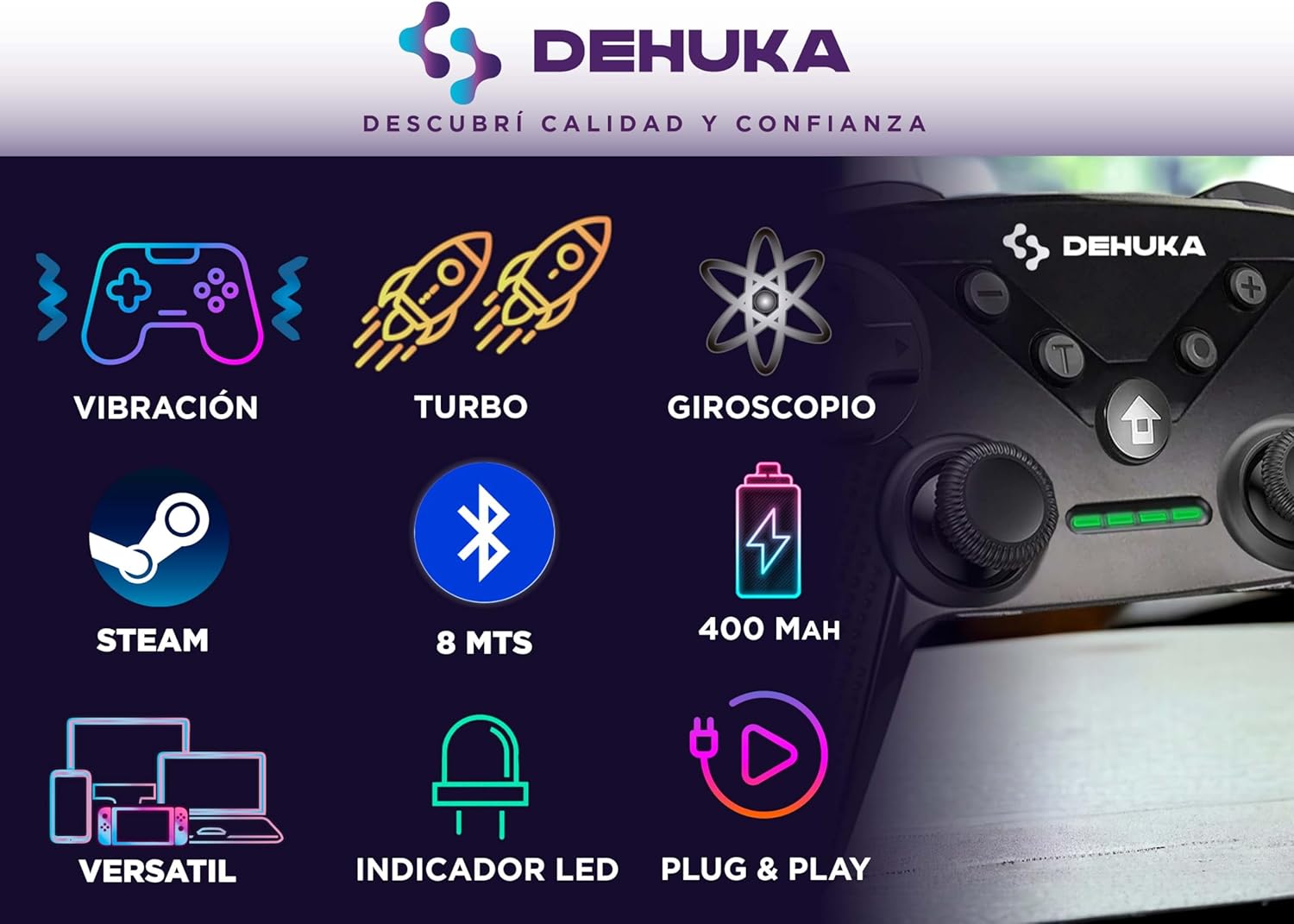
Figure 2: Key Features Overview. This infographic visually summarizes the main functionalities of the Dehuka Gamepad.
Setup
Initial Charging
Before first use, it is recommended to fully charge the gamepad.
- Connect the supplied USB-C cable to the charging port on the gamepad.
- Connect the other end of the USB-C cable to a USB power source (e.g., computer USB port, USB wall adapter).
- The LED indicator lights on the gamepad will show charging status. A full charge typically takes 2 to 3 hours.
- Once fully charged, the LED indicators will change (e.g., turn off or solid green), indicating the battery is full.

Figure 3: Rechargeable Battery. This image illustrates the internal 400mAh battery and its charging/usage duration.
Powering On/Off
- To Power On: Press and hold the Home button (usually the central button with a house icon) for a few seconds until the LED indicators light up.
- To Power Off: Press and hold the Home button for approximately 5 seconds until the LED indicators turn off. The controller will also automatically power off after a period of inactivity.
Connectivity
Bluetooth Pairing
The Dehuka Wireless Gamepad connects via Bluetooth 5.0, offering a stable connection up to 8 meters.
- Ensure the gamepad is charged and powered on.
- Activate Bluetooth on your device (Nintendo Switch, PC, Android).
- On your device, search for new Bluetooth devices. The gamepad should appear as "Pro Controller" or similar.
- Select the gamepad from the list to pair. The LED indicators on the gamepad will confirm successful pairing.

Figure 4: Bluetooth 5.0 Connectivity. This image illustrates the wireless range and stable connection.
Device Compatibility
This gamepad is designed for broad compatibility across various gaming platforms:
- Nintendo Switch: Compatible with Switch, Switch Lite, and Switch OLED models.
- PC: Supports Windows PCs, including Steam.
- Android: Connects to Android smartphones and tablets.
- iOS: Compatible with iOS devices.

Figure 5: Multiple Device Compatibility. This diagram shows the range of devices the controller can connect to.

Figure 6: Nintendo Switch Compatibility. The controller shown in use with a Nintendo Switch console.
Operating Instructions
Basic Controls
The gamepad features standard button layouts for intuitive control:
- Analog Sticks: Two high-precision analog sticks for 360-degree movement.
- D-Pad: A directional pad for precise directional input, interchangeable for user preference.
- Action Buttons: A, B, X, Y buttons for in-game actions.
- Shoulder Buttons/Triggers: L, R, ZL, ZR buttons for additional controls.
- Function Buttons: Plus (+), Minus (-), Home, and Screenshot buttons for system functions.
Special Functions
Turbo Function
The Turbo function allows a button to be pressed repeatedly as long as it is held down, useful for rapid-fire actions.
- Activating Turbo: Press and hold the Turbo button (T) and then press the action button you wish to apply Turbo to.
- Adjusting Turbo Speed: While holding the Turbo button, move the right analog stick up or down to cycle through three different turbo speeds.
- Deactivating Turbo: Repeat the activation steps for the specific button, or press and hold the Turbo button and then press the action button twice.

Figure 7: Turbo Function. This image highlights the Turbo button and its adjustable speed settings.
Vibration Function
The gamepad features dual vibration motors that provide tactile feedback during gameplay, enhancing immersion. The intensity of the vibration may vary based on the game and platform.

Figure 8: Dual Vibration. A transparent view showing the internal vibration motors.
Gyro Axis
The built-in Gyro Axis provides motion control capabilities, allowing for intuitive aiming and steering in games that support this feature.
Ergonomic Design
The Dehuka Wireless Gamepad is designed with ergonomics in mind, featuring comfortable contours and anti-slip textured grips made from ABS material. This ensures a secure and comfortable hold, even during prolonged gaming sessions, reducing hand fatigue.
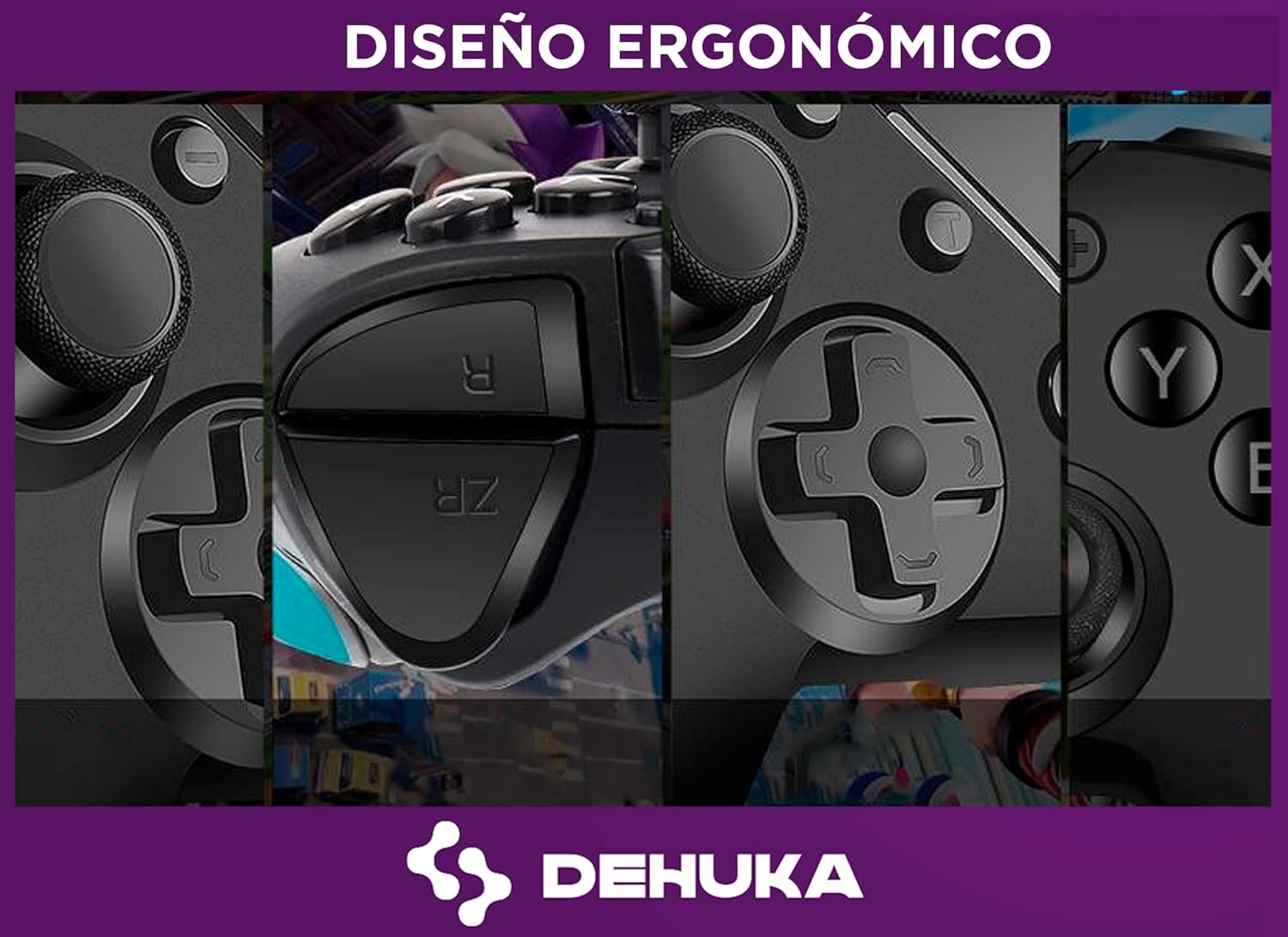
Figure 9: Ergonomic Design. A collage showcasing the comfortable grip and contours of the controller.
Maintenance
To ensure the longevity and optimal performance of your Dehuka Wireless Gamepad, follow these maintenance guidelines:
- Cleaning: Use a soft, dry cloth to wipe the surface of the gamepad. For stubborn dirt, slightly dampen the cloth with water or a mild electronic cleaner. Avoid using harsh chemicals or abrasive materials.
- Storage: Store the gamepad in a cool, dry place away from direct sunlight, extreme temperatures, and high humidity.
- Battery Care: Do not expose the battery to high temperatures or attempt to disassemble it. If the gamepad will not be used for an extended period, charge it periodically (e.g., every 3 months) to maintain battery health.
- Avoid Drops: Protect the gamepad from drops and impacts, which can damage internal components.
Troubleshooting
If you encounter issues with your Dehuka Wireless Gamepad, refer to the following common troubleshooting steps:
| Problem | Possible Cause | Solution |
|---|---|---|
| Gamepad does not power on. | Low battery. | Charge the gamepad fully using the provided USB-C cable. |
| Cannot connect via Bluetooth. | Bluetooth not enabled on device; gamepad not in pairing mode; interference. | Ensure Bluetooth is on. Put gamepad in pairing mode (refer to device-specific instructions if needed). Move closer to the device. Restart both gamepad and device. |
| Buttons or joysticks unresponsive. | Software glitch; physical damage. | Restart the gamepad. Ensure firmware is up to date (if applicable). If problem persists, contact customer support. |
| Vibration not working. | Game does not support vibration; vibration setting off. | Check game settings for vibration options. Ensure the game supports vibration feedback. |
Specifications
| Feature | Detail |
|---|---|
| Model Number | B0CS4XGBC5 |
| Connectivity | Bluetooth 5.0 |
| Wireless Range | Up to 8 meters (26 feet) |
| Battery Type | Built-in Lithium Battery |
| Battery Capacity | 400 mAh |
| Playtime | Up to 10 hours (approx.) |
| Charging Time | 2-3 hours (approx.) |
| Compatibility | Nintendo Switch (Switch, Lite, OLED), PC (Windows, Steam), Android, iOS |
| Special Features | Dual Vibration, Gyro Axis, Turbo Function (3 speeds), Programmable Buttons, RGB LED Lighting, Headphone Jack |
| Material | ABS with anti-slip treatment |
| Package Dimensions | 16.3 x 14 x 7.2 cm (6.4 x 5.5 x 2.8 inches) |
| Package Weight | 200 g (0.44 lbs) |
Warranty and Support
Specific warranty information for the Dehuka Wireless Gamepad is typically provided at the point of purchase or within separate warranty documentation. Please retain your proof of purchase for any warranty claims.
For technical support, troubleshooting beyond this manual, or warranty inquiries, please contact Dehuka customer service through the retailer where the product was purchased or refer to the official Dehuka website for contact information.