
MECHANIC MASTER C28
Mechanic Master C28 Ultra-Compact MATX PC Case Instruction Manual
Model: C28
1. Introduction
This manual provides detailed instructions for the assembly, installation, and maintenance of your Mechanic Master C28 Ultra-Compact MATX PC Case. Please read this manual thoroughly before beginning any installation to ensure proper setup and optimal performance.
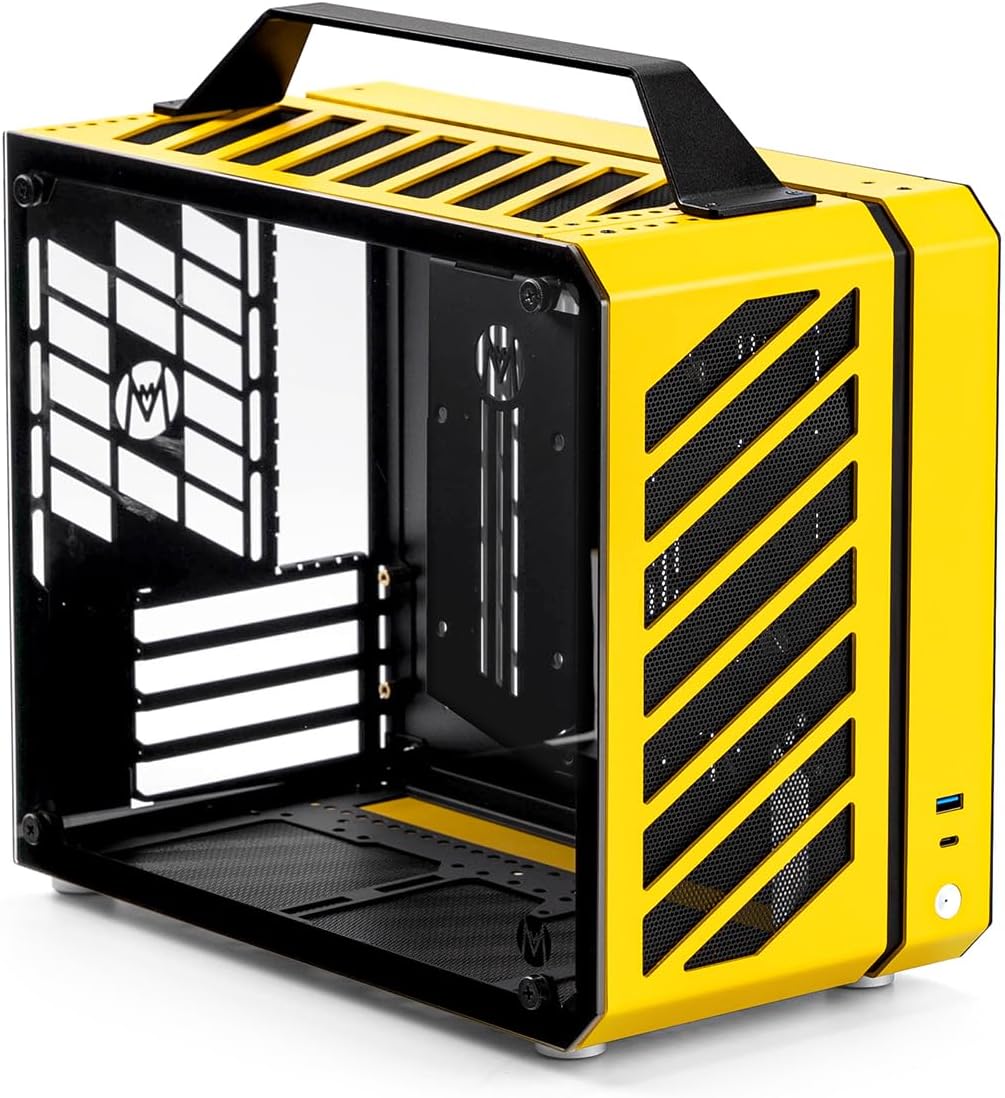
Figure 1: Mechanic Master C28 PC Case (Vitality Yellow)
The Mechanic Master C28 is an ultra-compact PC case designed for Micro-ATX and Mini-ITX motherboards, featuring a portable handle and optimized airflow for efficient cooling in a small form factor.
2. Specifications
| Feature | Detail |
|---|---|
| Model Name | C28 |
| Case Volume | 17.9 Liters |
| Motherboard Compatibility | Micro-ATX, Mini-ITX |
| GPU Length Support | Up to 335mm |
| CPU Cooler Height Support | 162mm (Air Cooler) |
| AIO Radiator Support | 240mm (RAM height ≤44mm) |
| Power Supply Compatibility | ATX (14cm), SFX, SFX-L |
| Material | Alloy Steel, Aluminum, Tempered Glass |
| Dimensions (LxWxH) | 342 x 185 x 284 mm (excluding foot pad) |
| Net Weight | 3.5 kg (7.7 lbs) |
| Front I/O Ports | 1x USB 3.0, 1x Type-C, 1x Aluminum Alloy Switch |
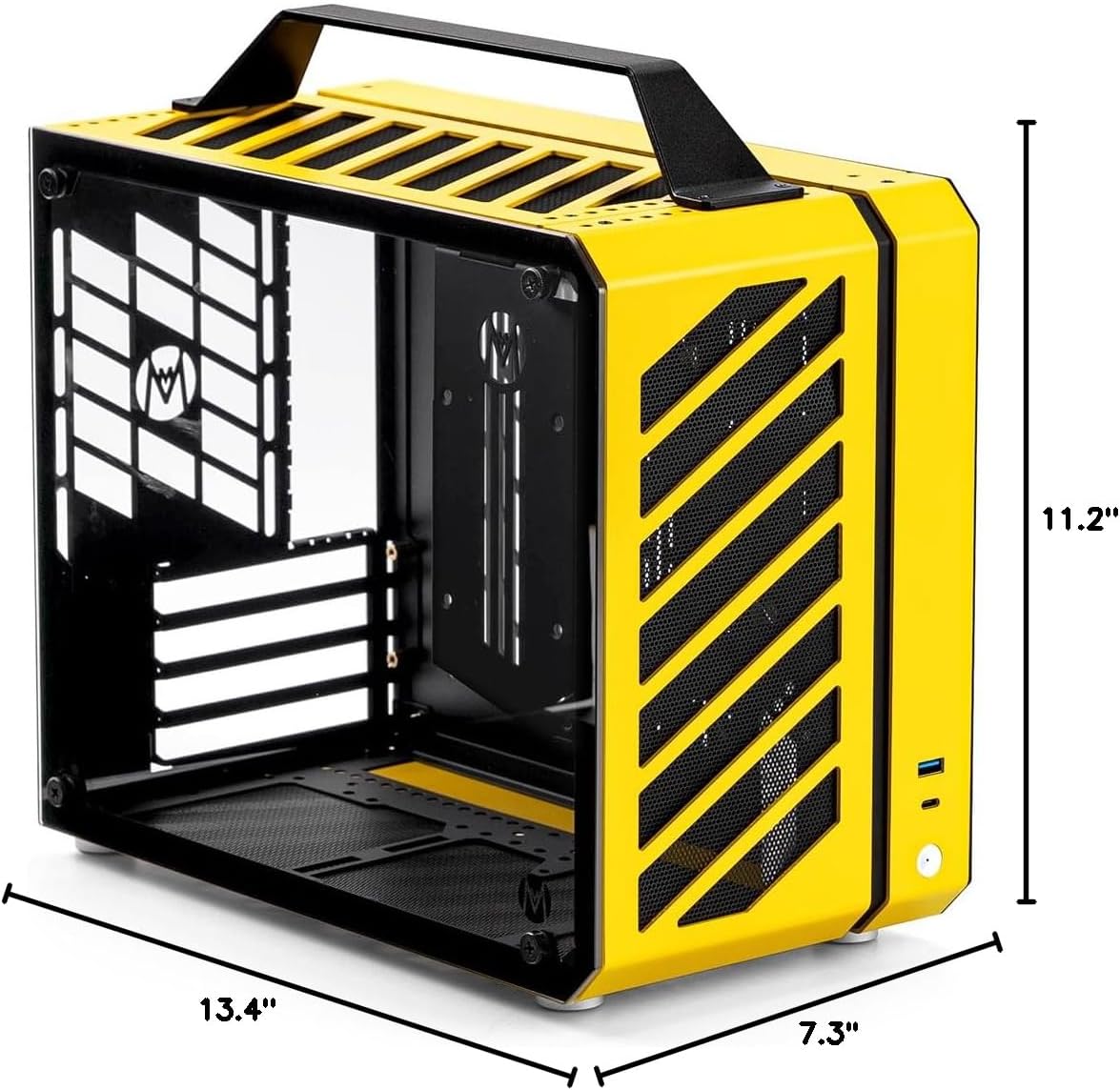
Figure 2: Case Dimensions (Length x Width x Height)
The image illustrates the compact dimensions of the C28 case, highlighting its length of 13.4 inches, width of 7.3 inches, and height of 11.2 inches.
3. Setup and Component Installation
The C28 case features a modular design for flexible component installation. Please follow these general guidelines for setting up your system.
3.1 Disassembly
The case features a double shell structure and multi-faceted detachable panels. Carefully remove the side panels and top panel by unscrewing the designated fasteners. Note the use of countersunk screws for secure assembly.

Figure 3: Disassembled Case Components
This image shows the Mechanic Master C28 case disassembled, illustrating the various panels and internal frame components, including the top handle and mesh panels.
3.2 Motherboard Installation
- Install the CPU, CPU cooler (if air cooler), and RAM onto your Micro-ATX or Mini-ITX motherboard before placing it into the case.
- Carefully align the motherboard with the standoffs inside the case.
- Secure the motherboard with the provided screws.
3.3 Power Supply Installation
The C28 supports ATX (up to 14cm length), SFX, and SFX-L power supplies. The power supply can be mounted in different configurations to accommodate various component layouts.

Figure 4: ATX PSU and Air Cooler Configuration
This diagram illustrates the internal layout when using an ATX power supply and a 162mm air cooler, showing compatibility with MATX/ITX motherboards and GPUs up to 335x160mm.

Figure 5: SFX PSU and 240 AIO Configuration
This diagram shows the internal layout when using an SFX/SFX-L power supply and a 240mm AIO cooler, also compatible with MATX/ITX motherboards and GPUs up to 335x160mm.
3.4 Graphics Card Installation
Install your graphics card (GPU) into the appropriate PCIe slot on the motherboard. The case supports GPUs up to 335mm in length.
3.5 Cooling System Installation
The C28 offers versatile cooling options:
- Air Cooling: Supports CPU air coolers up to 162mm in height.
- Liquid Cooling: Supports 240mm All-In-One (AIO) liquid coolers. Ensure RAM height is ≤44mm when using a 240mm AIO.
- Fan Support: The case features mesh panels and a dual-chamber layout for optimized airflow. Additional fan mounting points are available for enhanced cooling.
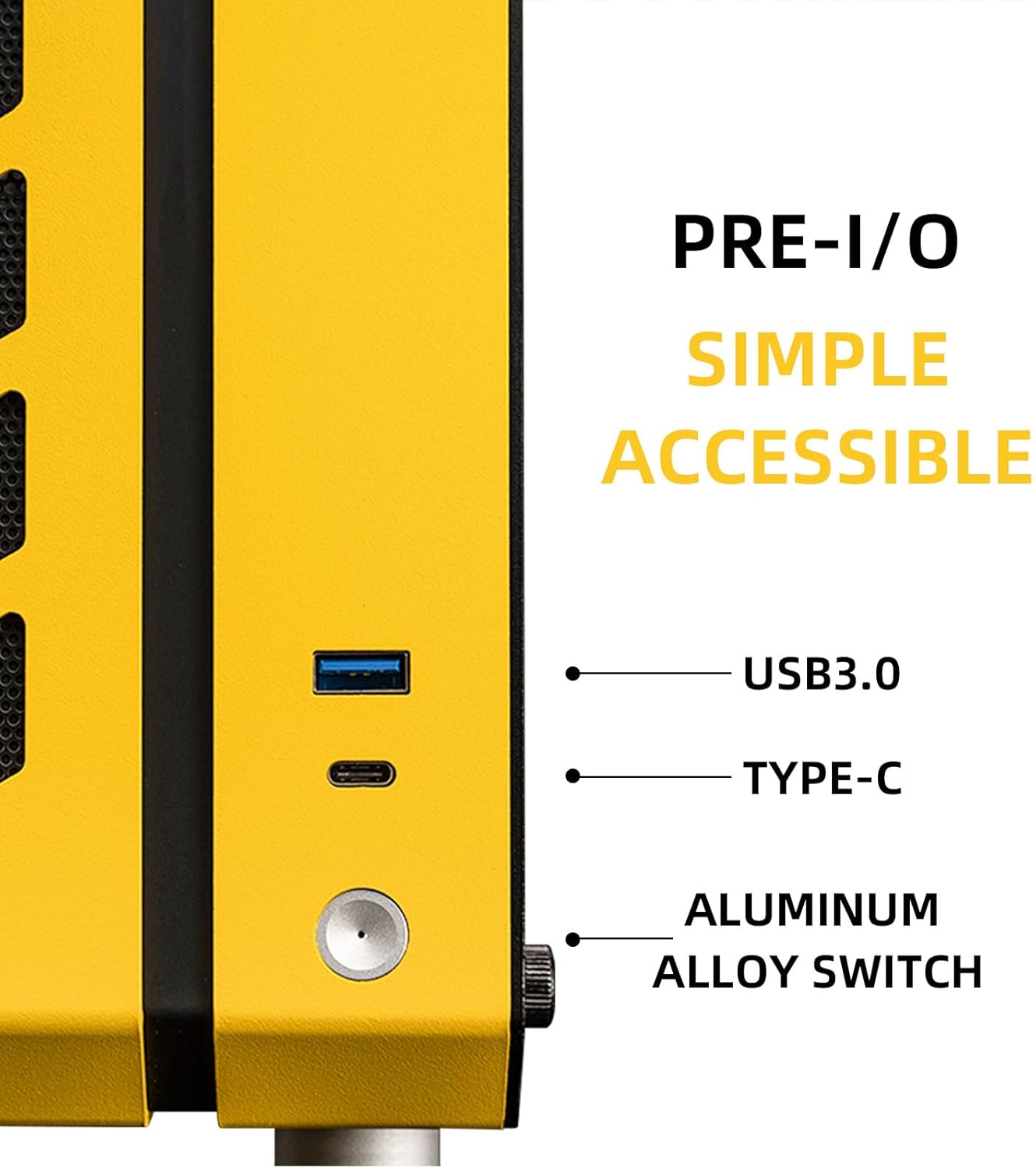
Figure 6: Vertical Airflow Channel
This image illustrates the vertical airflow channel design of the C28 case, showing how air is drawn in from the bottom and side, and exhausted through the top and rear for efficient heat dissipation.
3.6 Cable Management
Utilize the dedicated cable routing channels and tie-down points behind the motherboard tray to manage cables effectively. This improves airflow and maintains a clean internal aesthetic.
4. Operating Instructions
Once all components are securely installed and cables are managed, reattach all panels. Connect your peripherals and power cable, then press the power button on the front I/O panel to start your system.
4.1 Front I/O Panel
The front I/O panel provides convenient access to essential ports:
- 1x USB 3.0 Port
- 1x Type-C Port
- 1x Aluminum Alloy Power Switch

Figure 7: Front I/O Panel
This image details the front input/output panel of the C28 case, showing the USB 3.0 port, Type-C port, and the aluminum alloy power switch for easy access.
5. Maintenance
Regular maintenance ensures the longevity and optimal performance of your PC case and components.
- Dust Cleaning: Periodically clean dust filters and internal components using compressed air or a soft brush. Dust accumulation can impede airflow and lead to overheating.
- Cable Check: Ensure all cables are securely connected and not obstructing airflow.
- Panel Security: Verify that all panels are securely fastened to prevent vibration and maintain structural integrity.
6. Troubleshooting
If you encounter issues with your PC build, consider the following common troubleshooting steps:
- No Power:
- Check if the power supply is properly connected to the wall outlet and the motherboard.
- Ensure the power supply switch is in the "ON" position.
- Verify front panel power switch connections to the motherboard.
- Overheating:
- Ensure all case fans and CPU/GPU coolers are functioning correctly.
- Clean any accumulated dust from filters and heatsinks.
- Verify proper airflow direction (intake/exhaust).
- Component Fit Issues:
- Refer to the specifications section for maximum component dimensions (GPU length, CPU cooler height, AIO size).
- Ensure proper power supply type (ATX, SFX, SFX-L) is used for the chosen configuration.
7. Product Videos
The following videos provide visual guidance and demonstrations related to the Mechanic Master C28 PC case.
7.1 Mechanic Master Cool Cube Series C28 Overview
This video provides a comprehensive overview of the Mechanic Master Cool Cube Series C28 PC case, showcasing its design, features, and internal layout. It highlights the compact size and various component compatibility options.
7.2 C28 Product Display
This video offers a detailed product display of the C28 case, focusing on its aesthetic features, build quality, and the integration of various PC components within its compact frame.
8. Warranty and Support
For warranty information and technical support, please refer to the official MECHANIC MASTER website or contact your retailer. Keep your proof of purchase for warranty claims.
Protection plans are available for extended coverage:
- 3-Year Protection Plan
- 4-Year Protection Plan
- Complete Protect: One plan covers all eligible past and future purchases (monthly billing)
Related Documents - C28
 |
Mechanic Master iF25 Portable MATX Computer Case Specifications and Build Guide Detailed specifications, features, and build guidance for the Mechanic Master iF25, a portable MATX computer case. This guide covers component compatibility, internal layout, and typical build scenarios for ATX and SFX power supplies, various cooling solutions, and long graphics cards. |
 |
Mechanic Master iF16-T ITX Computer Case Installation Manual A comprehensive installation manual for the Mechanic Master iF16-T ITX computer case, detailing component compatibility, assembly steps, and important considerations for building a PC. |
 |
Mechanic Master C28 Little Horizon PC Case Installation Manual & Guide Comprehensive installation manual and guide for the Mechanic Master C28 Little Horizon computer case, covering setup, component compatibility, and assembly for MATX/ITX builds with air or water cooling. |
 |
C28 Smart Watch User Manual User manual for the C28 Smart Watch, covering device maintenance, setup, features, and frequently asked questions. Learn how to use your high-performance wrist-band SmartWatch for a healthier lifestyle. |
 |
C28 Wireless Transmitter Receiver User Manual User manual for the C28 Wireless Transmitter Receiver, detailing package contents, specifications, interface diagram, how to use in receiver and transmitter modes, and precautions. |
 |
C28 Wireless Transmitter Receiver User Manual User manual for the C28 Wireless Transmitter Receiver, detailing package contents, specifications, interface diagram, and usage instructions for both receiver and transmitter modes. |
Ask a question about this manual
Ask about setup, troubleshooting, compatibility, parts, safety, or missing instructions. Manuals+ will review the question and use this page’s manual context to help answer it.