
Introduction
Thank you for choosing the Sujhyrty B5303 9.3-inch Portable Wireless CarPlay Radio. This device is designed to enhance your driving experience with advanced features like wireless CarPlay, Android Auto, Bluetooth connectivity, and multimedia playback. This manual provides essential information for proper installation, operation, and maintenance of your new car stereo. Please read it thoroughly before use.
Safety Information
- Always operate the device responsibly and in accordance with local traffic laws. Distracted driving can lead to accidents.
- Do not attempt to disassemble or modify the unit. This may cause damage and void the warranty.
- Ensure all connections are secure before driving. Loose connections can cause malfunctions or electrical hazards.
- Avoid exposing the device to extreme temperatures, direct sunlight for prolonged periods, or excessive moisture.
- If you encounter any issues, refer to the troubleshooting section or contact customer support.
Package Contents
Please check the package for the following items:
- 1 x Sujhyrty B5303 Car MP5 Player
- 1 x Power Cord with 2 USB Interfaces
- 1 x Mounting Bracket (with suction cup and dashboard stand options)
- 1 x English User Manual
- 1 x Rear View Camera Video Cable
Product Overview
Familiarize yourself with the device's components and connection ports.

Image: Side view of the Sujhyrty B5303 unit, highlighting the Audio output, AV IN port, USB port, SD card slot, and DC 12V power input. These ports are essential for connecting external devices and power.
The unit features a 9.3-inch touchscreen display. On the side, you will find various input/output ports:
- Audio Out: For connecting to external audio systems.
- AV IN: Audio/Video input for external sources.
- USB Port: For multimedia playback and charging.
- SD Card Slot: For multimedia playback from an SD card.
- DC 12V: Power input for the device.
Setup and Installation
The Sujhyrty B5303 offers flexible installation options to suit your vehicle's dashboard.

Image: This image illustrates the two types of brackets included for mounting the device. The suction cup bracket allows for 270-degree rotation, scalable length, and free spin. The dashboard stand allows for a 90-degree flip to adjust the screen angle, providing versatile positioning options.
Mounting the Device:
- Choose a Bracket: Select either the suction cup bracket for windshield/dashboard mounting or the adhesive dashboard stand.
- Attach Bracket to Unit: Securely attach the chosen bracket to the back of the B5303 unit.
- Position the Unit: Mount the unit in a location that does not obstruct your view of the road or interfere with vehicle controls. Adjust the bracket for optimal viewing angle. The bracket allows for 270-degree rotation, scalable length, and screen angle adjustment.
Power Connection:
- Connect the provided power cord to the DC 12V input on the side of the unit.
- Plug the other end of the power cord into your vehicle's 12V power outlet (cigarette lighter socket).
Rear View Camera Connection (Optional):
- Connect the included rear view camera video cable to the designated input on the B5303 unit.
- Follow the camera's instructions for installation and wiring to your vehicle's reverse light circuit.
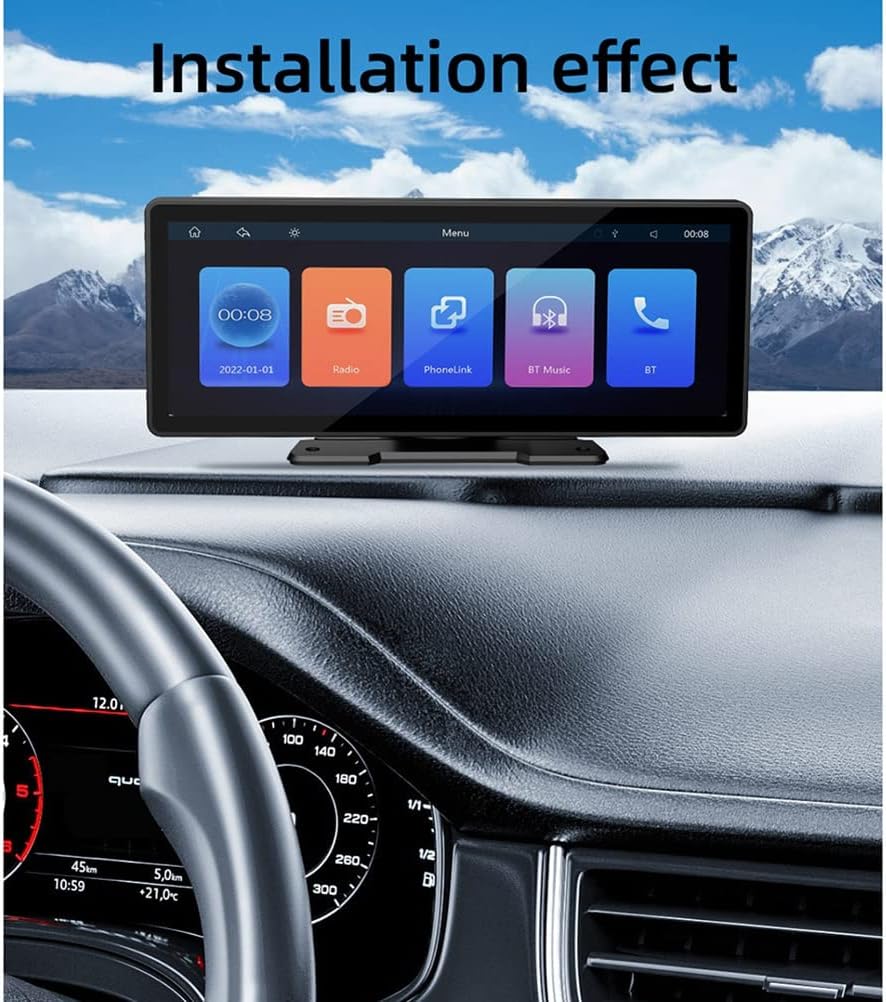
Image: The Sujhyrty B5303 unit is shown installed on a car dashboard, demonstrating its placement and visibility. The screen displays the main menu interface, providing an example of the operational view within a vehicle.
Operating Instructions
The B5303 features a user-friendly touchscreen interface. Power on the device by connecting it to your car's 12V power outlet. The main menu will appear, offering various functions.
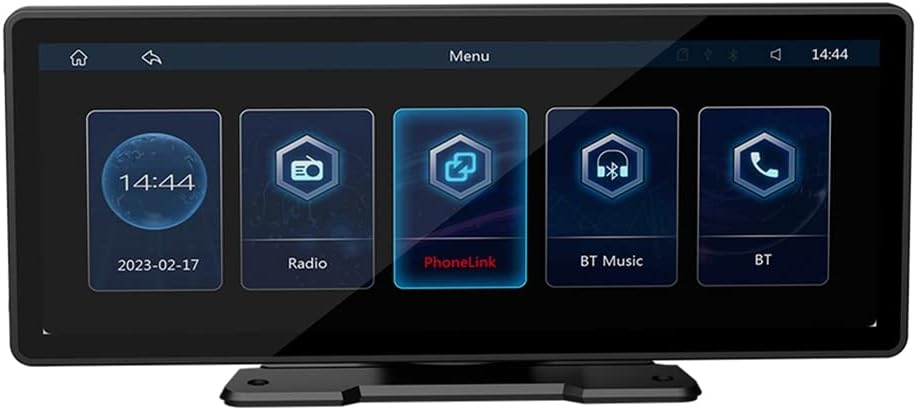
Image: The main menu interface of the Sujhyrty B5303, displaying key functions such as Radio, PhoneLink (for CarPlay/Android Auto), Bluetooth Music, and Bluetooth calling. The current time and date are also visible.
1. Wireless CarPlay / Android Auto (PhoneLink)
Connect your smartphone to the B5303 for seamless integration of your phone's features.
- On the main menu, tap the "PhoneLink" icon.
- Follow the on-screen instructions to connect your iPhone (for CarPlay) or Android phone (for Android Auto) wirelessly via Bluetooth and Wi-Fi.
- Once connected, your phone's compatible apps (navigation, music, messages, etc.) will be displayed on the B5303 screen.

Image: The device screen showing the Apple CarPlay interface. This demonstrates how smartphone applications like Phone, Music, Maps, and Messages are integrated and accessible directly from the unit's display.
2. Bluetooth Functionality
The built-in Bluetooth allows for hands-free calling and wireless music streaming.
- On the main menu, tap the "BT" or "BT Music" icon.
- Enable Bluetooth on your smartphone and search for available devices.
- Select "Sujhyrty B5303" (or similar name) from the list and pair.
- Once paired, you can make/receive calls hands-free and stream audio from your phone.
3. FM Radio
Listen to your favorite FM radio stations.
- Tap the "Radio" icon on the main menu.
- Use the touchscreen controls to scan for stations, manually tune, or select from 18 preset stations.
4. USB Media Playback & Charging
- Insert a USB drive with compatible audio/video files into the USB port.
- The device will automatically detect the USB drive and allow you to browse and play media.
- The USB port also supports dedicated charging for your mobile devices.
5. AUX Audio Input
- Connect external audio devices (MP3 players, phones) to the AUX IN port using a 3.5mm audio cable.
- Select the AUX input source on the device to play audio from the connected device.
6. Steering Wheel Control
If your vehicle supports steering wheel controls, you can configure them to operate the B5303 for convenience.
- Access the settings menu on the B5303.
- Navigate to the "Steering Wheel Control" or similar option.
- Follow the on-screen instructions to map your vehicle's steering wheel buttons to the desired functions of the B5303.
7. Rear View Camera System
When a compatible rear view camera is connected and properly installed, the B5303 will automatically display the camera feed when the vehicle is put into reverse, aiding in safe parking.
Maintenance
- Cleaning: Use a soft, dry cloth to clean the screen and exterior of the unit. Do not use abrasive cleaners or solvents.
- Temperature: Avoid leaving the device in direct sunlight or extreme temperatures for extended periods, as this can affect its lifespan and performance.
- Connections: Periodically check all cables and connections to ensure they are secure and free from damage.
Troubleshooting
| Problem | Possible Cause | Solution |
|---|---|---|
| No power | Power cable not connected properly; vehicle's 12V outlet not functioning. | Check power cable connection. Test the 12V outlet with another device. Check vehicle's fuse box. |
| No sound | Volume too low; incorrect audio source selected; loose audio connections. | Increase volume. Select correct audio source (e.g., FM, Bluetooth, USB, AUX). Ensure audio cables are securely connected. |
| CarPlay/Android Auto not connecting | Bluetooth/Wi-Fi not enabled on phone; phone not compatible; incorrect pairing process. | Ensure Bluetooth and Wi-Fi are active on your phone. Restart phone and device. Re-attempt pairing process. Check phone compatibility. |
| Rear view camera not displaying | Camera not connected; camera power issue; incorrect wiring to reverse light. | Verify camera cable connection to the unit. Check camera power supply and wiring to the vehicle's reverse light. |
If the problem persists after trying these solutions, please contact customer support.
Specifications
| Brand | Sujhyrty |
| Model Number | B5303 (Internal: 500364342) |
| Screen Size | 9.3 Inches |
| Color | Black |
| Connectivity Technology | Auxiliary, Bluetooth, USB |
| Installation Size | 132 x 85 mm (approximate) |
| Shell Size | 245 x 97 mm (approximate) |
| Weight | 927 grams (approximate) |
| Power Input | DC 12V |
| Features | Wireless CarPlay, Android Auto, Bluetooth Hands-free & Music, FM Radio, USB Media Playback, USB Charging, AUX Input, Steering Wheel Control Support, Rear View Camera Support, Multi-language Support, Touchscreen. |
Warranty and Support
Specific warranty details are not provided in this manual. Please refer to the product packaging or your purchase documentation for warranty information. For technical support or further assistance, please contact the retailer or manufacturer directly.